Multi-Recipient Checkout: Form Fields, Upsells & Advanced Settings
Add custom form fields, inquiry forms, tiered upsell discounts, shipping rate filters, and advanced settings to your Shopify multi-recipient checkout.
Beyond the core order processing, recipient fields, and shipping settings covered in Configuring Checkout: Basics, the multi-recipient checkout settings page includes several more tabs for collecting additional data, offering discounts, filtering shipping rates, and handling advanced use cases.
Additional Form Fields
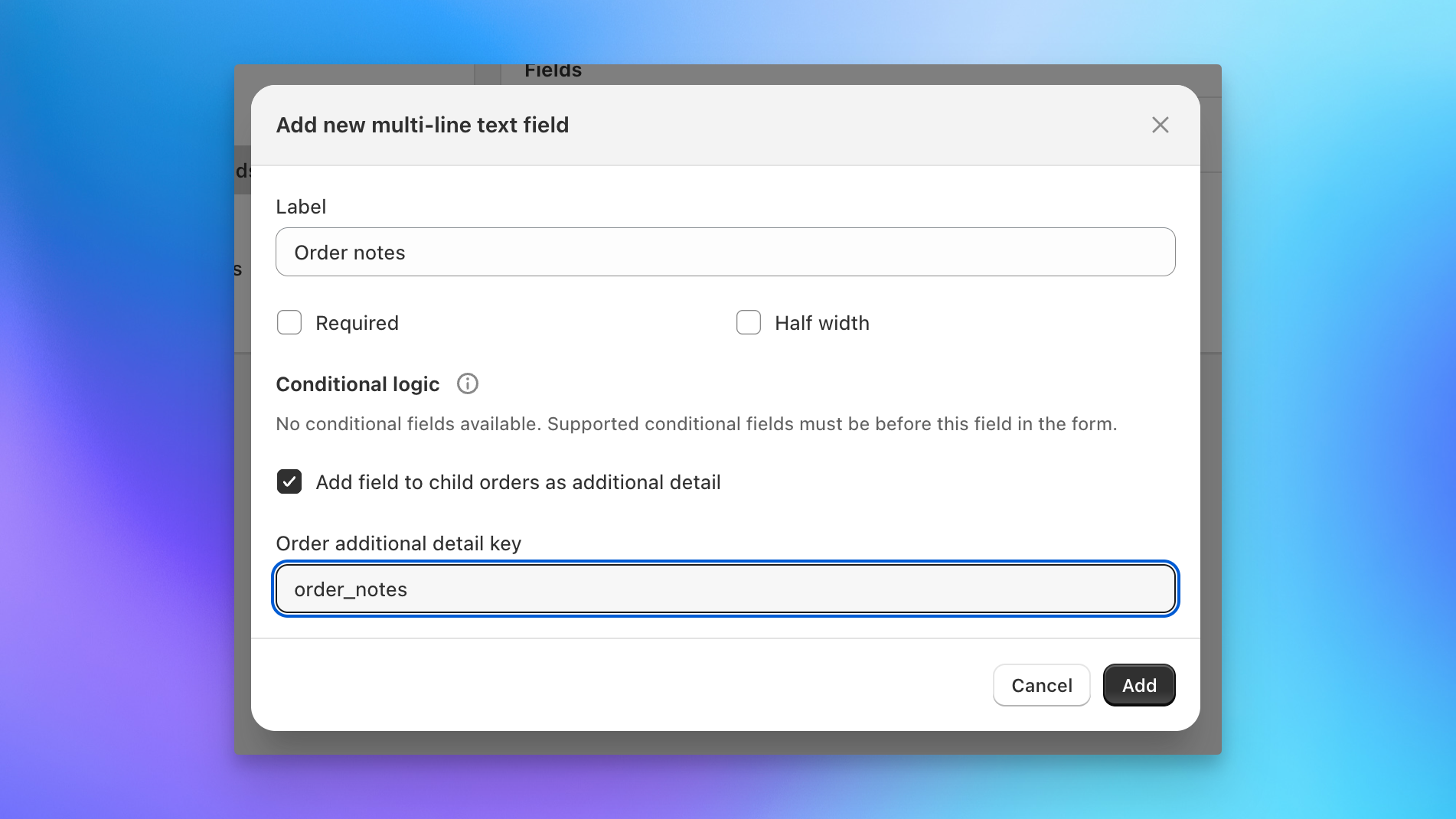
Additional form fields collect information from the gifter (the person placing the order), not per-recipient data. These fields appear once at the top of the checkout form.
Click Add new field and choose from:
- Email: Email address input with validation
- Phone: Phone number input
- Single line text: Short text input
- Multi-line text: Longer text area
- Number: Numeric input
- Date: Date picker
- Dropdown: Select from predefined options
- Checkbox: Single checkbox toggle
- Multiple choice: Select multiple options from a list
- Radio buttons: Select one option from a list
Each field type has its own configuration options (label, placeholder, required, key, etc.). The data collected is stored on the gifter order.
Inquiries
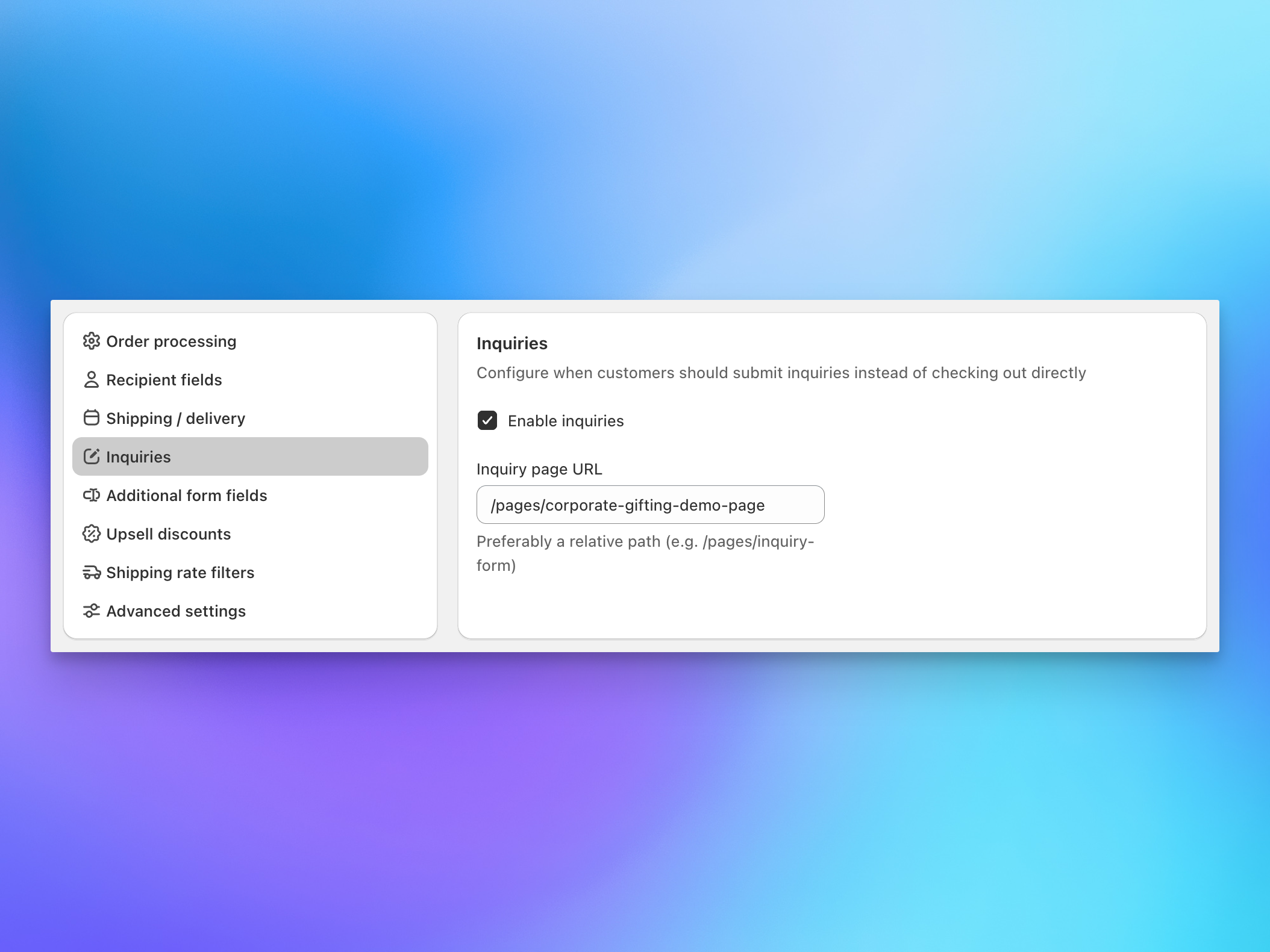
The inquiries toggle controls whether shoppers can submit corporate gifting inquiries instead of checking out directly.
- Enable inquiries: When enabled, an inquiry option appears on the checkout page.
- Inquiry page URL: Set the relative URL of your inquiry form page (e.g.,
/pages/corporate-gifting-demo-page). Preferably use a relative path like/pages/inquiry-form.
For full details on setting up and managing inquiries, see the Inquiry Form section of the docs.
Upsell Discounts
Encourage larger orders by offering automatic discounts that kick in as shoppers add recipients or increase their order value. Discounts update in real-time during checkout, showing shoppers exactly what they've unlocked and how close they are to the next tier.
Discount Types
- Percentage off: Discount a percentage of the total order value (e.g., 10% off when you send to 5+ people).
- Dollar amount off: Subtract a fixed amount from the total (e.g., $10 off).
- Free shipping: Waive shipping fees for the entire order.
How Discounts Trigger
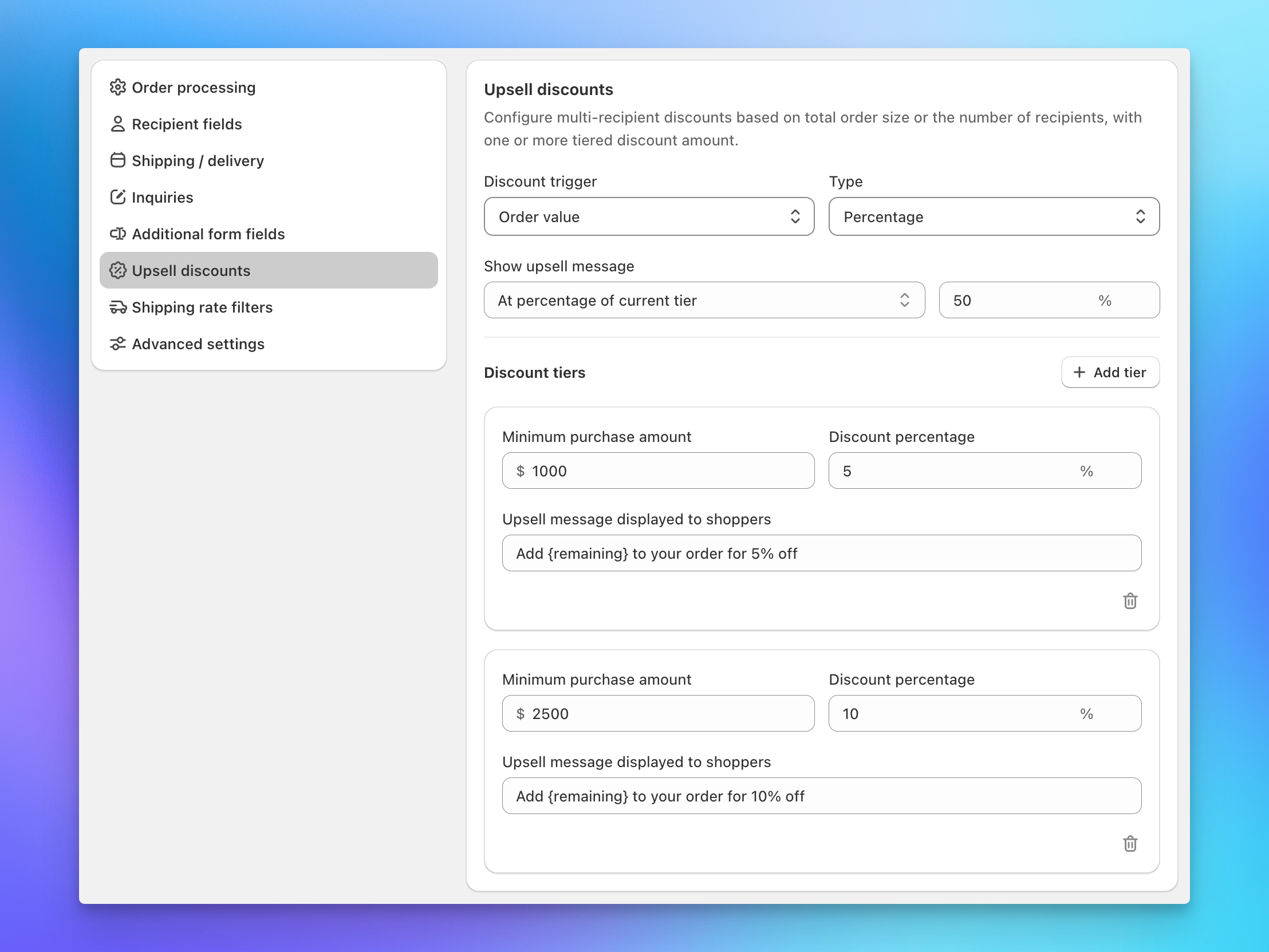
Each discount is triggered by one of two conditions:
- Recipient count: The discount applies when the shopper adds a certain number of recipients (e.g., 5 or more).
- Order value: The discount applies when the order total reaches a dollar threshold (e.g., $100 or more).
You set the trigger type and threshold when creating each discount tier.
Multiple Discount Tiers
Stack tiers to reward progressively larger orders. For example:
- 5+ recipients: 10% off
- 10+ recipients: 15% off
- 20+ recipients: 25% off
Click + Add tier to add additional discount levels. Each tier has its own threshold and discount amount.
Upsell Messages
Control when and how shoppers see discount information:
- Show upsell message: Choose when the upsell message is visible: Always (from the start of checkout), After first tier is reached (only after the shopper qualifies for at least one discount), or Never.
- Upsell message displayed to shoppers: Customize the message text. Use
{remaining}as a placeholder for the number of recipients still needed to reach the next tier (e.g., "Add {remaining} more recipients to qualify for 10% off!").
The message updates dynamically as shoppers add or remove recipients, creating a natural incentive to keep adding.
Setting Up Upsell Discounts
- Go to Multi-recipient checkout in your app settings.
- Click the Upsell discounts tab.
- Set the Discount trigger (Order value or Recipient count).
- Set the Type (Percentage, Dollar amount, or Free shipping).
- Configure Show upsell message and your message text.
- Under Discount tiers, set the threshold and discount amount for your first tier.
- Click + Add tier to add more levels.
- Save your changes.
Discounts are live immediately. Shoppers will see them on their next checkout.
Most shoppers already send to 2-3 people. A 5-recipient threshold is reachable and meaningful. Escalate the reward at each tier so it feels like a significant jump (e.g., 10%, 15%, 25%).
Shipping Rate Filters
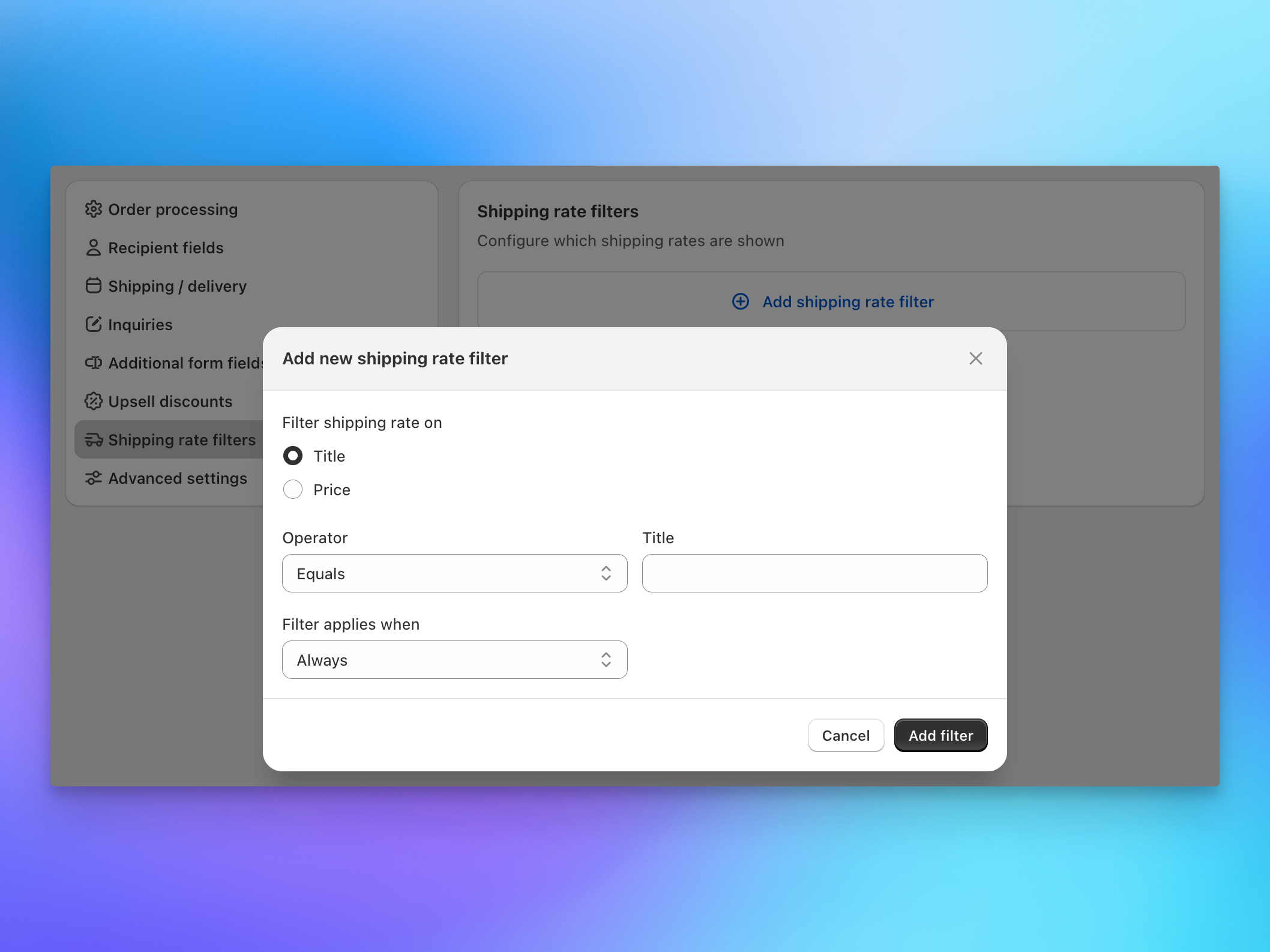
Shipping rate filters let you control which shipping rates are shown to shoppers during checkout. This is useful when your Shopify shipping settings include rates you don't want available for multi-recipient orders (e.g., local pickup, special handling options).
Click Add shipping rate filter to create a filter:
- Filter shipping rate on: Choose whether to filter by Title (the rate name) or Price (the rate amount).
- Operator: For title filters: Equals, Contains, Starts with, Ends with. For price filters: numeric comparisons.
- Title / Price value: The value to match against.
- Filter applies when: Choose when this filter is active: Always, or conditionally based on order attributes.
Filtered rates are hidden from shoppers. All other available rates are shown.
Advanced Settings
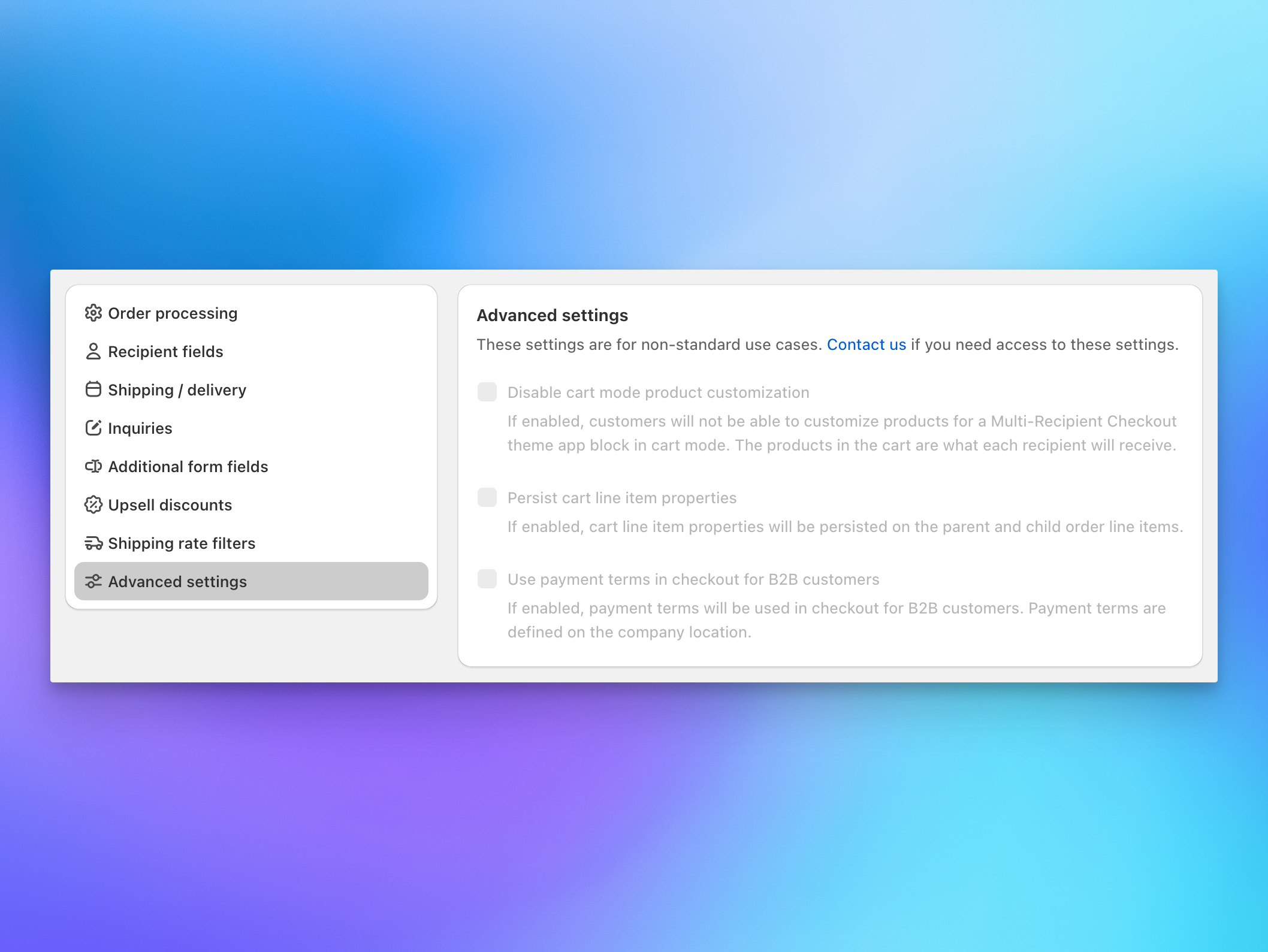
These settings are for non-standard use cases. Contact our support team if you need access to these options.
- Disable cart mode product customization: When enabled, shoppers can't customize products for individual recipients in the multi-recipient checkout. The products in the cart are what each recipient will receive.
- Persist cart line item properties: When enabled, cart line item properties are passed through to the parent and child order line items. Useful for stores that use line item properties for customization or metadata.
- Use payment terms at checkout for B2B customers: When enabled, B2B payment terms (Net 15, Net 30, etc.) are applied at checkout for B2B customers. Payment terms are defined on the company location in Shopify.
Next Steps
- Configuring Checkout: Basics: Order processing, recipient fields, and shipping options
- Adding multi-recipient checkout to your Shopify theme: Install the checkout on your storefront
- Customizing checkout appearance with CSS: Match the checkout to your store's branding