Shopify Flow Automation for Bulk & Multi-Recipient Orders
Use native Send To Many triggers in Shopify Flow to automate notifications, fulfillment syncing, and workflows when Sends are created, completed, or paid.
Send To Many includes native Shopify Flow triggers that let you build automations directly in Flow, with no webhooks or custom code required. You can also use standard order-based triggers, since every recipient order we generate is a regular Shopify order.
Native Flow Triggers
Three triggers are available in the Shopify Flow trigger picker under Send To Many:
Send Created: Fires when a new Send is created. Use this to notify your team that a new bulk order is in progress, log the event to an external system, or kick off preparation workflows.
Send Completed: Fires when all recipient orders in a Send have been successfully generated. Use this to notify the gifter that their Send is fully processed, trigger post-fulfillment workflows, or update a CRM.
Aggregate Draft Order Completed: Fires when the aggregate draft order (the gifter's invoice) is paid or completed. Use this to auto-generate child orders after payment, send a receipt confirmation, or sync payment data to an external system.
Getting Started with Flow Triggers
Flow triggers work automatically. To use them:
- Open Shopify Flow from your Shopify admin.
- Create a new workflow.
- In the trigger picker, search for "Send To Many" or browse the app triggers.
- Select the trigger you want (Send created, Send completed, or Aggregate draft order completed).
- Add your conditions and actions as you would with any Flow workflow.
No configuration is needed in Send To Many itself. The triggers register automatically when you install or update the app.
Example Automations
Here are some common workflows merchants build with these triggers:
- Slack notification on Send created: Alert your fulfillment team whenever a new Send comes in, so they can prepare inventory.
- Tag customers after Send completed: Automatically tag the gifter's customer record with "bulk-gifter" or a similar label for segmentation.
- Sync to external systems: When a Send completes, push the data to your ERP, CRM, or spreadsheet via Flow's HTTP request action.
Order-Based Flow Patterns
Since every recipient order is a standard Shopify order, your existing order-based Flow workflows fire normally. You can also build STM-specific workflows using order metadata.
Identifying STM Orders in Flow
Use these filters to target Send To Many orders specifically:
- Payment gateway: "Send to Many"
- Sales channel: "Send to Many"
- Order tags: use the tags you configure in your Send preset settings
Tag-Based Routing
Use configurable order tags to route to fulfillment workflows. Tag all orders in a Send with "marketplace-send" and let Flow auto-assign them to a specific fulfillment location.
Aggregate Order Auto-Fulfill
Auto-fulfill orders tagged "Send to Many aggregate" since they don't ship. This keeps your fulfillment queue clean.
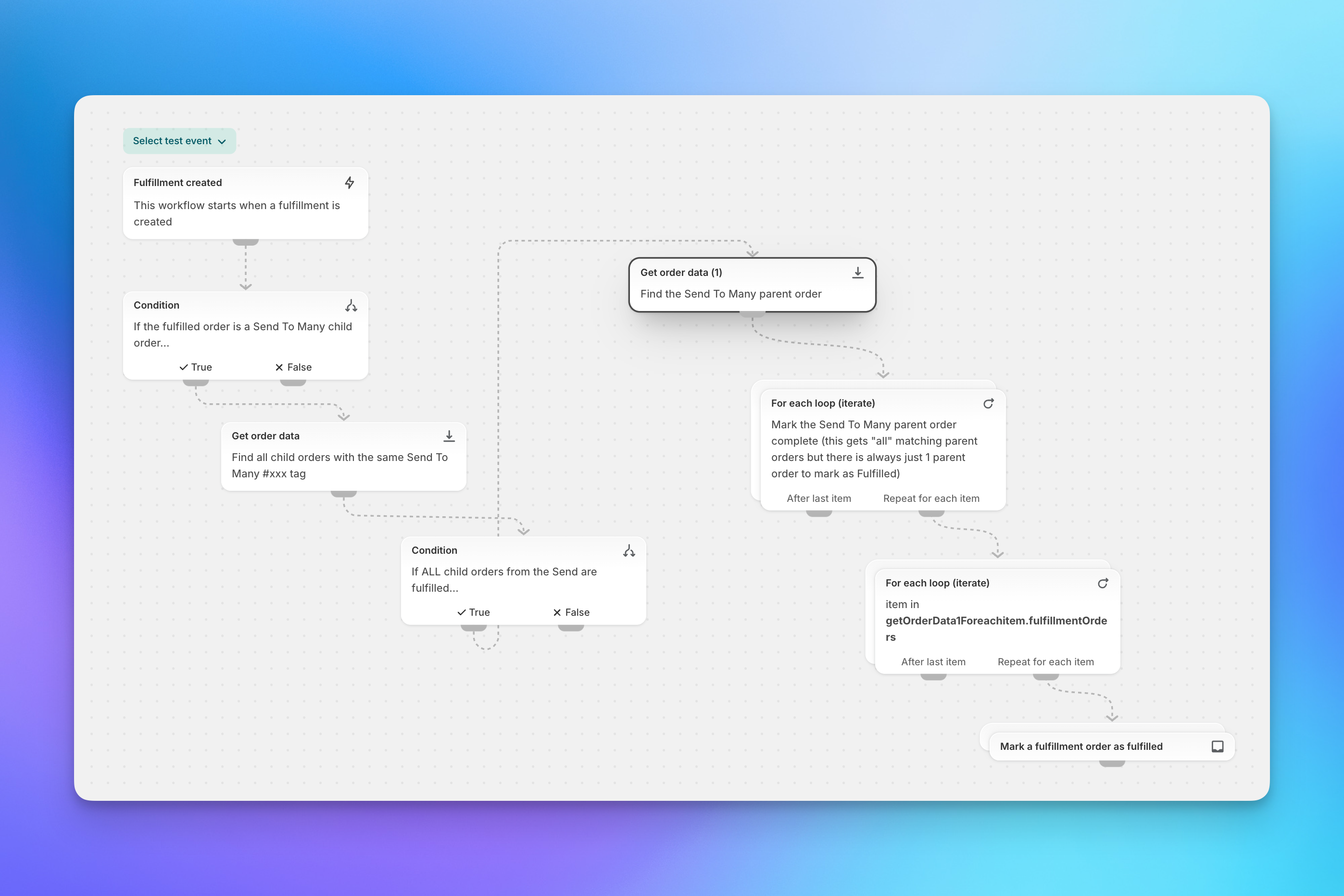
Leverage Send To Many's dynamic tag variables (Send ID, row number, custom fields) for precise Flow filtering. Create workflows that adapt based on Send properties without manual configuration.