Fix: Checkout Button Missing, Settings Not Updating
Troubleshoot the multi-recipient button not appearing, checkout settings not saving, and Cart Transform conflicts with other Shopify apps.
Checkout Settings Not Updating on Your Site
What you're seeing: You changed checkout settings in Send To Many (shipping options, upsell discounts, form fields, etc.) but the changes aren't showing up on your storefront.
Why this happens: Send To Many caches your checkout configuration for each active session. When a shopper starts adding recipients, the settings from that moment are locked in for the duration of that session. Changing settings in the app doesn't retroactively update sessions that are already in progress.
How to fix it:
- Open your store's multi-recipient checkout page.
- If there are any recipients already entered, delete all of them.
- Refresh the page.
This clears the cached session data and pulls in the latest settings. If you're testing changes during development, always clear the session before checking whether updates took effect.
This also applies when testing in preview or development mode. The checkout page caches settings on first load, so a full session reset is the fastest way to verify changes.
Multi-Recipient Checkout Button Not Appearing
What you're seeing: The "Send To Multiple Recipients" button doesn't show up on your cart page or anywhere on your storefront.
Why this happens: The button is a Shopify app block that needs to be added to your theme. It won't appear automatically after installing the app.
How to fix it:
- Make sure you've completed the full checkout setup: create a page, add the Send To Many checkout template, and add the cart button app block. See Setting Up Checkout.
- If you're using a drawer or flyout cart, the app block may not render automatically. Add a direct link to your checkout page in your cart drawer code. See Drawer and Slide Cart Setup.
- Verify the button isn't hidden by CSS. Inspect the page in your browser's developer tools and search for the Send To Many button element.
- Check that multi-recipient checkout is enabled in your Send To Many settings.
Draft Order Won't Complete Due to Free Shipping Discount
What you're seeing: When you try to complete or pay for an aggregate draft order, Shopify shows an error or the order can't be finalized. This often happens when you have an automatic free shipping discount active in your store.
Why this happens: Shopify applies all eligible automatic discounts to draft orders by default. If you have an automatic free shipping rule (for example, "Free shipping on orders over $100"), Shopify tries to apply it to the aggregate draft order. Because Send To Many draft orders use custom line items and a non-standard shipping configuration, the automatic discount can conflict with the order structure and block completion.
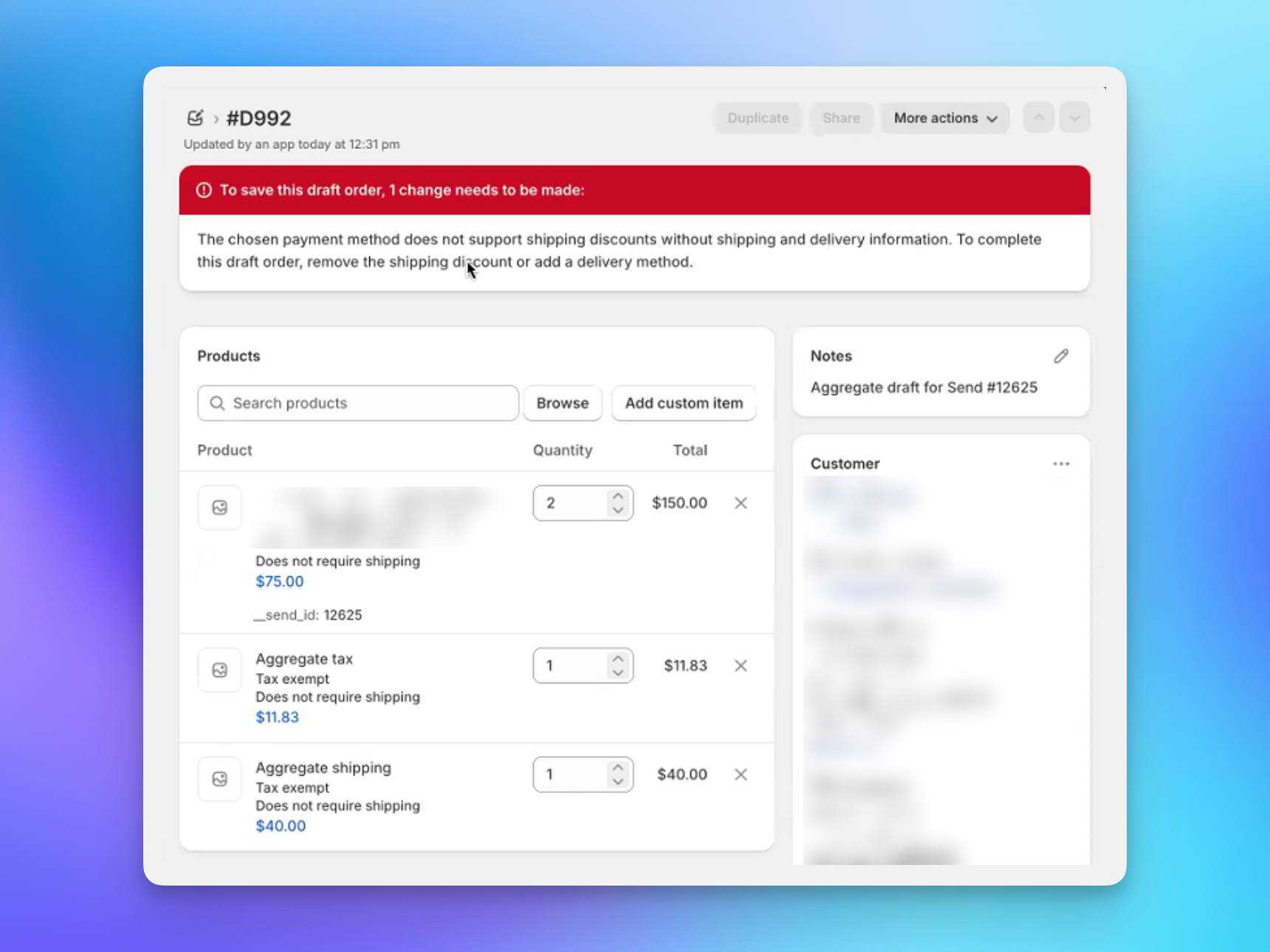
How to fix it:
- Open the aggregate draft order in Shopify admin.
- Scroll to the Discount section.
- Uncheck Apply all eligible automatic discounts.
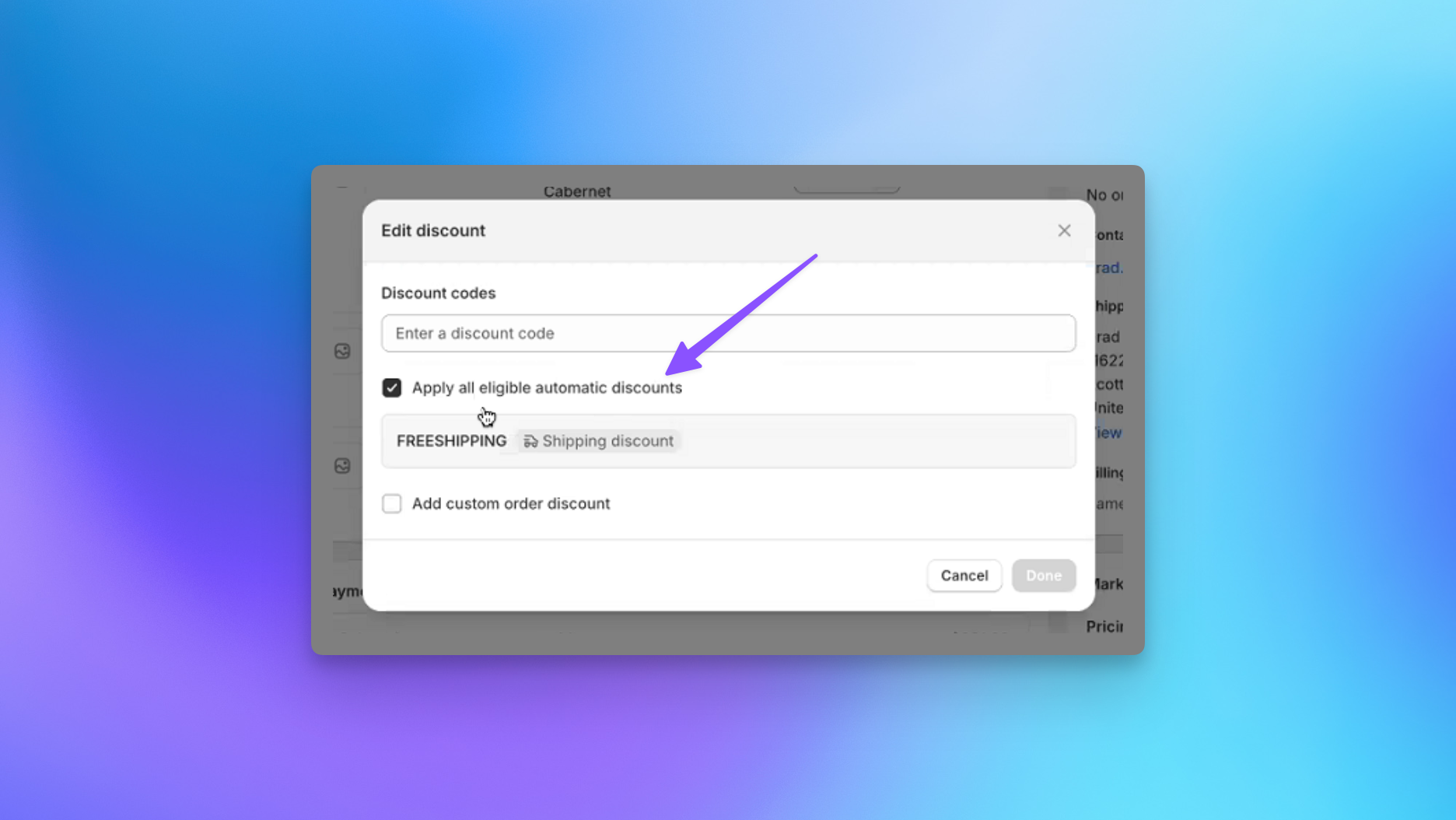
This removes the conflicting free shipping rule from the draft order. You can then complete the order or send the invoice normally. Your automatic discounts will still apply to regular storefront orders.
If this happens frequently, consider scoping your automatic free shipping discount to exclude draft orders or orders tagged Send to Many aggregate.
Cart Transform Conflict with Another App
What you're seeing: Multi-recipient checkout isn't working, or another app's cart behavior broke after enabling Send To Many checkout.
Why this happens: Shopify only allows one Cart Transform Function per store. Send To Many uses a Cart Transform to restructure line items during multi-recipient checkout. If another app (commonly bundle apps) also uses a Cart Transform, only one can be active.
How to fix it:
- Check which apps in your store use Cart Transform. Go to Settings > Apps and sales channels in Shopify admin and review installed apps.
- If a bundle app is the conflict, check whether it offers an alternative mode that doesn't use Cart Transform. See Bundle App Compatibility for known compatible apps.
- If you can't resolve the conflict, contact support and we can help identify workarounds for your specific app combination.