Customer Account Send History Page for Shopify
Add a dedicated Sends page to your customers' Shopify account where they can view multi-recipient order history, details, and fulfillment status.
The Sends page adds a dedicated section to your customers' Shopify account where they can see all their multi-recipient orders. Customers can view send details, see individual recipient orders, and track fulfillment status without needing to contact your support team or search through email confirmations.
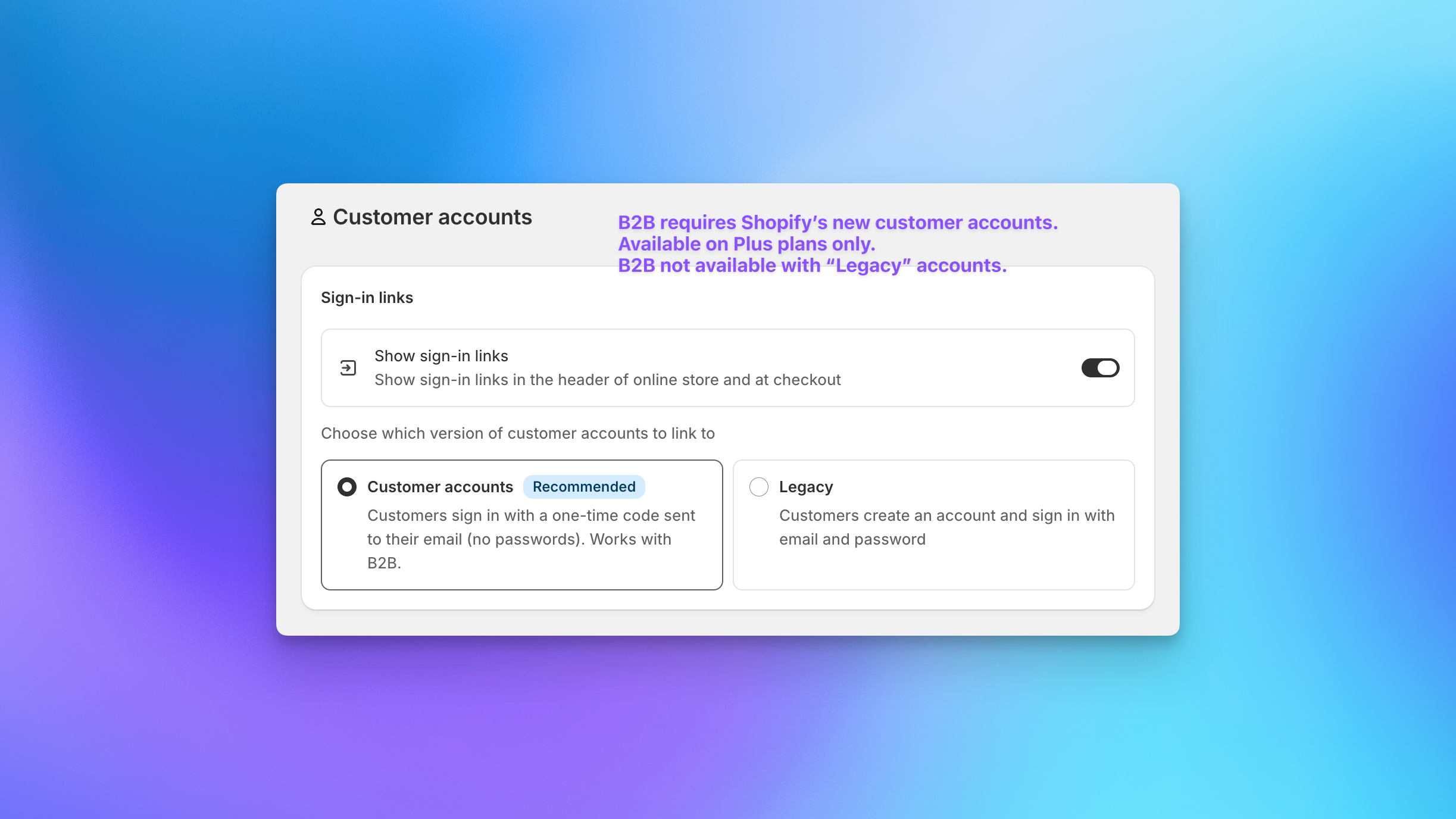
This extension works with Shopify's new customer accounts (not legacy accounts). It integrates directly into the native customer account interface where your customers already manage orders, addresses, and payment methods.
What Customers See
When a logged-in customer visits the Sends page, they see a list of all Sends associated with their account email address. Each entry shows:
- Send name
- Date the Send was created
- Number of recipient orders
- Total order value
- Current status (e.g., completed)
Clicking into a Send shows the full detail view: contact information, billing address, the products and quantities ordered, subtotal, shipping, tax, and total. Below that, customers see a list of all individual recipient orders with the recipient name, location, and order amount. Each recipient order links to its own order detail page.
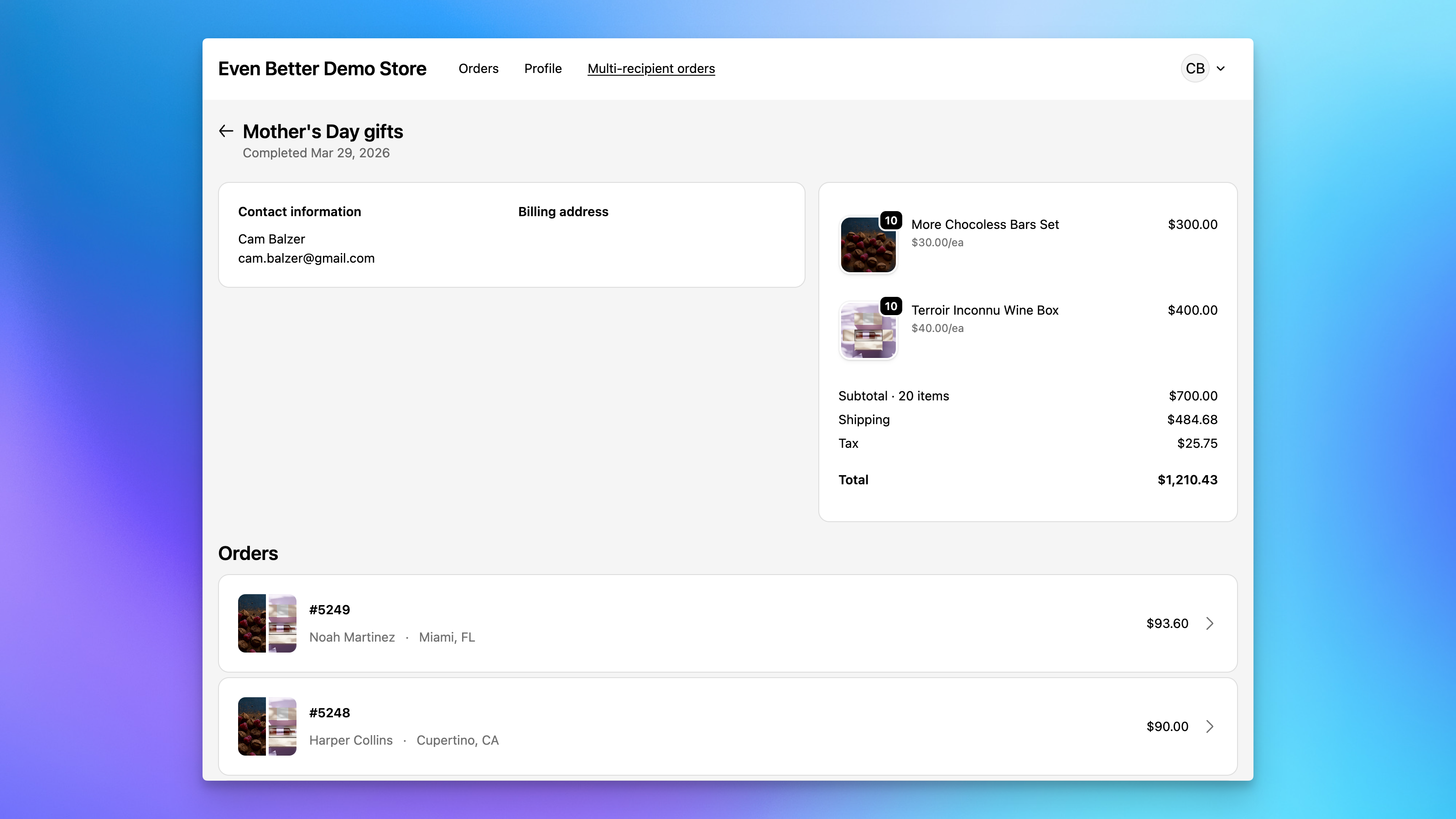
This is especially valuable for repeat corporate gifting customers who place multiple Sends over time and need a central place to reference past orders.
Prerequisites
The Sends page requires Shopify's new customer accounts (not legacy accounts). In your Shopify admin, go to Settings > Customer accounts and make sure the "Customer accounts" option is selected (not "Legacy").
Setting Up the Sends Page
Step 1: Open the customer account editor
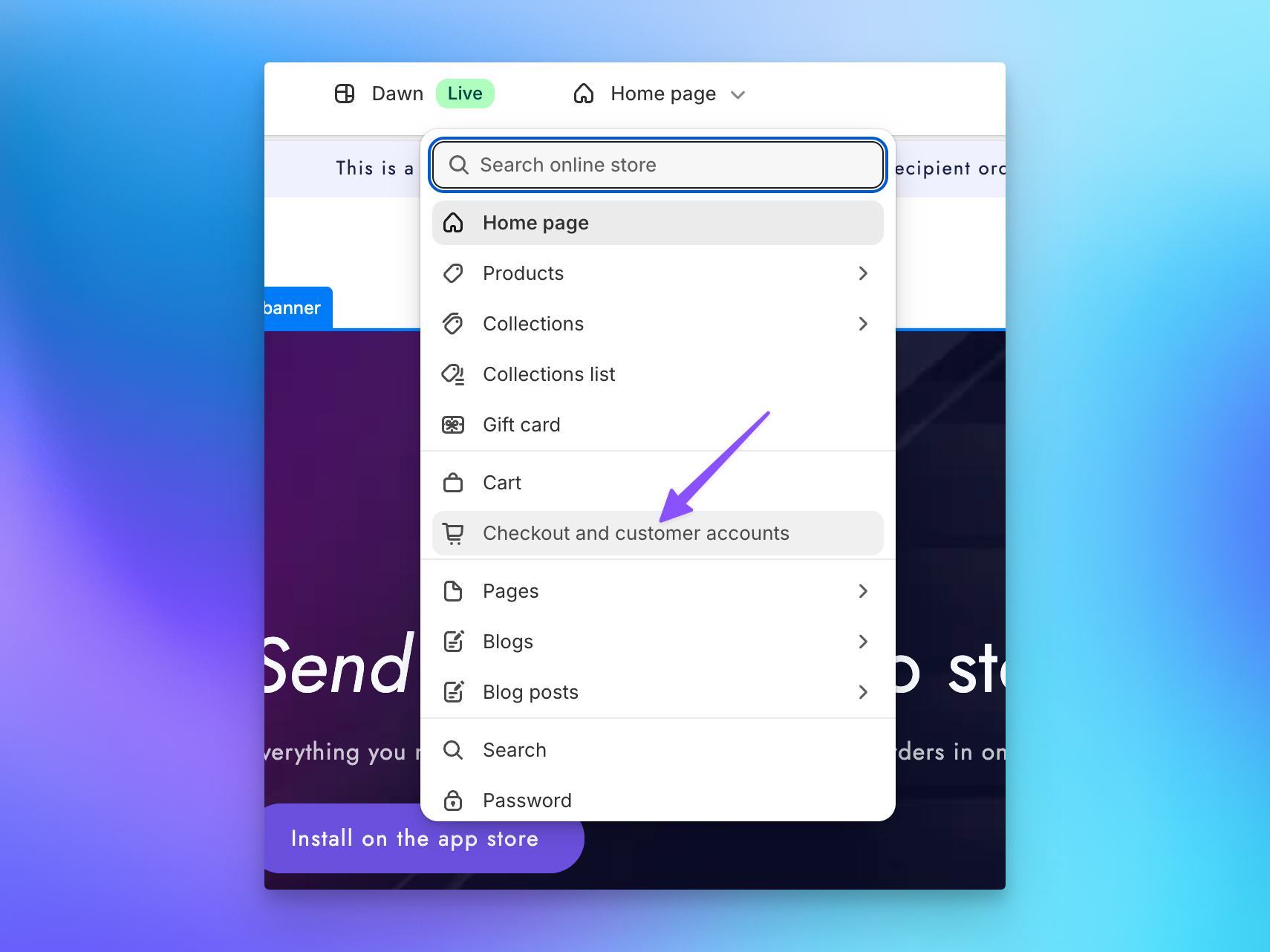
In your Shopify admin, go to Online Store > Themes and click Customize. In the page picker dropdown at the top, select Checkout and customer accounts.
Step 2: Add the Sends Page and Order Send Banner
In the customer account editor, look for the Apps section in the left sidebar. You'll see Send To Many's extensions listed under your installed apps. Enable Sends Page and Order Send Banner.
The Sends Page is the main page that displays the customer's Send history. The Order Send Banner adds a notification banner to individual order pages that links orders back to the Send they belong to (see Order Send Banner for details).
You can also add the Order Send Banner to the Order status page from here by clicking the "Add to" option on the banner block.
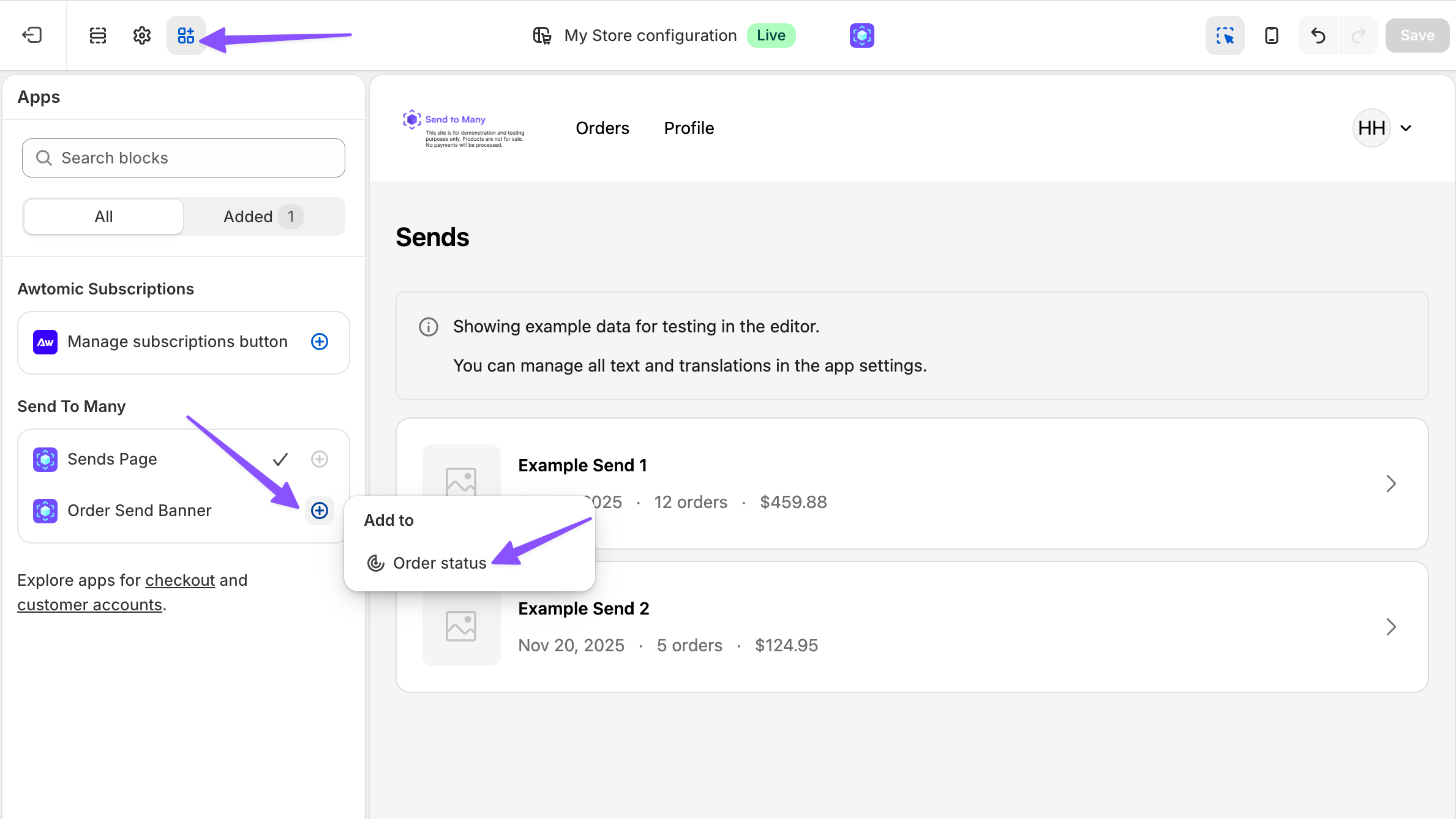
The theme editor shows example data for the Sends page so you can preview the layout. This dummy data only appears in the editor, not on the live storefront.
Step 3: Add the Sends Page to your account navigation
After enabling the Sends Page, Shopify prompts you to add it to your customer account navigation menu so customers can find it. Click Add to menu.
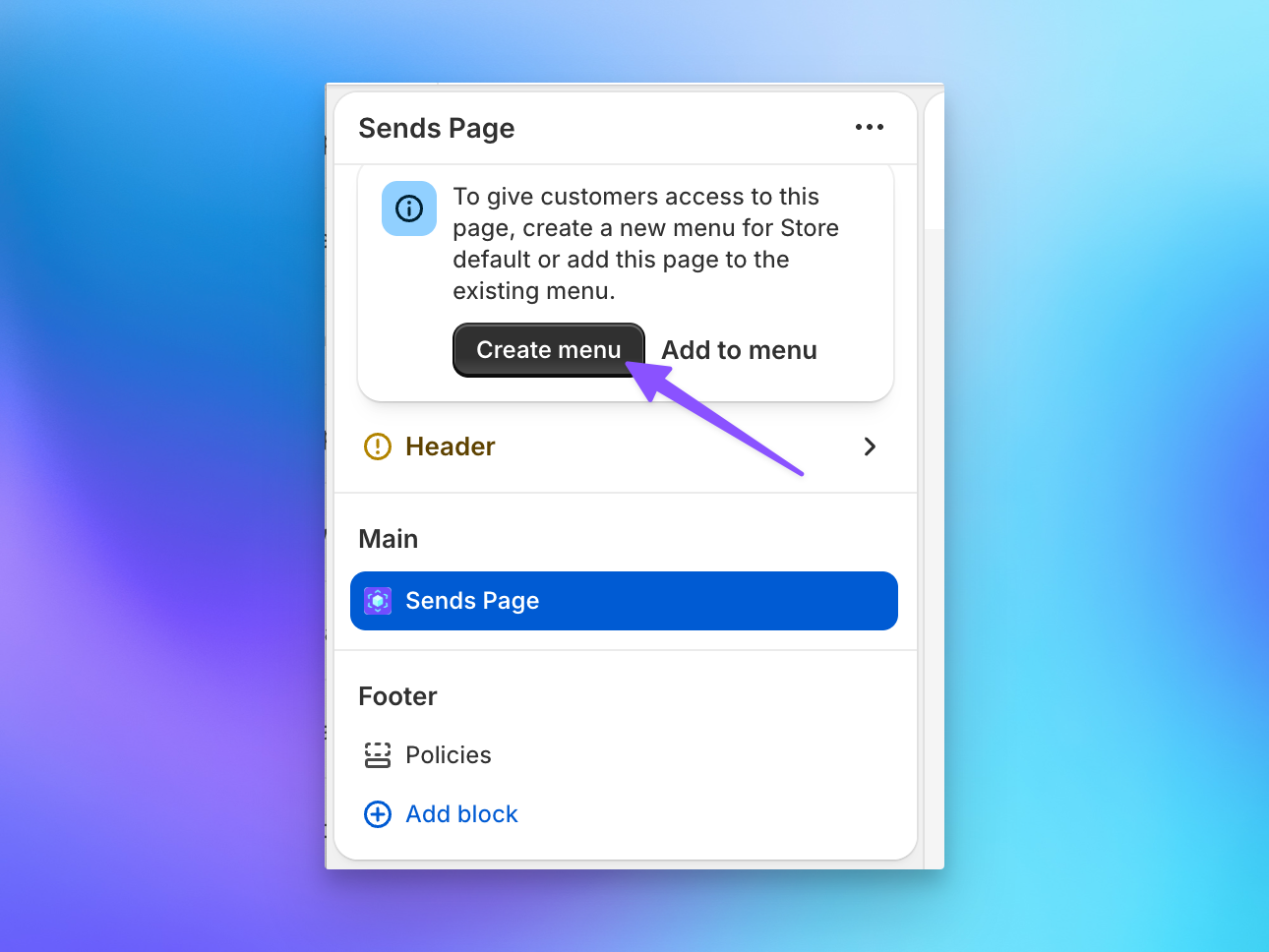
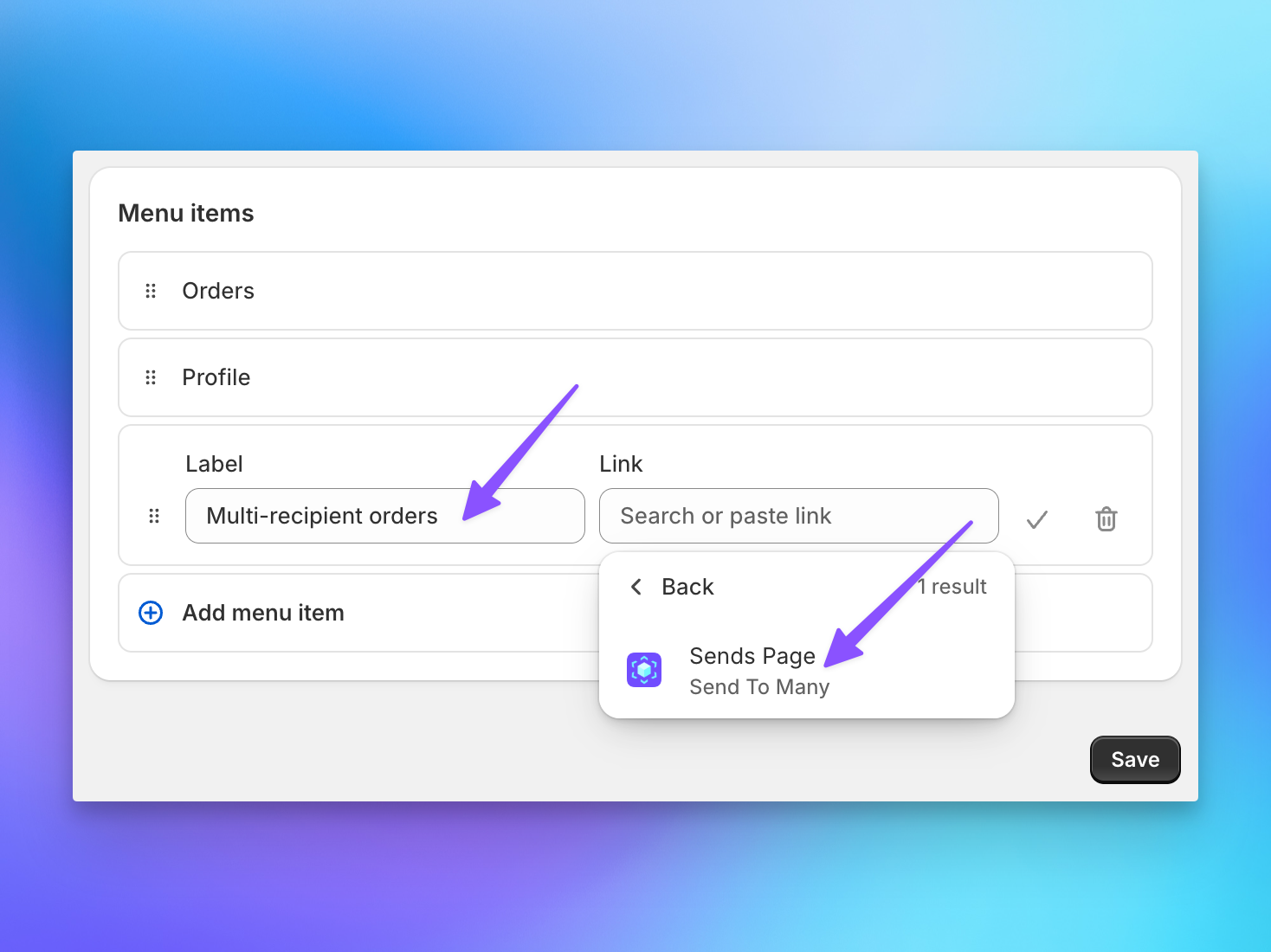
In the menu editor, you can customize the label that appears in the navigation. For example, you might use "Multi-recipient orders" or "Sends" depending on what makes sense for your customers. Search for and select the Sends Page from Send To Many as the link target.
Step 4: Save and publish
Click Save in the theme editor to publish your changes. The Sends page is now live in your customer accounts.
Text and Translation Customization
You can customize all customer-facing text on the Sends page: section headers, labels, status strings, and more. Go to Send To Many > Settings > Text and translations to manage these strings.
If you've already configured translations for multi-recipient checkout, those settings extend to the customer account extensions as well. You can customize text for each language your store supports.
Next Steps
- Order Send Banner: Add Send context to individual order pages in customer accounts