Order Send Banner
Add Send To Many context to order pages in customer accounts and order status pages, linking individual orders back to the Send they belong to.
The Order Send Banner adds a notification banner to order pages that tells the customer this order belongs to a multi-recipient Send. It provides context about whether the order is the aggregate (parent) order or a recipient (child) order, and includes a link back to the full Send detail page.
This extension has two placements: one on the order detail page in the customer account, and one on the order status / thank you page after checkout.
What Customers See
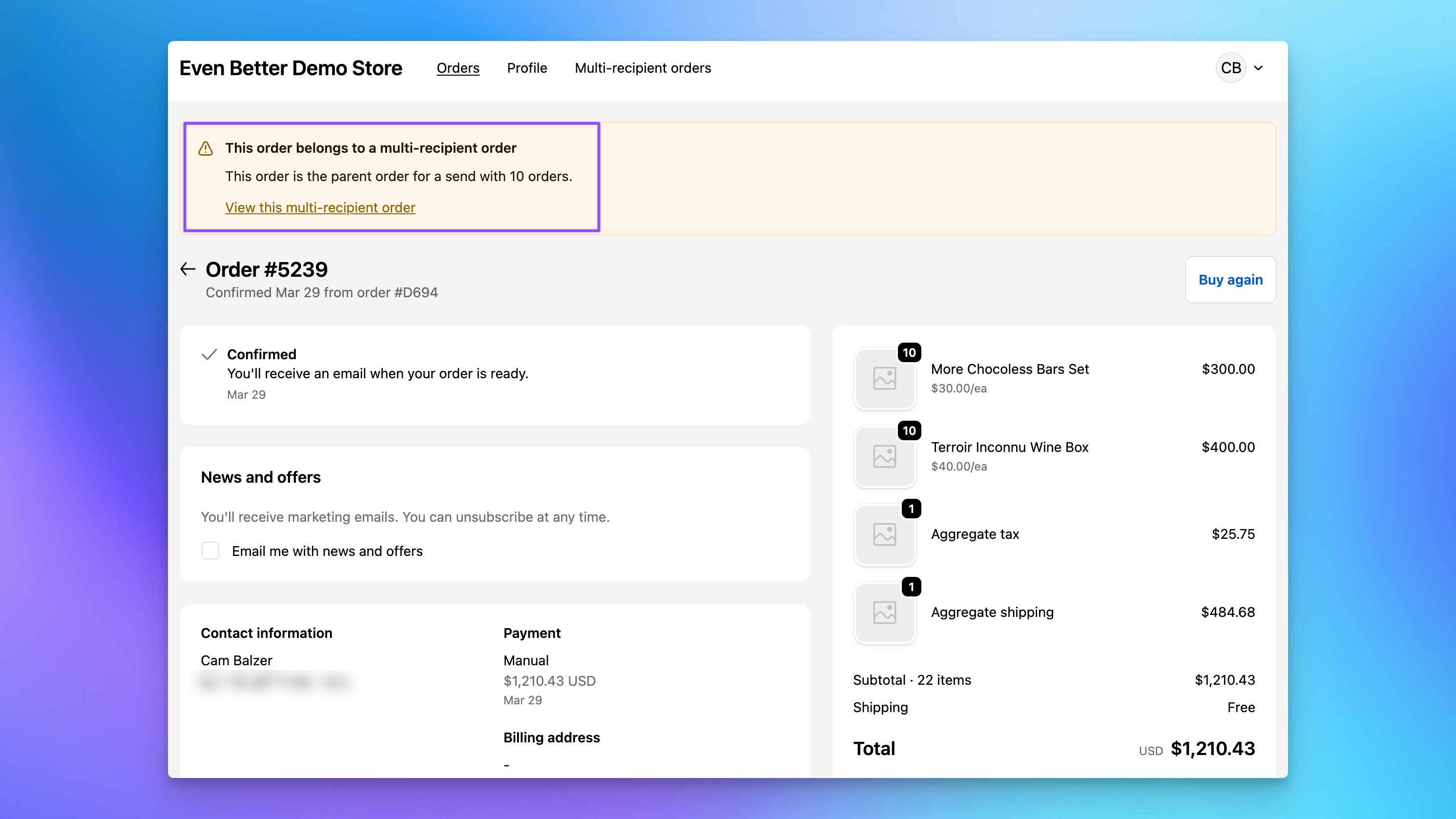
When a customer views an order that belongs to a Send, they see a banner at the top of the order page with a brief message and a link to view the full multi-recipient order.
On an aggregate (parent) order, the banner indicates that this is the parent order for a Send and shows how many recipient orders it includes.
On a recipient (child) order, the banner indicates that this order is part of a multi-recipient Send and links back to the full Send view.
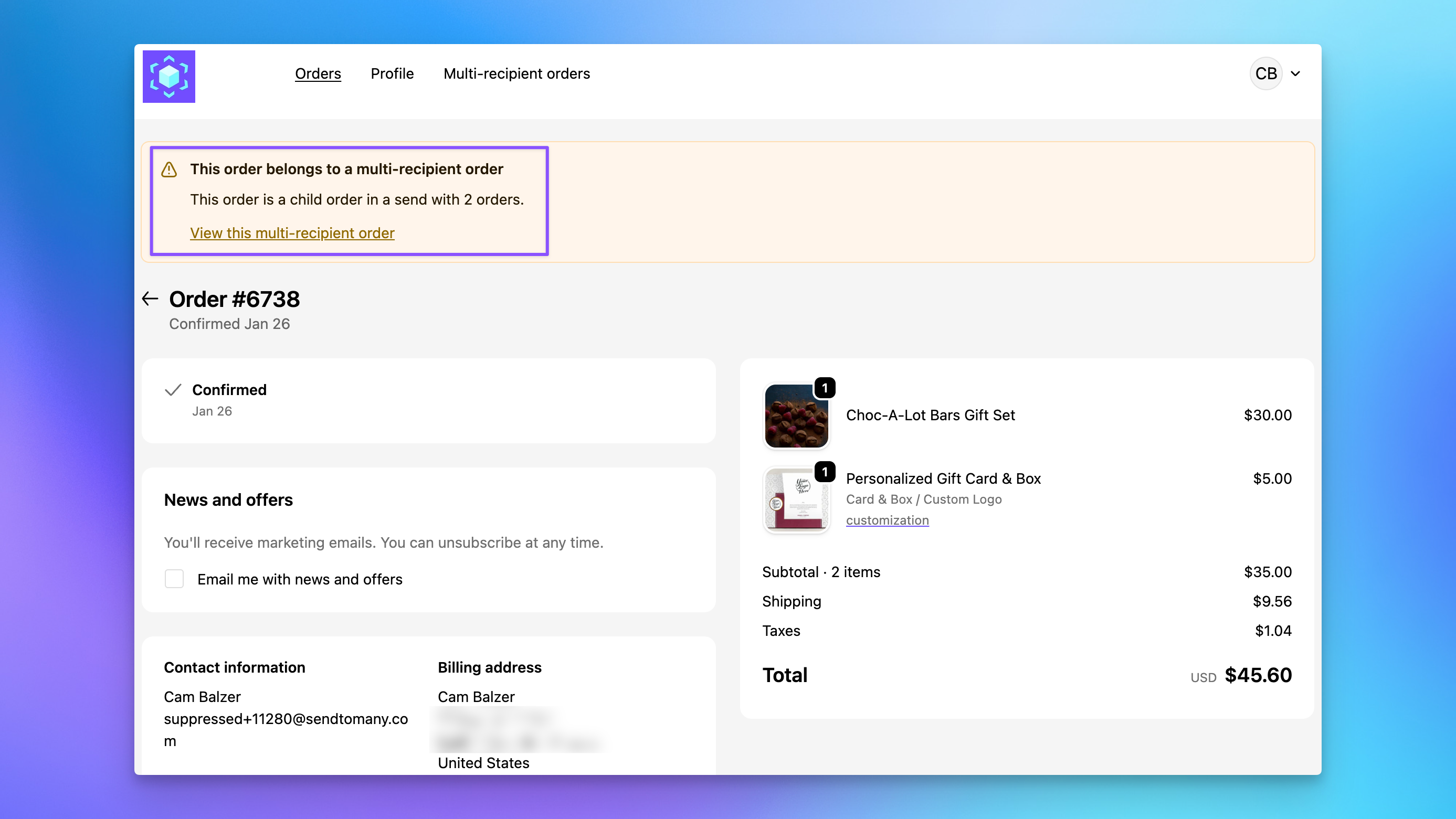
In both cases, the "View this multi-recipient order" link takes the customer to the Sends page where they can see the full Send detail, including all recipient orders.
Setting Up the Order Send Banner
The Order Send Banner is typically enabled at the same time as the Sends Page. If you've already followed those setup steps, the banner may already be active.
Customer account order pages
- In your Shopify admin, go to Online Store > Themes > Customize.
- Navigate to Checkout and customer accounts in the page picker.
- In the left sidebar under Apps, enable Order Send Banner from Send To Many.
- Save your changes.
Order status / thank you page
The Order Send Banner can also appear on the order status page that customers see immediately after completing checkout. To enable it:
- In the same theme editor, navigate to the Order status page template.
- Add the Order Send Banner block from Send To Many.
- Save your changes.
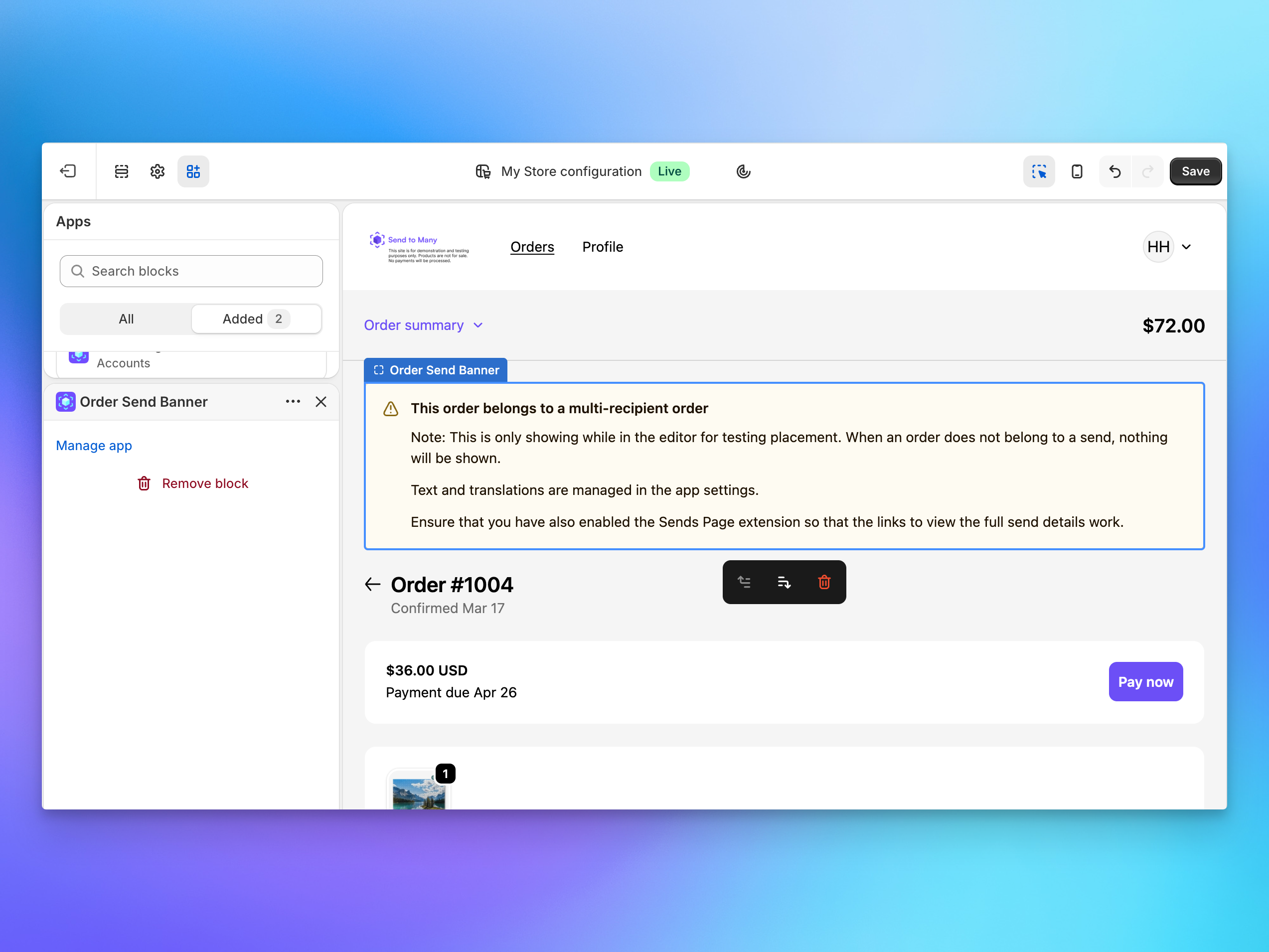
The banner only appears on orders that belong to a Send. On regular (non-Send) orders, nothing is shown. The dummy data you see in the theme editor is for preview purposes only.
Make sure you have also enabled the Sends Page extension so that the "View this multi-recipient order" links in the banner have somewhere to go.
Text and Translation Customization
Like the Sends page, all banner text is customizable in Send To Many > Settings > Text and translations. You can change the banner message, the link text, and any labels for each language your store supports.
Next Steps
- Customer Account Sends Page: The main Sends history page that the banner links to