Import Your First Bulk Order into Shopify with Send To Many
Create your first multi-recipient order in minutes. Upload a spreadsheet, validate addresses, calculate shipping, and generate Shopify orders automatically.
Let's walk through creating your first Send using the Upload workflow, the most straightforward way to get started with bulk multi-recipient orders.
Step 1: Details & Upload
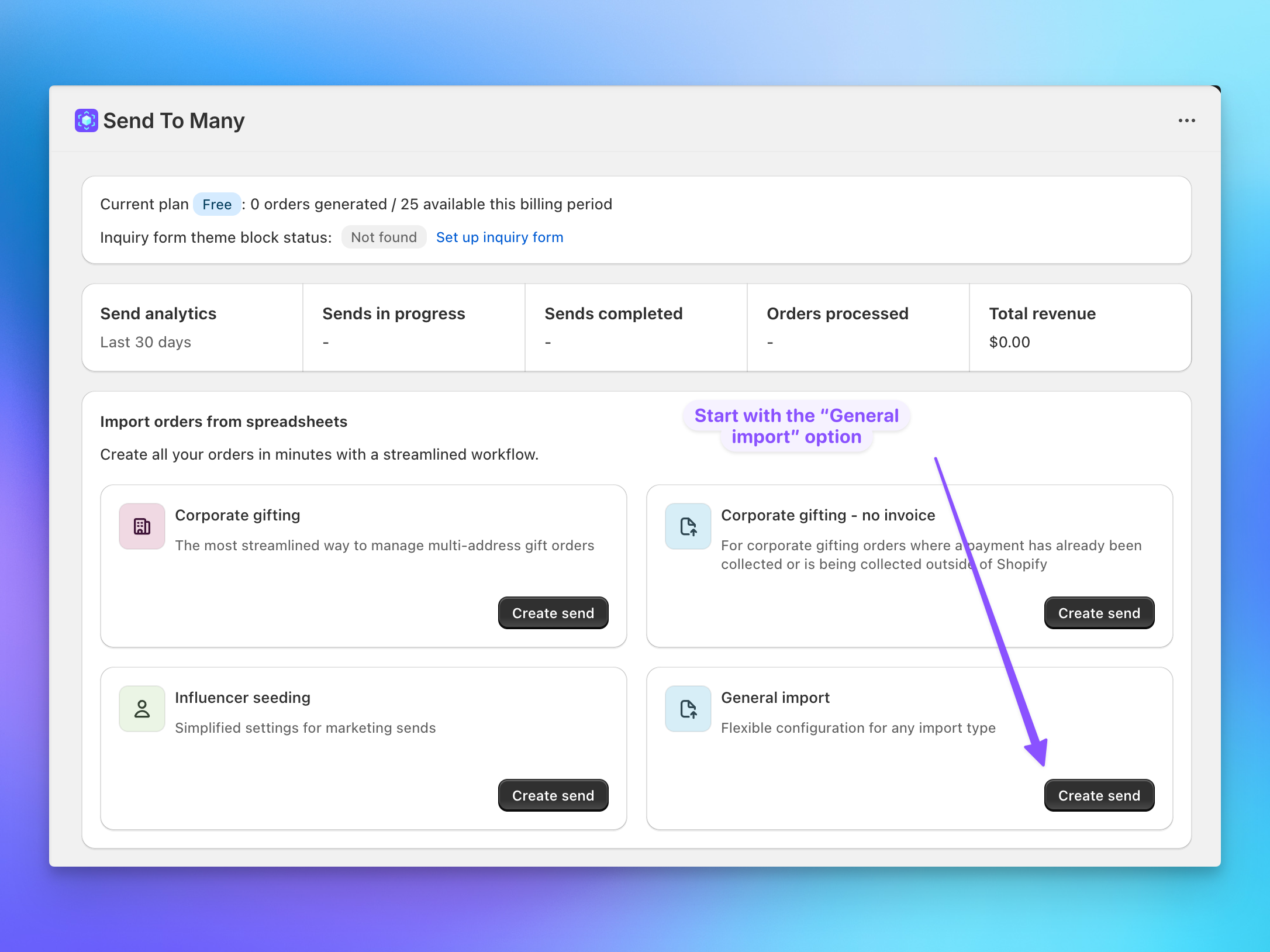
Open Send To Many and click Create Send for your situation. Fill in a name for your Send and choose a Send preset — this is a preset configuration that controls how orders are generated and invoiced. For your first Send, General Import is a safe choice.
Next, upload your spreadsheet. Your file should have one row for each recipient with their address and other details you need. This Google Sheet has a variety of sample import tabs to get started. See the bulk order upload formatting guide for the exact template and requirements.
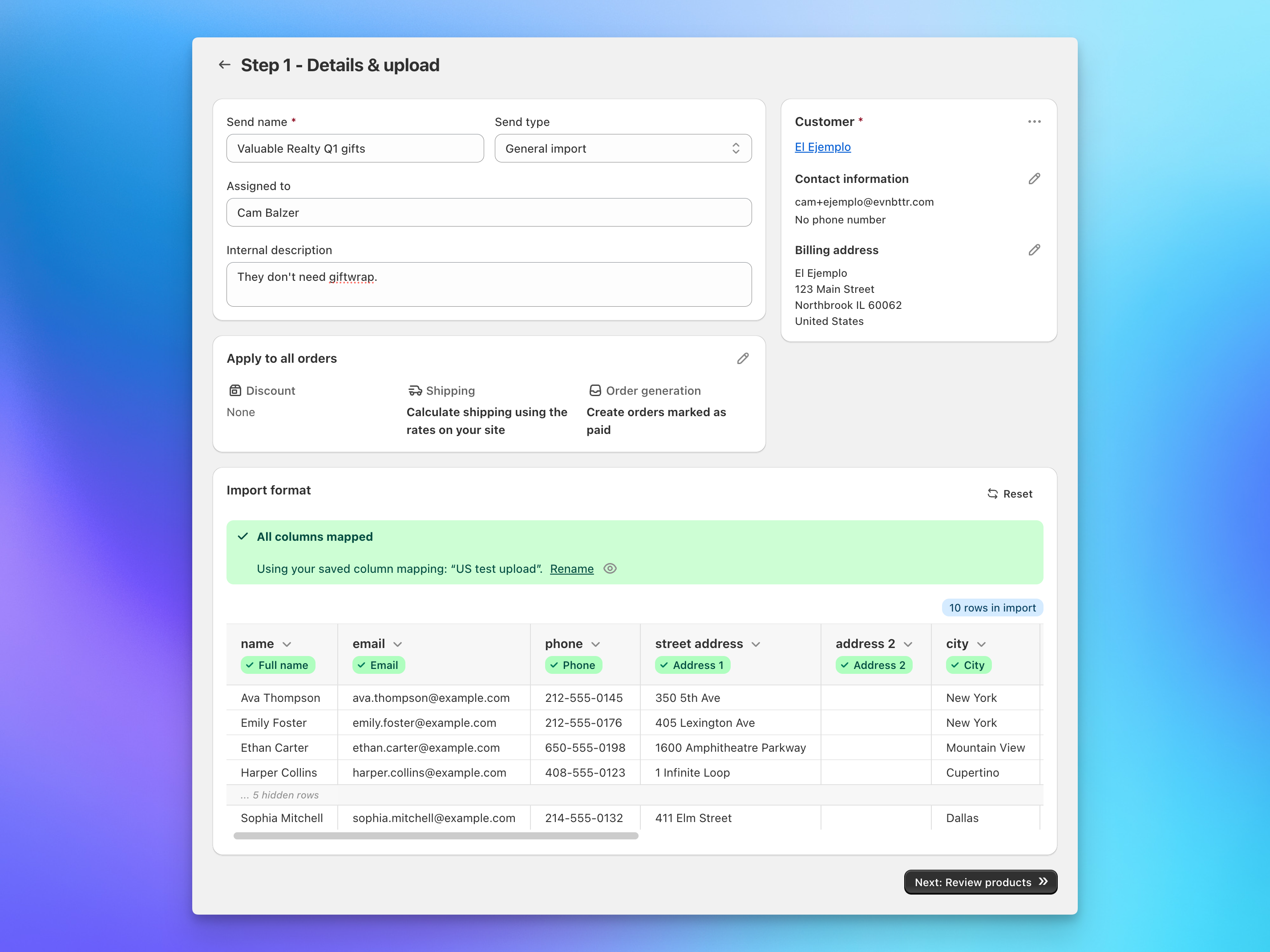
Step 2: Products
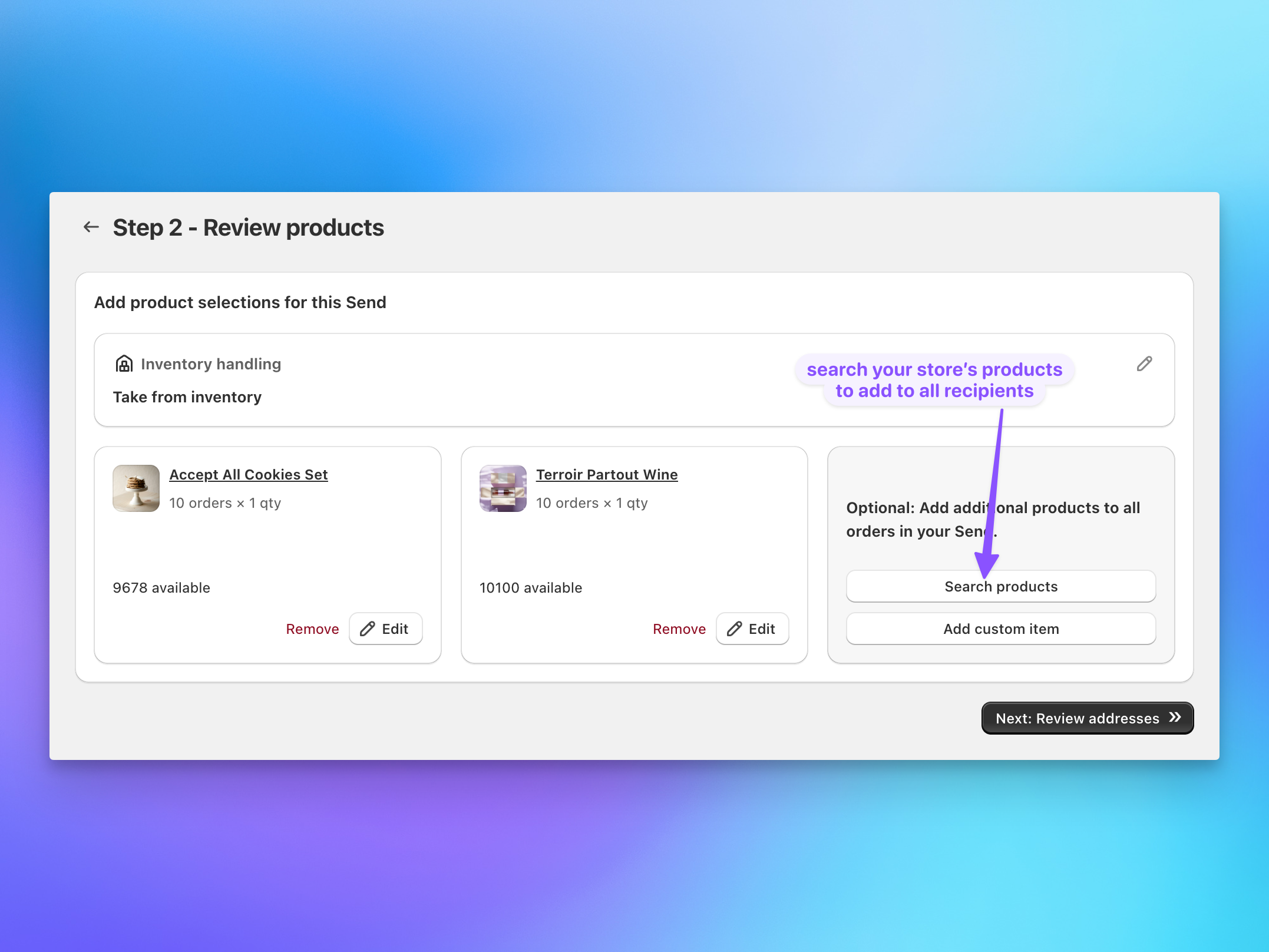
Select the products you want to send to each recipient. You can choose one product or multiple products — Send To Many will apply them to all recipients in your spreadsheet. Browse your Shopify catalog or search by product name.
If you need to assign different products to different recipients, you can add a product column to your spreadsheet. The system will match them when processing orders.
Step 3: Validate Addresses
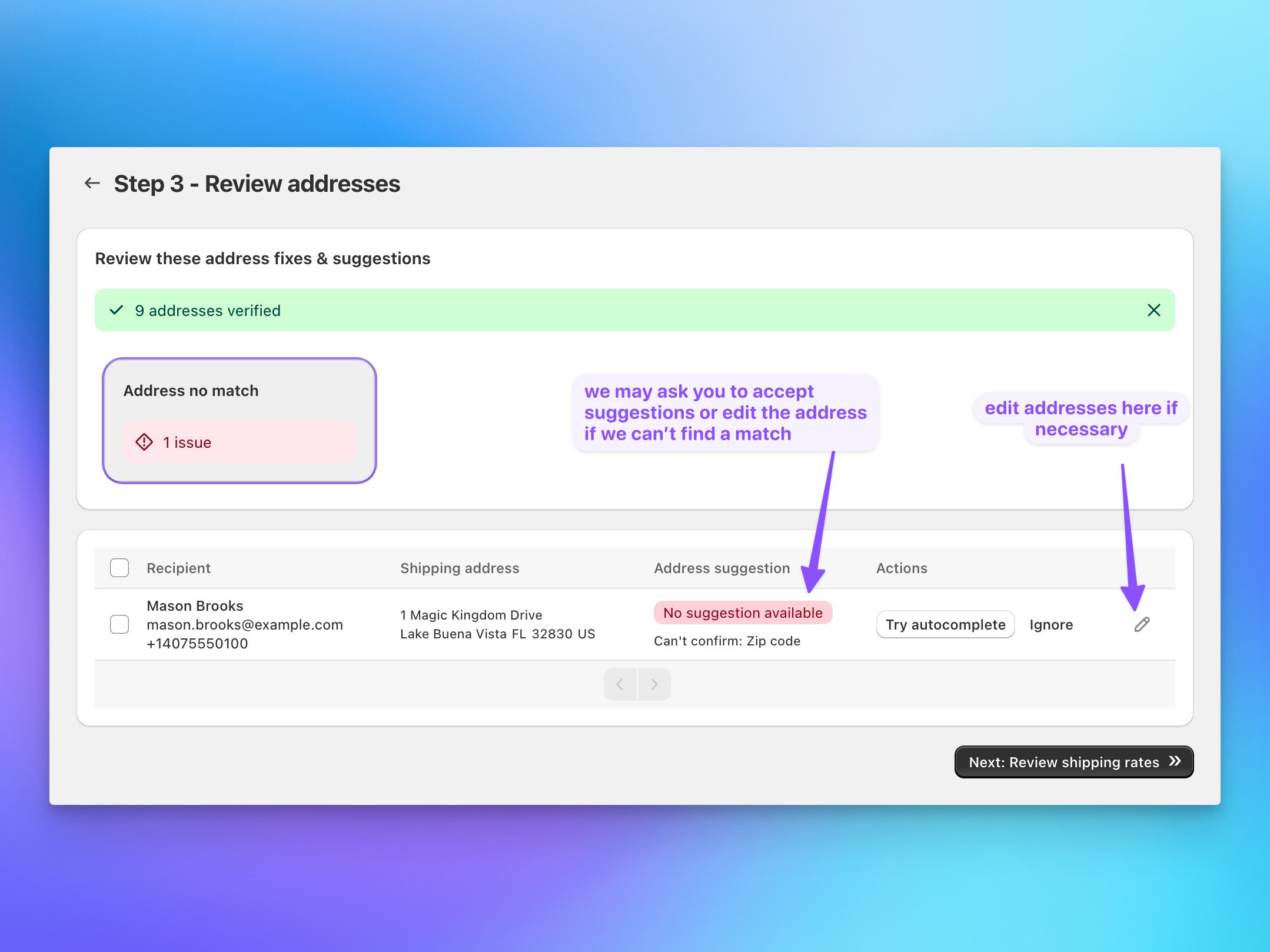
Send To Many now checks your spreadsheet for completeness. It verifies that all required fields are present and shipping addresses are valid. If there are any issues, you'll see them flagged here. We'll offer suggestions to improve addresses or let you know if we can't find a match. Accept suggestions or edit the address using auto-complete. Or exclude a recipient if you can't find a match.
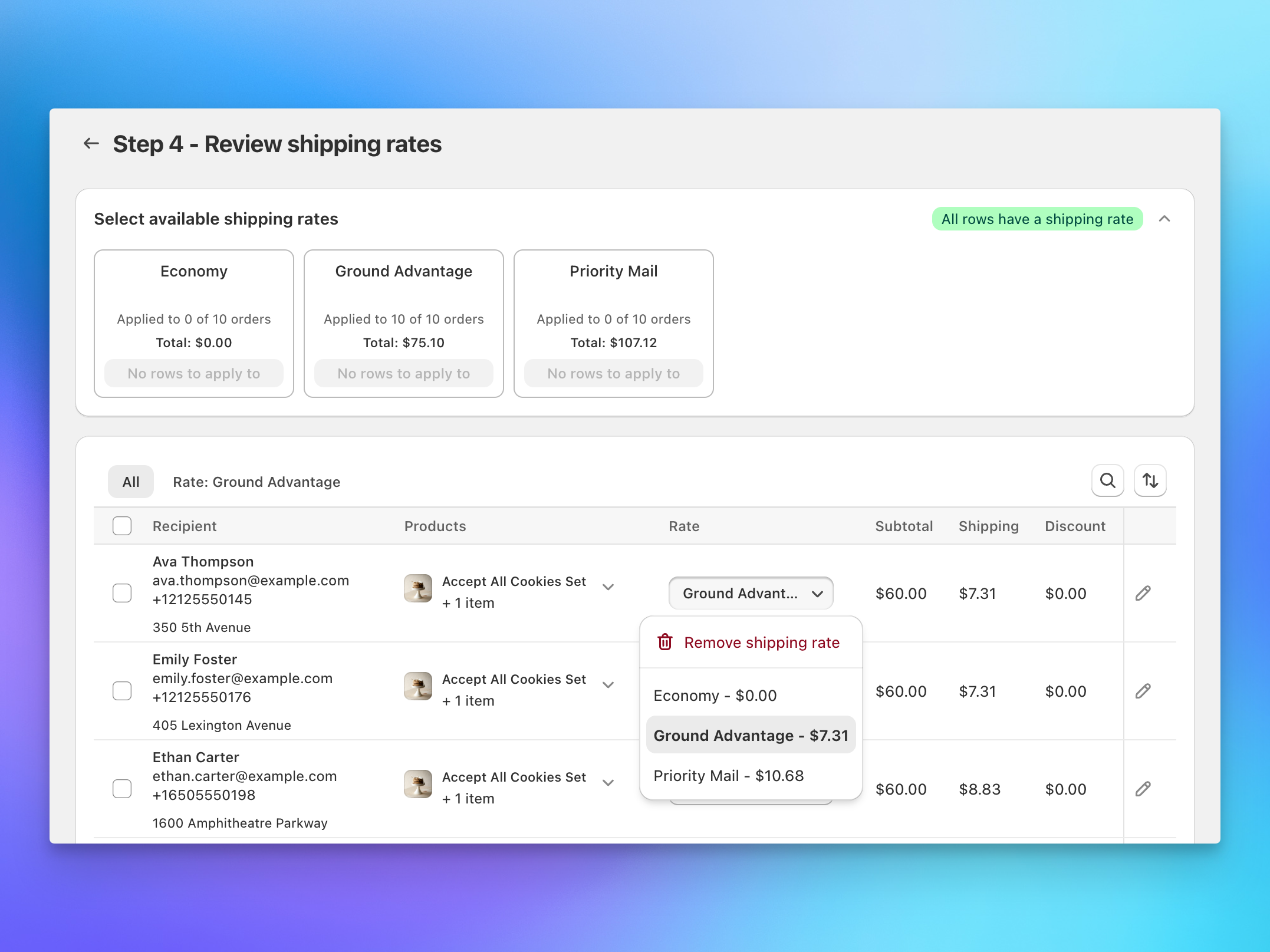
Step 4: Select Shipping Rates
With the addresses and products confirmed, we will now calculate all the available shipping rates for each recipient. You can apply rates to all the applicable recipients in batches or update the rates for individual recipients.
Step 5: Finalize
Review your Send at a glance: gifter details and recipient counts, total products, etc. You can adjust the shipping notifications for this send or add a tag to the orders in this Send.
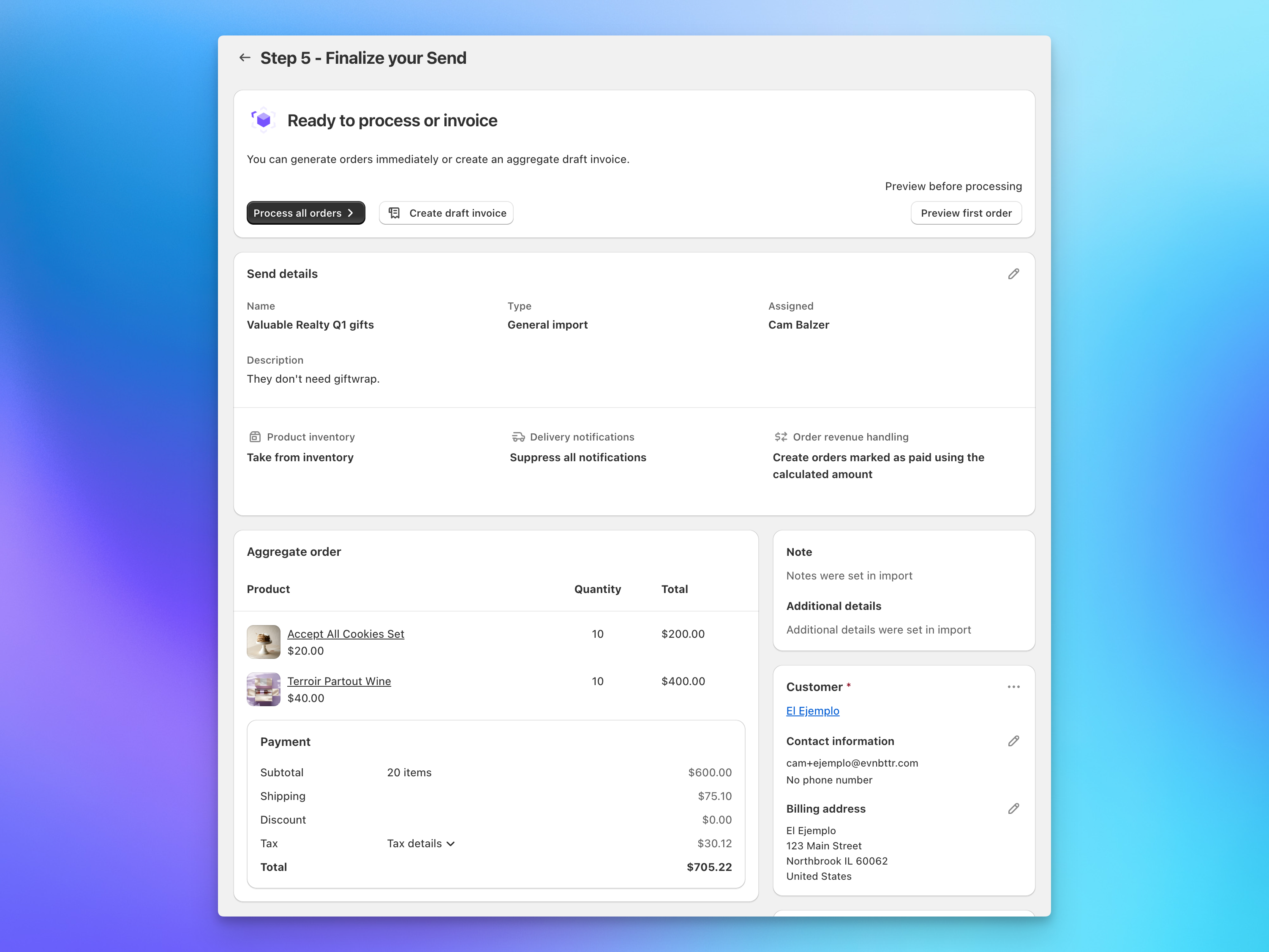
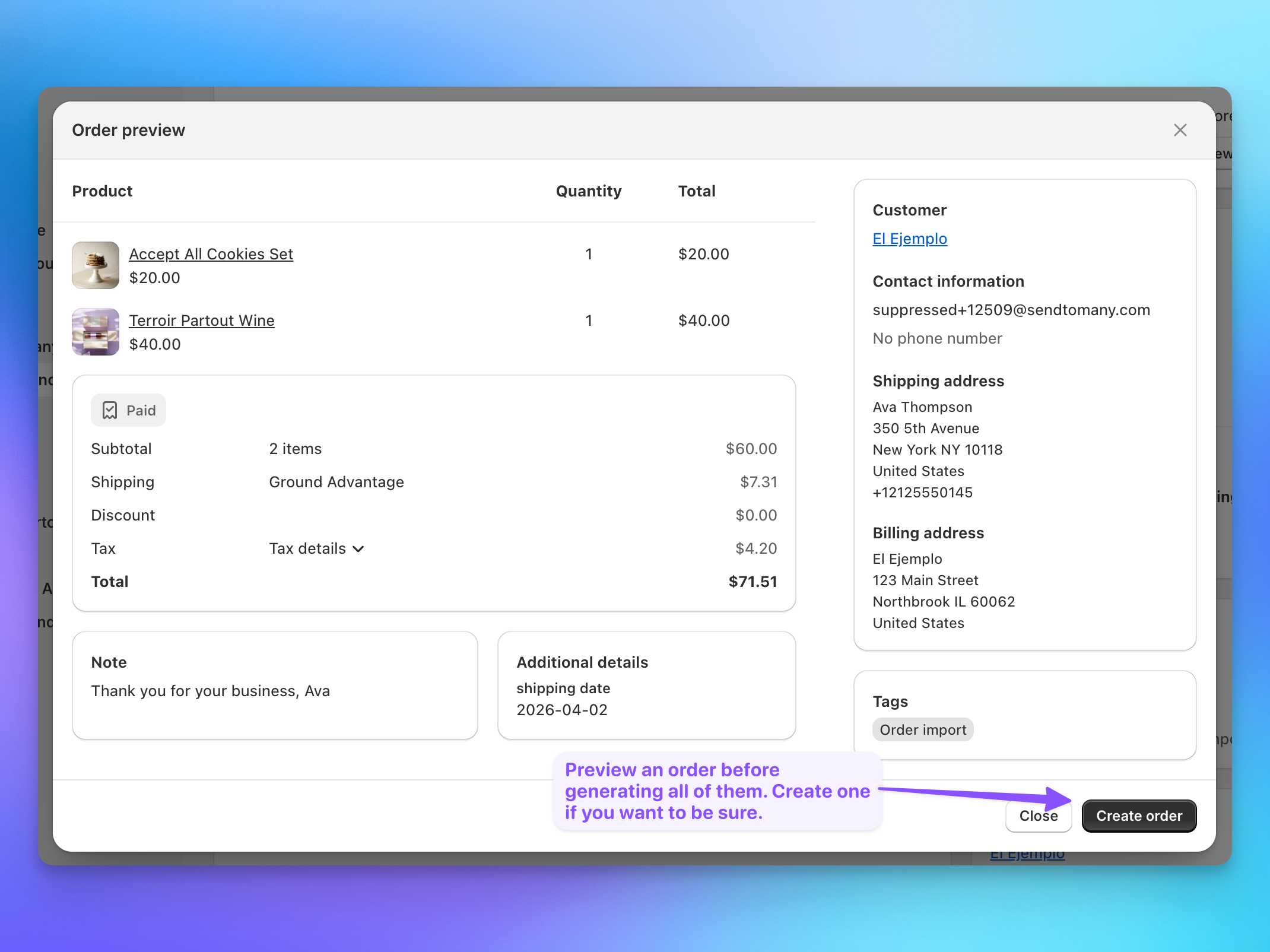
This is your last chance to make changes before generating orders. You can preview individual orders in the recipient section and even generate an individual order or two to confirm everything is working as you want it.
At this stage you can also generate an aggregate invoice as a draft order in Shopify to send to your customer to collect payment.
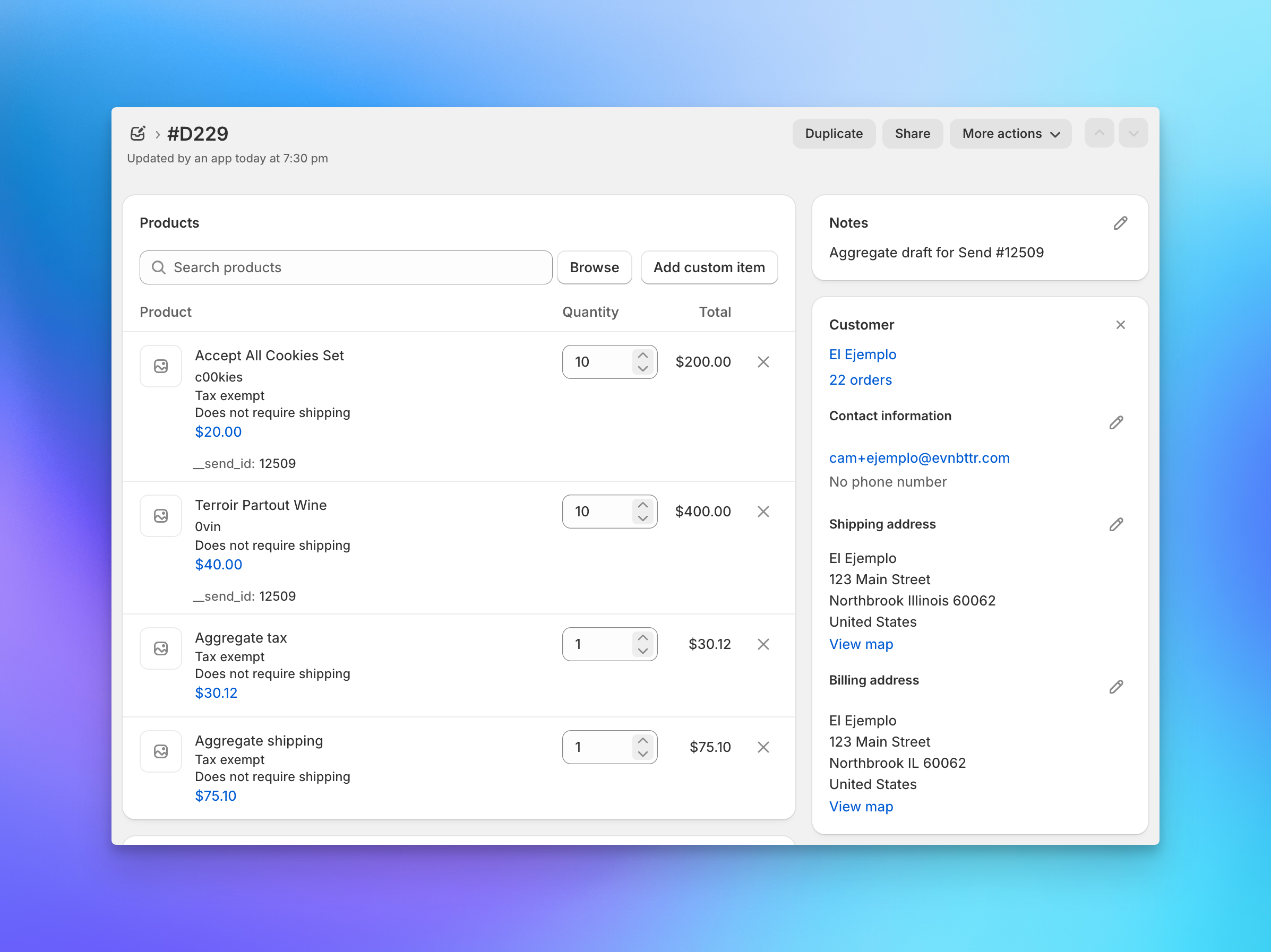
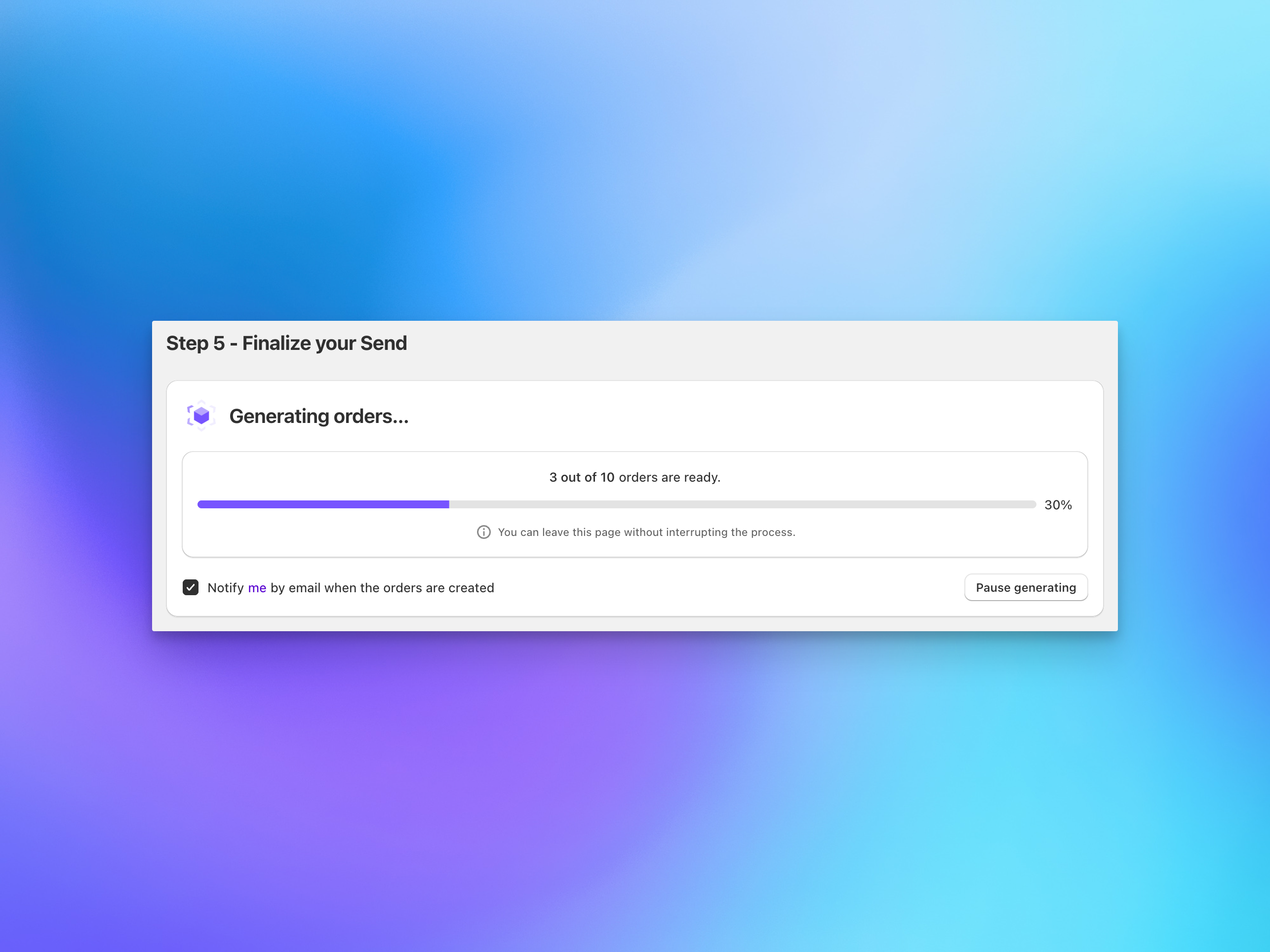
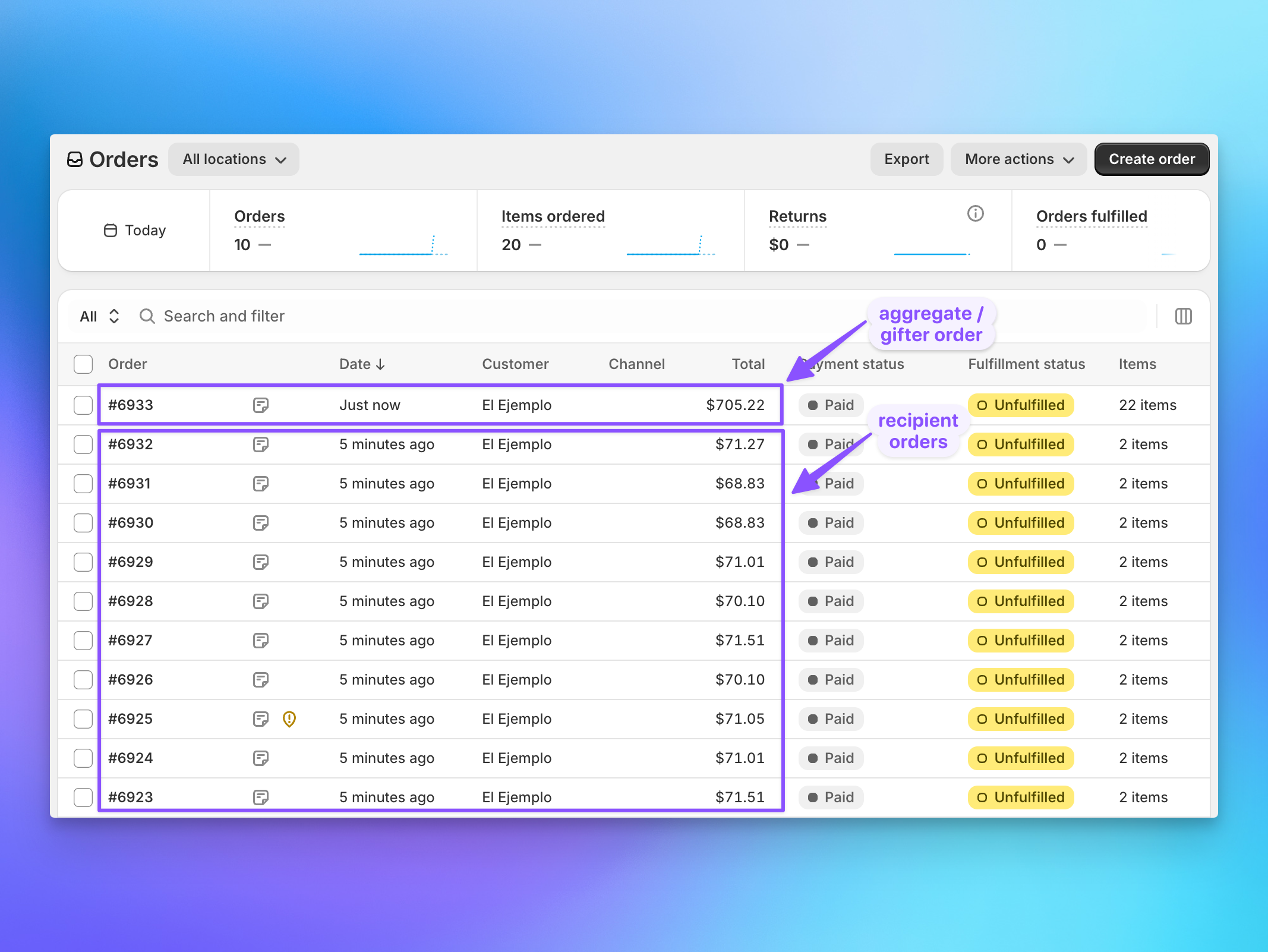
Click Generate Orders. Send To Many creates a gifter order (aggregating the entire Send) and individual recipient orders for each row in your spreadsheet. It takes a second, your Send is live in the dashboard and ready to track.
You're Done
Your Send is now complete and orders have been generated in your Shopify store.
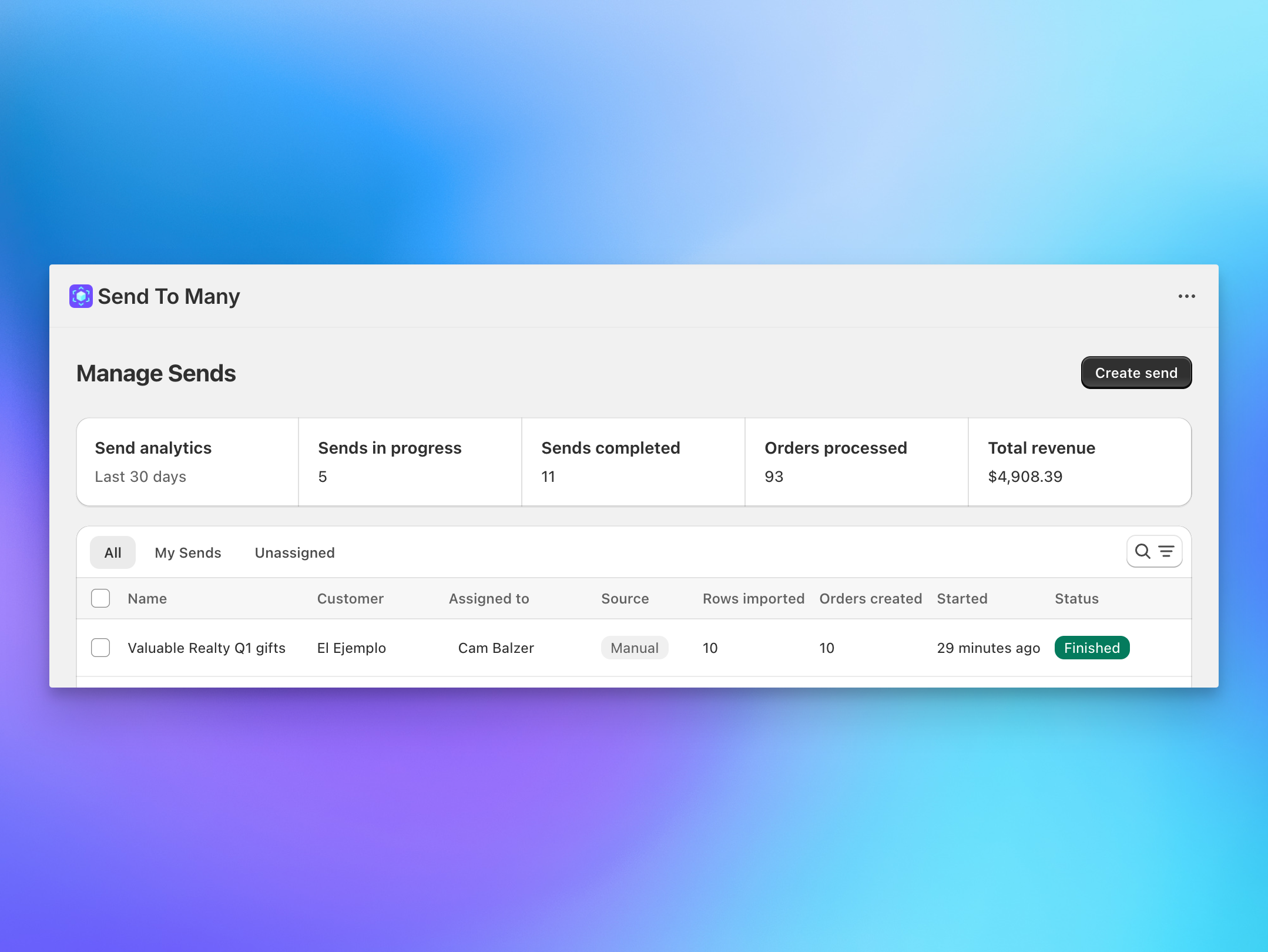
In the Send To Many "Manage Sends" page, you'll see your completed order and can click through to the summary page.
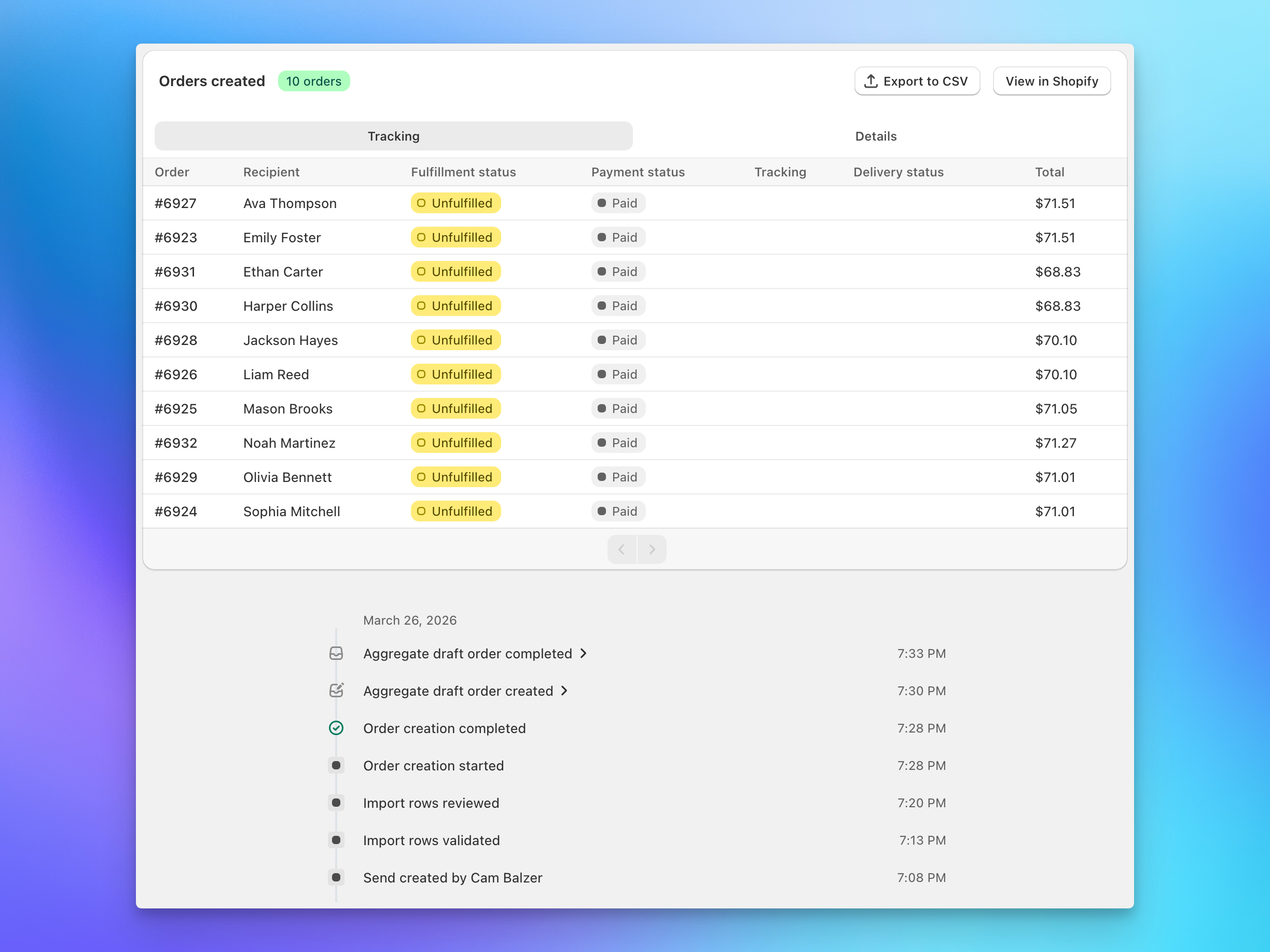
From here, you can monitor recipient order statuses, manage fulfillment, and export tracking information.
Next, explore the multi-recipient checkout workflow if you want customers to add recipients at checkout, or check out the full upload and order import guide to understand all the options for generating and managing orders and for specific use cases.