Product Customization Apps with Bulk Orders on Shopify
Send To Many preserves custom line item properties from engraving, monogramming, and personalization apps in both checkout and spreadsheet uploads.
If your store uses a product customization app for engraving, monogramming, custom printing, or other personalization options, those customizations are usually stored as line item properties on each cart or order line item. Send To Many picks up those properties and carries them through to every recipient order, whether you're using multi-recipient checkout or the upload workflow.
This means your personalization data stays intact from cart to fulfillment, even when a shopper or merchant is sending to dozens of recipients at once.
How customization apps work with Shopify
Most customization apps let shoppers personalize products on your storefront: for example, adding a monogram, choosing an engraving message, or uploading a company logo. When the shopper makes their selections, the customization app stores the chosen options as line item properties on the cart item. These properties are key-value pairs attached to each line item that describe the customization.
These line item properties then follow the product through the entire order lifecycle. They appear on the order detail page, in fulfillment workflows, on packing slips, and in any downstream system that reads order data.
Multi-recipient checkout
During multi-recipient checkout, Send To Many reads the line item properties from the cart and carries them through the entire flow. Each recipient gets the same customization the shopper selected.
To make sure line item properties pass through to recipient orders, enable the line item property passthrough setting:
- In the Send To Many app, go to Settings.
- Look for the checkout settings section.
- Enable the option to carry line item properties through to payment and recipient orders.
Once enabled, any line item properties present on cart items at the time of multi-recipient checkout will be included on the generated orders.
This setting applies to all line item properties on cart items, not just those from customization apps. If you also use bundle apps that attach line item properties, those will carry through too. See Using Bundle Apps with Send To Many for details on bundle compatibility.
Upload workflow
In the upload workflow, you can include customization data in your spreadsheet and map it to line item properties during import. This is useful when you need different personalization per recipient: for example, each recipient gets a card with a different message, or each order includes a different company logo.
Here's how it works:
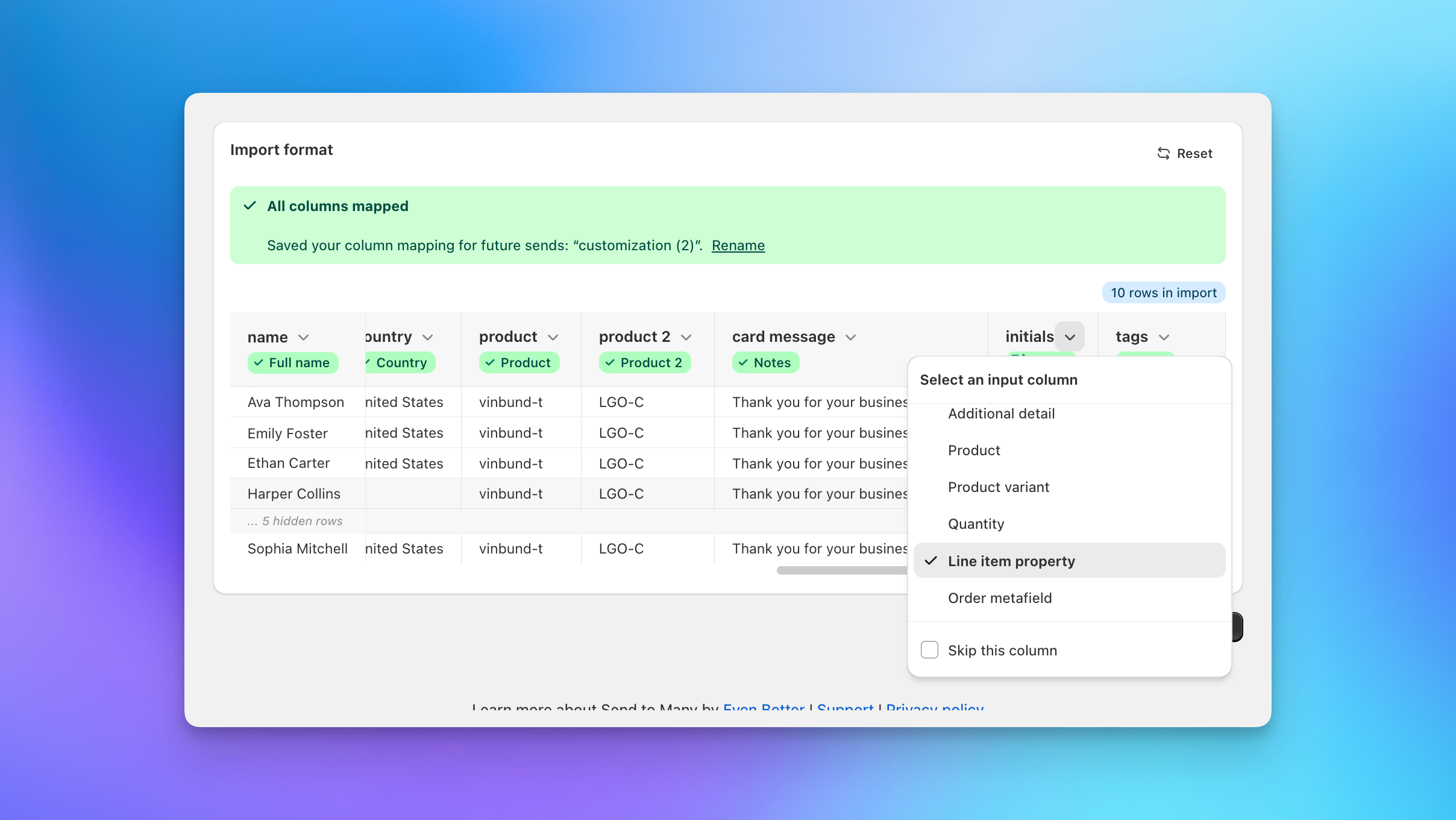
- Add columns to your spreadsheet for each customization value (e.g., "Card Message", "Initials", or "Logo URL").
- Upload your file and map those columns to line item properties during the column mapping step.
- On the Products step, select your customization product and add properties from the import file. You can also upload an image (like a company logo) and assign it as a property on the product.
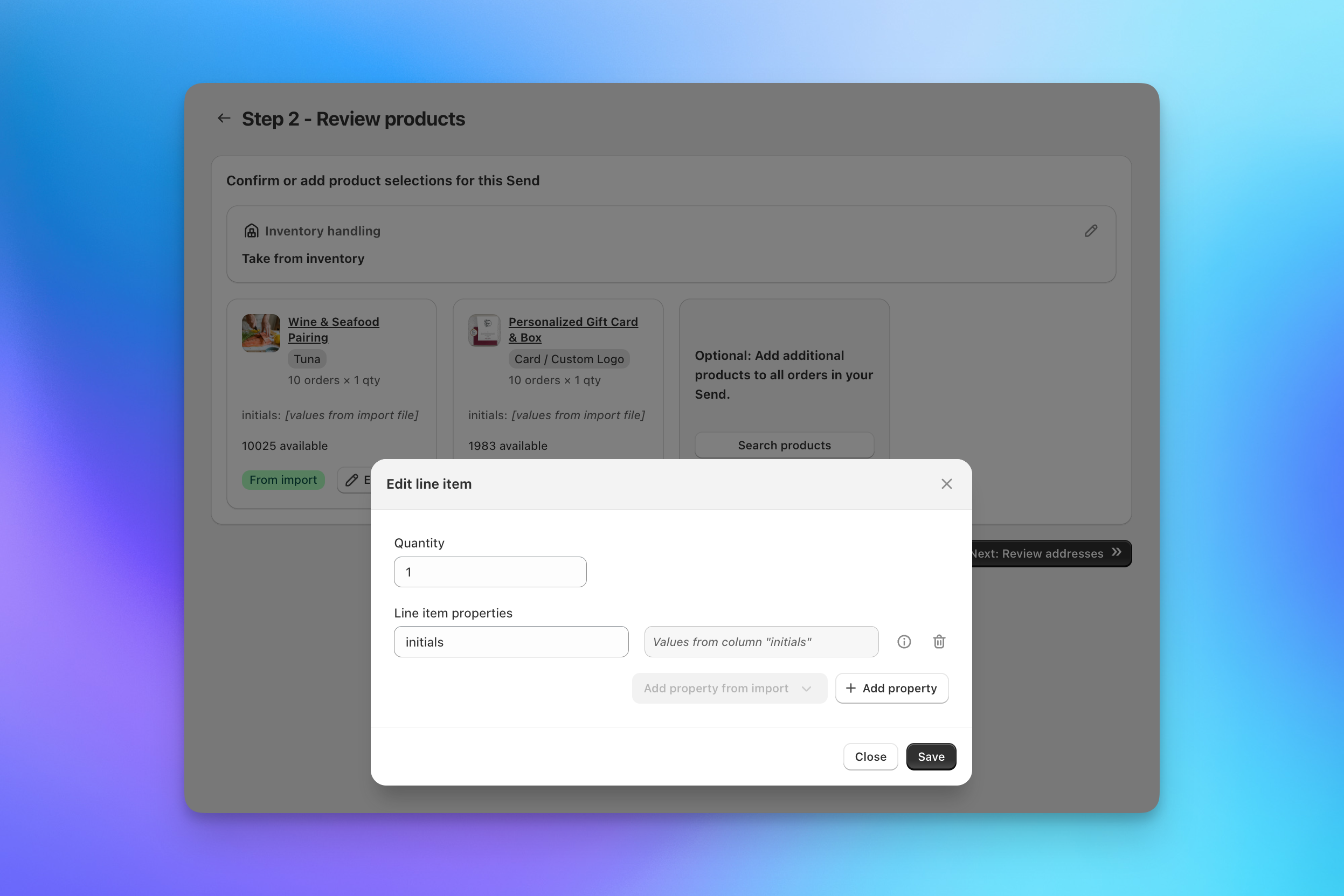
- Each recipient order is generated with the corresponding line item properties from their row in the spreadsheet.
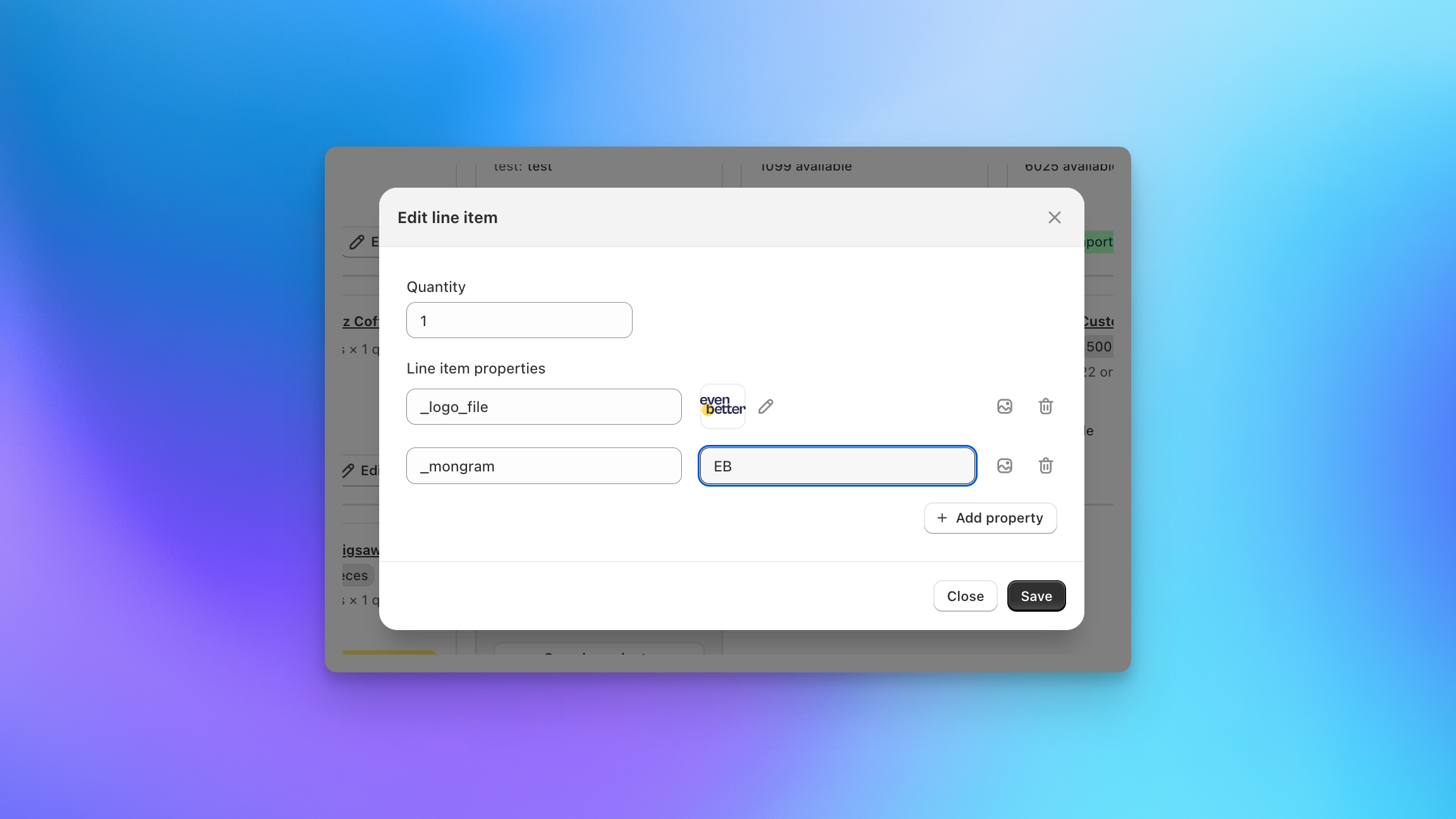
Admin users can also manually add logos or other custom line item properties to specific products on Step 2, without importing them from the spreadsheet. Click the edit icon on any product to add, remove, or modify line item properties directly.
Inquiry form submissions
If you use the inquiry form, customers can submit customization details along with their recipient list. When you create a Send from an inquiry, the customization data (including uploaded images like logos) is pulled in automatically. You can then assign those values as line item properties on the appropriate products during the Products step.
What to verify after setup
Before running a large Send with customized products, we recommend a quick test:
- Create a test Send with 2-3 recipients and your customization product.
- For checkout: add the product to your cart with customization options selected, then go through the multi-recipient checkout flow. For upload: include customization columns in your test spreadsheet.
- Check the generated recipient orders in Shopify admin.
- Confirm that each recipient order's line items include the correct customization properties (visible in the order detail under each line item).
If the properties appear correctly on recipient orders, your customization app integration is working as expected.
Next steps
- Using Bundle Apps with Send To Many for bundle product compatibility (bundles use the same line item property mechanism)
- How Multi-Recipient Checkout Works for the full checkout flow
- Formatting Your Upload File for column formatting and mapping details