Show Product Images on Shopify Bulk Order Invoices
Display product thumbnails on aggregate draft order invoices and order confirmation emails so gifters can identify what they ordered.
By default, aggregate invoices list products as text-only line items. With invoice product images enabled, the invoice shows the product thumbnail alongside each item, making it much easier for a purchasing contact to recognize what they ordered at a glance.
This feature works on both the draft order page in Shopify admin and in invoice emails sent to gifters.
Invoice product images requires Shopify Plus and uses a Cart Transform Function. Shopify only allows one Cart Transform per store, so if another app (such as a bundle app) already uses a Cart Transform, you'll need to choose which one to keep active. See Cart Transform Conflict for details.
What the gifter sees
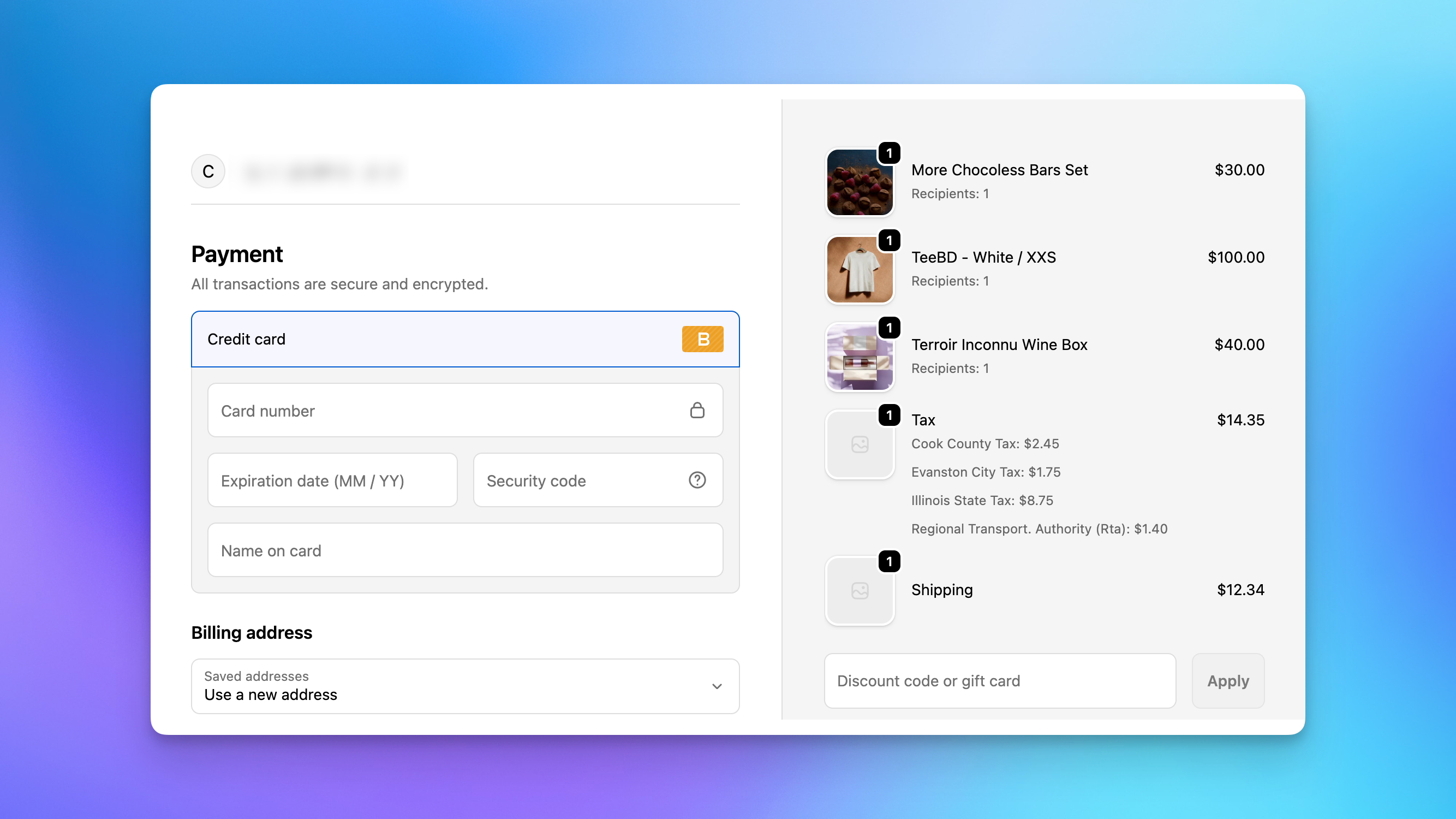
With invoice product images enabled, the gifter sees product thumbnails and real product names throughout their experience. On the multi-recipient checkout page, each line item shows the product image and title instead of generic text.
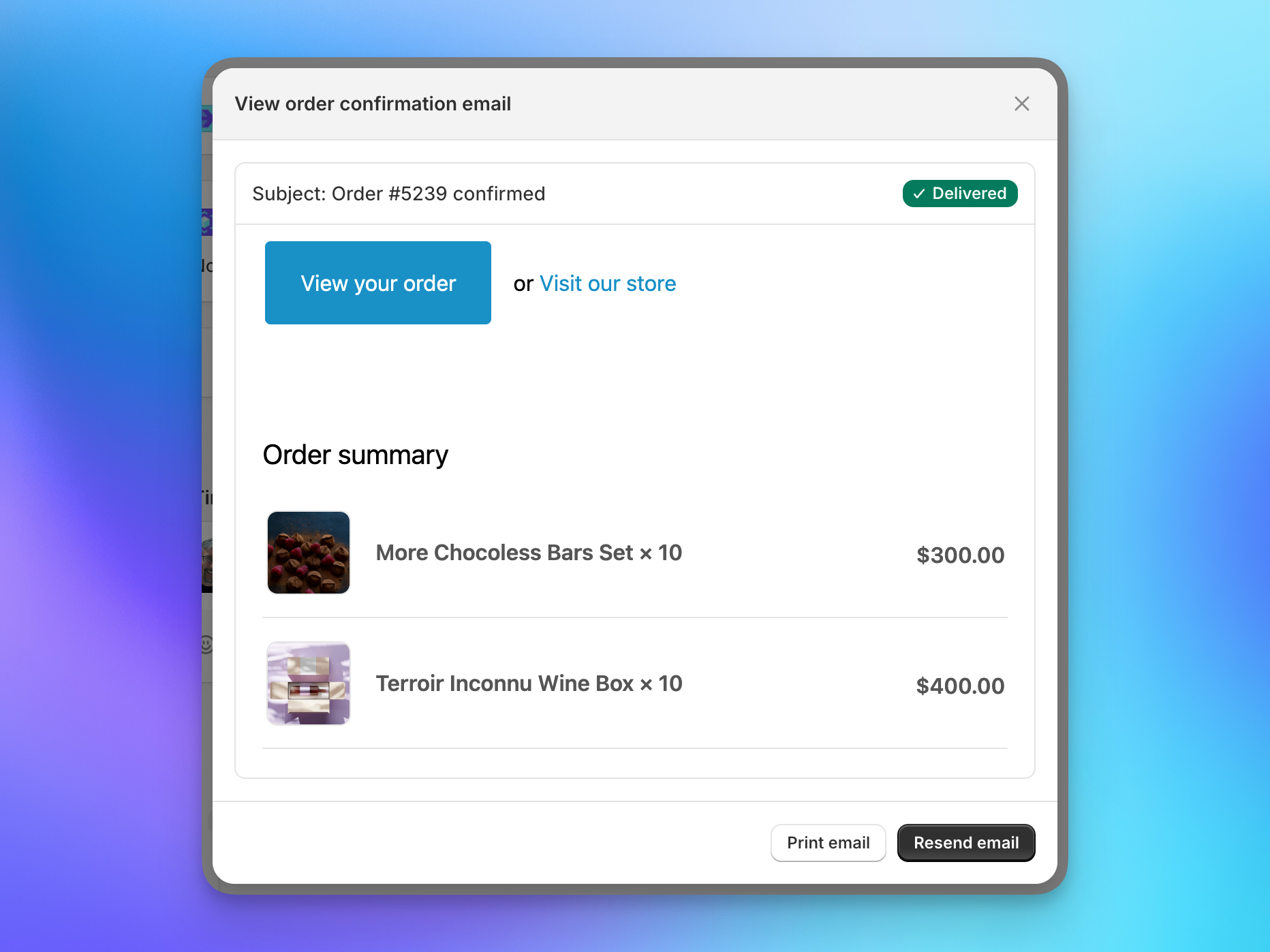
When the gifter receives their invoice email, the same product images and titles appear on the line items, making it easy to confirm the order at a glance.
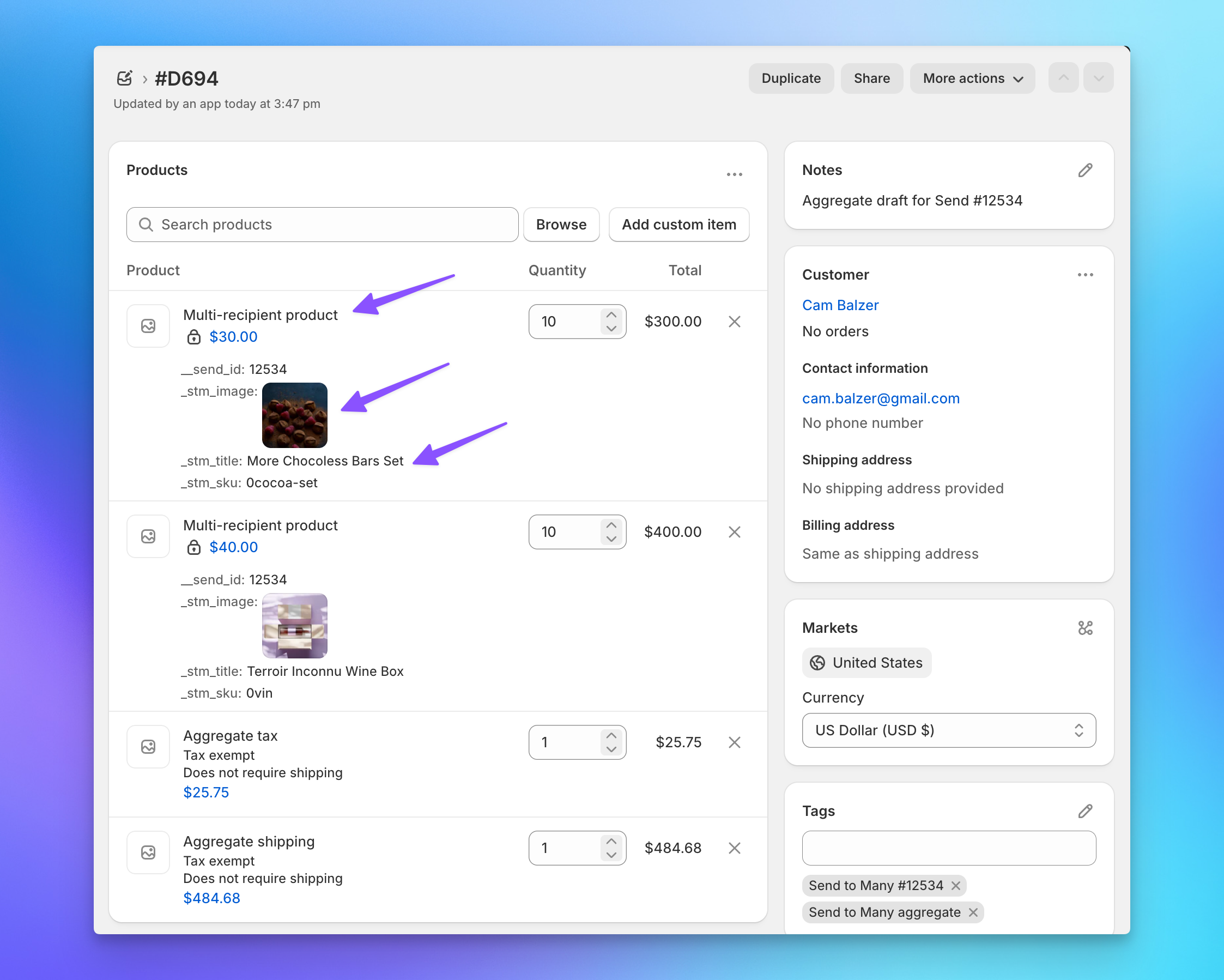
The SKU and variant information also appear as line item properties, so the gifter has full visibility into what was ordered.
How it works
When you enable invoice product images, Send To Many creates a product in your store called "Multi-recipient product." We use this product for all line items on the aggregate invoice instead of custom line items, which allows us to attach the product image and the actual product title to each line. The gifter sees the real product names and images on their invoice, while fulfillment and order data remain unchanged on recipient orders.
Setting up product images on invoices
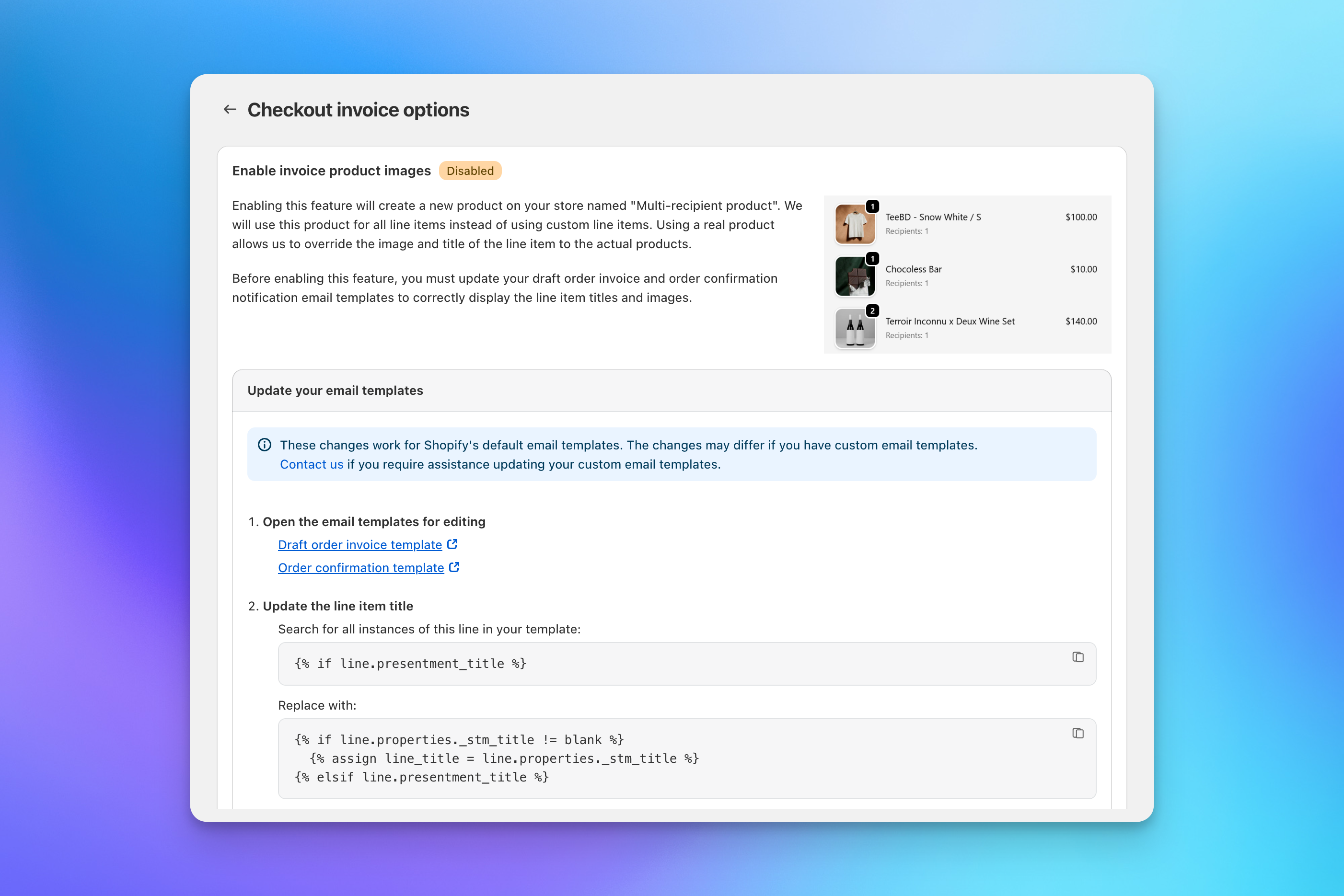
Enabling this feature requires a small update to your Shopify email templates so that the product title displays correctly in notification emails.
- In the Send To Many app, go to Settings and find the Checkout invoice options section.
-
Open the email templates linked on the settings page. You'll need to update both the draft order invoice template and the order confirmation template.
-
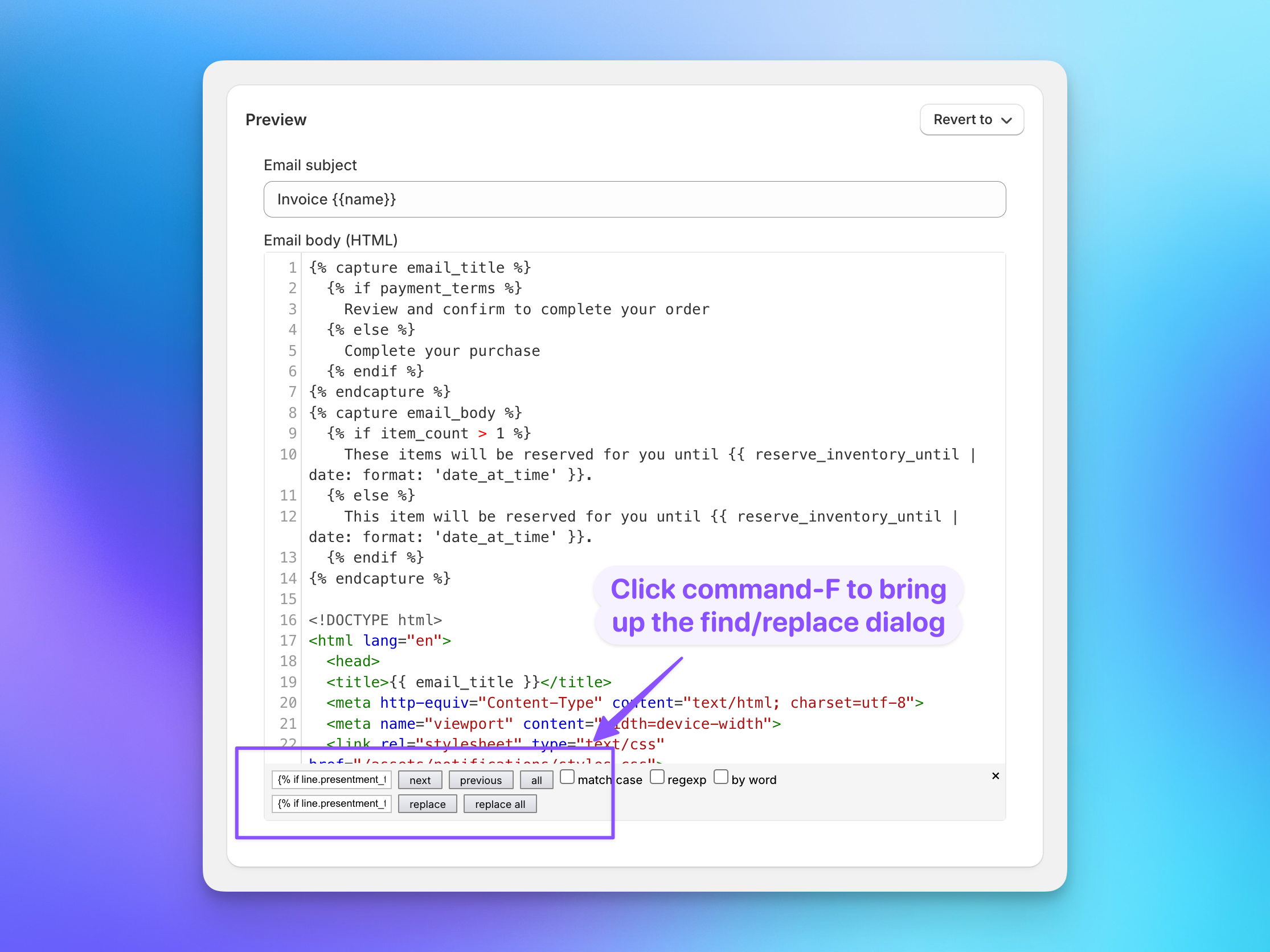
In each template, use find and replace (Cmd+F or Ctrl+F) to locate all instances of a specific line in the template. The settings page shows you the exact text to find and what to replace it with. This change tells the template to use the real product title from the line item properties when available, instead of the generic "Multi-recipient product" name.
-
Preview and save each template to confirm the changes look correct.
-
Back in Send To Many settings, check the confirmation box and click Enable invoice product images.
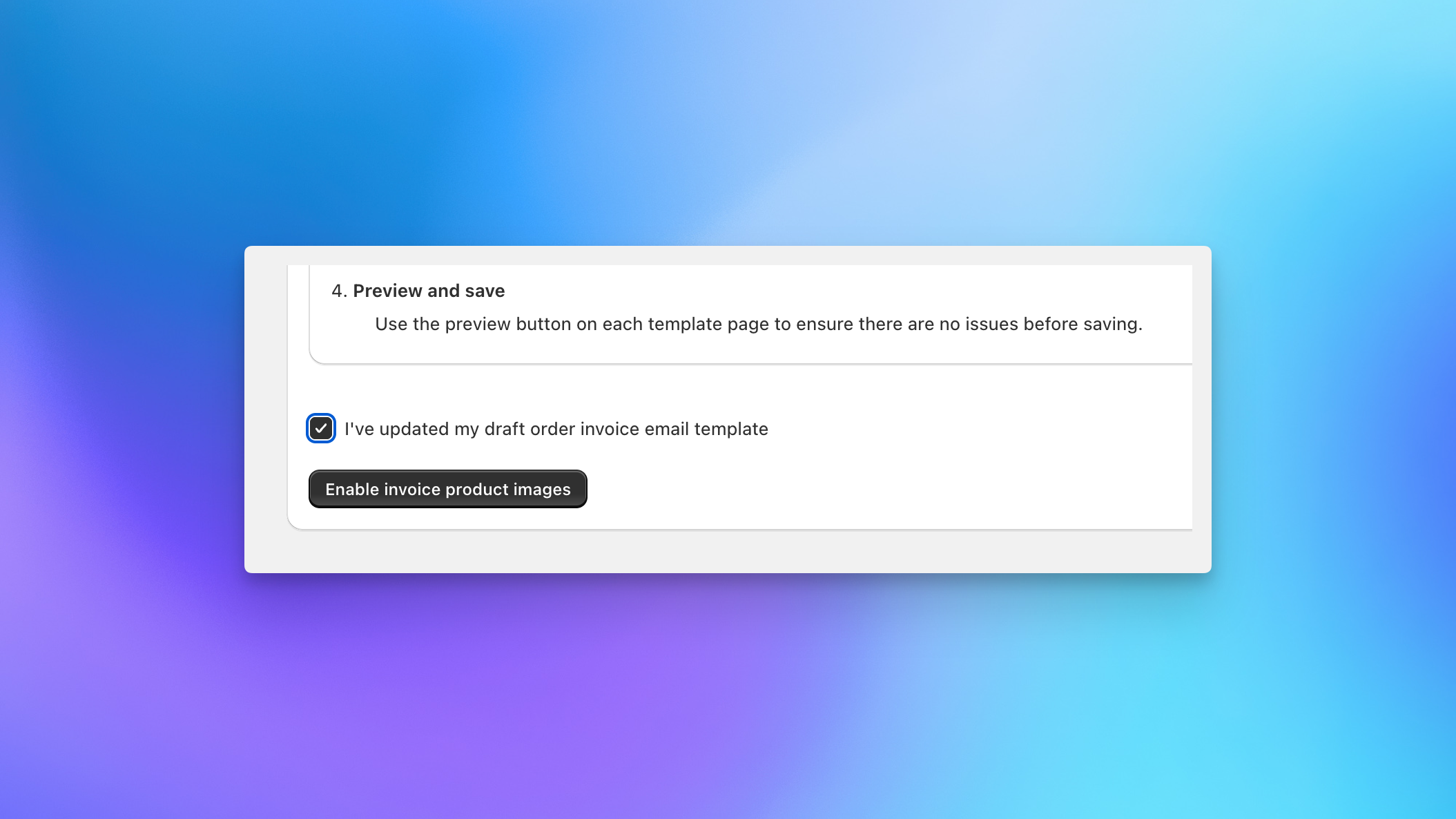
Once enabled, all new Sends will include product images and titles on aggregate invoices.
If you use custom email templates (not Shopify's defaults), the find-and-replace values may differ. Contact us if you need help updating custom templates.
Next steps
- Invoicing and Payment Collection for the full invoicing workflow
- Managing Aggregate Orders for handling the gifter order after payment