Send Presets: Configure Bulk Order Settings by Use Case
Pre-configure order generation settings for corporate gifting, influencer seeding, and internal fulfillment. One click applies the right defaults for each workflow.
Send presets are templates that bundle configuration settings for common use cases. When you create a Send, you choose a Send preset, and it automatically applies the right defaults for order revenue handling, shipping behavior, notifications, and payment flow. This lets you process different kinds of bulk orders, from corporate gifts to influencer seeds, without reconfiguring settings each time.
What Send Presets Control
-
Order revenue: Whether recipient orders include all revenue and tax details or are "$0 value" orders that don't show as revenue in your reporting.
-
Notifications: Who gets notified at each stage (gifter or recipients, fulfillment team) and what message they receive.
-
Shipping: Whether to use the shipping rates configured in your store for each recipient order, or free or flat rate shipping instead.
-
Invoicing and payment flow: Whether payment is collected for the Send, and if so, whether orders should be automatically calculated when payment is made. Options for discount handling.
-
Customer handling: Whether the recipient is used as the customer on orders (instead of the billing customer), and whether they're opted into marketing.
-
Import format requirements: Whether any spreadsheet format is accepted or a specific saved Import Format is required.
-
Metadata: Order naming and tagging options for gifter orders and recipient orders. The tags settings display permanent tags (
Send to Many {send_id}andSend to Many aggregate) and show all available variables for tags and order name templates.
For a full breakdown of each setting, see Send Preset Settings.
Built-In Send Presets
Send To Many includes four built-in Send presets, each preconfigured for a common workflow:
-
General Import: A flexible preset for importing orders from other sales channels. Recipient orders are generated as regular revenue transactions with standard Shopify notifications.
-
Corporate Gifting: For branded gifts sent on behalf of your company or a client. Recipient orders are typically non-revenue, and notifications emphasize the gift rather than the sale.
-
Influencer Seeding: For sending products to creators and media partners. Recipient orders are non-revenue with custom messaging and tracking for each influencer.
-
Orders from Other Platforms: For importing orders originally placed on third-party platforms. Preserves original purchase details and syncs metadata like source platform and order ID.
Each built-in preset can be customized to match your specific needs. See Send Preset Settings for details on what you can configure.
Managing Send Presets
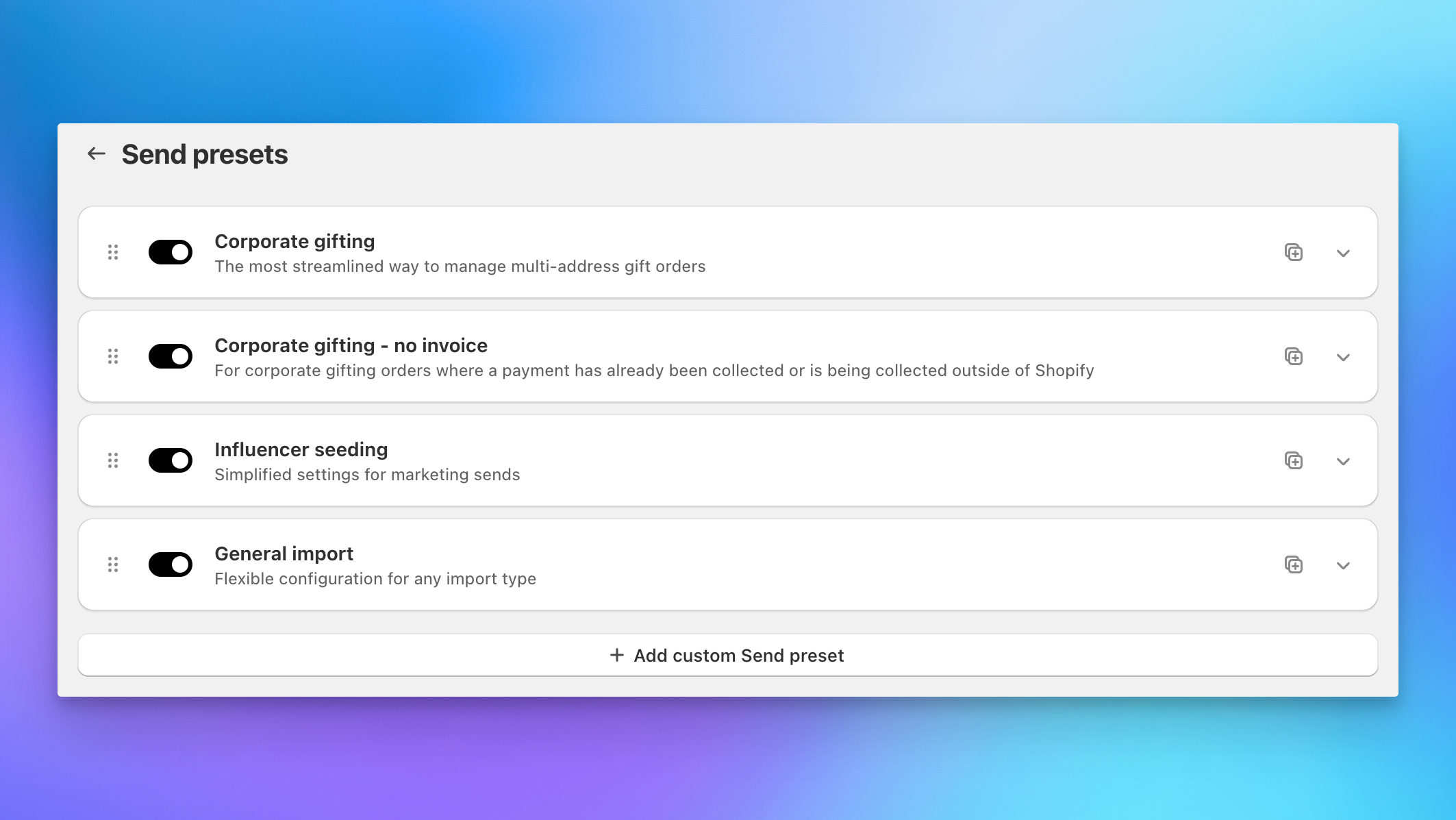
You manage Send presets from the Settings page in the Send To Many app.
Creating a custom Send preset
If the built-in presets don't fit your workflow, you can create your own. Custom Send presets let you define your own combination of revenue handling, shipping, notification, and payment settings, giving you a reusable template for any recurring use case.
Reordering Send presets
You can drag Send presets to rearrange their order. The first Send preset in the list is used as the default when creating a new Send, so put your most-used preset at the top.
Disabling Send presets
If you don't need a particular Send preset, you can disable it. Disabled presets won't appear as options when creating new Sends, keeping your workflow clean. You can re-enable them at any time.