Inventory Alerts for Bulk Orders: Prevent Overselling on Shopify
See real-time stock warnings while building a Send. Alerts factor in inventory committed to other open Sends that haven't generated orders yet.
Inventory shortage alerts are available on Pro and Enterprise plans.
When you're running multiple Sends at once, it's easy to commit more inventory than you actually have. Shopify's stock counts only reflect generated orders, so if you have three open Sends waiting to generate, that committed inventory isn't visible in Shopify yet. Inventory shortage alerts solve this by showing you what's really available while you're building a Send.
How It Works
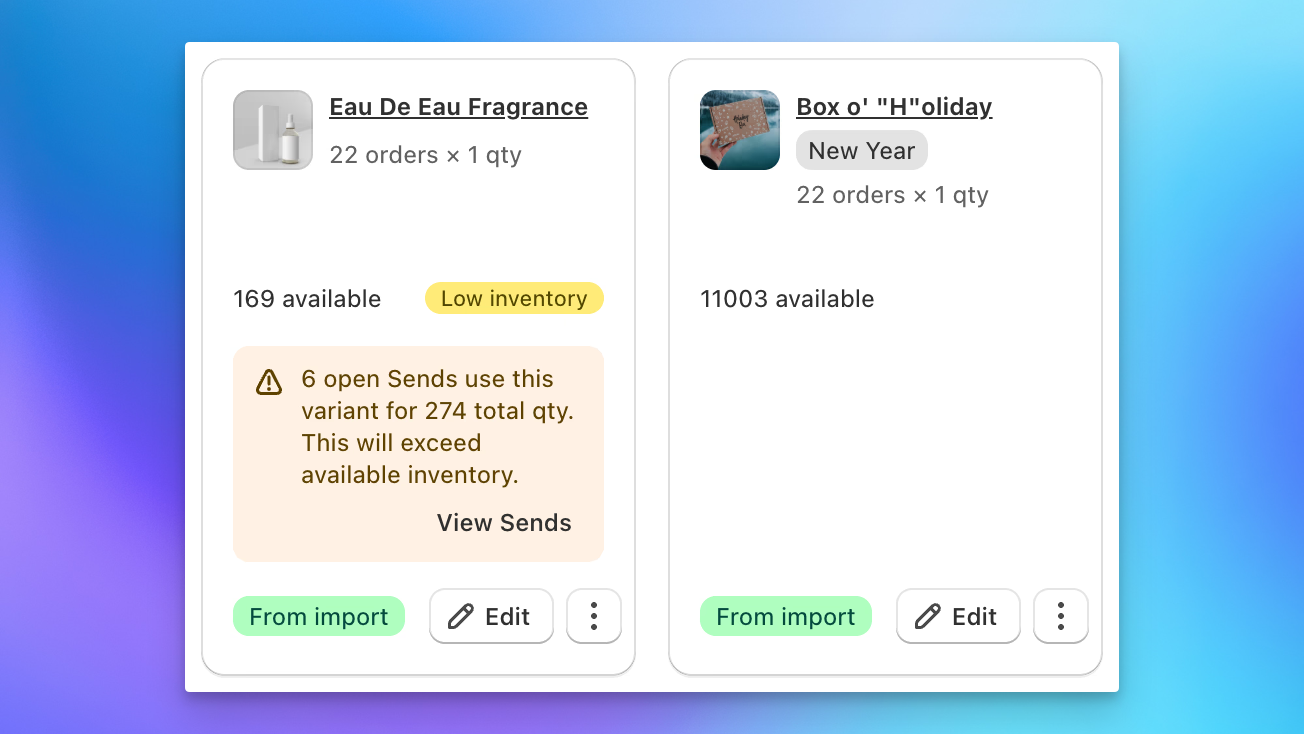
On Step 2 (Products), each product card checks your current Shopify inventory against the quantities already committed across all your open Sends. If the available stock might not cover what you're adding, you'll see a warning on the product card.
Click the alert to see exactly which open Sends are using that product and how many units each one has committed. This gives you a clear picture of where your inventory is going before you generate any orders.
Why This Matters
Without these alerts, here's what can happen: you have 500 units in stock. Send A has 200 recipients, Send B has 200, and now you're creating Send C with 150. Shopify shows 500 available because Sends A and B haven't generated their orders yet. But you've actually committed 400 units, leaving only 100 for Send C. You wouldn't know until order generation starts failing.
Inventory alerts catch this before you get to order generation, so you can adjust quantities, wait for earlier Sends to generate, or restock before proceeding.
What You'll See
When a product has a potential shortage:
- A warning indicator appears on the product card in Step 2.
- The alert shows the gap between available Shopify inventory and total committed quantity across open Sends.
- Clicking the alert opens a detail view listing each open Send that's using the product, with the quantity committed per Send.
The alerts are informational. They won't block you from proceeding, but they give you the data to make a good call about whether to continue, reduce quantities, or wait.