Configure Inquiry Form Fields, Logic & Notifications
Customize form fields, set up conditional logic, configure import file templates, and manage notifications for your corporate gifting inquiry form.
The inquiry form settings page in Send To Many is where you define what your customers see when they submit a corporate gifting request. You control every field on the form, the order they appear, which are required, and what happens after submission.
To access these settings, open Send To Many in your Shopify admin and navigate to the Inquiry Form page.
Form Title and Description
At the top of the settings page, set the Title and Description that appear above your form fields on the storefront. The description supports basic rich text formatting (bold, italic, links, lists) so you can include instructions or context for the customer.
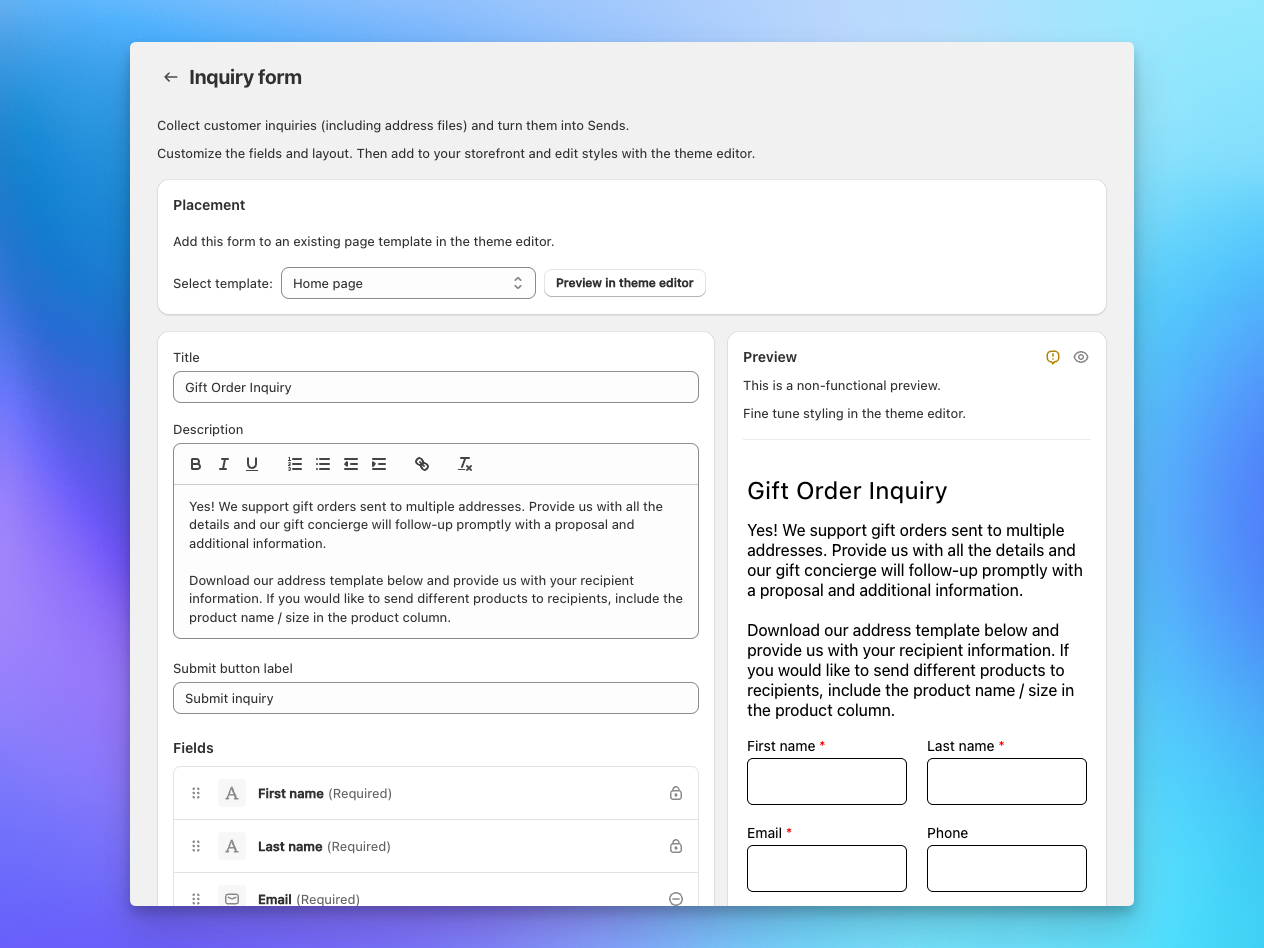
Form Fields
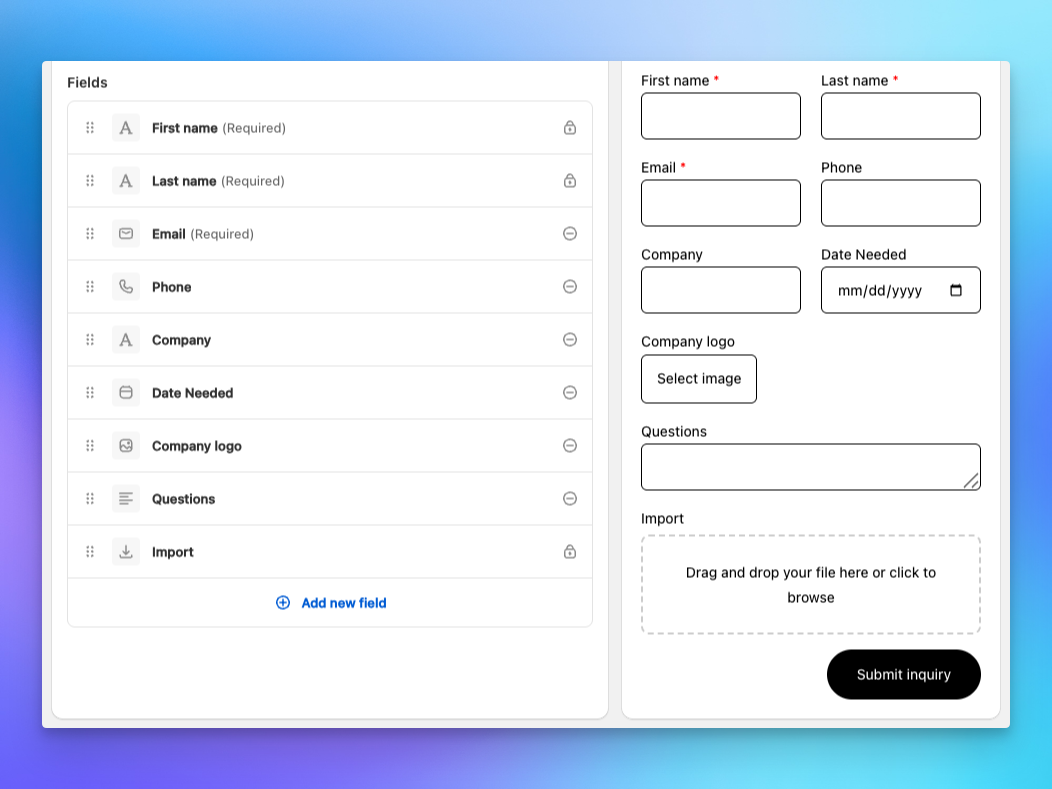
The Fields section lists every field on your form. You can add, remove, reorder, and configure each one.
Default fields
Every inquiry form includes three locked fields that can't be removed: First Name, Last Name, and Email. These are required because Send To Many uses them to create (or find) a Shopify customer when the form is submitted.
Adding and configuring fields
Click Add new field to add a field. Choose from these field types:
- Text input: Single-line text for company name, job title, or similar short answers.
- Textarea: Multi-line text for open-ended questions, special instructions, or notes.
- Checkbox: A yes/no toggle. Useful for opt-ins like "Customize your gift with a logo?" or "Do you have your recipients ready to import?"
- Date picker: Lets the customer select a date, such as a requested delivery date.
- Image upload: For logos, brand assets, or other images.
- Import file: A file upload specifically for recipient address spreadsheets. (See The import file field below.)
For each field, you can configure:
- Label: The field name customers see.
- Required: Whether the field must be filled out to submit.
- Half width: Display the field at half width so two fields sit side by side.
Drag fields using the grip handle to reorder them. The order in the settings page matches the order on the storefront.
Conditional logic
Some fields only make sense in certain situations. Conditional logic lets you show or hide a field based on the value of a checkbox earlier in the form.
To set up a conditional field:
- Click the field you want to make conditional.
- In the field editor, find the Conditional logic section.
- Select the Form field (a checkbox) that controls visibility.
- Set the Value to "Is checked" or "Is not checked."
- Click Save.
The conditional field will only appear on the storefront when the controlling checkbox matches the value you set.
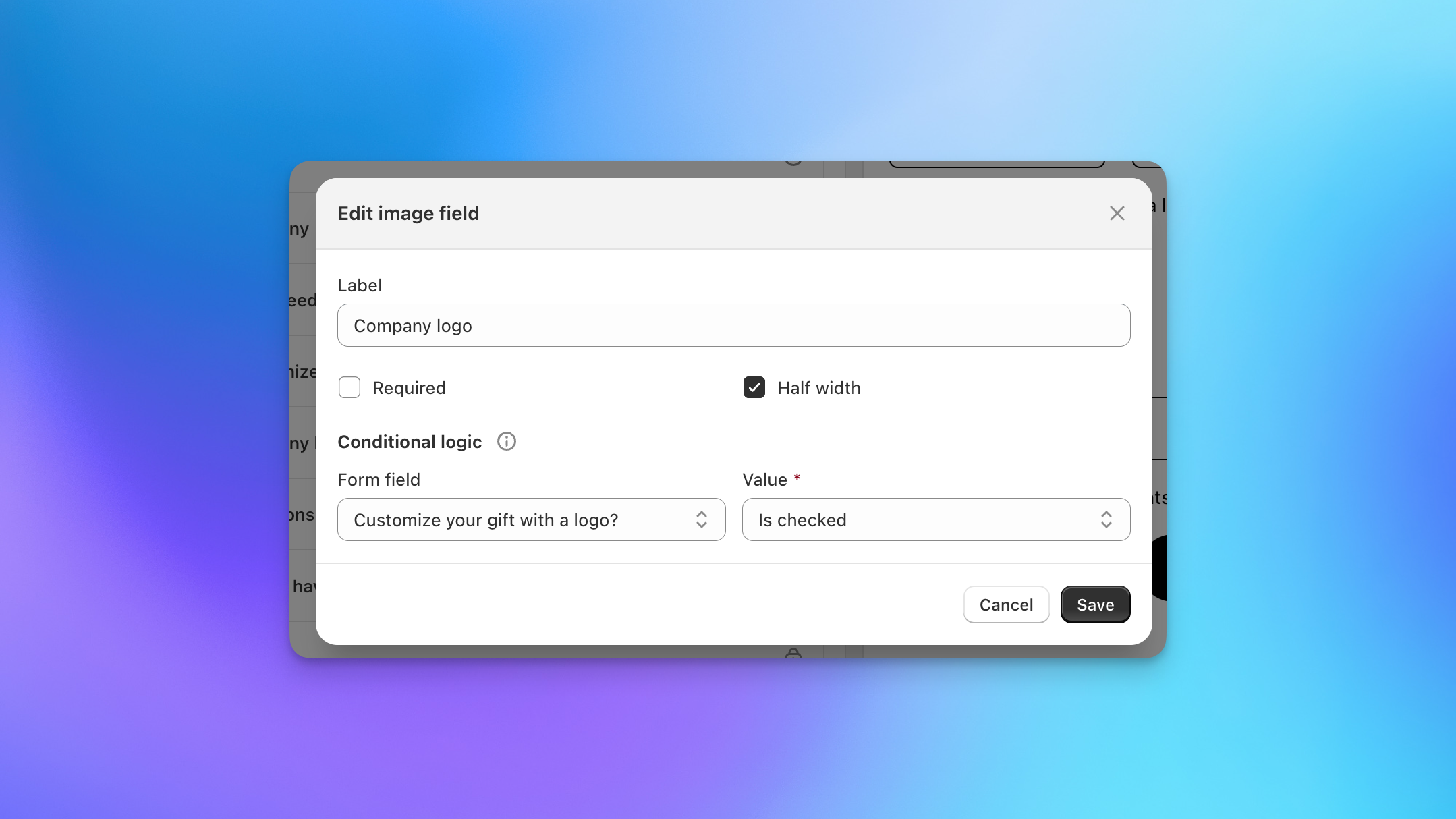
Example: Logo upload. Add a checkbox labeled "Customize your gift with a logo?" and an image field labeled "Company logo." Set the image field's conditional logic to show when "Customize your gift with a logo?" is checked. Customers only see the logo upload if they opt in.
Conditional fields must reference a checkbox that appears before them in the form. If you don't see a field in the conditional logic dropdown, move the controlling checkbox higher in the field order.
The Import File Field
The import file field is a special field type designed for recipient address spreadsheets. It accepts CSV, XLSX, XLS, and Numbers files.
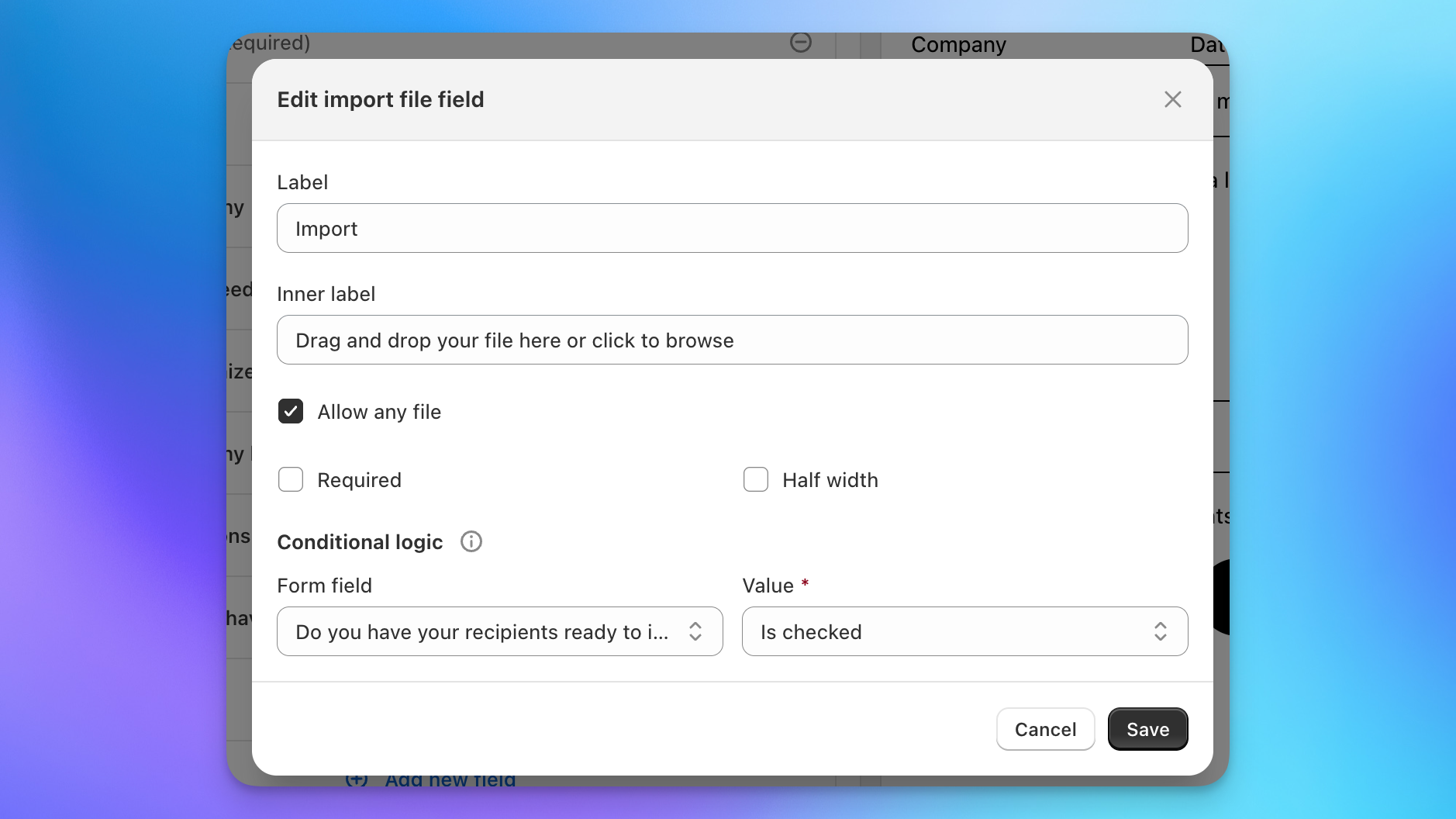
When a customer uploads a file through this field:
- The file is attached to the inquiry and ready to import when you open it in the admin.
- If you have a saved Import Format that matches the file's column headers, it applies automatically during import.
- You don't need to download and re-upload the file. It's already queued.
The Allow any file checkbox controls whether the field accepts any file type or only spreadsheet formats. When checked, customers can upload PDFs, images, or other documents alongside (or instead of) a structured spreadsheet.
Upload the import file template
Below the form builder, you'll find the Upload the import file section. This is where you upload a sample template that customers can download from the form before filling in their own data.
The template you upload here is what customers receive when they click "Download import file" on the form. This is your chance to standardize the data you receive by giving customers a pre-formatted spreadsheet with the exact columns and instructions you need.
Do not include real customer information in your template. Any rows you include in the uploaded file will be visible to everyone who downloads it from your storefront.
We provide two sample templates you can use as starting points:
Basic CSV template: A simple CSV with standard columns (name, email, phone, address, product, quantity, gift message, shipping date). Works for most use cases and is easy for customers to fill out in any spreadsheet app.
Advanced XLSX template: An Excel file with product and shipping rate dropdown menus, a sample data row, column formatting hints, and space for your logo and instructions. Customize this with your own products, shipping options, and branding before uploading it as your template.
The advanced template includes a Data sheet where you define the dropdown options for the Product and Shipping Method columns. Replace the sample product and shipping names with your own, and the dropdowns on the Recipients sheet update automatically. You can also add your company logo to the header area and include any instructions or notes at the top of the sheet.
Setting up the import format
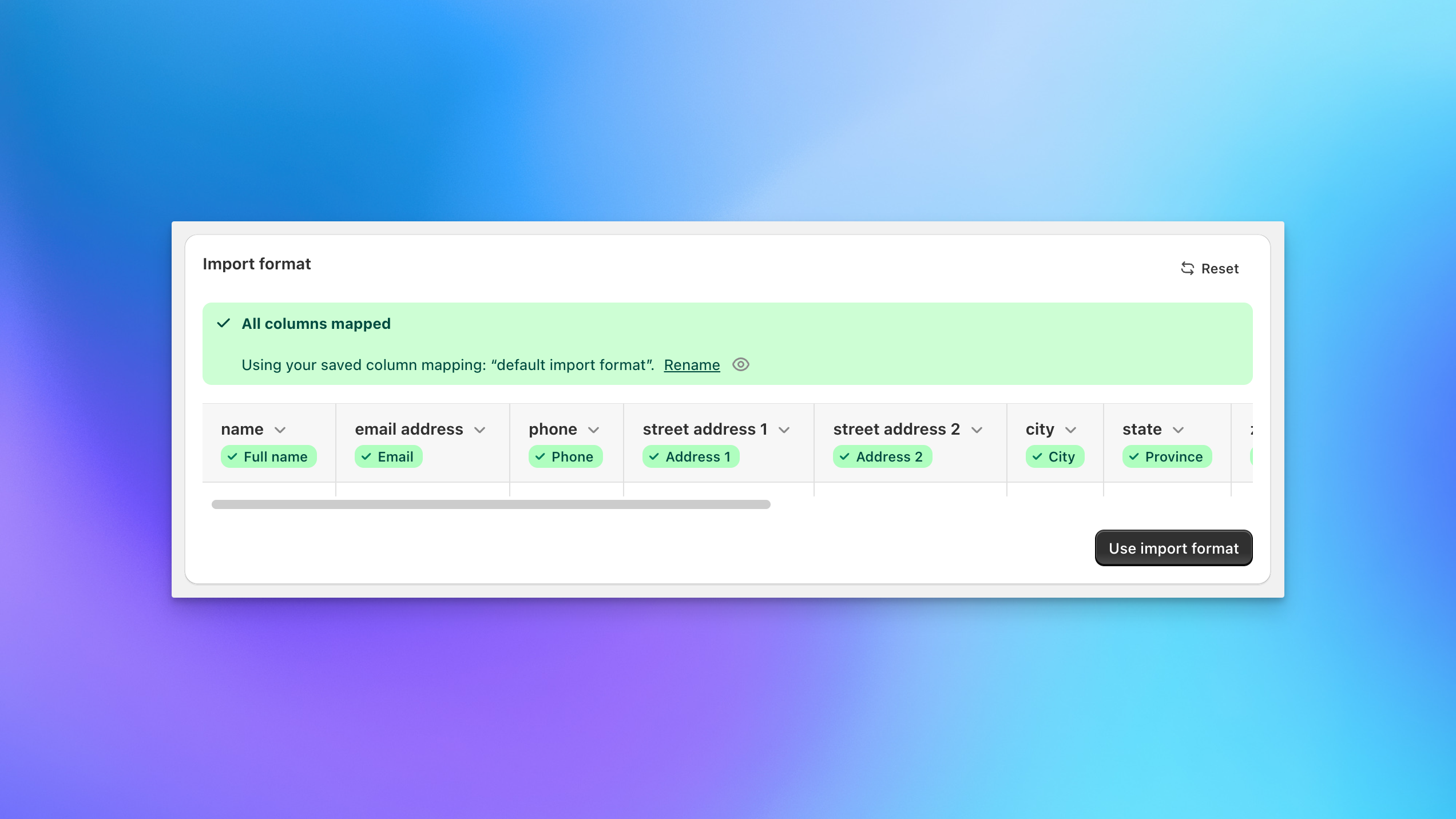
After uploading your template, Send To Many shows you the column mapping screen. Map each column in your template to the corresponding Send To Many field (Full name, Email, Phone, Address 1, etc.) and confirm.
This saved mapping becomes the Import Format that applies automatically whenever a customer uploads a file with matching headers through the inquiry form (or when you upload a file with the same headers during a manual Send).
After Submission Settings
Configure what happens after a customer submits the form:
- After submission action: Choose between "Hide form and show message" or "Redirect to URL." Most merchants use the message option.
- Message heading: The heading shown after submission (e.g., "Inquiry received").
- Message body: The confirmation text (e.g., "Thank you for your inquiry! Our gift concierge will follow-up promptly with a proposal and additional information.").
Notifications
In the Notifications section, enter one or more email addresses that should receive an alert whenever a new inquiry is submitted. Click + Add after each address.
Notifications are sent immediately on submission and include the submitter's name, email, and company so your team can respond quickly.
Next Steps
- Adding Form to Your Theme: Place the configured form on a page in your Shopify theme.
- Managing Inquiries: The full workflow for turning inquiry submissions into Sends.
- Saved Import Formats: How column mappings work across uploads and inquiry submissions.