Sales Tax Calculation, Collection, and Reporting
How sales tax is calculated, collected, and reported for bulk corporate gifting orders on Shopify, with per-recipient detail and aggregate invoice collection.
Sales tax is one of the biggest challenges in corporate gifting because each recipient order may need its own tax calculation based on the products, billing and shipping addresses, and destination-specific tax rules. For wineries and other merchants selling alcohol or regulated products, the requirements can be even more complex. Send To Many simplifies this in Shopify, but there are still important reporting and revenue details to understand.
This article outlines the best Send To Many configuration for collecting and reporting on sales tax for corporate gifting orders in Shopify. This approach gives you the detailed tax reporting needed at the recipient order level while still supporting payment through a single aggregate order or invoice.
When using Send To Many for revenue-generating orders, we strongly recommend working with the accounting member of your ecommerce team to test and confirm that you understand the impact of these settings on revenue and tax reporting.
How tax calculation works on bulk orders in Send To Many
When Send To Many generates recipient orders with calculated amounts, sales tax is calculated separately for each recipient order. Each recipient order's tax is based on:
- the products included in that recipient's order
- the billing and shipping addresses used for that order
- the tax rules and rates you have set up in Shopify, either using Shopify tax or a third party tool integrated into Shopify
After those taxes are calculated on the recipient orders, Send To Many aggregates the individual tax rates from all recipient orders.
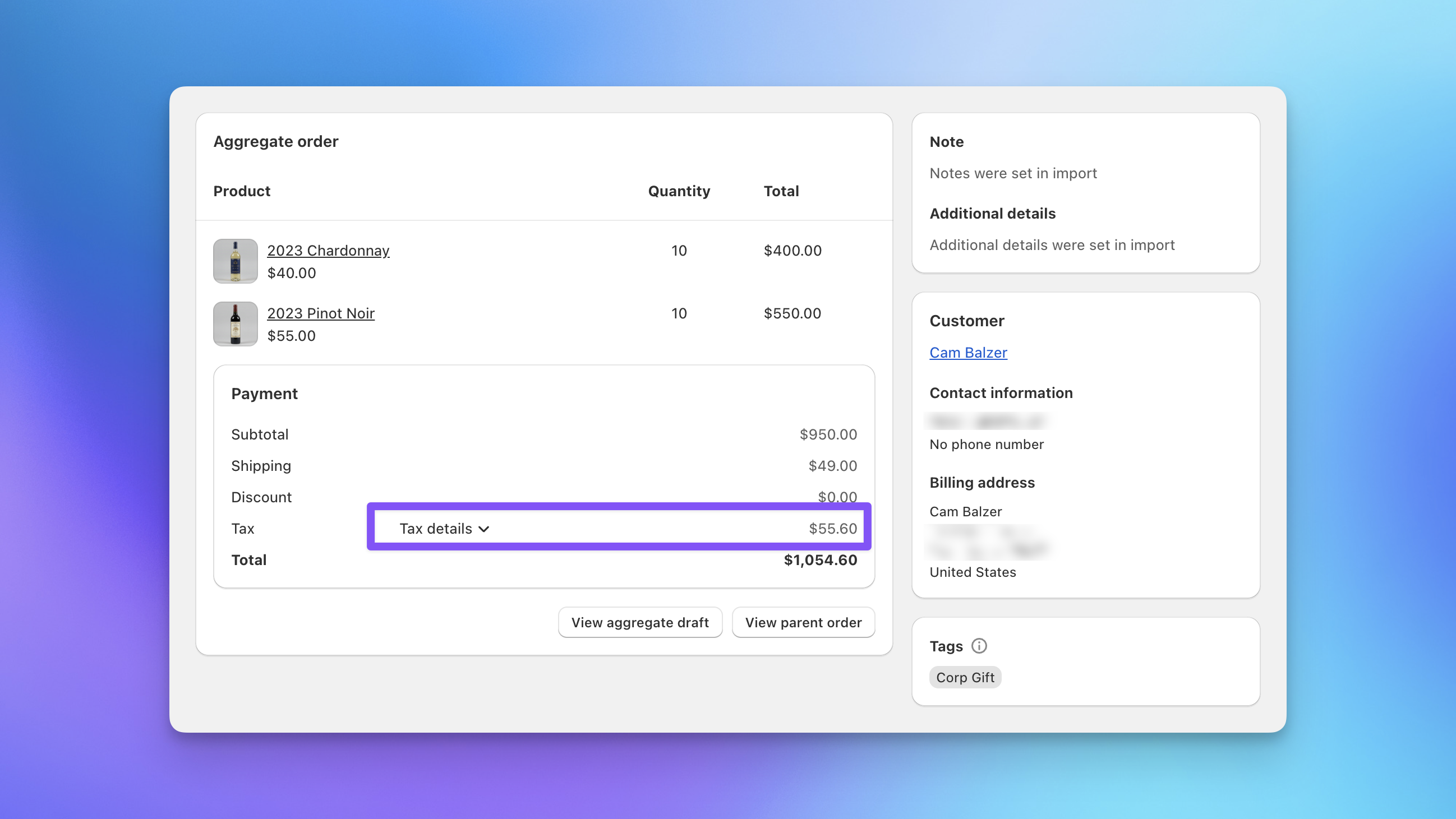 Send Summary with aggregated tax from all recipient orders
When creating an aggregate draft invoice for your Send, a single custom line item is added to reflect the total tax.
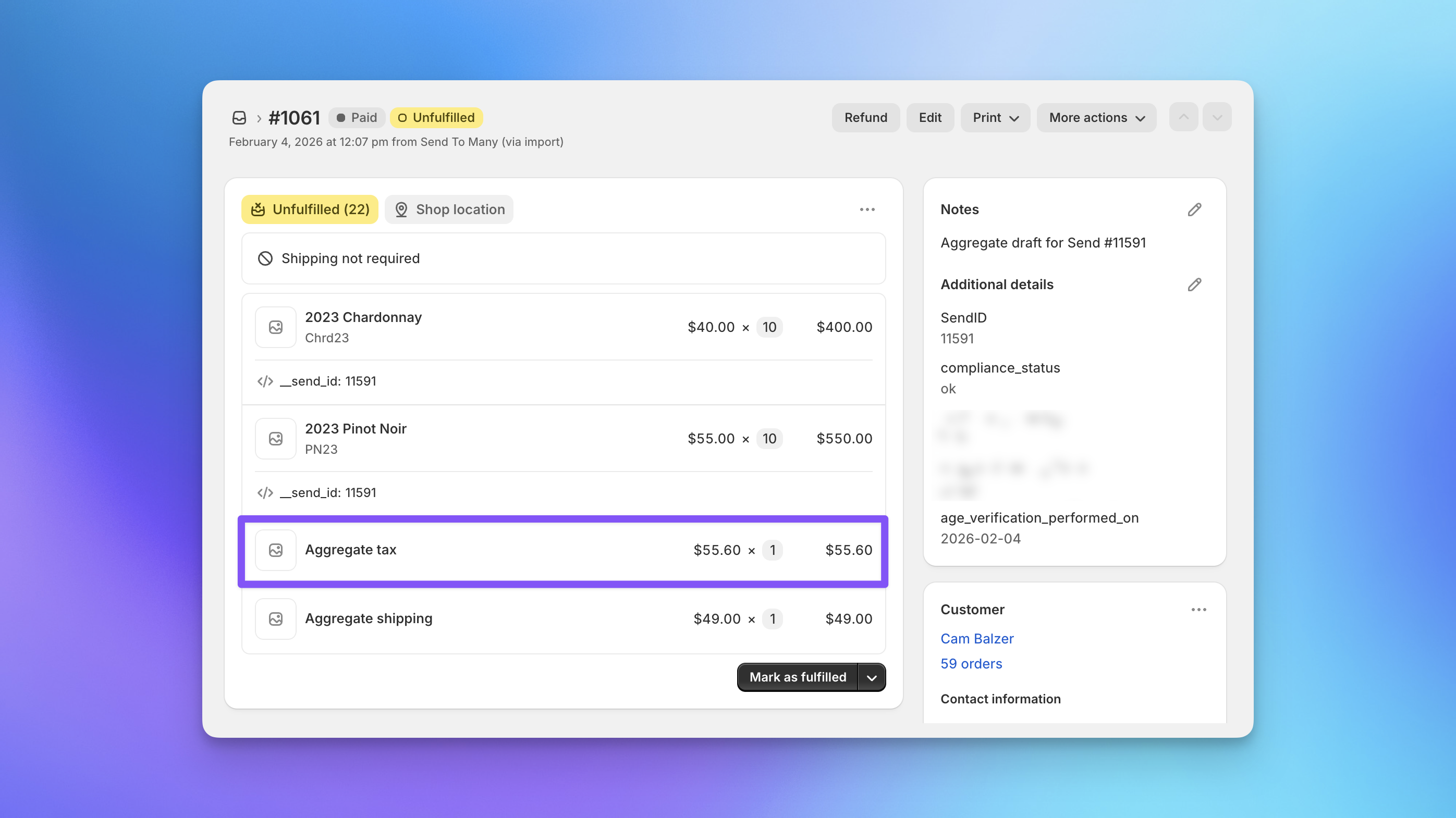 Aggregate Draft Invoice with a single line item for Tax
Aggregate orders vs recipient orders
It helps to think of Send To Many orders in two layers.
Aggregate order
The aggregate order (also called the gifter order or parent order) combines the full send into one order or invoice for payment and tracking, including:
- aggregate product totals
- aggregate shipping totals
- a custom line item for Tax with the combined total from all recipient orders
This order contains the actual transaction, where revenue, including tax revenue, is actually collected from the customer.
Recipient orders
Recipient orders (also called child orders) represent the individual recipient shipments generated from the send.
Each recipient order contains the full tax detail for that recipient's order, including:
- the applicable tax rates
- the tax jurisdiction names
- the tax amounts charged for that order
This is where Shopify stores the detailed tax information used for reporting.
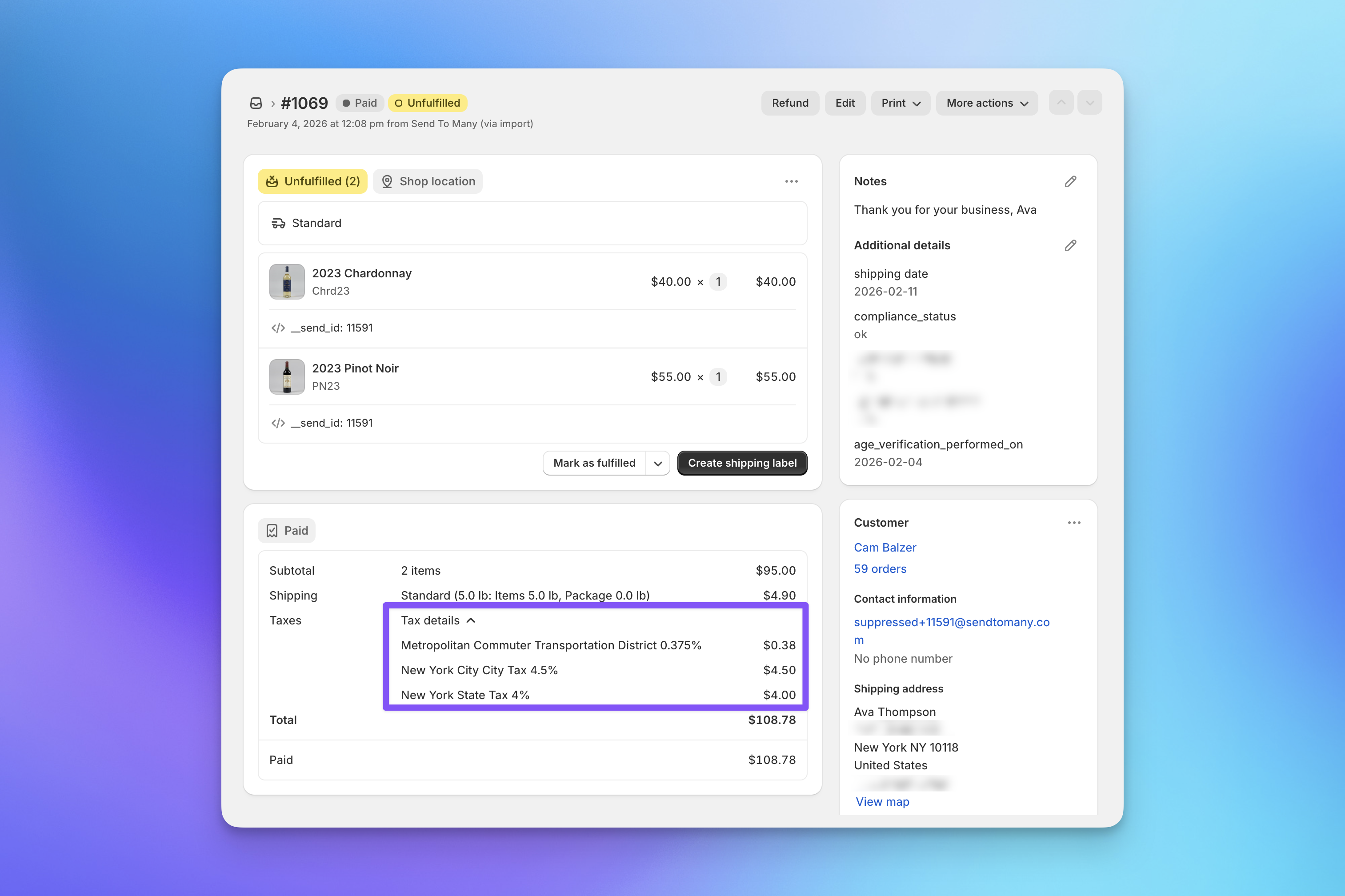 Recipient order generated from a Send, with full tax details.
The optimal Send To Many configuration for sales tax reporting
For manual imports, go to the relevant Send preset in Send To Many and open Order Revenue Handling. Set it to Create orders marked as paid using the calculated amount. Send presets control how manually uploaded sends are generated, and their settings can also be adjusted while creating an individual send. Use the same settings for any other active Send presets where you'll be collecting revenue for the orders. (You can also disable any Send presets you don't need.)
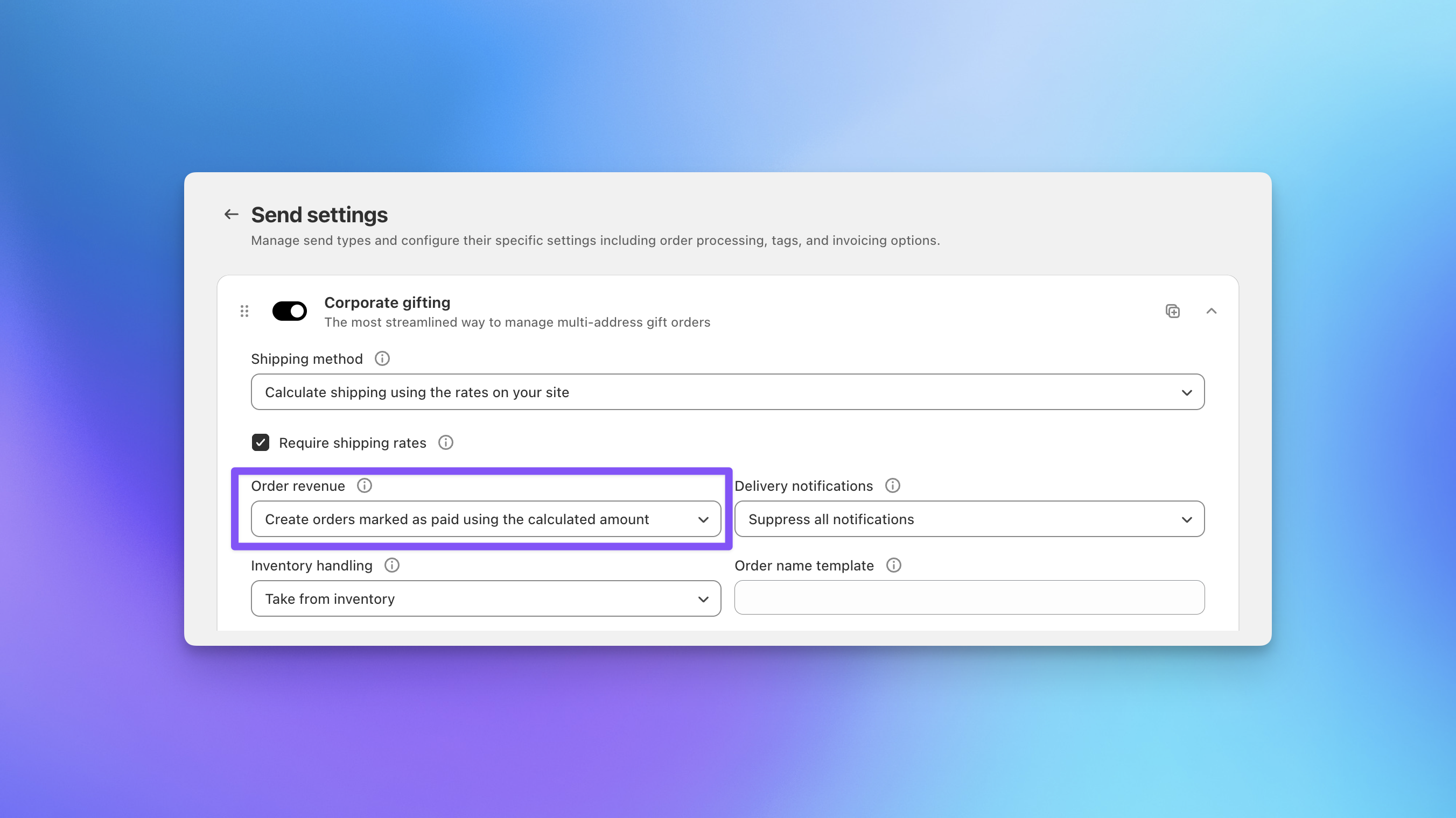
For multi-recipient checkout, go to Send To Many → Settings → Multi-recipient Checkout. The checkout setup article notes that this is where you manage order generation settings, and the checkout flow includes the same choice for whether child orders use $0 values or calculated values.
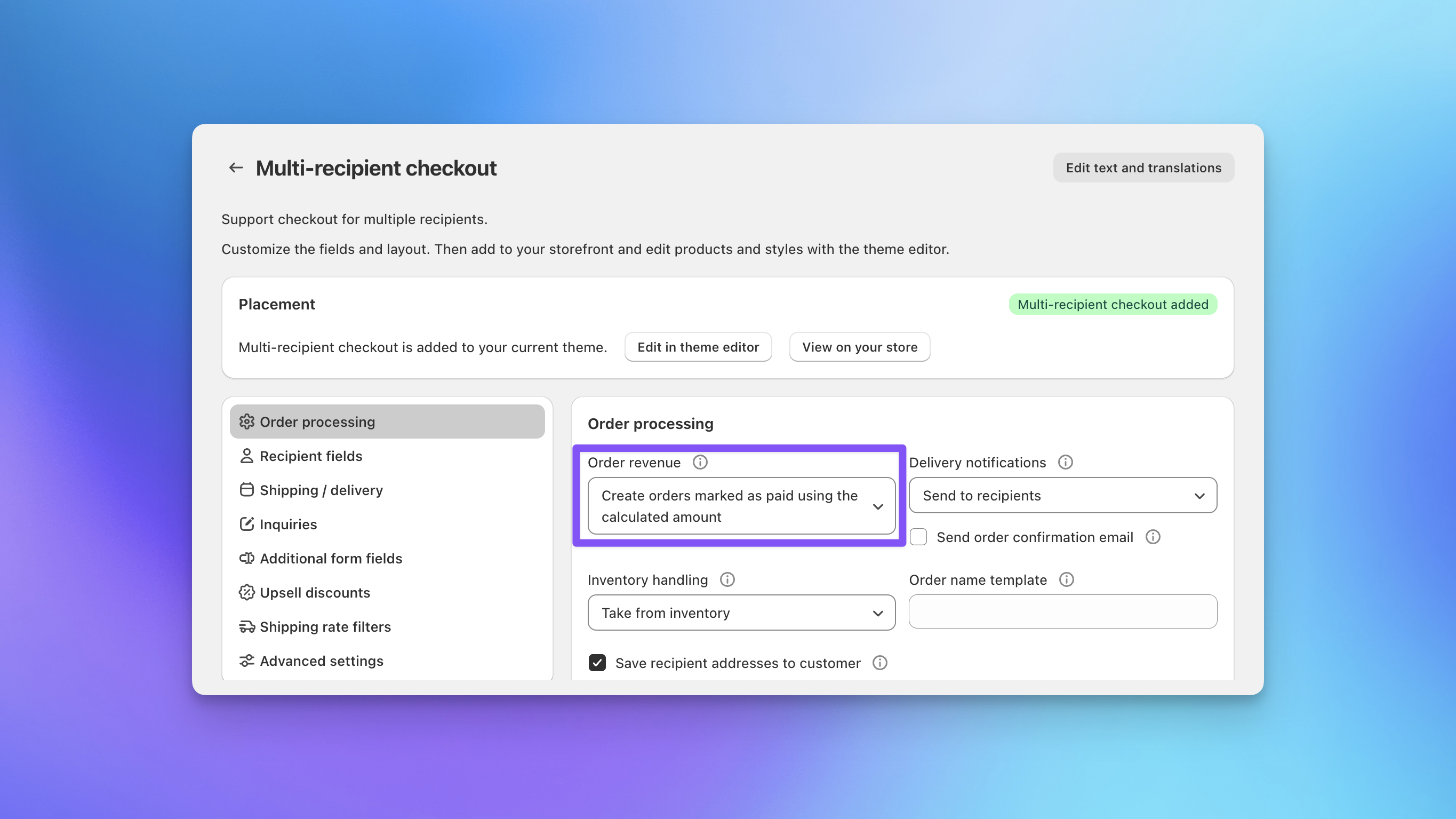
Where tax is collected
With this setup, tax is collected on the aggregate order / aggregate draft invoice, not as separate payments across each recipient order.
The aggregate order includes a custom Tax line item that represents the sum of all recipient order tax amounts.
For example:
- Recipient order A has one tax amount based on its destination and products
- Recipient order B has a different tax amount based on its destination and products
- Send To Many adds those together
- The aggregate order includes a single Tax line item for the total
This allows the customer to pay one combined invoice while preserving the order-level tax detail on the recipient orders.
Where detailed tax reporting lives
Although the aggregate order collects the tax revenue, the detailed tax reporting lives on the recipient orders.
That means the recipient orders are the source of truth for:
- tax jurisdiction names
- tax rates
- tax amounts by order
- destination-specific tax reporting
In Shopify tax reporting, the tax details from the child orders are what get reported.
This is important because the aggregate order does not contain the same level of jurisdiction-by-jurisdiction detail. Instead, it contains the aggregated tax total used for collection.
Downloading tax details in Send To Many
Tax details summarized by send and rate are available for download in the Analytics section of Send To Many.
This is useful when you need a downloadable record of:
- which sends had tax
- how much tax was charged
- which rates were applied
- tax totals grouped for reconciliation or external reporting workflows
The report also shows blank rows for states where recipients received an order but no tax was calculated or collected.
Shopify tax reporting
In Shopify's tax reporting, the details from the recipient orders are reported.
This means Shopify can reflect tax by destination state and tax jurisdiction using the order-level detail stored on the recipient orders.
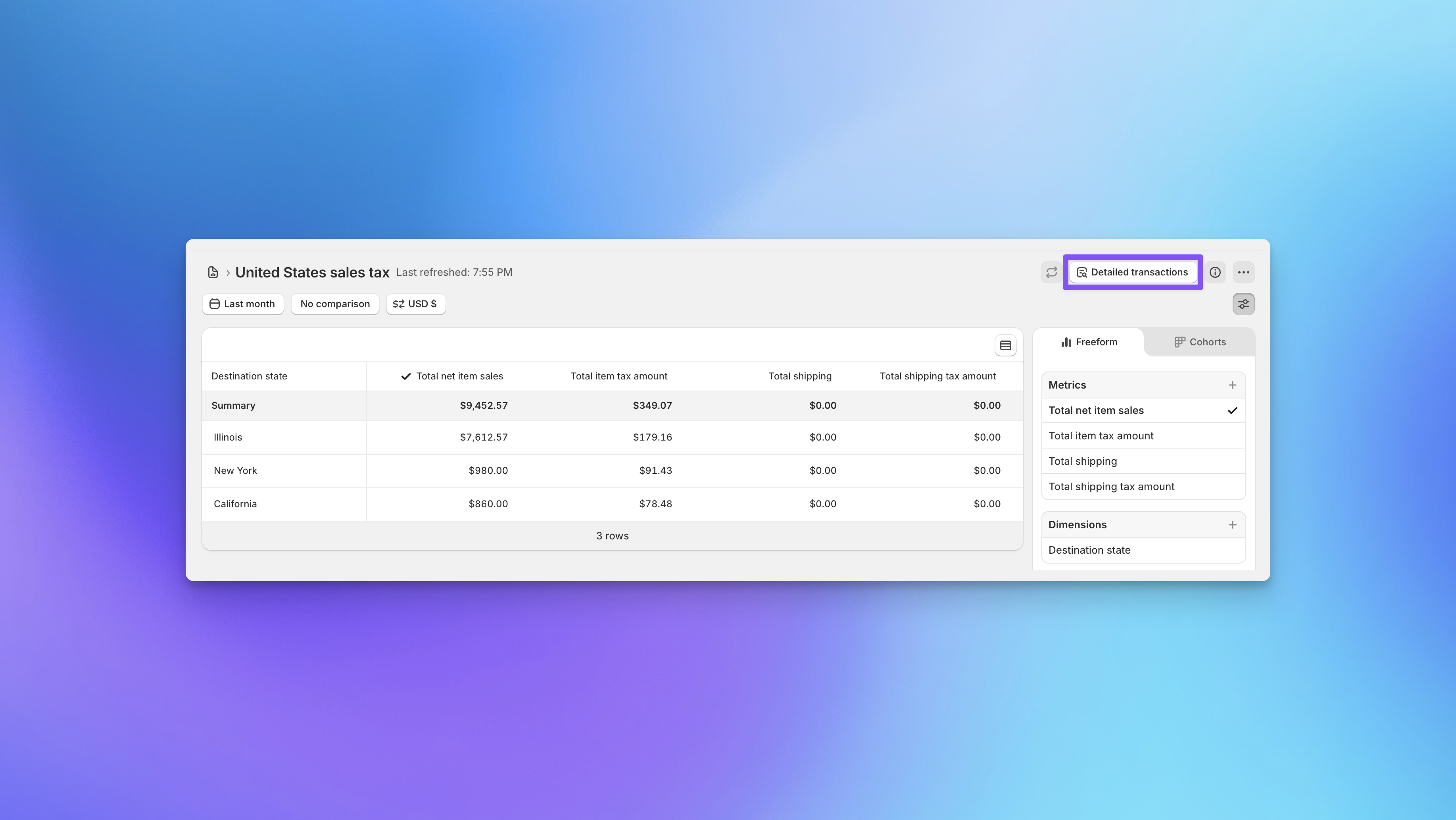 Click detailed transactions to view tax rates by order and line item.
Important reporting note: revenue will be double-counted in Shopify reports
When using this configuration, revenue will be double-counted in Shopify reporting unless you filter out the aggregate orders.
That happens because:
- the aggregate order contains the aggregate revenue collected from the buyer
- the recipient orders also contain calculated product and tax amounts for each individual order
As a result, both layers can appear in Shopify sales reporting.
For many merchants, this is the most practical setup because it preserves complete tax detail on the recipient orders. But it does require filtering in reports so revenue is not counted twice.
How to filter Shopify analytics reports to remove double-counting
To avoid double-counting revenue in Shopify reports, exclude the Send To Many aggregate orders using order tags.
In practice, this means applying report filters that remove aggregate orders from the dataset, while keeping the recipient orders included.
This gives you reporting that is more aligned with the true transactional detail.
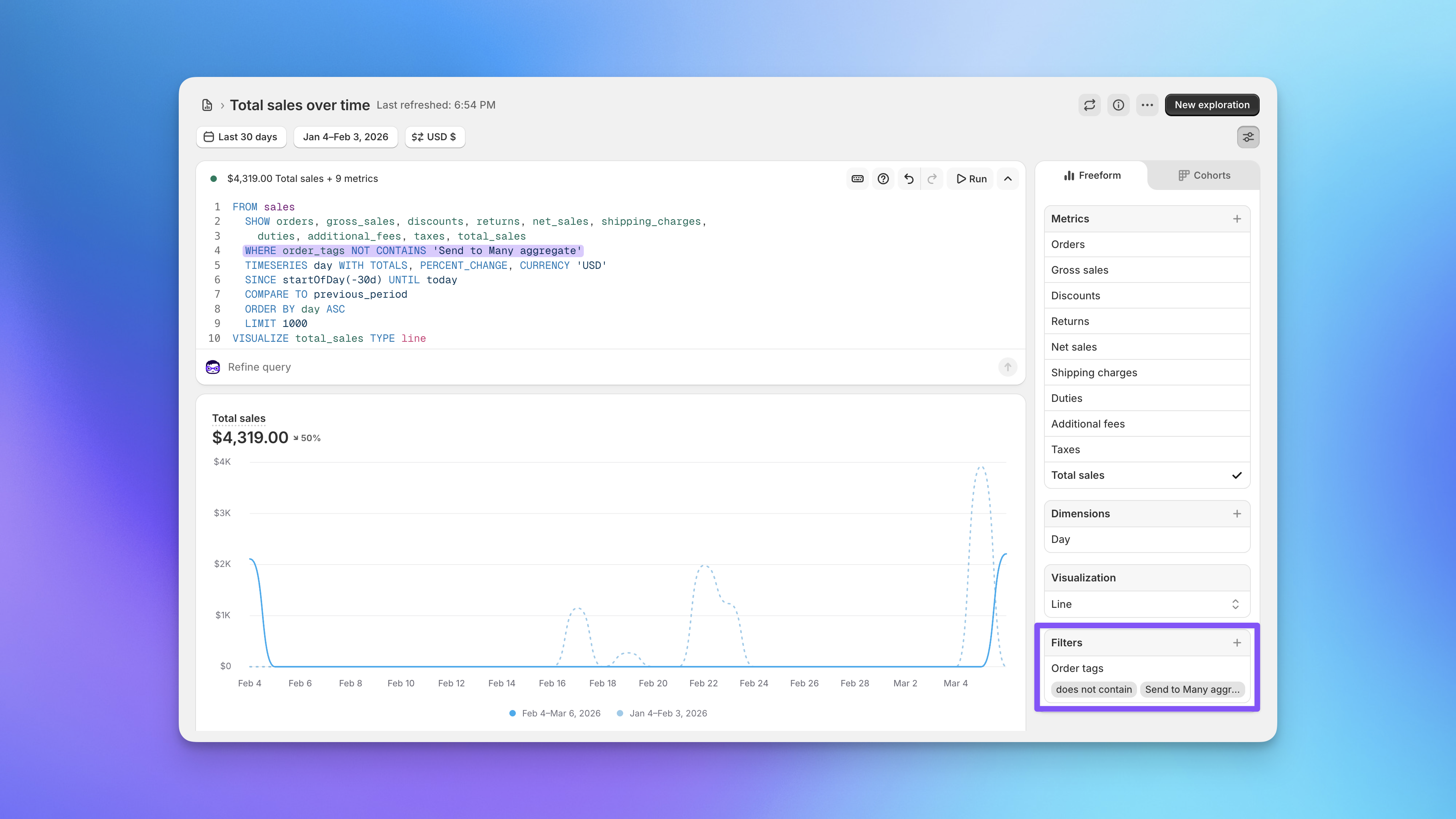 Filter out aggregate orders from revenue reports using tags that identify Send To Many aggregate orders.
Summary
When recipient orders are generated with calculated amounts in Send To Many:
- tax is calculated separately for each recipient order
- the calculation is based on that order's products and billing/shipping address
- those tax amounts are aggregated into a single Tax line item on the aggregate order or aggregate draft invoice
- the aggregate order is where tax revenue is collected
- the recipient orders contain the full tax details used for reporting
- tax details summarized by send and rate can be exported from Analytics
- Shopify tax reporting uses the detailed tax information from the recipient orders
- Shopify revenue reporting will double-count revenue unless you exclude Send To Many aggregate orders using tags