How to Filter Shopify Reports to Avoid Double-Counting Bulk Orders
Filter Shopify analytics and reports to separate aggregate and recipient orders. Customize your Shopify analytics dashboard to avoid double-counting Send To Many revenue using tags and gateways.
When you use calculated values for order revenue handling, both the aggregate invoice and individual recipient orders reflect revenue in Shopify. Without filtering, your reports will double-count Send To Many revenue.
Why Double-Counting Happens
With calculated values, recipient orders show product prices, tax, and shipping. The aggregate order shows the total collected from the gifter. Shopify's built-in reports see both, so revenue gets counted twice.
Inventory is not double-counted. Aggregate orders use custom line items as placeholders and don't draw real inventory. Only the recipient orders contain real products and affect inventory levels.
Recommended Approach
For revenue, product sales, fulfillment, and sales tax reporting: filter out the aggregate orders. In Shopify reports, exclude orders tagged "Send to Many aggregate". The recipient orders contain the itemized product, shipping, and tax detail that these reports need.
For payout reconciliation: the aggregate (parent) orders contain the actual transactions that Shopify pays out on. You can reconcile individual recipient orders back to their Sends using the data in Analytics > Send Details within Send To Many.
For sales tax reconciliation or third-party tax reporting: all the detail you need is available in Analytics > Sales Tax within Send To Many, broken out by tax rate per recipient order per Send.
For isolating all Send To Many activity: filter by the "Send to Many #" tag prefix, which appears on every order from a Send.
How to Filter
You can identify Send To Many orders using two key attributes:
- Order tags: Every order from a Send is tagged "Send to Many #[Send ID]". Aggregate orders also get the "Send to Many aggregate" tag. Tags are the most reliable way to filter.
- Payment gateway: Recipient orders show "Send to Many" as the gateway. Aggregate orders go through Shopify's standard gateway (since they're created from draft orders), so the gateway alone won't catch everything.
To exclude aggregate orders from a Shopify report:
- Open or create a report in Shopify > Analytics.
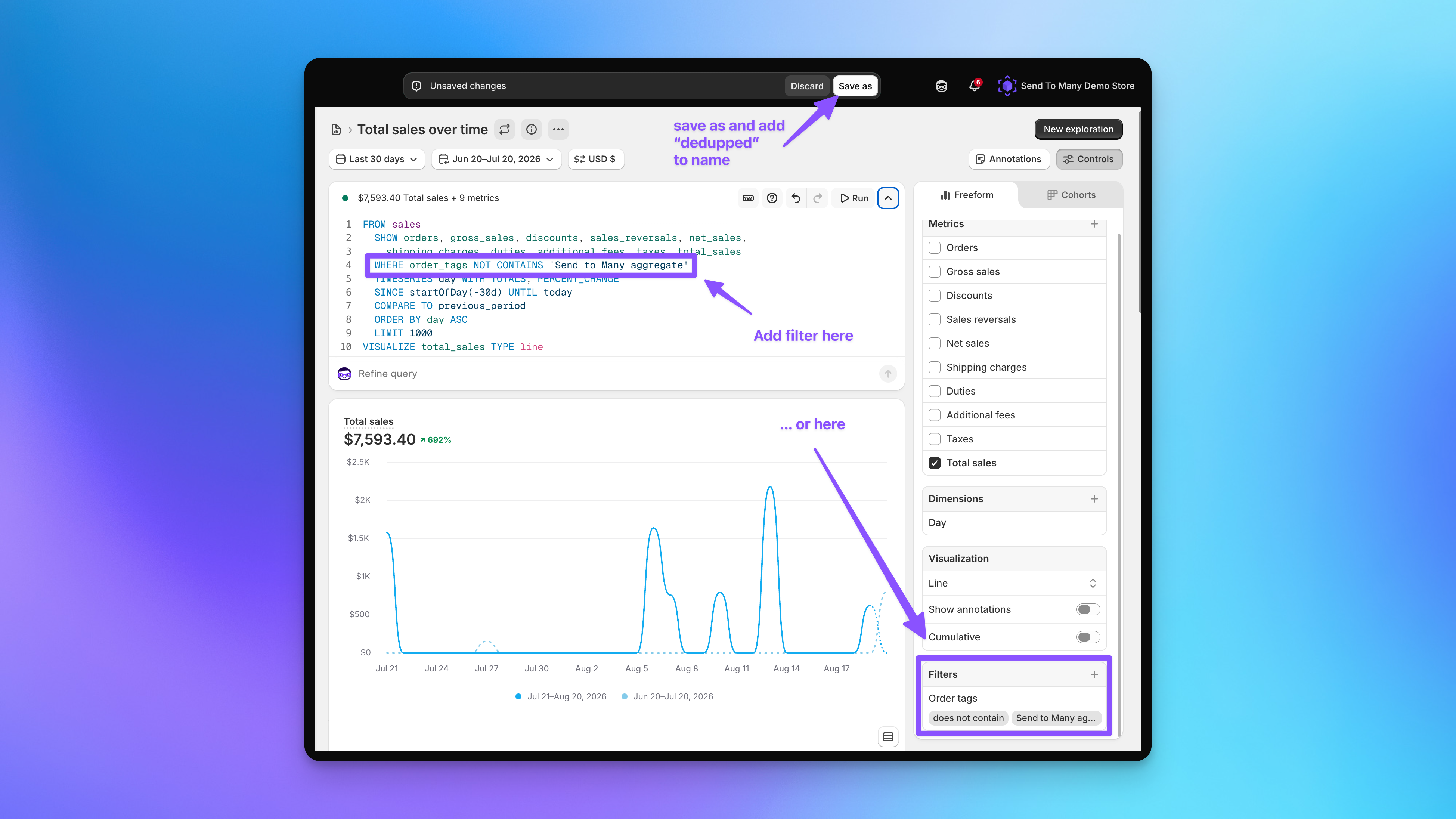
- In the Controls panel, open Filters and set Order tags > does not contain > Send to Many aggregate. You can also add the filter directly in the ShopifyQL editor as a
WHEREclause onorder_tags. - Run the report to confirm aggregate orders are excluded.
This removes all aggregate orders from the report, leaving only the recipient orders with their itemized detail.
The "Send to Many aggregate" tag is added automatically to every aggregate order. You don't need to configure anything in Send To Many for this tag to appear.
Customize Your Analytics Dashboard
Filtering a report once fixes one view. To make your day-to-day numbers accurate, replace the standard sales reports on your Shopify Analytics dashboard with filtered versions. This is a one-time update, and it's a common pattern for merchants who need exceptions for revenue from specific channels.
For each sales report on the dashboard:
- Click into the full report from its dashboard card.
- Add the Order tags filter described above so aggregate orders are excluded.
- Click Save as and give the filtered report a clear name, such as "Total sales over time - dedupped".
- Back on the dashboard, remove the standard card and add your saved report in its place.
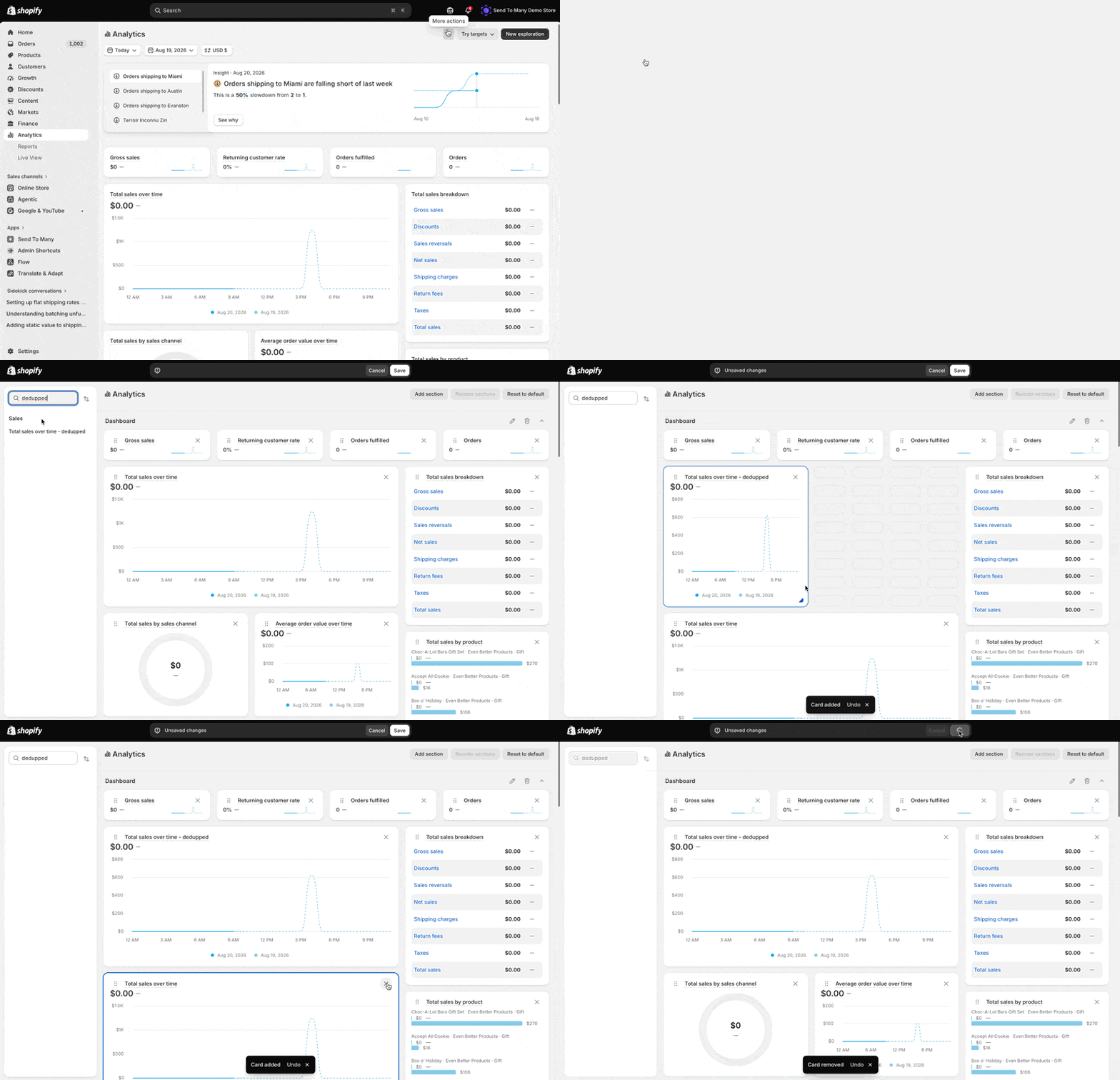
Every section of the Analytics dashboard can be replaced with a filtered report, including the spark chart cards at the top. Spark charts elsewhere in the Shopify admin, like the sales summary on the admin Home page, cannot be customized or filtered, so those numbers will still include aggregate order revenue.
For a complete step-by-step walkthrough, see the tutorial: How to Customize Your Shopify Analytics Dashboard for Send To Many orders.
Which Standard Dashboard Reports Need Updating
| Dashboard report | Recommendation |
|---|---|
| Total sales over time | Replace with a filtered copy. This is the headline number that double-counting inflates most visibly. |
| Total sales breakdown | Replace with a filtered copy. Gross sales, discounts, net sales, shipping, and taxes are all affected. |
| Total sales by product | Replace with a filtered copy. This also removes the aggregate orders' placeholder custom line items from product reporting. |
| Total sales by sales channel | Replace with a filtered copy if you review channel revenue. |
| Average order value over time | Replace with a filtered copy, and decide which orders count. Exclude aggregate orders to measure AOV per recipient order, or instead exclude orders tagged "Send to Many Storefront-Child" to treat each aggregate order as one large order and let bulk purchases raise your AOV. |
| Total sales by referrer / social referrer / POS location | Replace with filtered copies if you use them. Test whether excluding aggregate (parent) or recipient (child) orders gives the attribution you want before saving. |
| Gross sales, Returning customer rate, Orders fulfilled, Orders (spark charts) | Replace with filtered copies like any other dashboard card. |
| Sessions over time / by device / by location / by referrer / by landing page | No change needed. Session reports aren't affected by order data. |
| Conversion rate over time / breakdown | No change needed. These are session-based, and recipient orders aren't created from storefront sessions. |
| Products by sell-through rate | No change needed. Inventory isn't double-counted. |
| Customer cohort analysis | The order tags filter isn't available on customer-based reports, so this report can't be dedupped the same way. |
If you use third-party reporting or accounting tools that pull Shopify order data, apply the same tag-based exclusion there so all your systems agree.
If Using Zero-Dollar Recipient Orders
No double-counting risk since recipient orders are $0. Revenue only on aggregate. You may still want to filter to separate STM orders from regular catalog orders.
Work with your accounting team to set up standard filters before going live with large Sends. This ensures consistent reporting across your business.
See Dashboard and Exports for export options and Sales Tax Calculation for tax considerations.