Troubleshooting Account & Billing
Troubleshoot the Couldn't load your plan banner and Subscribe to get started message in Send To Many when your store already has a subscription: browser extensions, corporate firewalls, and stored site data.
Plan Not Loading: "Couldn't load your plan" or "Subscribe to get started"
What you're seeing: The app opens, but a yellow Couldn't load your plan banner appears at the top, the home page says Subscribe to get started, and plan-gated features show Upgrade plan or Not available for your plan. Your store has an active subscription, and other people on your team can use the app normally. Your Sends and settings are still there.
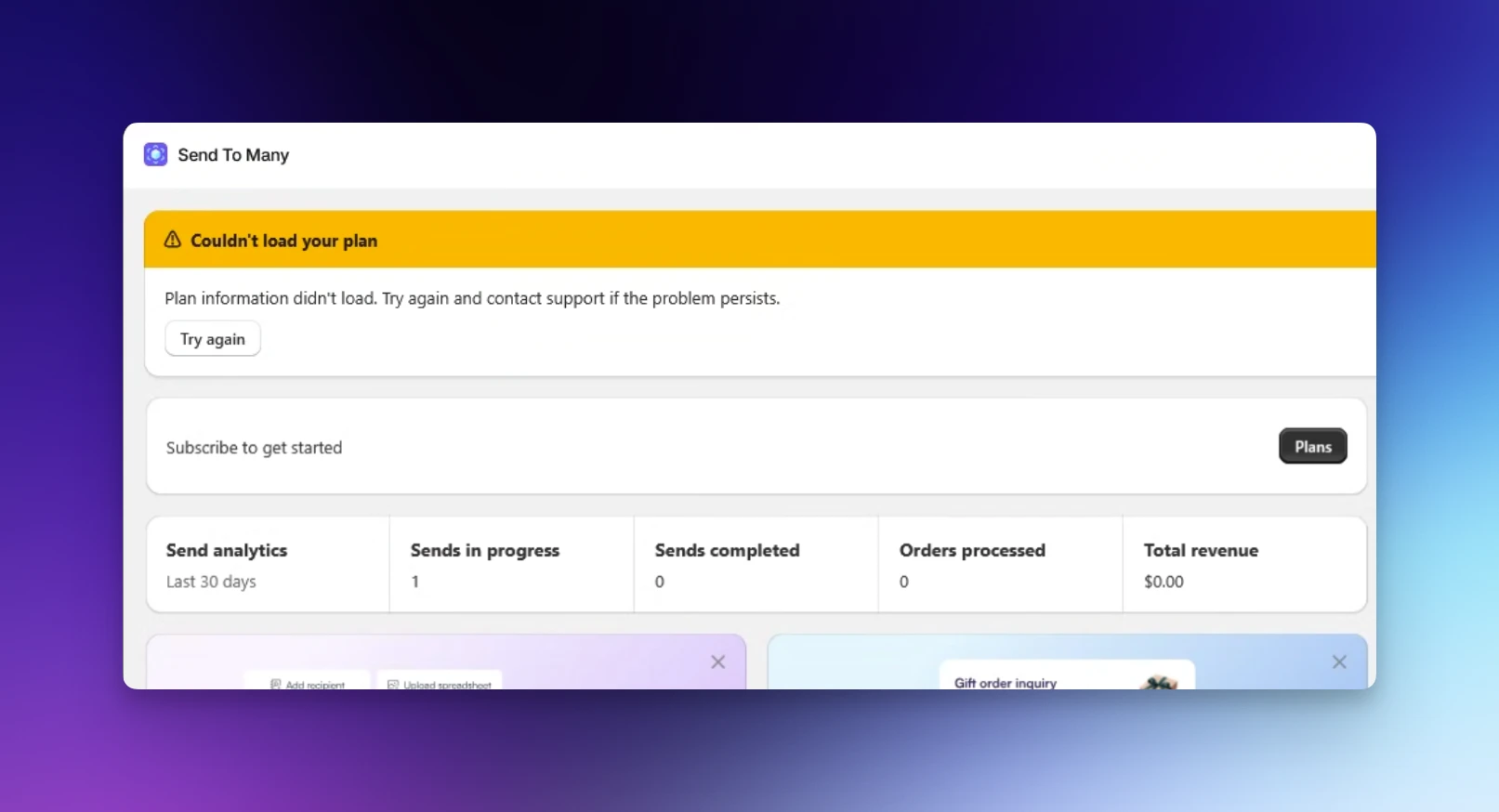
Why this happens: Send To Many runs inside your Shopify admin, and it loads your plan and subscription details from our billing service at partnerhub.dev. If that request can't complete, the app has no plan information to show, so it falls back to treating the store as unsubscribed. Your subscription hasn't changed; the app just can't read it from your browser.
The request is almost always blocked by something between your browser and our billing service, not by the app or by Shopify:
- A browser extension. Ad blockers and privacy tools (uBlock, AdBlock, Privacy Badger, Ghostery, Brave Shields) and managed security extensions installed by an IT department can block the request.
- A corporate firewall or web filter. Office networks and company laptops often run a filter (Fortinet, Zscaler, Cisco Umbrella, Netskope, and similar) that blocks domains it hasn't categorized or intercepts their secure connections. Security agents on a company laptop do this even when you work from home.
- Stored site data in your browser. A stale saved session can stop the app from requesting your plan at all.
How to fix it:
-
Click Try again on the banner. If the request was interrupted, this is all it takes.
-
Open the app in a private or incognito window. Private windows turn off most extensions. If the app loads normally there, an extension is the cause: turn off ad blockers, privacy tools, and security extensions for
admin.shopify.com, or addpartnerhub.devto their allow lists. If there's a security extension you can't turn off, your IT team installed it and needs to allow the domain. -
Switch networks. Connect to a phone hotspot instead of the office wifi or VPN and reload the app. If it loads, your network is blocking our billing service. Ask your IT team to allow
partnerhub.devand exempt it from SSL inspection. A note they can act on:Please allow
partnerhub.devand exempt it from SSL inspection. It's the billing service for Send To Many, a Shopify app we use. The domain is being blocked as uncategorized, which breaks the app's plan and billing page. -
Clear the app's stored site data. Clearing the cache isn't enough. In your browser's site data settings, remove the saved data for
shopify.com,gadget.app, andpartnerhub.dev, then quit the browser, reopen it, and log in again. In Safari that's Settings > Privacy > Manage Website Data; in Chrome it's Settings > Privacy and security > Third-party cookies > See all site data and permissions.
If the private window test worked, you can keep using the app in a private window until the extension or stored data is sorted out. A network block affects every window on that connection, so in that case the hotspot or your IT team is the way through.
Open https://partnerhub.dev/api/embedded/legacy-billing/customer directly in the affected browser. A small error message in plain text (a 401 response) is the normal result and means the path is clear. A block page, a request-access page, a login page, or a certificate warning means a filter on your network or computer is intercepting the domain, and the fix is with your IT team.
If none of this works: contact support with the browser you're using, whether a private window works, whether a phone hotspot works, and what the direct URL above shows. That tells us which of the three causes it is in one message.
Features Show "Upgrade plan" After a Plan Change
What you're seeing: You upgraded or were moved to a new plan, but a feature still shows Upgrade plan or Not available for your plan.
Why this happens: The app reads your plan when it loads. A tab that was already open keeps the old plan until it reloads. If the banner above is also showing, the plan isn't loading at all, and that's the issue to fix first.
How to fix it: Reload the app. If the feature still shows as unavailable, check that the new plan includes it on Pricing and Plans, and contact support if it should.
Still have a question?
Ask Manny, the Send To Many bot, about “Troubleshooting Account & Billing” or anything else in the docs.