Order Metafields: Map Upload and Checkout Data to Shopify Metafields
Store structured data from spreadsheet uploads and multi-recipient checkout in Shopify order metafields, mapping imported columns and recipient fields easily.
Send To Many can write data from your uploads and multi-recipient checkout directly into Shopify order metafields. This lets you carry structured information through the entire order lifecycle: from the moment a spreadsheet is imported or a shopper fills out checkout, all the way into your fulfillment tools, automations, and reporting.
Order metafields are useful when you need specific data attached to each recipient order in a format that Shopify, Shopify Flow, and third-party integrations can read reliably. Common examples include future ship dates, internal reference IDs, delivery instructions, and custom fields that your operations team or fulfillment partner depends on.
How it works
Send To Many reads the order metafield definitions you've already created in your Shopify store. When you map a column or recipient field to one of those definitions, we write the value to the metafield on each recipient order during generation.
You don't need to create any metafield definitions inside Send To Many. Define them in Shopify (under Settings → Custom data → Orders), and they'll appear as mapping options in both the upload workflow and checkout configuration.
Metafield values must match the validation rules on your Shopify metafield definition. If a value doesn't pass validation, the order will fail to create. Double-check formatting requirements (especially for dates and numbers) before importing or going live with checkout.
Metafields in upload
When you upload a spreadsheet, the column mapping step lets you assign any column to an order metafield instead of a standard field. This is useful when your spreadsheet contains data that doesn't fit into built-in fields like name, address, or gift message, but still needs to travel with the order.
Mapping a column to a metafield
On the column mapping screen, click the dropdown for the column you want to map and select Order metafield. A dialog will appear showing the order metafield definitions available in your store.
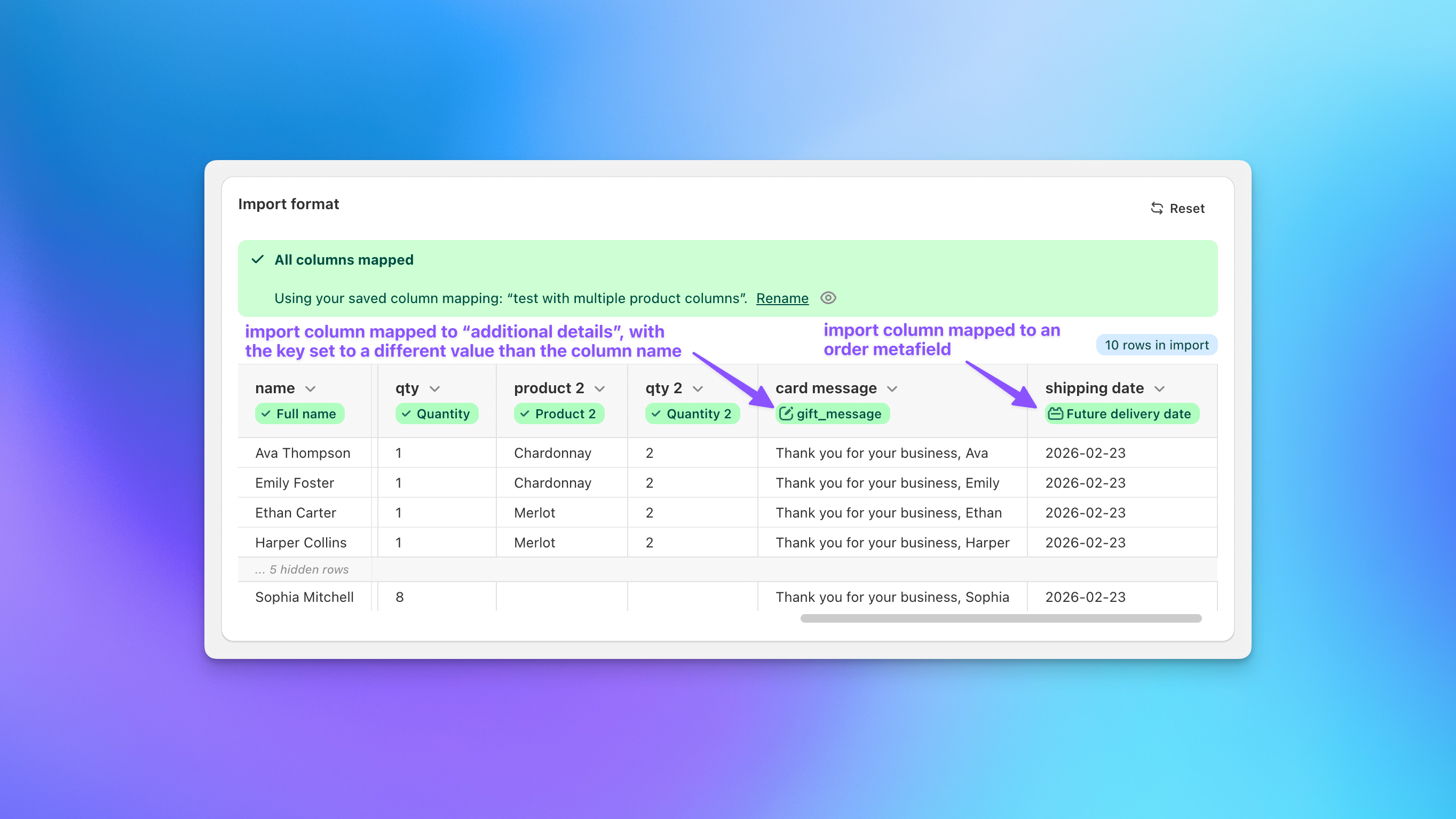
Select the metafield definition that matches the data in your column. The dialog shows both the display name and the namespace key (e.g., custom.future_ship_date) so you can confirm you're targeting the right one.
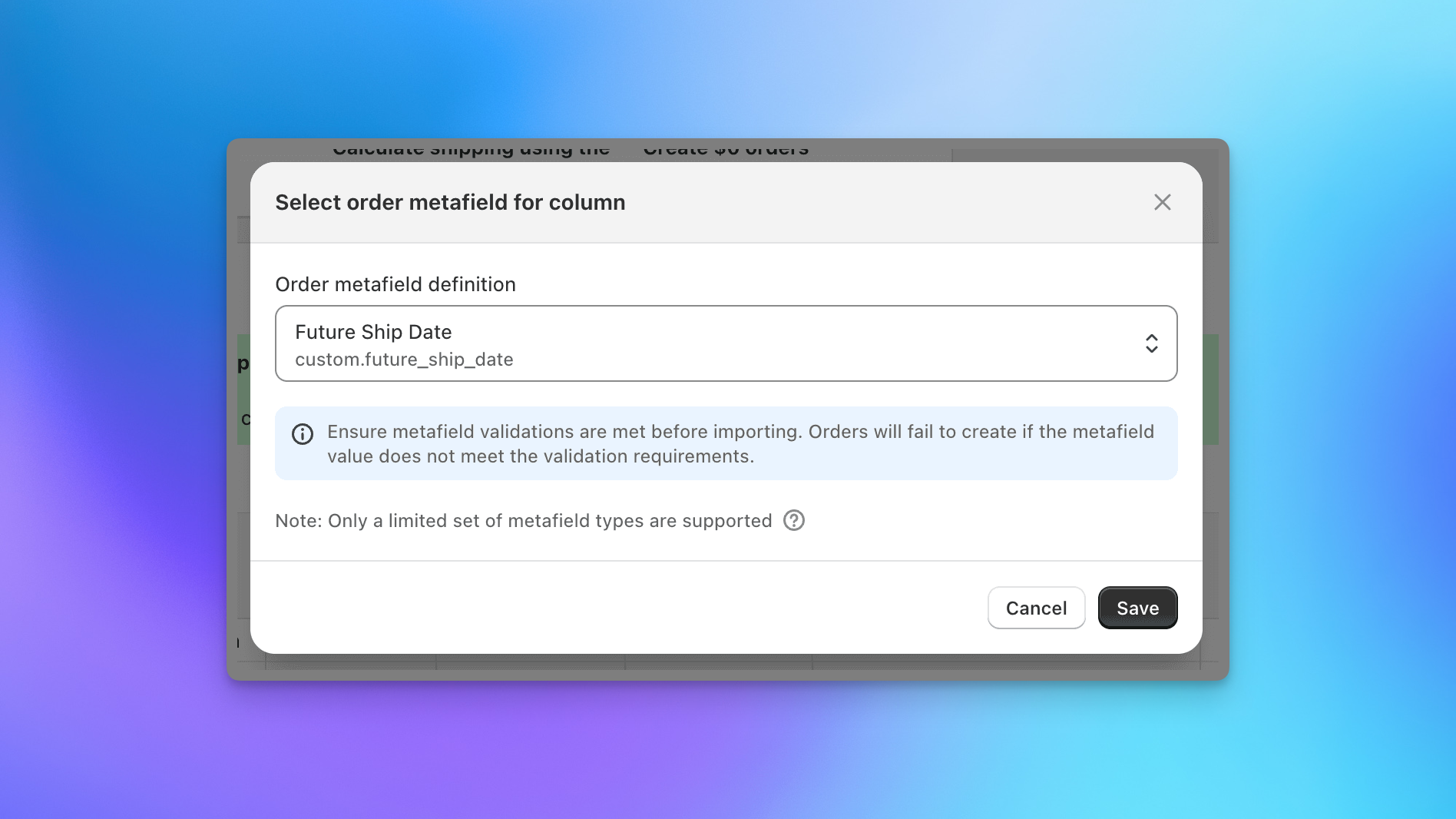
Only metafield types that support single-line values are available for import mapping. If you don't see a metafield you expected, check its type in Shopify's Custom data settings.
Once mapped, Send To Many validates each row's value against the metafield definition during import. If any values don't meet the definition's validation requirements, you'll see errors before orders are created.
Example: shipping dates via upload
A common use case is importing a future ship date column. If your Shopify store has a date type order metafield (e.g., custom.future_ship_date), you can map your spreadsheet's shipping date column directly to it. Your fulfillment team or third-party logistics integration can then read the date from the metafield on each order.
Metafields in checkout
In the multi-recipient checkout, custom recipient fields and the shipping date picker can both write to order metafields. This means data your shoppers enter at checkout flows straight into structured Shopify metafields on each recipient order.
Custom recipient fields
When you add or edit a custom recipient field in the checkout configuration, set Field type to Order metafield. Send To Many will show the available order metafield definitions from your store that match the field's data type (text, date, or number).
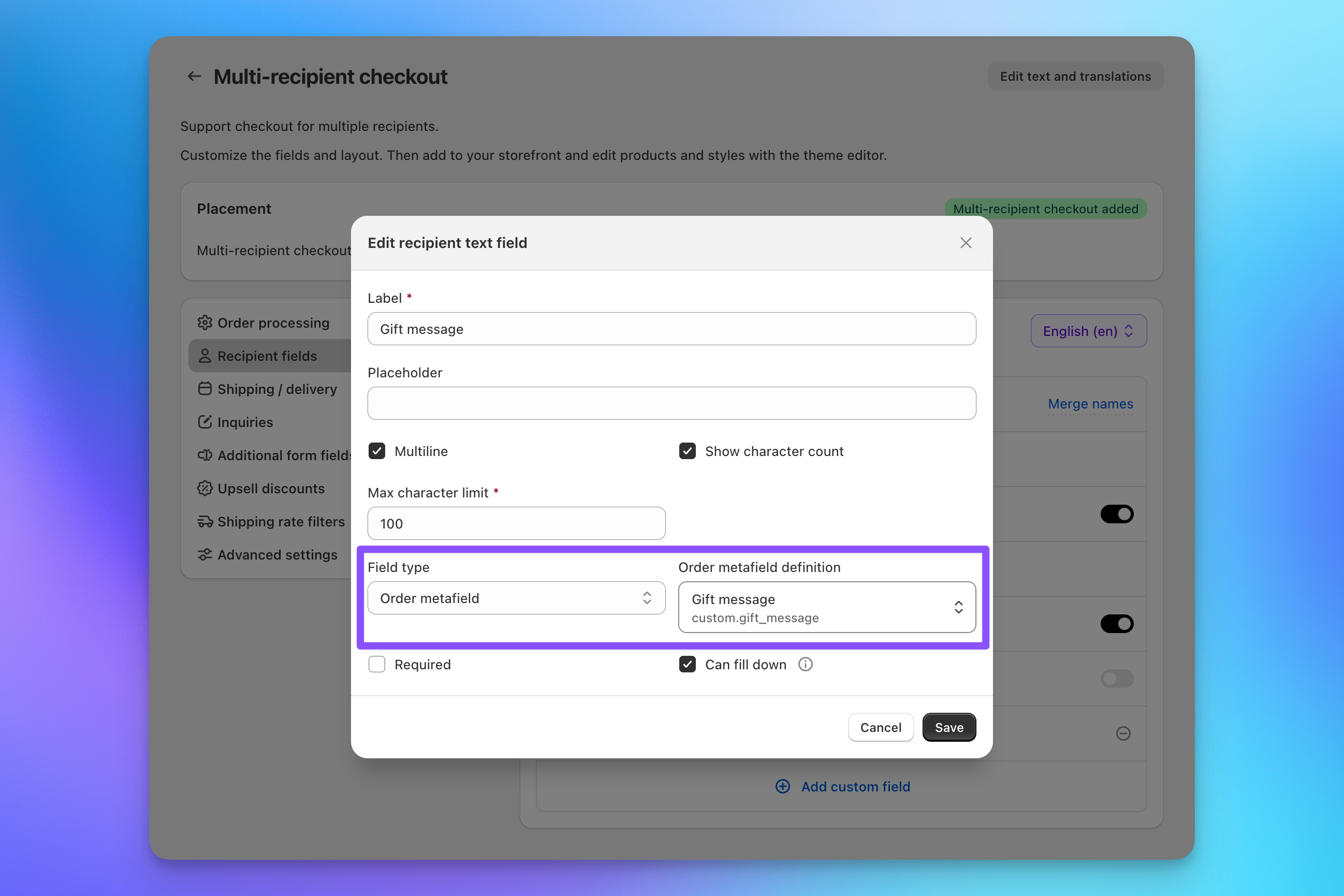
The metafield definition you select determines what type of input the shopper sees and what validation is applied. For example, a text-type metafield with a max length will enforce that limit in the checkout field.
This is useful for collecting structured data from shoppers that needs to be available downstream: internal PO numbers, delivery instructions, recipient-specific notes, or any custom field your team processes after the order is placed.
Shipping dates
If you use the shipping date picker in checkout, you can store the selected date in an order metafield instead of (or in addition to) an order tag. Under Shipping / delivery settings, set Place shipping date in to Order metafields and select a date-type metafield definition.
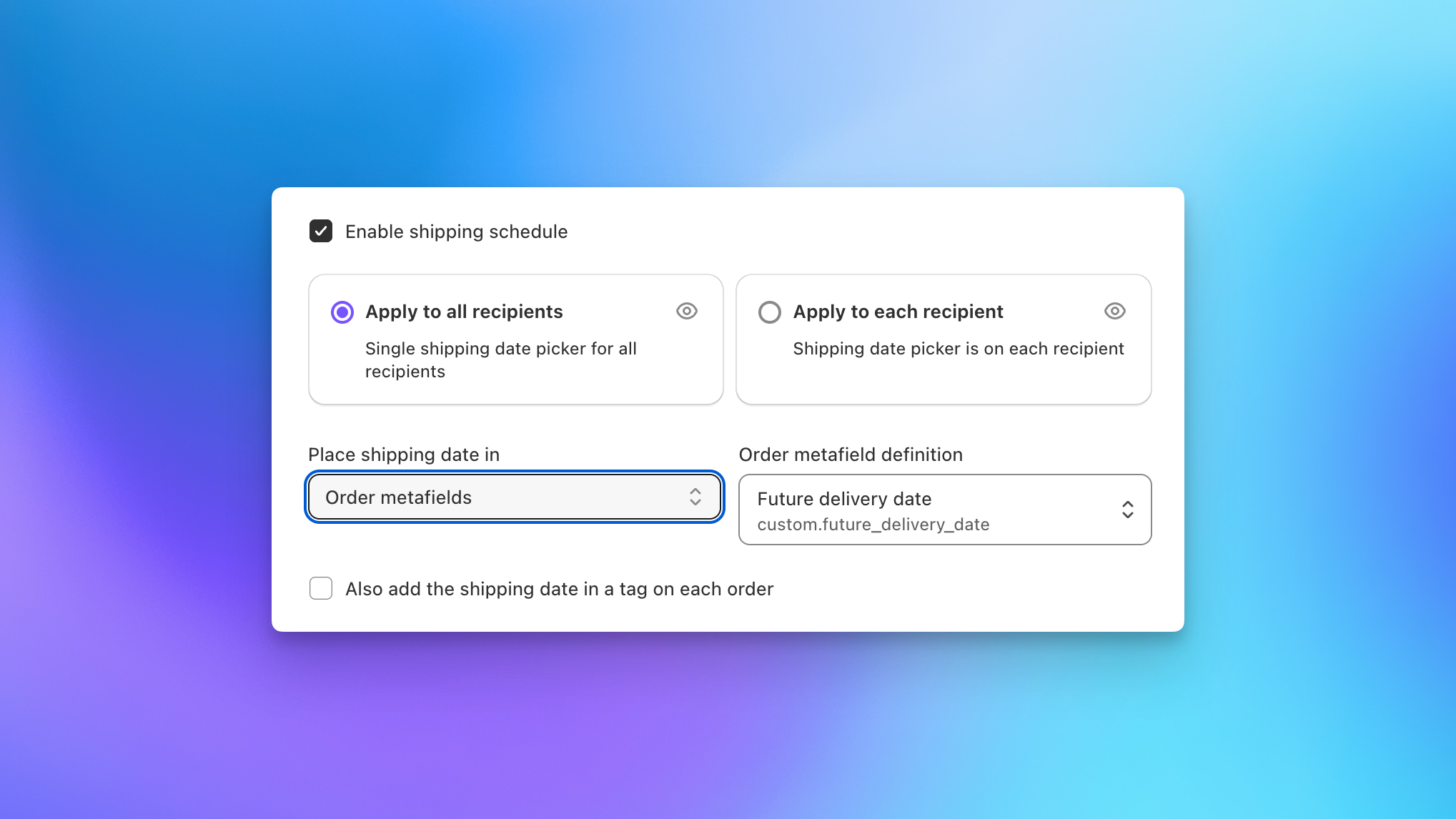
This gives fulfillment systems a clean, structured date value to read from each order rather than parsing it from a tag string.
Supported metafield types
Send To Many supports a limited set of Shopify order metafield types. The available types depend on the context:
- Upload column mapping: text (single-line and multi-line), number (integer and decimal), and date
- Checkout recipient fields: text, number, and date types that match the recipient field's data type
- Checkout shipping date: date-type metafields only
If a metafield definition doesn't appear in the picker, it's likely using a type that isn't supported yet (e.g., JSON, file reference, or list types).
Related articles
- Bulk Order Spreadsheet Format covers all column mapping options for uploads
- Core settings covers recipient field configuration
- Shopify Flow Integration can trigger automations based on metafield values written during order generation