How to Upload a Corporate Gifting Order into Shopify
Ops guide to uploading a corporate gifting order: prep your spreadsheet, validate addresses, calculate shipping and tax, invoice, and create Shopify orders.
This tutorial is written for ops teams handling corporate gifting orders day-to-day. It covers the full process from receiving a client's recipient list to having orders ready for fulfillment in Shopify, with practical guidance on spreadsheet preparation, common issues, and what to expect at each step.
Before You Start
You'll need:
- A recipient spreadsheet from your client (CSV, Excel, or Google Sheets URL)
- The client set up as a Shopify customer (or you can create them during the Send)
- Your Corporate Gifting send preset configured. If you haven't set one up yet, see Send Presets and Generation Settings
Step 1: Prepare the Spreadsheet
Send To Many is flexible about spreadsheet format. In most cases, your client's file will work without changes. The system auto-detects common column headers like "Name," "Address," "City," "State," and "Zip."
Minimum required columns: First name, last name, address line 1, city, state/province, ZIP/postal code, and country (if shipping internationally).
Optional columns that save time:
- Product columns: SKU, product name, or variant name. Include these if different recipients get different products.
- Gift message: A column with personalized messages for each recipient.
- Company name: Appears on shipping labels when included.
- Phone number: Required by some carriers for delivery.
- Quantity: If different recipients get different quantities of the same product.
Excel coerces ZIP codes into numbers, stripping leading zeros (e.g., "01234" becomes "1234"). Format your ZIP column as Text before saving. Google Sheets handles this correctly by default.
For detailed formatting guidance, see Formatting Your Upload File.
Step 2: Create the Send and Upload
- Open Send To Many and click Create Send.
- Enter a Send name that your team can identify later (e.g., "Acme Corp Holiday 2026" or the client's PO number).
- Select the billing customer from the dropdown. This is the gifter company paying for the order. If they're not in Shopify yet, you can create them here.
- Select Corporate Gifting as the send preset.
- Optionally assign a store rep so your team knows who's handling this Send.
- Click Upload File and select the spreadsheet.
- Review the column mapping. Send To Many auto-detects headers when possible. Check that each column is mapped to the correct field, adjust any that look wrong, and click Continue.
If your client sends files with the same column headers each time, the mapping is saved automatically as an Import Format. Future uploads with matching headers will map without manual review.
Step 3: Match Products
If your spreadsheet included product columns (SKU or product name):
Send To Many matches each entry to your Shopify catalog. Review the matches. If there are multiple potential matches or variants, you'll see a short list to choose from. Click any unmatched product to search your catalog and assign it manually.
If your spreadsheet didn't include products:
Select a product to send to all recipients. Everyone in this Send receives the same item. If different recipients should get different products, add a product column to the file. You can also update any individual recipient's products later, on the review and finalize steps, if something needs to change.
Once all products are matched, click Continue.
Step 4: Validate Addresses
Send To Many validates every address using multiple data sources with good international coverage. This step runs automatically.
- Valid addresses (green): No action needed.
- Addresses needing review (yellow): Missing apartment number, unclear street, or other issues where we have a suggested correction. Review and accept or edit.
- Invalid addresses (red): Click Try Autocomplete to search for a valid match, or Exclude the recipient if no valid address exists.
For addresses we're confident about, we apply corrections automatically. For anything uncertain, we flag it for your review rather than guessing.
Once all addresses are resolved, click Continue.
Step 5: Apply Shipping Rates
Shipping rates are calculated for each recipient individually based on their destination address, the products in their order, and your Shopify shipping configuration.
You can apply rates in batches (e.g., select "USPS Priority Mail" for all eligible recipients at once) or adjust them individually. Custom rates can also be applied to specific orders, or bulk applied to any selection of recipients at once.
Corporate Gifting sends use calculated shipping by default. If your client has negotiated a flat rate or free shipping, you can set this in your send preset settings or override it per-Send. See Send Presets and Generation Settings.
Once all recipients have a shipping rate, click Continue.
Step 6: Review and Generate the Invoice
The finalize screen shows the full Send summary:
- Total recipients
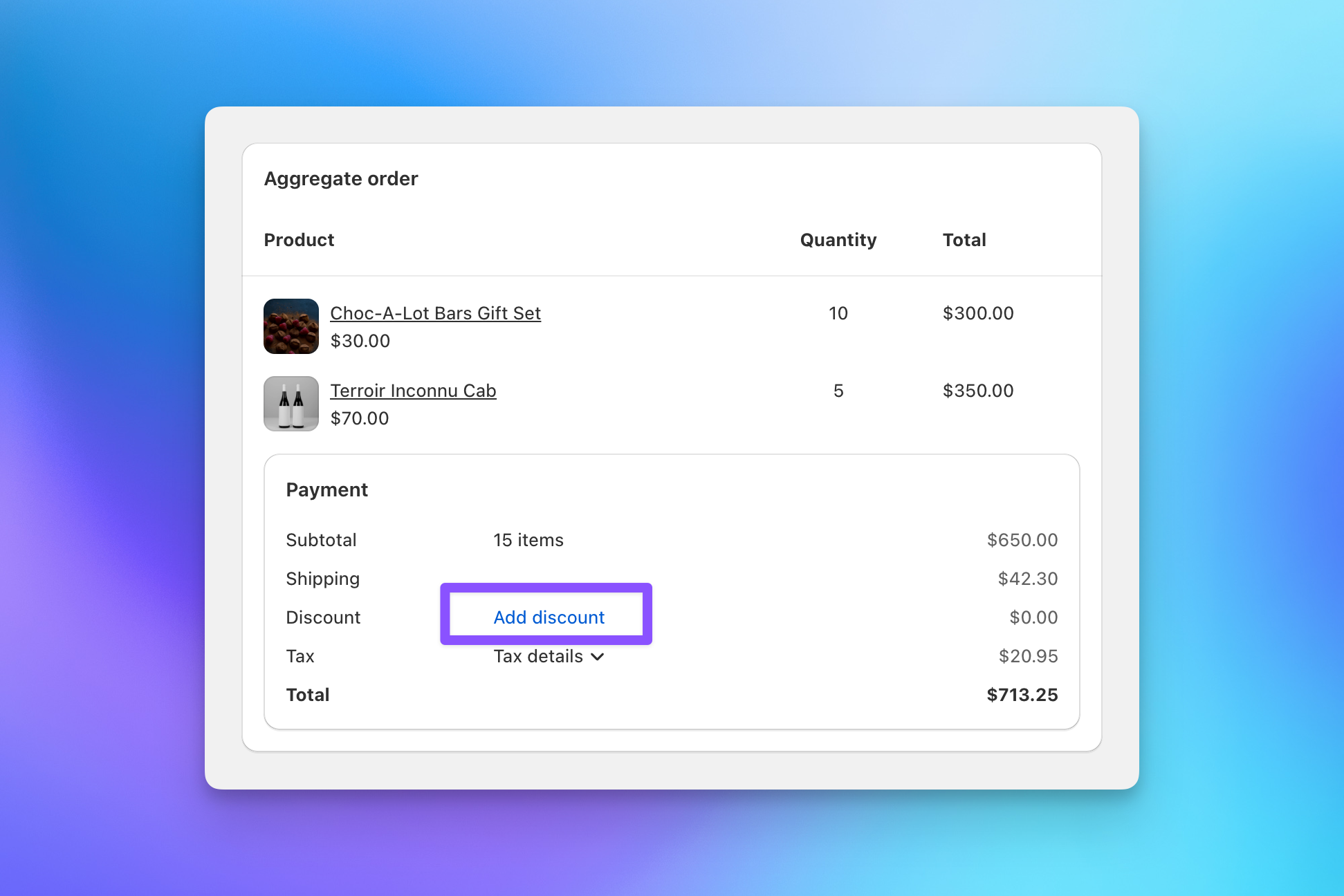
- Aggregate product subtotal, shipping, and tax across all orders
- Line-item breakdown
This is also where late changes happen. Forgot a recipient? Click Add recipient to add them with address autocomplete, product selection, and a shipping rate. Need to adjust one recipient's products? Edit them directly on the recipients table. And if the client has a negotiated discount, click Add discount on the aggregate order to apply a discount code or a custom discount before sending the invoice. Totals recalculate with each change.
Before generating, check your shipping notification settings. The default (suppressed) is usually correct for corporate gifting. Recipients won't receive Shopify order confirmation or shipping emails. If the gifter wants recipients to receive tracking notifications, change this setting before generating.
Click Generate Invoice. Send To Many creates an aggregate draft order in Shopify. This is the invoice you'll send to the client.
Step 7: Send the Invoice and Collect Payment
Navigate to the aggregate draft order in Shopify admin. From there you can:
- Send the invoice email to the billing customer for them to review and pay through Shopify checkout.
- Mark as paid if the client paid via wire, check, or another method outside Shopify.
- Charge a vaulted B2B card if the client has a saved payment method on their company location. See Shopify B2B Setup for details.
Before or after generating the invoice, you can download the full recipient list as a CSV from the Send summary. This spreadsheet includes each recipient's address, products, shipping cost, and tax. Share it alongside the invoice for clients who want a detailed breakdown.
Step 8: Orders Generate After Payment
Once payment is received:
- The aggregate draft order becomes a finalized Shopify order, tagged "Send to Many aggregate."
- If auto-generation is enabled in your send preset, individual recipient orders generate automatically. If auto-generation is off, you'll receive an email notification and can generate orders manually from the Send summary.
- Recipient orders flow into your fulfillment pipeline. Print labels, route to your 3PL, or fulfill however you normally process Shopify orders.
Monitor fulfillment progress from the Send summary page. If any orders fail to generate, they'll appear in a Failed section with error details. You can retry failed orders individually or in bulk.
Next Steps
- What happens after order generation: Order lifecycle, tracking, and failed order handling
- Managing aggregate orders: How to handle the parent order in Shopify reports and fulfillment
- Cancelling and refunding orders: Two-step process for refunds across recipient and aggregate orders
- Formatting your upload file: Detailed column requirements and spreadsheet best practices