How to Customize Your Shopify Analytics Dashboard for Multi-Recipient Orders
Replace Shopify's standard sales reports with filtered, dedupped versions that exclude Send To Many aggregate orders. A one-time dashboard update that keeps bulk order revenue reporting accurate.
When you use calculated values for order revenue handling, every Send creates revenue on two kinds of orders: the aggregate order that captures payment from the gifter, and the recipient orders that itemize what ships to each address. Shopify's standard dashboard reports count both, so your headline sales numbers get inflated.
The fix is a one-time update to your Shopify Analytics dashboard. You'll create filtered copies of the standard sales reports that exclude aggregate orders, then swap them onto the dashboard in place of the originals. It's a common pattern for merchants who need to carve out revenue from a specific channel.
Before you start
- This tutorial applies when your send presets use calculated values. If you use zero-dollar recipient orders, there's no double-counting to fix.
- You'll need Shopify admin access with permission to view and edit Analytics.
- Inventory is not affected either way. Aggregate orders use placeholder custom line items and don't draw real inventory, so only revenue reports need attention.
For background on how the two order types work, see Understanding aggregate orders.
Step 1: Open the full report from the dashboard
In Shopify > Analytics, find the card you want to fix, starting with Total sales over time. Click through to open the full report in Shopify's report editor.
Step 2: Add the order tags filter
Every aggregate order is automatically tagged "Send to Many aggregate", which makes it easy to exclude.
In the report editor's Controls panel, open Filters and add:
- Order tags > does not contain > Send to Many aggregate
If you prefer working in the ShopifyQL editor, you can add the same condition as a WHERE clause on order_tags instead. Both approaches produce the same result.
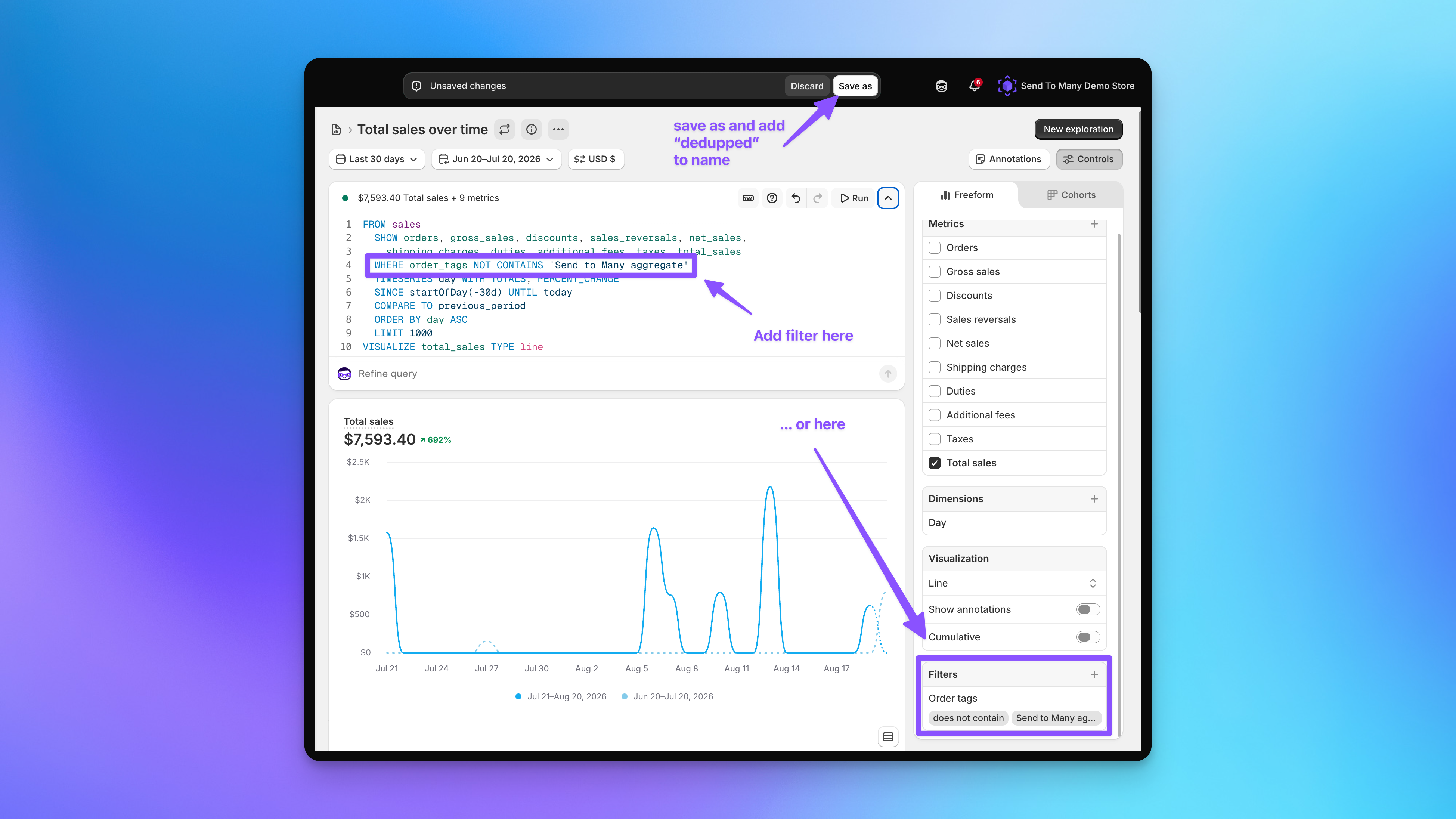
Run the report and confirm the total drops by the amount of your aggregate orders.
Step 3: Save the filtered report
Click Save as at the top of the report and give it a name that makes the difference obvious, such as "Total sales over time - dedupped". The original standard report stays untouched, and your filtered copy appears in your saved reports.
Step 4: Replace the standard card on the dashboard
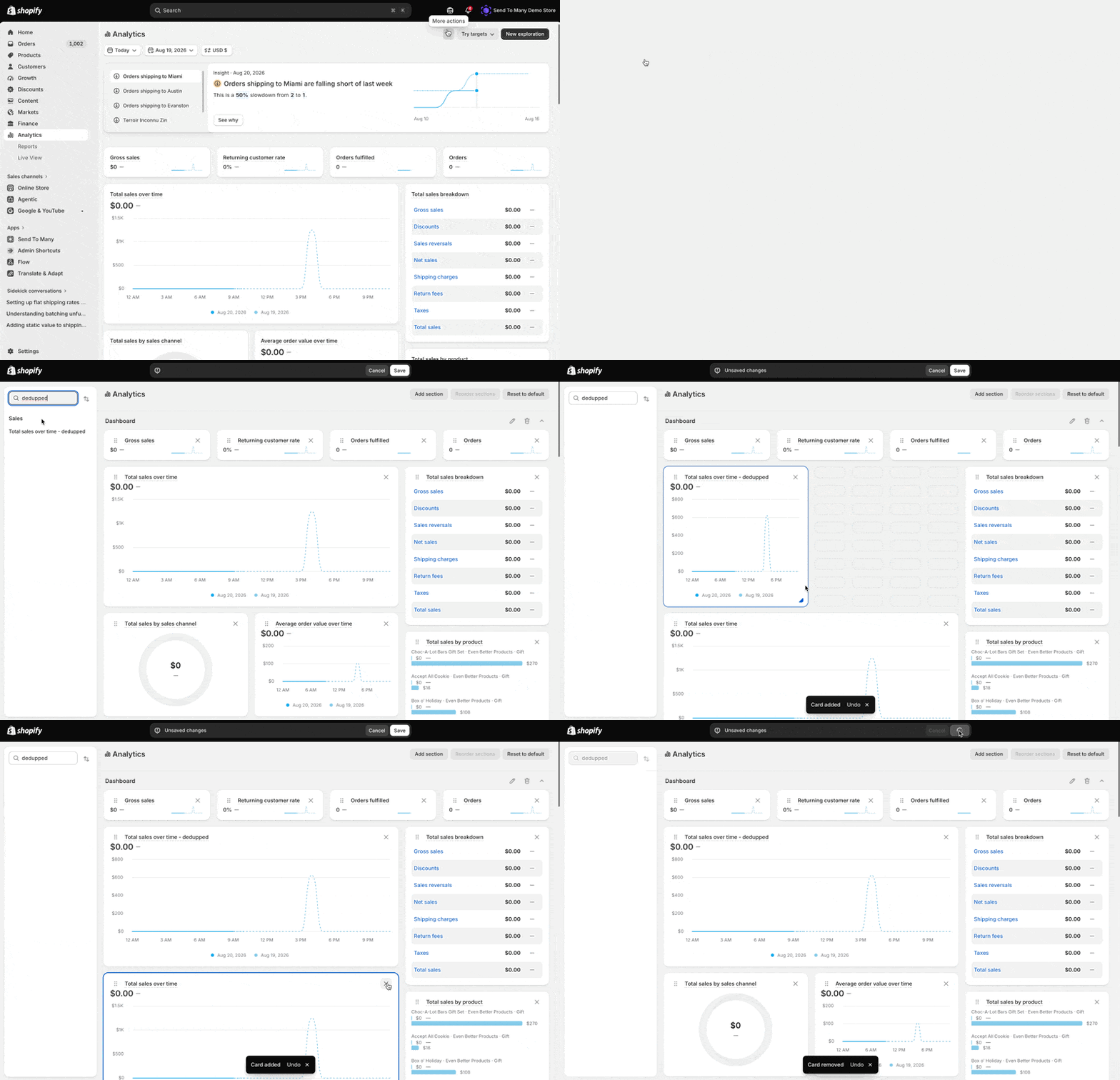
Back on the Analytics dashboard, edit the dashboard layout:
- Remove the standard Total sales over time card.
- Add a new card and search for your saved report by name (searching "dedupped" finds all your filtered reports quickly).
- Drag the new card into position and save the dashboard.
Step 5: Repeat for each sales report
Apply the same filter, save, and replace steps to the other sales-based reports on your dashboard:
- Total sales breakdown
- Total sales by product (this also removes the aggregate orders' placeholder line items from product reporting)
- Total sales by sales channel
- Average order value over time. Decide which orders count first: exclude aggregate orders to measure AOV per recipient order, or instead exclude orders tagged "Send to Many Storefront-Child" to treat each aggregate order as one large order and let bulk purchases raise your AOV.
- Total sales by referrer, social referrer, and POS location, if you use them. Test whether excluding aggregate (parent) or recipient (child) orders gives the attribution you want before saving.
- The spark chart cards at the top (Gross sales, Returning customer rate, Orders fulfilled, Orders), which you can replace like any other dashboard card
Session-based reports (Sessions over time, Conversion rate, Sessions by device or location) don't need changes. Recipient orders aren't created from storefront sessions, so those numbers were never double-counted. Products by sell-through rate is also fine as is, since inventory isn't double-counted.
Spark charts elsewhere in the Shopify admin, like the sales summary on the admin Home page, cannot be customized or filtered. Those numbers will still include aggregate order revenue.
Verify your dashboard
Pick a day with at least one completed Send and compare your dedupped Total sales over time card against the standard report. The difference should equal the total of that day's aggregate orders. If the numbers match exactly, the filter isn't applied on the dashboard card.
If you use third-party reporting or accounting tools that pull Shopify order data, apply the same tag-based exclusion there so every system reports the same revenue.
What's next
- Filter Shopify reports for Send To Many orders: The full reference on tags, gateways, and which reports need filtering
- Send To Many's built-in Analytics: Send-level revenue, funnels, and exports that are never double-counted