Translate the Multi-Recipient Cart into Your Store's Languages
Localize the multi-recipient cart for global shoppers: export the translation spreadsheet from Shopify, translate it, and import it back in minutes, no code.
If your store sells in more than one language, the multi-recipient cart should too. A shopper who browses your storefront in French shouldn't hit an English-only page when they go to add recipients. Every shopper-facing string in the cart is translatable: field labels, buttons, the order summary, error messages, and the recipient cards.
Translating used to mean editing strings one field at a time. Now you can export every string as a spreadsheet, translate it in one pass (we provide an AI prompt that handles the tricky parts), and import the finished file back.
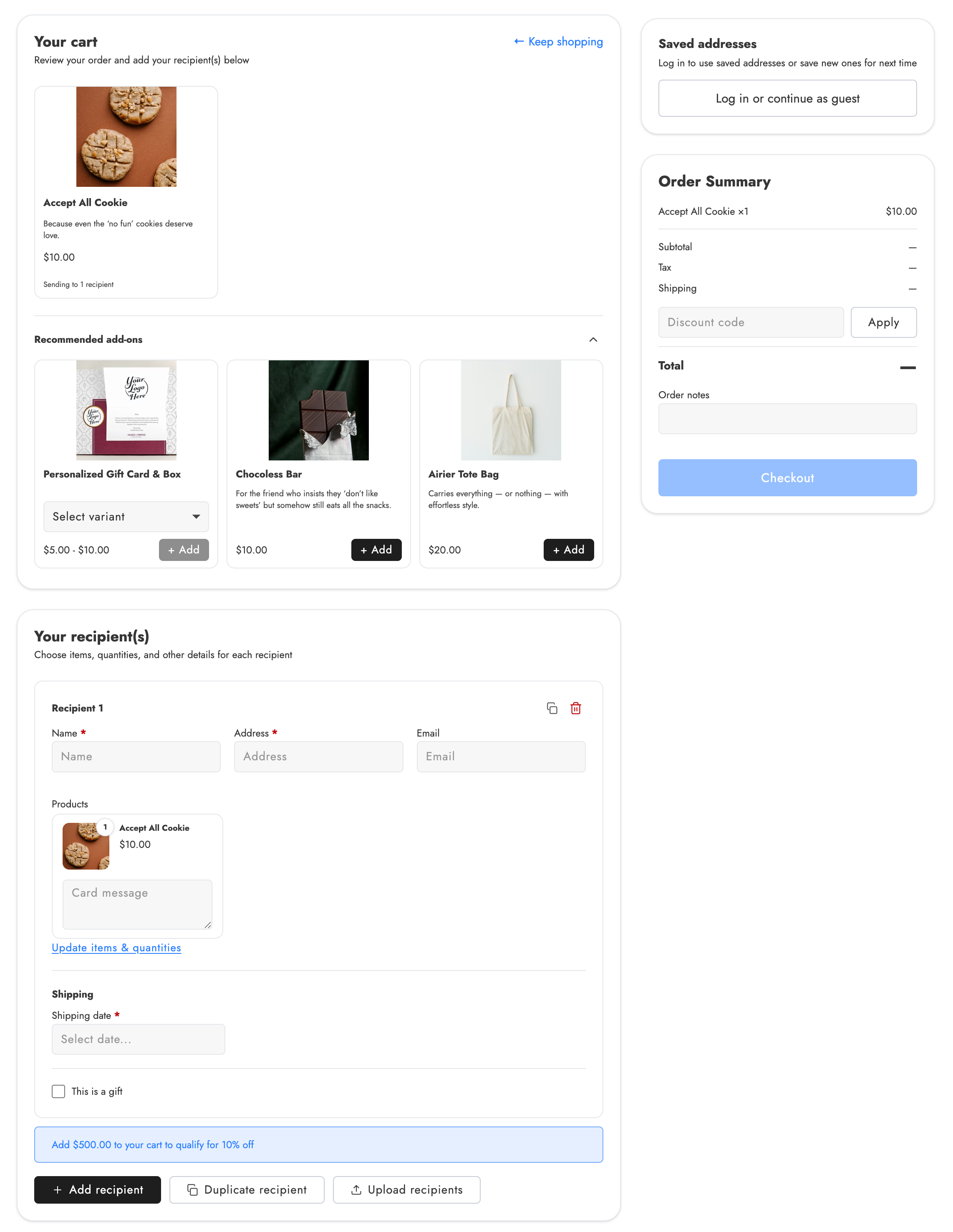
Everything shown above is covered by the translation spreadsheet, from the "Your cart" heading down to the "Upload recipients" button.
Step 1: Add your languages
- In Shopify admin, go to Send To Many > Settings > Text and translations.
- Add each language your storefront supports.
Once a language is added, it appears as a column in the exported spreadsheet, and a language dropdown appears in the checkout recipient field settings for per-field editing.
Step 2: Export the translation spreadsheet
On the Text and translations page, open Multi-recipient cart translations and click Export (top right). You'll get one row per text string, with the string name in the first column, the English text next, and one column for each language you added.
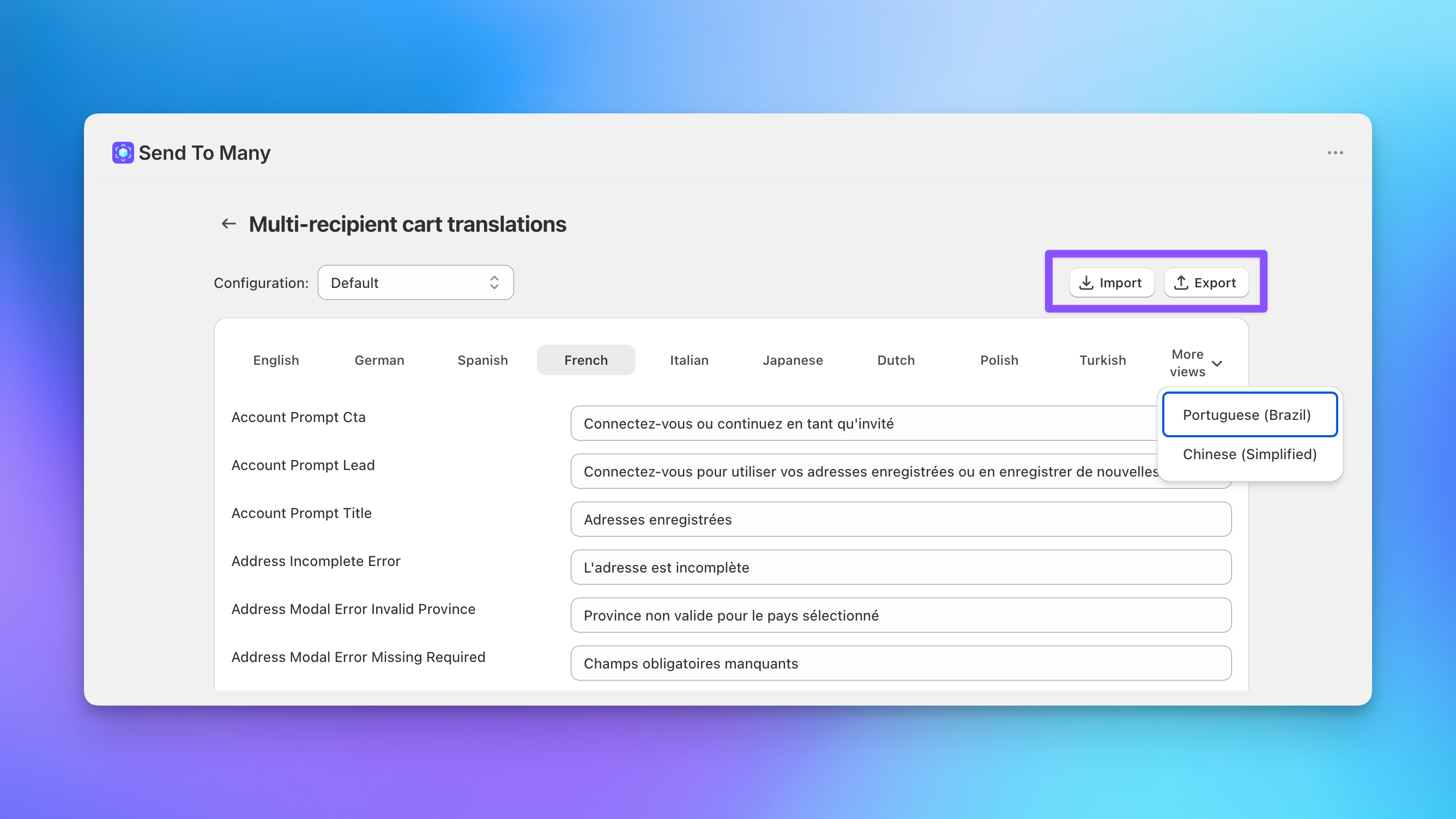
Here's what a completed file looks like, translated into German, Spanish, French, Italian, Japanese, and Dutch:
Step 3: Translate with the AI prompt
You can hand the spreadsheet to a translator, but modern AI tools do this well if you give them the right context. We've written a prompt that covers what trips up naive translation: keeping placeholders like {count} intact, choosing one consistent word for "Send," handling plural forms, matching your locale's checkout register, and using natural address terms for each country.
- Open the prompt file and copy everything below the divider line.
- Paste it into your AI tool along with the exported spreadsheet.
- State the target language, and repeat per language.
- Paste or import the results into the matching language columns of your spreadsheet.
Work one language at a time and skim the output before moving on. The prompt asks the AI to flag strings it was unsure about, so check those first.
Step 4: Import the completed spreadsheet
Back on the Multi-recipient cart translations page, click Import and upload your completed spreadsheet. The app matches rows by string name and fills in each language. Spot-check a few strings per language in the settings UI to confirm the import landed where you expected.
If you're on the Enterprise plan and use multiple cart configurations, translations are loaded per configuration. Use the Configuration dropdown at the top of the page and repeat the import for each cart configuration that serves a translated market.
Step 5: Verify on your storefront
Switch your storefront to each language and walk through the multi-recipient cart end to end: add a recipient, open the product selector, apply a discount code, and trigger a validation error or two. Confirm buttons still fit their labels and nothing reads as literal, word-for-word English.
Customer account pages
The same export, translate, and import flow applies to the customer account extensions: the Sends list, the Send detail page, and order banners. Use the customer account example file above as a reference, and see customer account Sends page text customization for what's covered.
What's next
- Configure multi-recipient checkout recipient fields to edit individual field labels per language
- Set up multiple cart configurations if different markets need different checkout behavior
Still have a question?
Ask Manny, the Send To Many bot, about “Translate the Multi-Recipient Cart into Your Store's Languages” or anything else in the docs.