Win Back Last Year's Holiday Gifters with Send Again
Run a holiday repeat-gifting campaign on Shopify in three steps: find the customers who sent gifts to a list last year, set up an email campaign that brings them back to their recipients, and let them reorder through the Send To Many cart.
Last year's gift givers are one of the largest pools of orders you can tap this year. They already chose your store, they already have a list of clients, employees, or family, and a single returning gifter can be worth dozens of orders.
This tutorial shows how to make sending this year easier than it was last year with Send Again. You find your prior gift givers and run a campaign that brings them back to a multi-recipient cart with their recipients already loaded. From there they can build on last year's order by adding more recipients, in the same cart.
Before you start
- Shopify's new customer accounts. Send Again requires new customer accounts. Legacy accounts are not supported.
- Multi-recipient checkout installed. See Setting Up Multi-Recipient Checkout.
- Send Again enabled. It's a beta feature available on monthly and annual paid plans. Enable all three Send To Many customer account extensions (Sends Page, Recipients Page, and Order Send Banner) and turn on Send Again in settings. Setup is covered in Send Again: Let Customers Repeat a Multi-Recipient Order.
- An email tool that can send to a Shopify customer segment, such as Shopify Email or Klaviyo.
Step 1: Identify your prior gift givers
A prior gift giver is any customer who sent to several people during a past gifting season. That season depends on your store and your market. It might be the winter holidays, Mother's Day, Valentine's Day, Lunar New Year, Diwali, or a corporate year-end. The examples below use last November and December. Swap in the dates for whichever season you're building toward.
There are two ways to find these customers, and they work well together.
1. Search for multiple orders in a period
A customer who placed several orders inside a short gifting window was almost certainly sending gifts. In your Shopify admin, go to Customers > Segments, create a segment, and enter:
orders_placed MATCHES (count >= 3, date BETWEEN 2025-11-01 AND 2025-12-31)
This returns every customer who placed three or more orders in that window. Set the dates to your season and raise the count if three is too broad for your store. Save the segment with a name like "Holiday gift givers 2025".
The segment finds gift givers however they ordered: one order per recipient, through another bulk order tool, or through Send To Many. Recipient orders in a Send belong to the gifter's customer record, so a 40-recipient Send counts as 40 orders.
If a send preset has Use recipient as customer turned on, its recipient orders are attached to the recipients, not the gifter. Those gifters won't match on order count. The Send To Many segment below catches them.
2. Segment customers with prior Send To Many orders
If you used Send To Many during that season, these are your highest-value gifters. Every Send with a customer attached, whether it came from multi-recipient checkout, an inquiry, or a staff upload, is a recipient list that Send Again reloads in full: recipients, addresses, products, and gift messages.
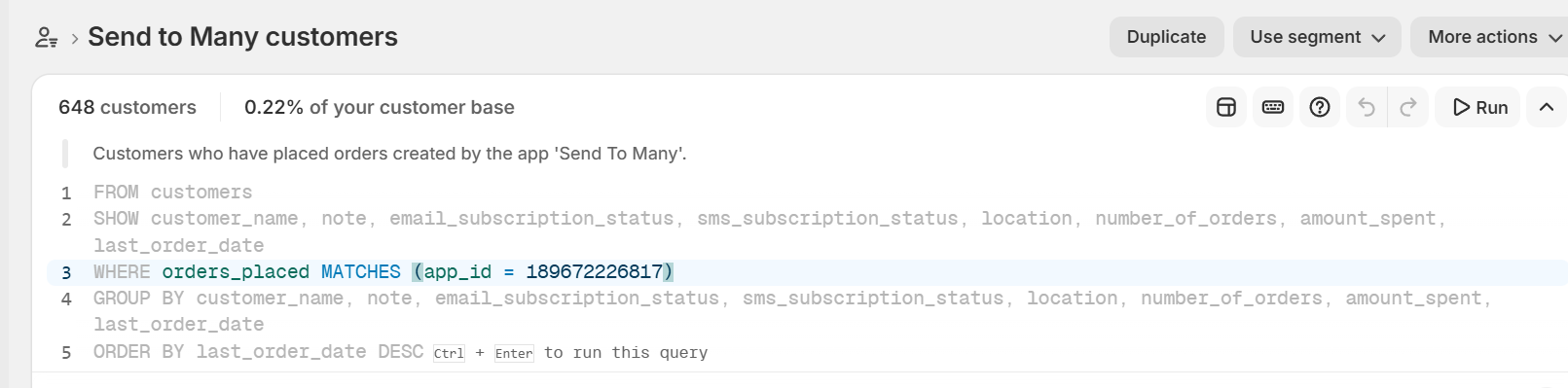
Shopify can segment them directly. Create a second segment and enter:
orders_placed MATCHES (app_id = 189672226817)
This returns every customer with an order created by Send To Many. The app ID is the same for every store. To limit it to one season, add a date range:
orders_placed MATCHES (app_id = 189672226817, date BETWEEN 2025-11-01 AND 2025-12-31)
Save it with a name like "Send To Many customers". This segment doesn't depend on order count, so it also catches gifters whose recipient orders are attached to the recipients.
For your largest accounts, open Sends in the app, look through the period, and make a note of them. In Step 2 those get a personal link in addition to the campaign.
Step 2: Set up a campaign for the segment
The campaign has one job: bring each gift giver back to their list. Send Again works for everyone in the segment, whether or not they used Send To Many in a prior gifting period. A customer with a prior Send gets that Send reloaded. Any other customer is taken to a list of their prior recipients, drawn from their Shopify orders, and picks who to send to again.
Choose where gifters land
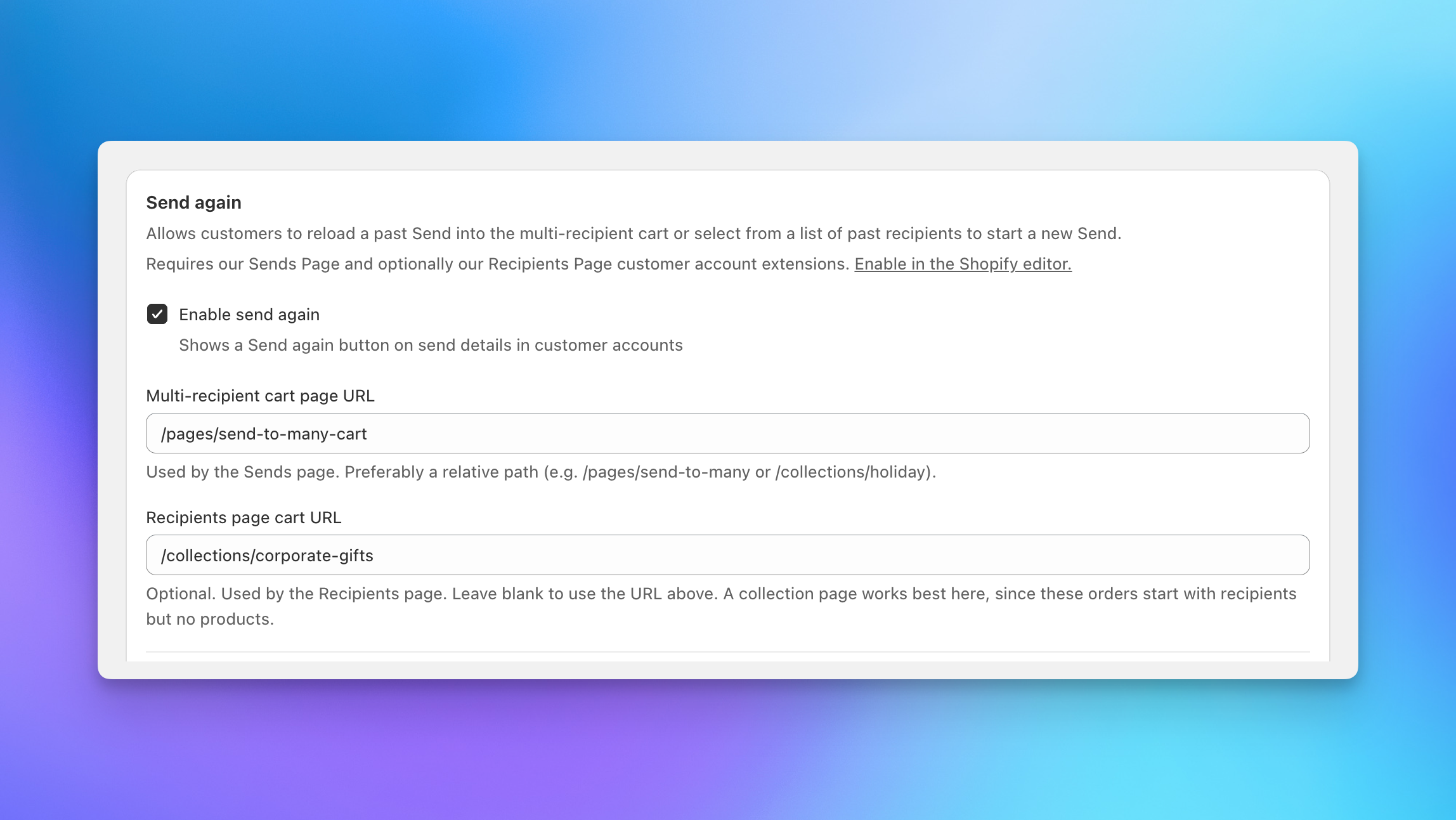
In Send To Many, go to Settings > Customer account. Under Send again, there are two landing pages to set:
- Multi-recipient cart page URL: where a past Send reloads. If your products changed from last year, use collection mode: enter a holiday collection page where your multi-recipient checkout block is installed, for example /collections/holiday-gifts. Recipients and addresses load, and the gifter picks from this year's featured gifts. If your catalog is mostly the same, keep your standard cart page and last year's products load too.
- Recipients page cart URL: where orders from the Recipients page open. These start with recipients and no products, so a holiday collection page works best here.
Build the email around the Send Again link
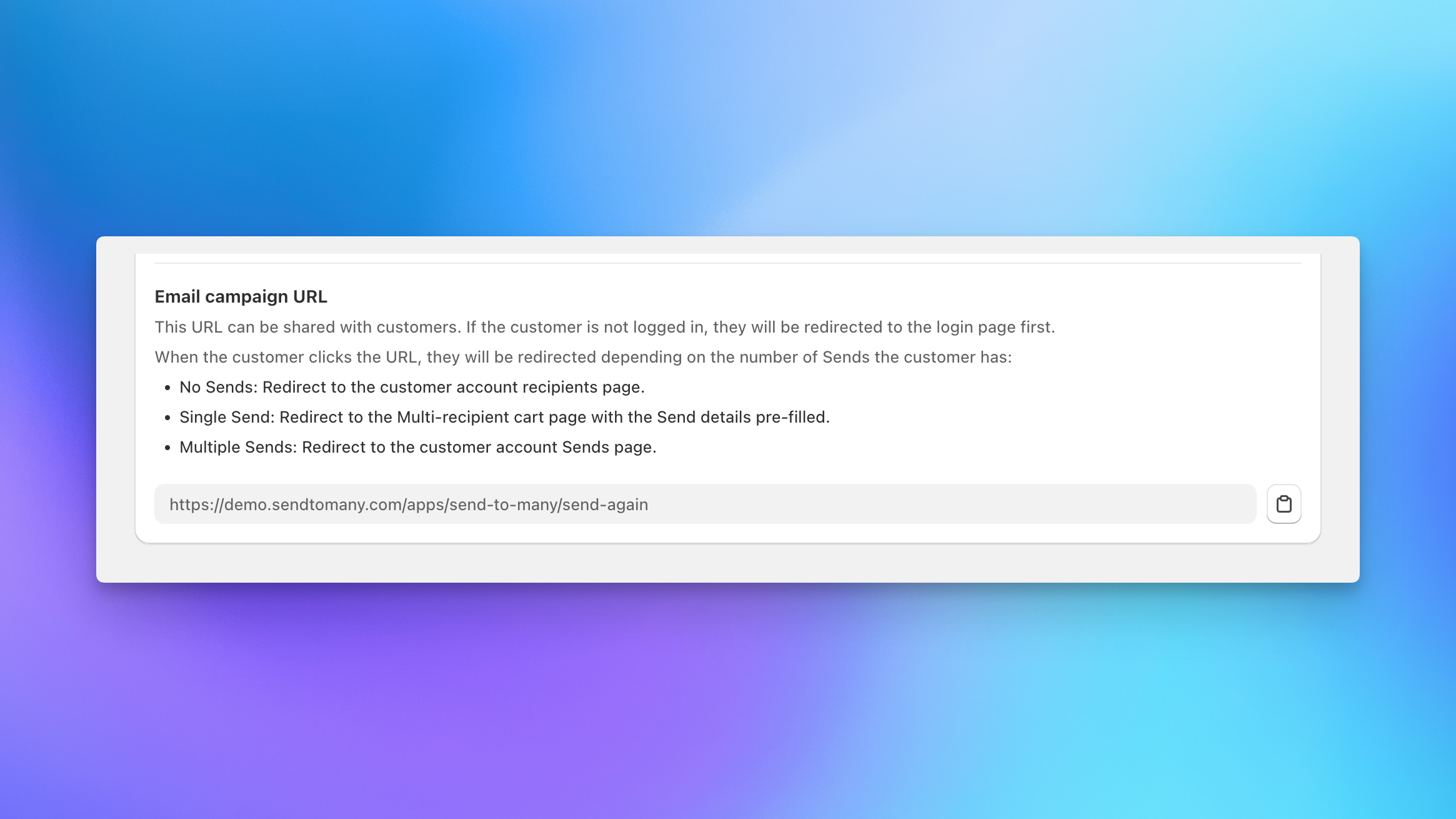
On the same settings page, copy the Email campaign URL. It looks like this:
https://yourstore.com/apps/send-to-many/send-again
Use it as the link behind your email's main button. One URL works for every customer in the segment, so there's nothing to personalize per recipient. When a customer clicks it, we ask them to log in if they aren't already, and then take them to the right place based on their history:
- One past Send: straight to the multi-recipient cart with that Send's recipients loaded.
- More than one past Send: to the Sends page in their account, where they choose which Send to repeat and click Send again.
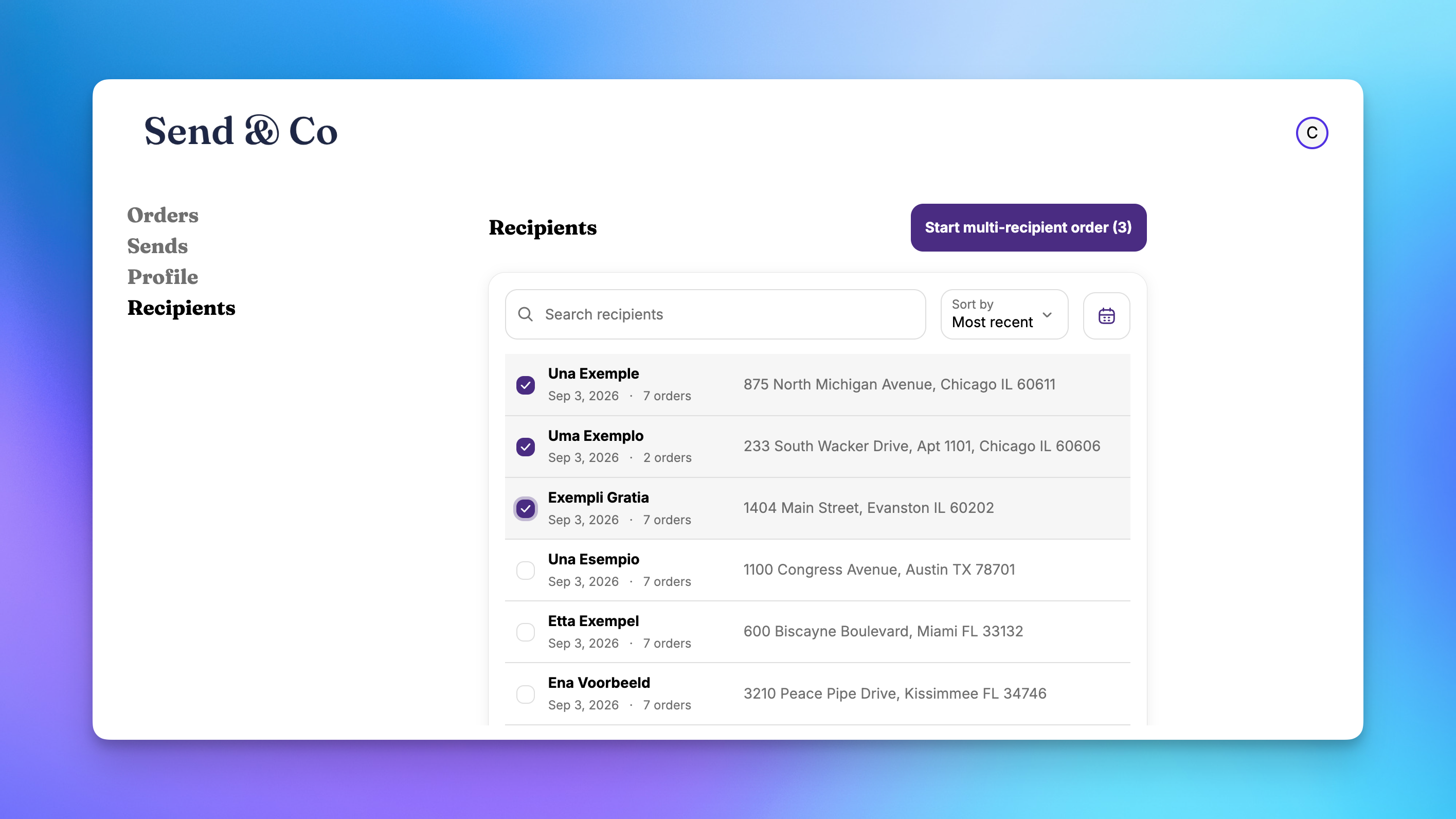
- No Sends: to the Recipients page in their account, which lists everyone they've shipped to. They filter by last order date to find last season's list, check the recipients they want (up to 50 at a time), and click Start multi-recipient order.
Here's what a campaign email can look like:
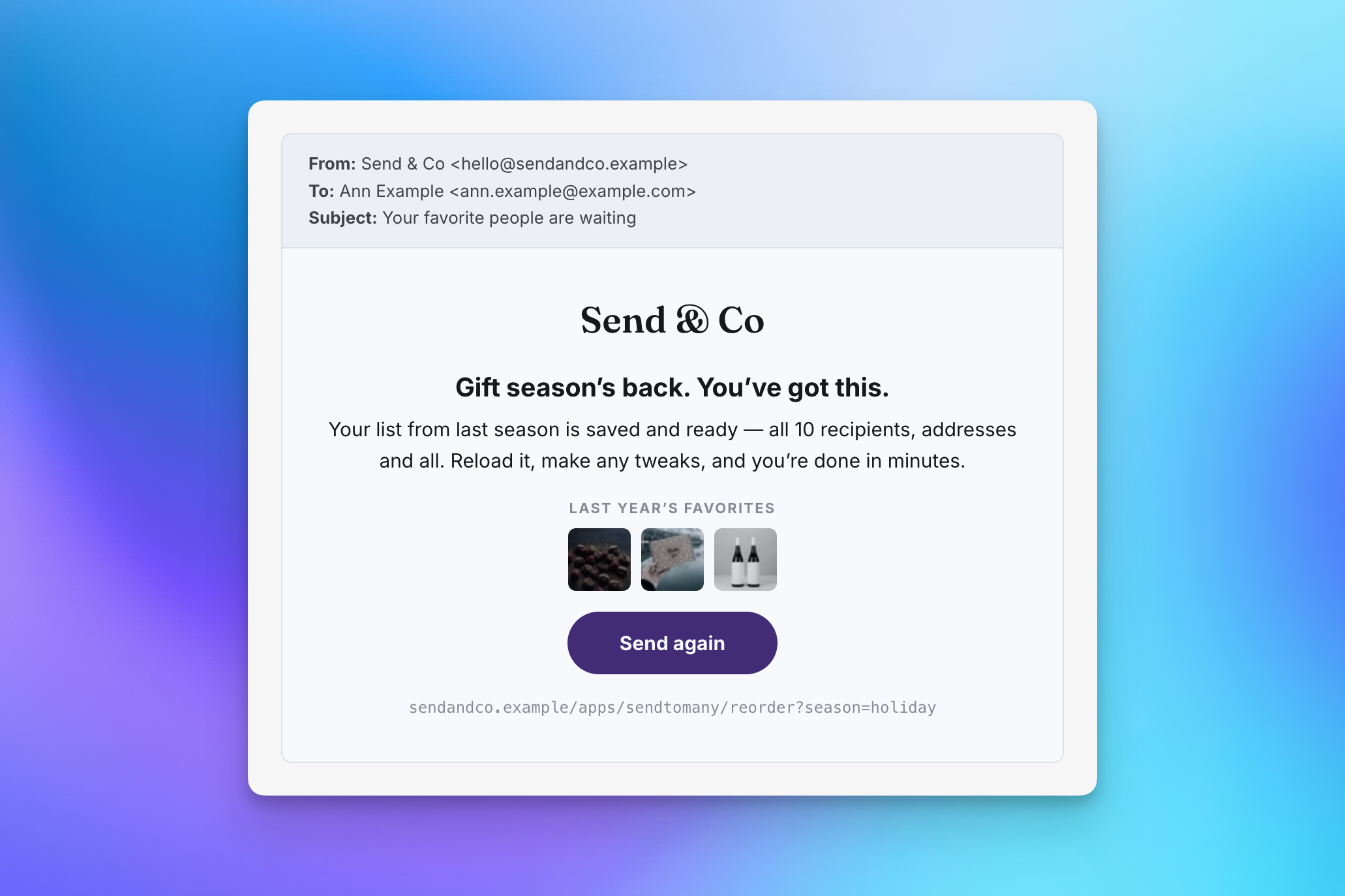
A few things that help:
- Lead with their list. The offer is that their recipients are ready to go, and that adding new people this year takes a few clicks.
- Mention the login. Send Again loads names and addresses, so the link always goes through your store's customer login. Customers using new customer accounts log in with a one-time code sent to their email, so there's no password to remember. Saying so in the email keeps the extra step from feeling broken.
- Send it early. Many gifters, corporate gifters especially, plan weeks ahead of the season. Send the first email before your rush and a reminder ahead of your shipping cutoff.
- Feature what's new. If you're landing gifters on a holiday collection, show two or three of those products in the email.
Send your top accounts a personal link
For the large accounts you noted in Step 1, add a direct touch. Open their Send in Send To Many and click Send again at the top of the Send overview page. We generate a link to that specific Send and show the customer's email next to it. Paste the link into a personal note from whoever owns the relationship.
The link only works for that customer, and it doesn't expire, so it's safe to send ahead of the season.
Step 3: Let them send again through the Send To Many cart
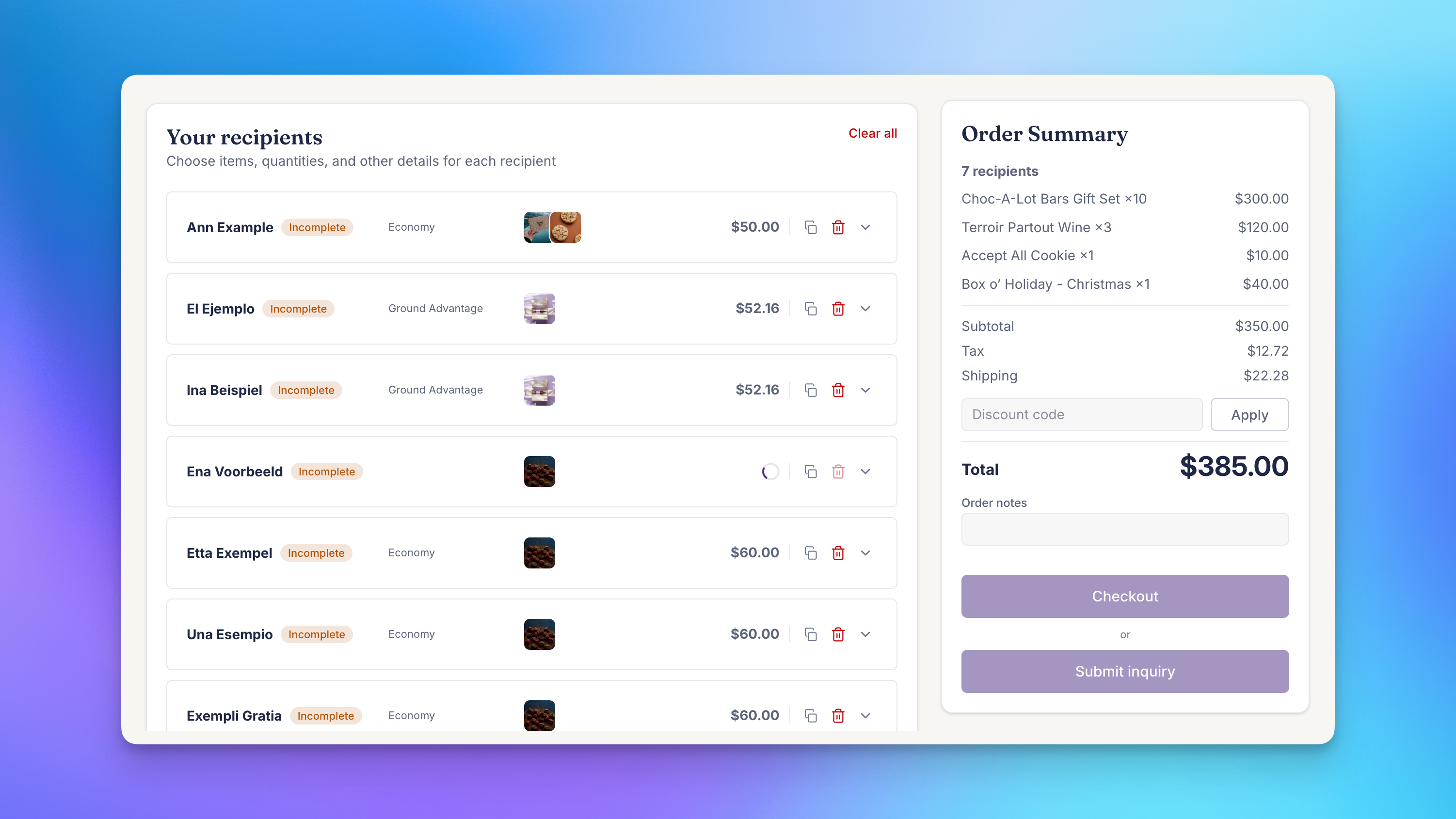
Whichever path they took, the gifter lands in your multi-recipient cart with a recipient card for every person on their list. From a past Send, each card has the recipient's name, validated address, and gift message, plus last year's products unless you're using collection mode. From the Recipients page, each card has the name and address, ready for products.
If you're using collection mode, the gifter sees this year's featured gifts above their recipients:
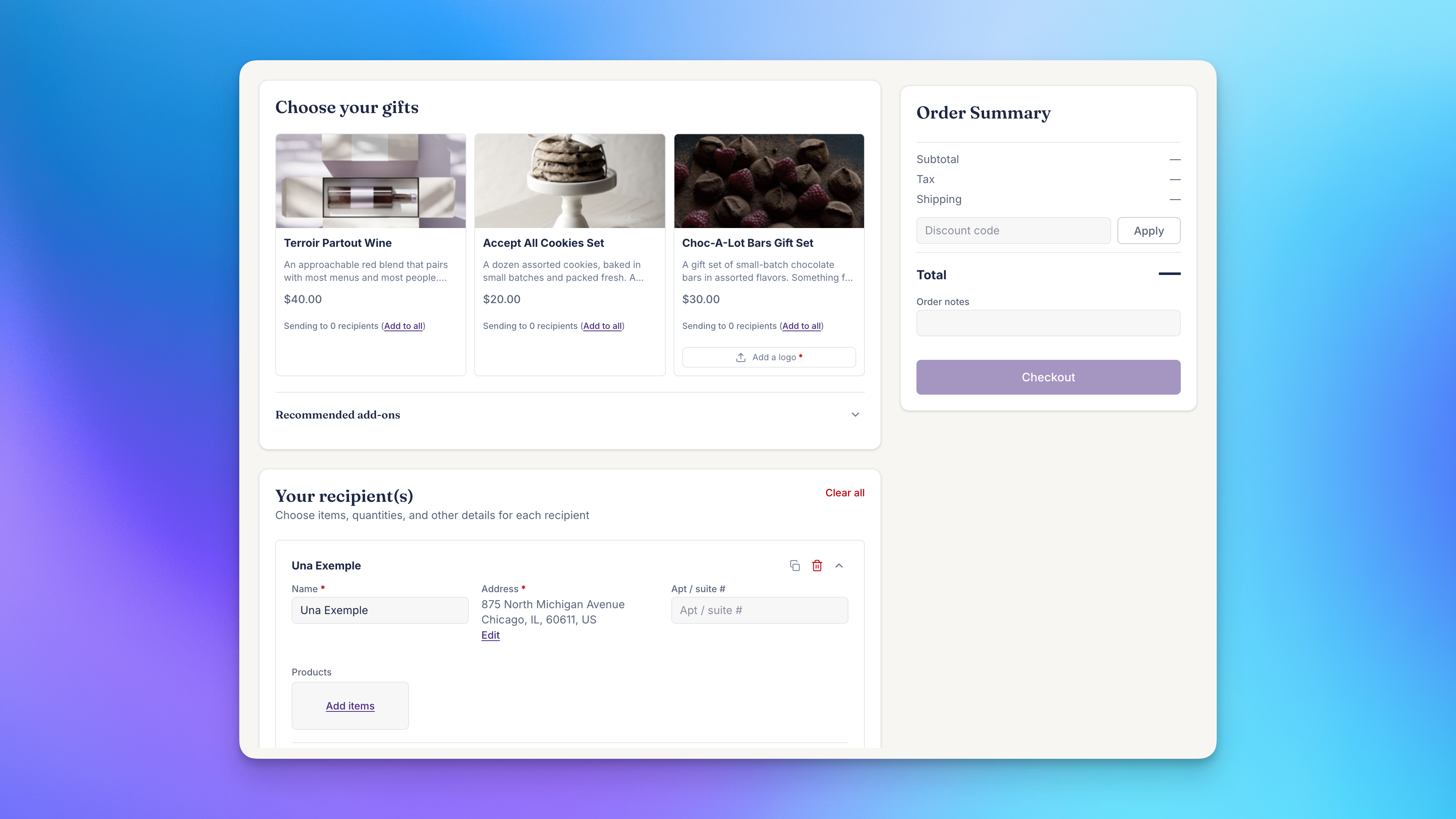
From here it's a normal multi-recipient checkout:
- Review the list. Add new recipients, remove old ones, and fix any addresses that changed. Addresses that were validated last year aren't re-checked unless the gifter edits them.
- Choose gifts. Keep last year's products, swap them per recipient, or pick one gift for the whole group. If a product from last year is sold out or no longer available, we leave it off and list what couldn't be loaded so the gifter can pick a replacement.
- Set gift messages and shipping dates for each recipient.
- Check out. Totals, tax, and shipping are calculated at this year's prices. Paying creates a new Send with one order per recipient. Last year's Send is not changed.
To give returning gifters a reason to order now, set up recipient-count or order-value discount tiers before the campaign goes out. See Discounts in Multi-Recipient Checkout. Discount codes from last year's order are not reapplied, so a new offer is the one they'll see.
Run the whole flow yourself before you send. Place a small test Send under your own customer account, open the email campaign URL in a private window, log in, and confirm you land in the cart with your test recipients loaded.
After the campaign
Gifters who come back through Send Again get a new entry on their Sends page, where they can track every recipient's delivery. To keep them informed without a stream of shipping emails, set up delivery digest emails.
Related articles
- Send Again: Let Customers Repeat a Multi-Recipient Order: full reference for the Send again button, Recipients page, and campaign URL.
- Customer Account Extensions: Sends Page & Order Send Banner: where gifters see past Sends and track deliveries.
- Discounts in Multi-Recipient Checkout: volume discount tiers for larger gift orders.
- Create a Private Multi-Recipient Checkout for Repeat Corporate Gifting Customers: a dedicated portal for your largest repeat accounts.
Still have a question?
Ask Manny, the Send To Many bot, about “Win Back Last Year's Holiday Gifters with Send Again” or anything else in the docs.