Discounts in Multi-Recipient Checkout: Codes, Volume Tiers & Automatic Discounts
Configure discount codes, volume discounts, and Shopify automatic discounts in multi-recipient checkout. Per-recipient and order-level code modes, tiered volume pricing, B2B catalog pricing, and discount stacking.
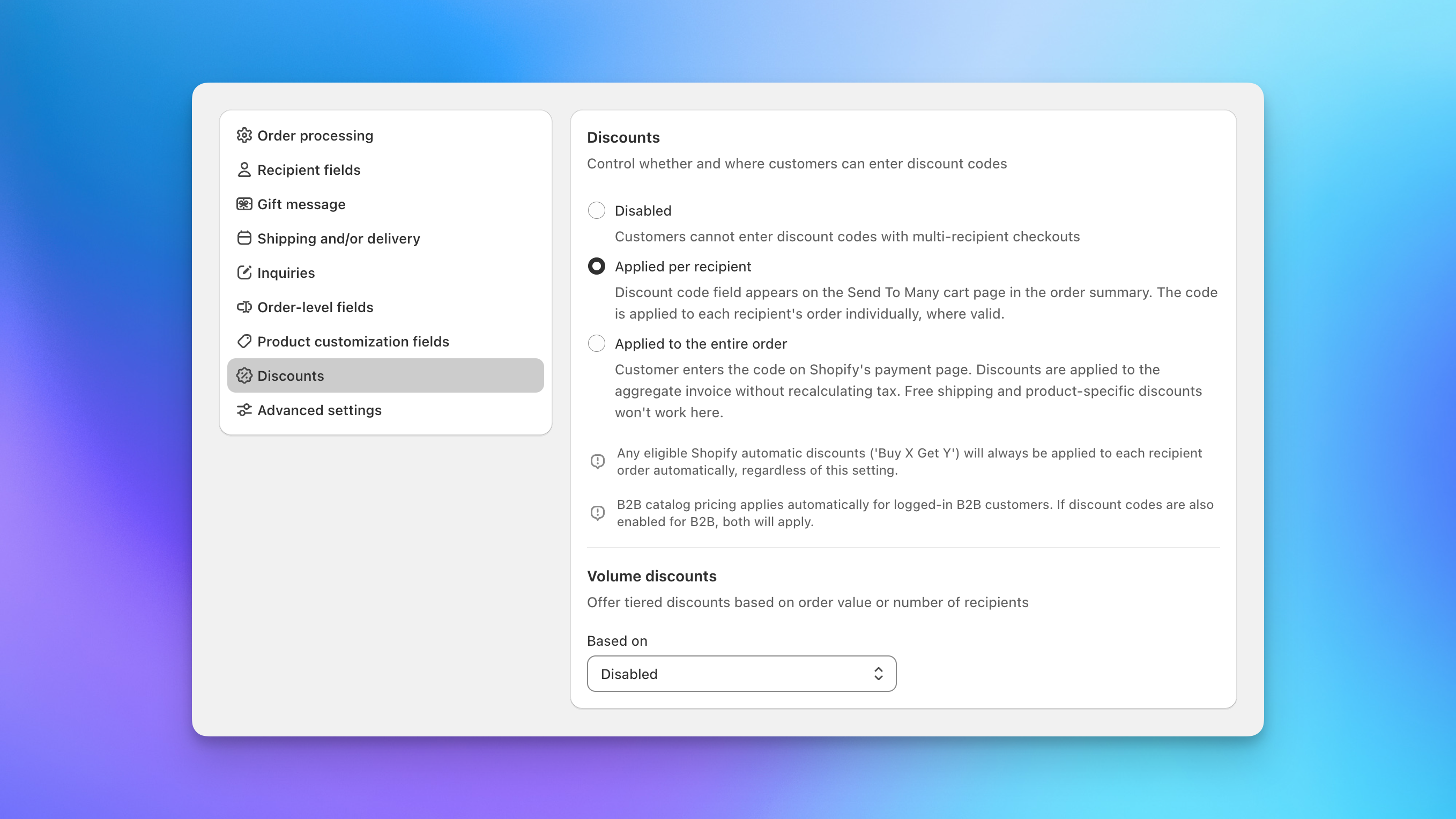
The Discounts tab in your multi-recipient checkout settings controls how discount codes and volume discounts work during checkout. You'll find it in the left navigation of your checkout settings page.
Discount Codes
Discount codes let shoppers apply a Shopify discount code during checkout. Three modes are available:
- Disabled: Shoppers cannot enter discount codes. This is the default.
- Applied per recipient: The discount code field appears on the checkout page. The code is validated and applied to each recipient's order individually, respecting any product or collection restrictions on the code. This is the right choice when you want fine-grained control over which recipients qualify for the discount.
- Applied to the entire order: The code is entered on Shopify's payment page after the shopper leaves the multi-recipient form. The discount applies to the aggregate invoice.
How Discounts Display
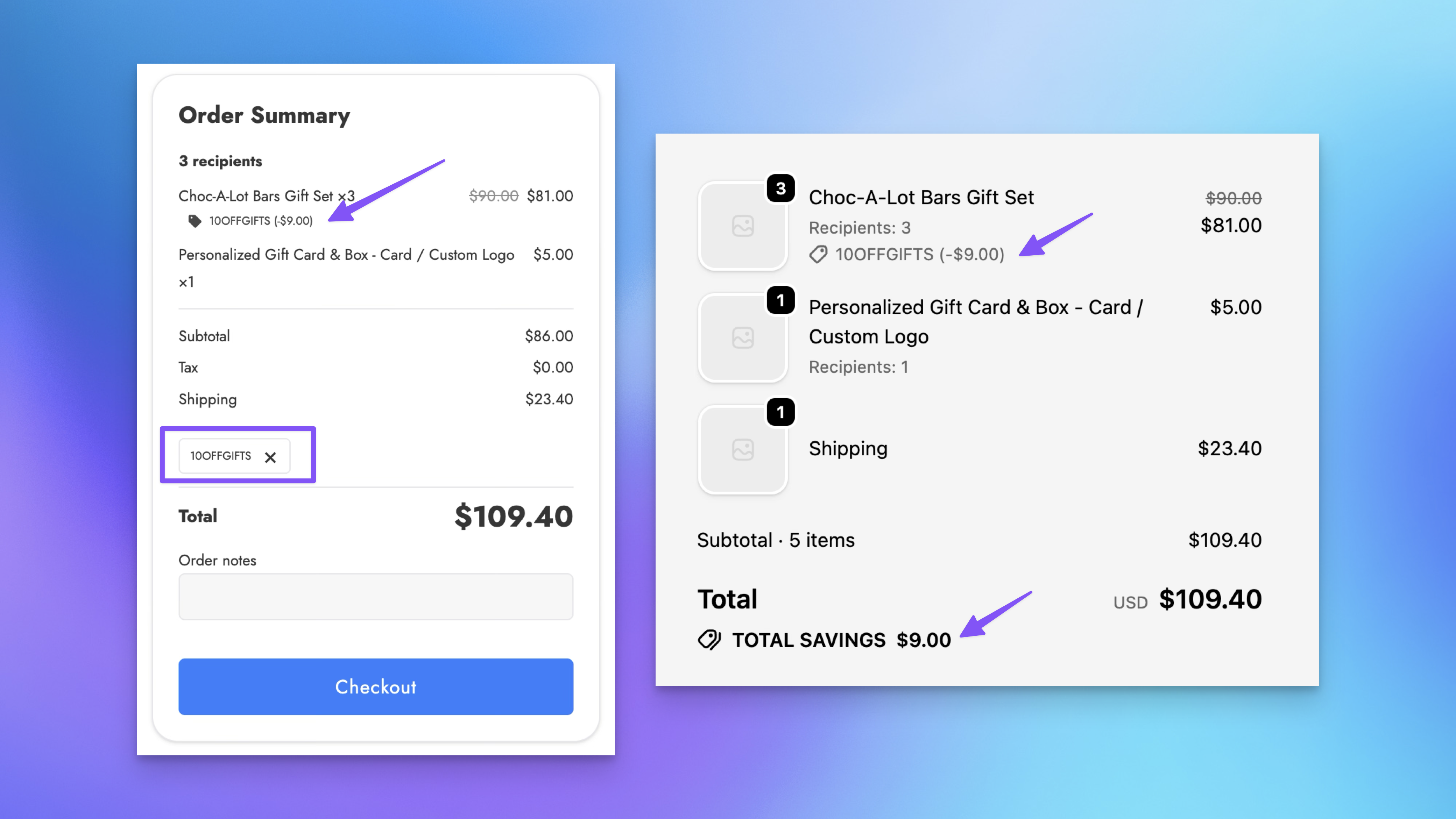
Discounts are shown clearly on the order summary during checkout: product discounts appear on the product line and shipping discounts appear on the shipping line.
How Discounts Appear on Orders
Discounts applied on the multi-recipient checkout page show up differently on the gifter order (the order the shopper pays for) and on the recipient orders (one per recipient, used for fulfillment).
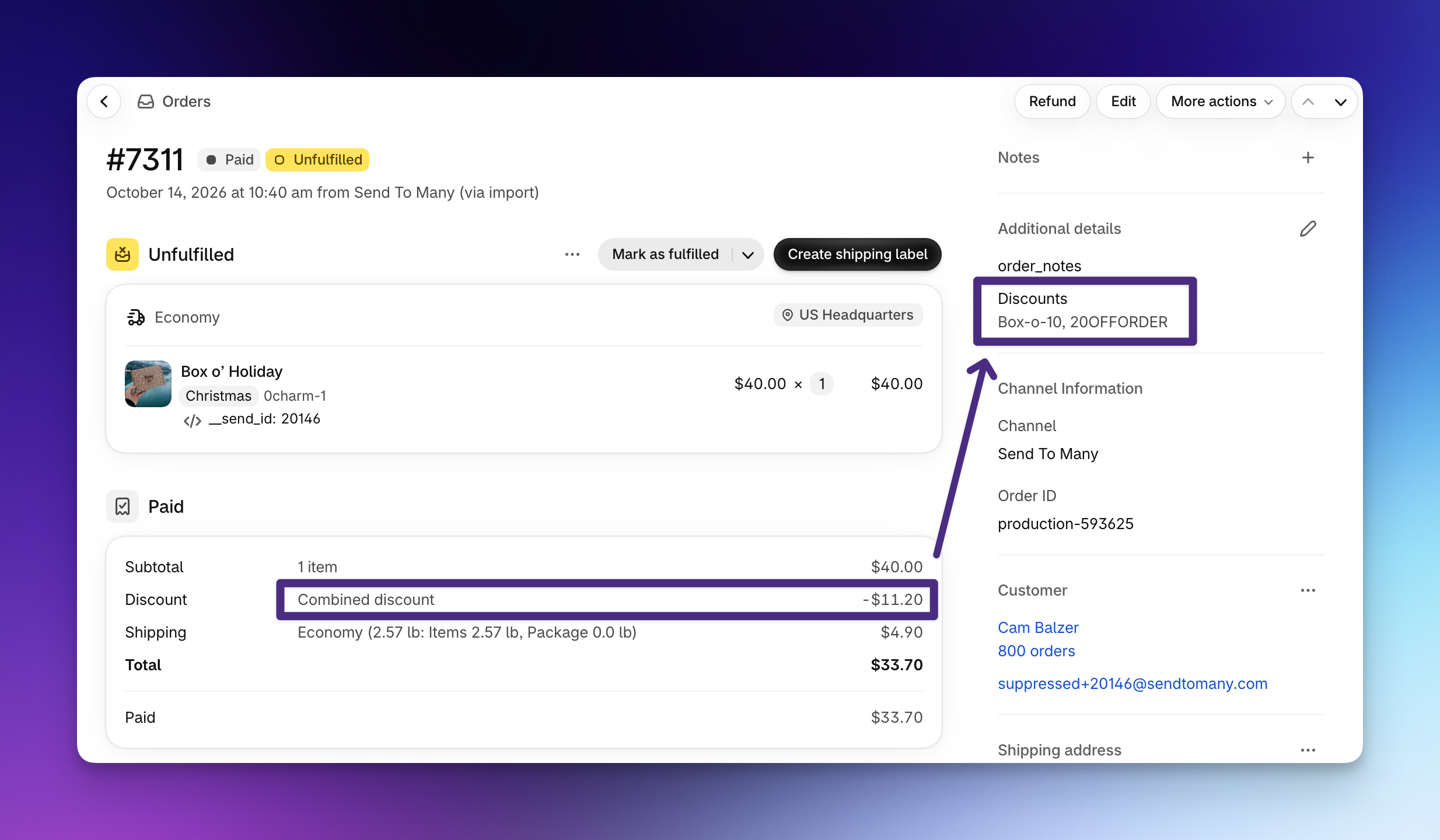
Gifter order: Discount amounts are reflected, but discount names are not. Discounted products show the reduced price with the original price struck through, and the order summary lists the total under a generic Discount label. To see which codes were used, check the recipient orders.
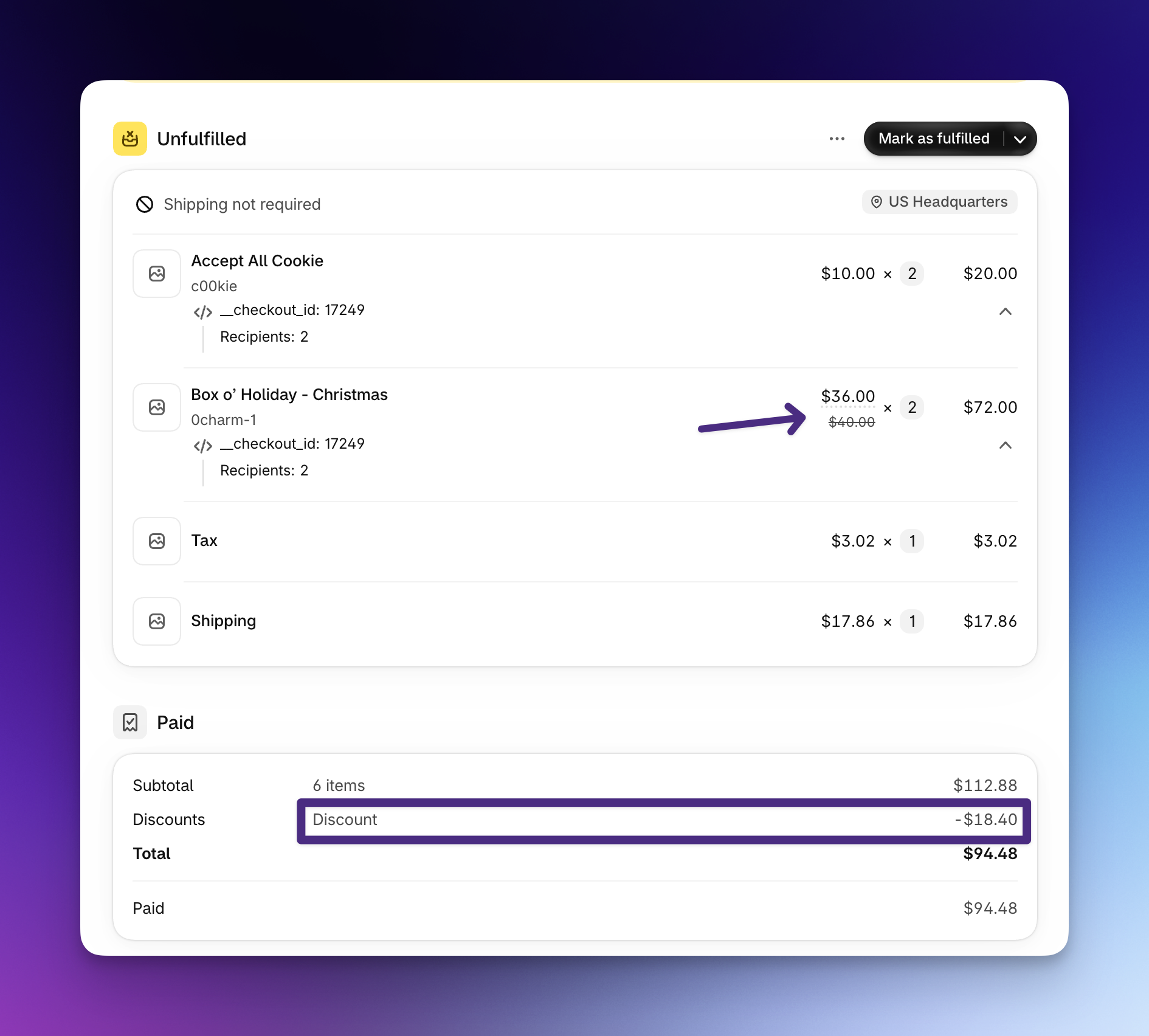
Recipient orders: Each recipient order shows its discount in two places:
- Discount line in the order summary: Labeled with the discount code, such as
20OFFORDER, and the amount for that recipient. Products keep their full price, and the discount is applied once at the order level. - Discounts order attribute: Listed under Additional details on the order, with the code applied to that recipient's order. Order attributes can be used for filtering, Shopify Flow, and fulfillment apps.
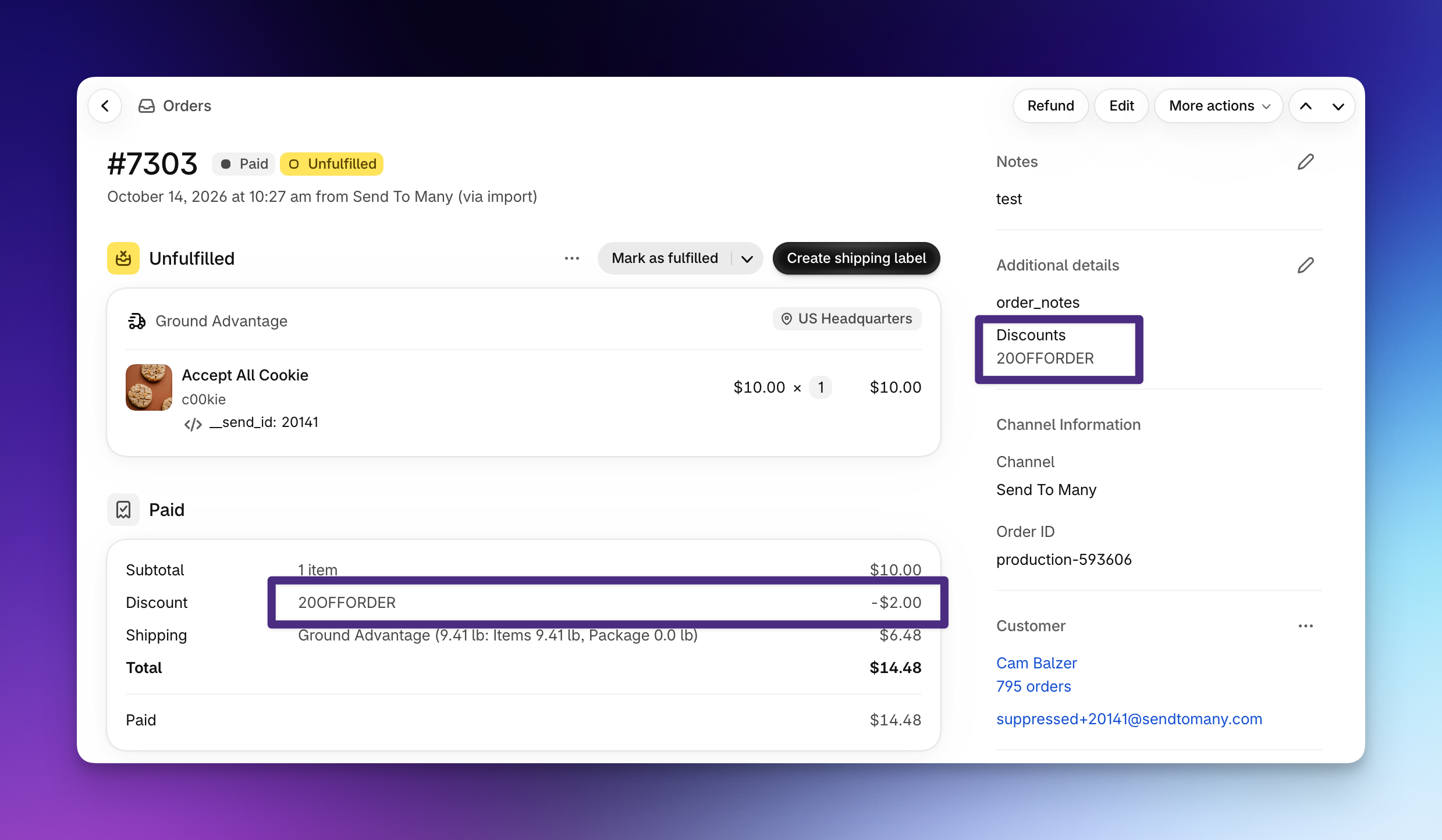
When more than one discount applies to a recipient's order, such as a discount code and a volume discount, the Discount line reads Combined discount with the total amount. The Discounts order attribute lists every applied code, separated by commas.
A few more details:
- Shipping discounts, such as free shipping, lower the recipient's shipping price instead of appearing in the Discount line.
- When Order Revenue is set to create orders with $0 amounts, recipient orders don't carry discounts, since there's no amount to discount. The gifter order still reflects them. See order revenue settings for multi-recipient checkout.
- To leave the Discounts order attribute off recipient orders, contact Send To Many support.
Throttling
Discount code validation includes throttling to prevent abuse. If a shopper submits codes too rapidly (for example, brute-forcing valid codes), the checkout temporarily limits validation attempts.
Volume Discounts
Volume discounts encourage larger orders by offering automatic discounts that trigger as shoppers add recipients or increase their order value. These are Send To Many's built-in volume pricing system, separate from Shopify discount codes.
Discount Types
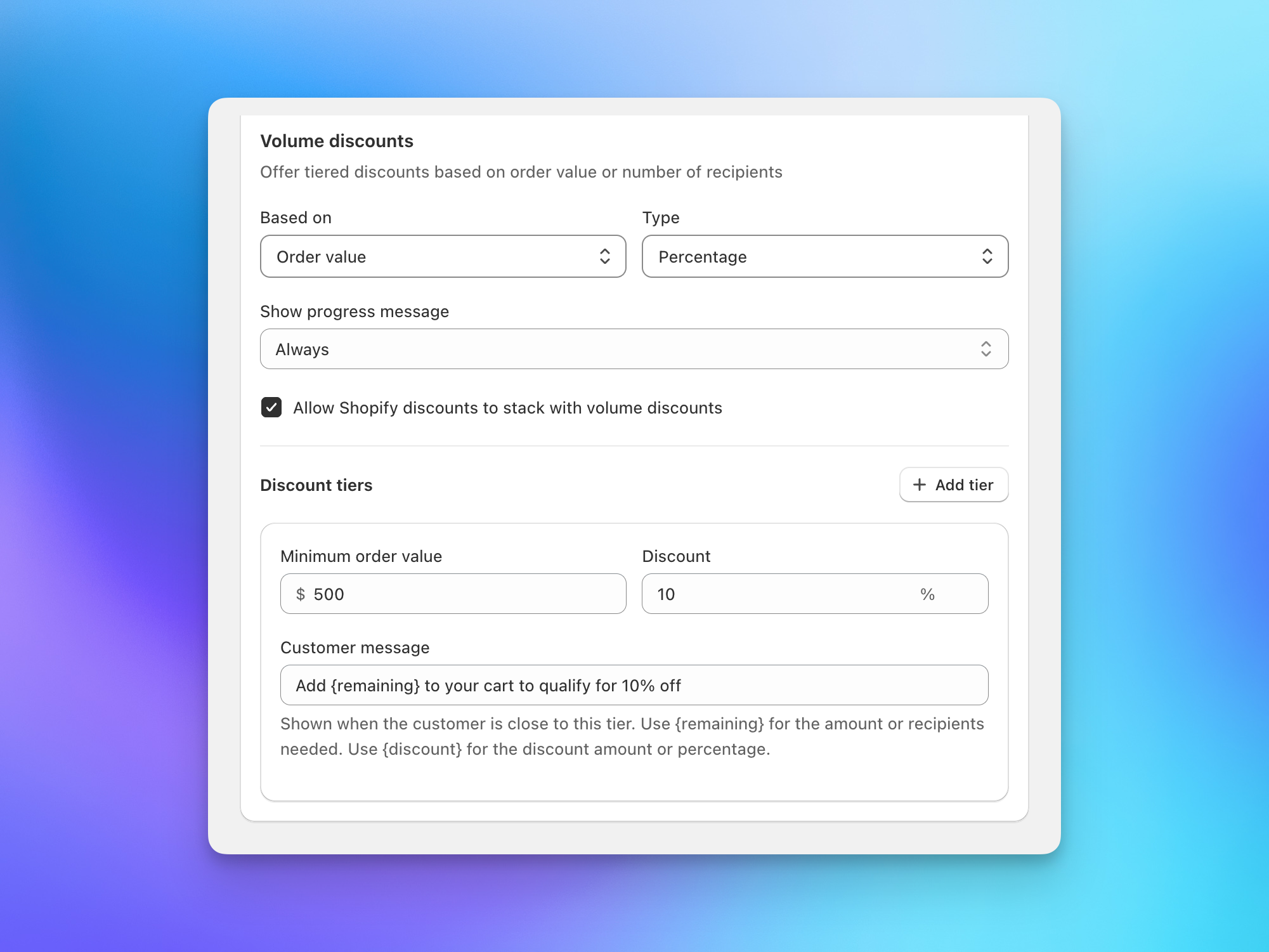
Two discount types are available for volume tiers:
- Percentage off: Discount a percentage of the total order value (e.g., 10% off when sending to 5+ people).
- Dollar amount off: Subtract a fixed amount from the total.
How Tiers Work
Each tier is triggered by one of two conditions:
- Recipient count: The discount applies when the shopper adds a certain number of recipients (e.g., 5 or more).
- Order value: The discount applies when the order total reaches a dollar threshold.
Stack multiple tiers to reward progressively larger orders. For example: 10% off at 5 recipients, 15% off at 10, 25% off at 20. Click + Add tier to add additional discount levels.
Most shoppers already send to 2-3 people. A 5-recipient threshold is reachable and meaningful. Escalate the reward at each tier so it feels like a significant jump (e.g., 10%, 15%, 25%).
Upsell Messages
Control when and how shoppers see discount information during checkout:
- Show progress message: Choose when the message is visible: Always, When within % of next tier (shows the message only when the shopper is within a configurable percentage of reaching the next discount tier), or Never.
- Upsell message displayed to shoppers: Customize the message text. Use
{remaining}as a placeholder for the number of recipients still needed to reach the next tier.
The message updates dynamically as shoppers add or remove recipients, showing what they've unlocked and how close they are to the next tier.
Stacking with Discount Codes
The Volume discount stacking setting controls whether volume discounts can combine with Shopify discount codes. When enabled (the default), both apply. When disabled, if a shopper adds a discount code to the checkout, the volume discounts are removed.
Shopify Automatic Discounts
Shopify's automatic discounts (like "10% off orders over $100" or "Free shipping over $X") apply in multi-recipient checkout with no configuration. These are discounts you've set up in Shopify Admin > Discounts with an automatic trigger.
Automatic discounts are applied per recipient, the same way Shopify applies them to a single order on your storefront. Each recipient's items are priced as their own order, so the discount lands on that recipient's order and shows in the running total as the shopper builds the cart. In practice:
- Percentage and fixed-amount product discounts reduce the recipient's product subtotal only. Shipping is never discounted by a product discount, and tax is calculated on the discounted amount.
- Free shipping discounts remove that recipient's shipping charge.
- Minimum-spend conditions are evaluated per recipient, not on the whole cart. A "10% off over $100" discount applies to a recipient receiving $120 of products, and not to one receiving $60, even if the cart holds 20 recipients. To reward the size of the whole order, use volume discounts instead.
The parent order the gifter pays for is built from custom line items that mirror the discounted recipient totals, so automatic discounts aren't applied to it a second time. Leave Accept automatic discounts off in the parent order settings; turning it on can apply a discount twice.
B2B Catalog Pricing
If you use Shopify's B2B features with company-specific catalog pricing, that pricing is applied as each recipient order is calculated, as long as the B2B customer is logged in on the multi-recipient checkout page. The checkout reads the customer's company and location to pull the correct catalog prices for every recipient.
Catalog pricing is applied based on the customer's session when the multi-recipient checkout page loads. If a B2B customer logs in later during the Shopify checkout step (after leaving the multi-recipient page), their catalog pricing may not be reflected. Make sure B2B customers log in before they start adding recipients.
For more on B2B setup and configuration, see Shopify B2B and Send To Many.
Next Steps
- Core settings: Order processing, recipient fields, and shipping options
- Additional settings: Form fields, shipping rate filters, and advanced options
- How checkout works: End-to-end overview of the checkout flow