Inquiries from Multi-Recipient Checkout: Let Shoppers Request a Quote Instead of Paying
Add an inquiry option to the Send To Many cart on Shopify. Shoppers build their multi-recipient order, then submit it to your team for a quote or review instead of checking out. Show it always, only for large orders, or in place of checkout.
Sometimes a customer starts a multi-recipient order, adds a lot of information, and then has a question. A first-time corporate buyer with 40 recipients wants to confirm pricing before paying. A gifter with a custom logo request needs your input. Some stores prefer to review any order over a certain size before it's placed. The Inquiries tab in your multi-recipient checkout settings gives those customers a path forward without losing everything they entered: they hand their cart to your team instead of checking out.
Shoppers do the work of building the order: recipients, addresses, products, gift messages, and any discount code. When they submit an inquiry, all of it lands in Send To Many as a draft Send. Your team can answer any questions, review, adjust, and then complete the Send the same way you would a manual upload, by sending an invoice. You don't re-enter anything.
Inquiry Modes
Open Multi-recipient checkout in your Send To Many settings and select the Inquiries tab. Choose one of three modes:
- Disabled: No inquiry option appears on the cart. Shoppers can only check out.
- Redirect to inquiry form: A button links to your inquiry form page. Use this when you want the shopper to answer additional questions, upload files, or start a conversation before building an order. The cart itself is not submitted.
- Inline submit inquiry: A Submit inquiry button opens a short contact form on the cart. The shopper enters their name and email, submits, and stays on the page. Their full cart is sent to you as an inquiry.
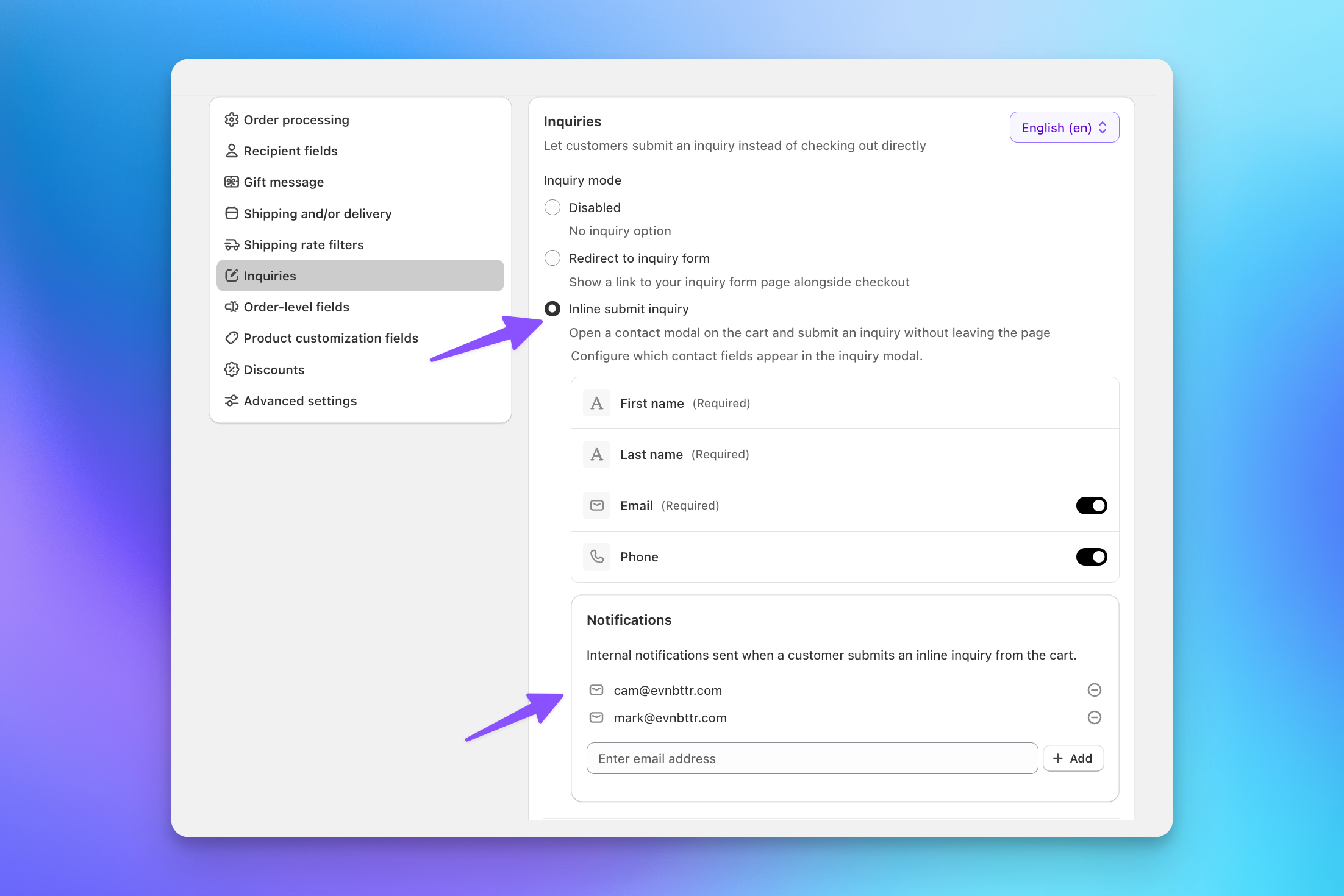
For most stores, inline submit is the better fit for shoppers who have already built a cart. The redirect option remains useful when your inquiry form collects information the cart can't, such as branding files or a preferred delivery window that varies by recipient. However, with the redirect option, none of the data the customer has entered in the cart is included in their inquiry.
Contact fields (inline mode)
When inline submit is selected, choose which contact fields appear in the modal:
- First name and Last name: Always shown and required.
- Email: Required when enabled. This is how you'll follow up, so leave it on unless you collect contact details another way.
- Phone: Optional. Turn it on if your team prefers to call.
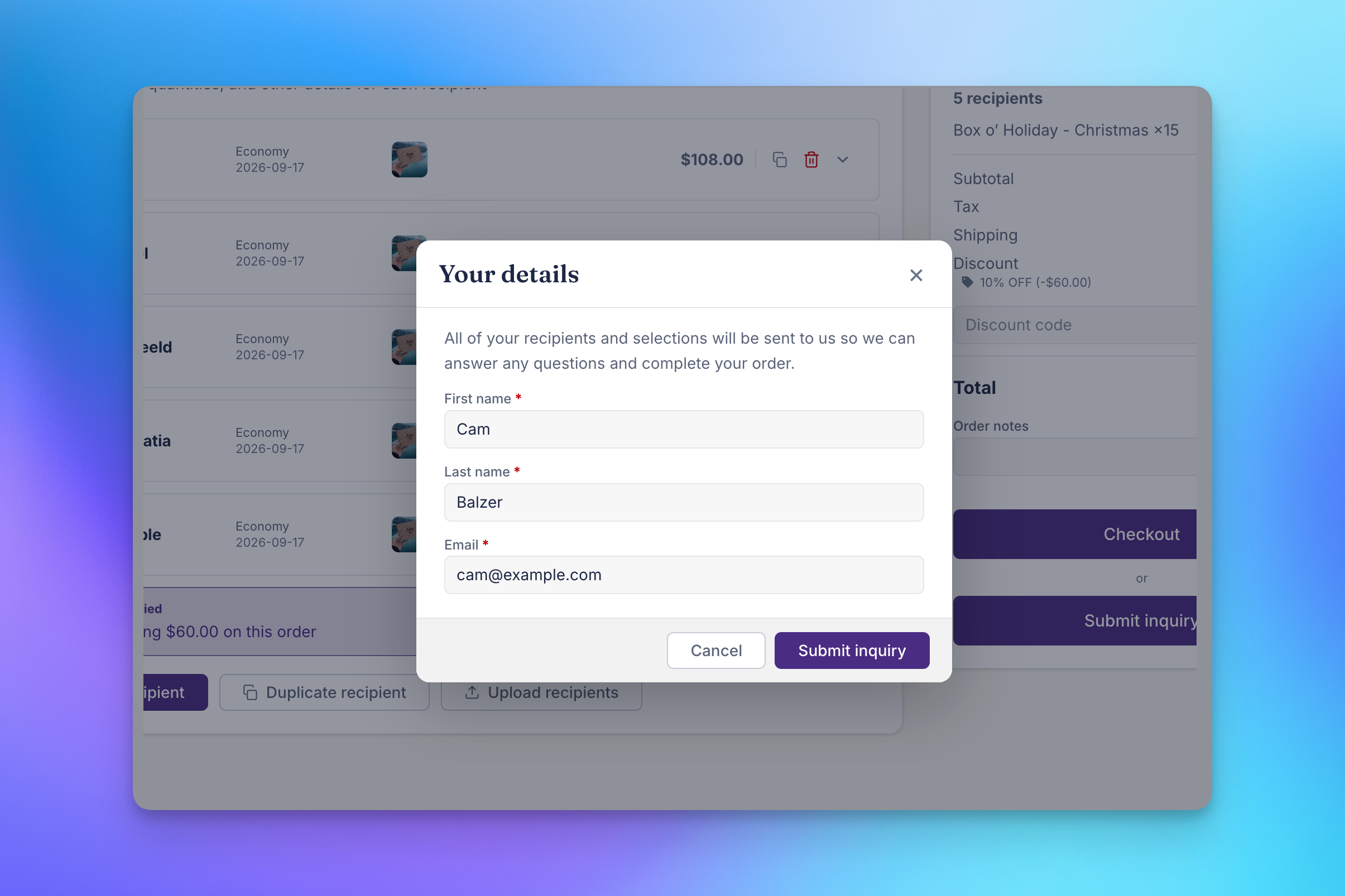
The modal also tells shoppers that their recipients and selections will be sent to you so you can answer questions and complete the order.
Notification emails (inline mode)
Add the email addresses that should be notified when a shopper submits an inline inquiry. This list is separate from the notification emails on your inquiry form settings, so you can route cart inquiries to a sales rep and form inquiries to a shared inbox, or use the same addresses for both.
Display Rules
Display rules control when the inquiry action appears. They apply to both the redirect and inline modes.
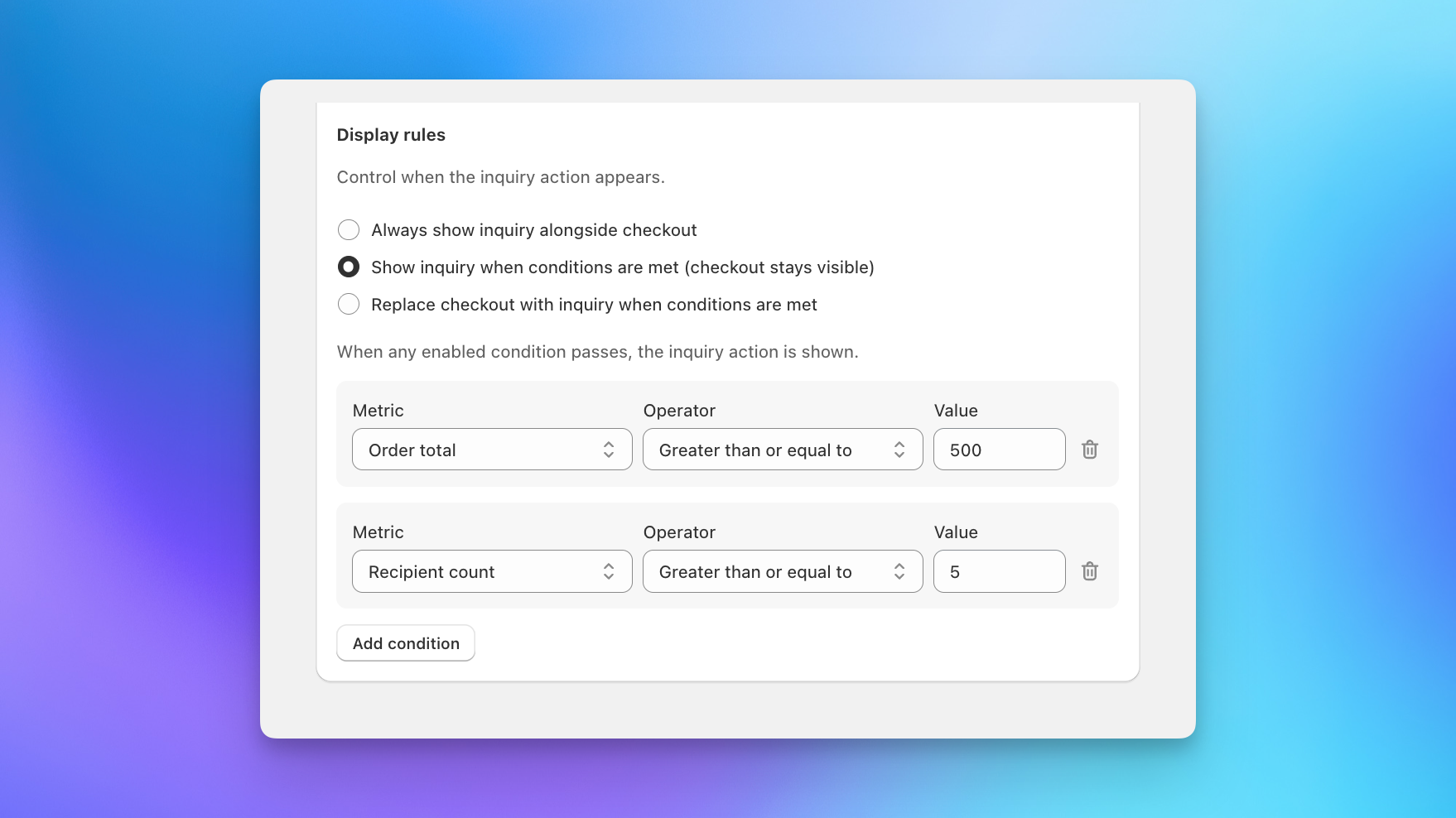
- Always show inquiry alongside checkout: Both the Checkout button and the inquiry button appear on every cart. The shopper chooses.
- Show inquiry when conditions are met (checkout stays visible): The inquiry button only appears once the cart matches a condition you set. Checkout remains available. Use this to surface a "talk to us" path for larger orders without blocking anyone from paying.
- Replace checkout with inquiry when conditions are met: Once a condition is met, the Checkout button is removed and only the inquiry option remains. Use this when orders above a certain size need review, custom pricing, or a manual shipping quote before they can be placed.
Conditions are built from a metric, an operator, and a value. Current metrics are Order total, Total item quantity, and Recipient count. Add as many conditions as you need with Add condition. When any enabled condition passes, the inquiry action is shown.
A common setup is two conditions: order total greater than or equal to $500, and recipient count greater than or equal to 5. A shopper sending 3 gifts checks out normally. A shopper sending to 12 people sees the inquiry option, whether or not the total crosses $500.
Replacing checkout is a strong move. Test it on a checkout configuration that is only used on one page before applying it store-wide. If you offer several checkout configurations, each one has its own Inquiries tab.
What Shoppers See
In the example below, inline submit is on and the recipient count condition (5 or more) has been met, so the order summary shows a Checkout button with Submit inquiry beneath it.
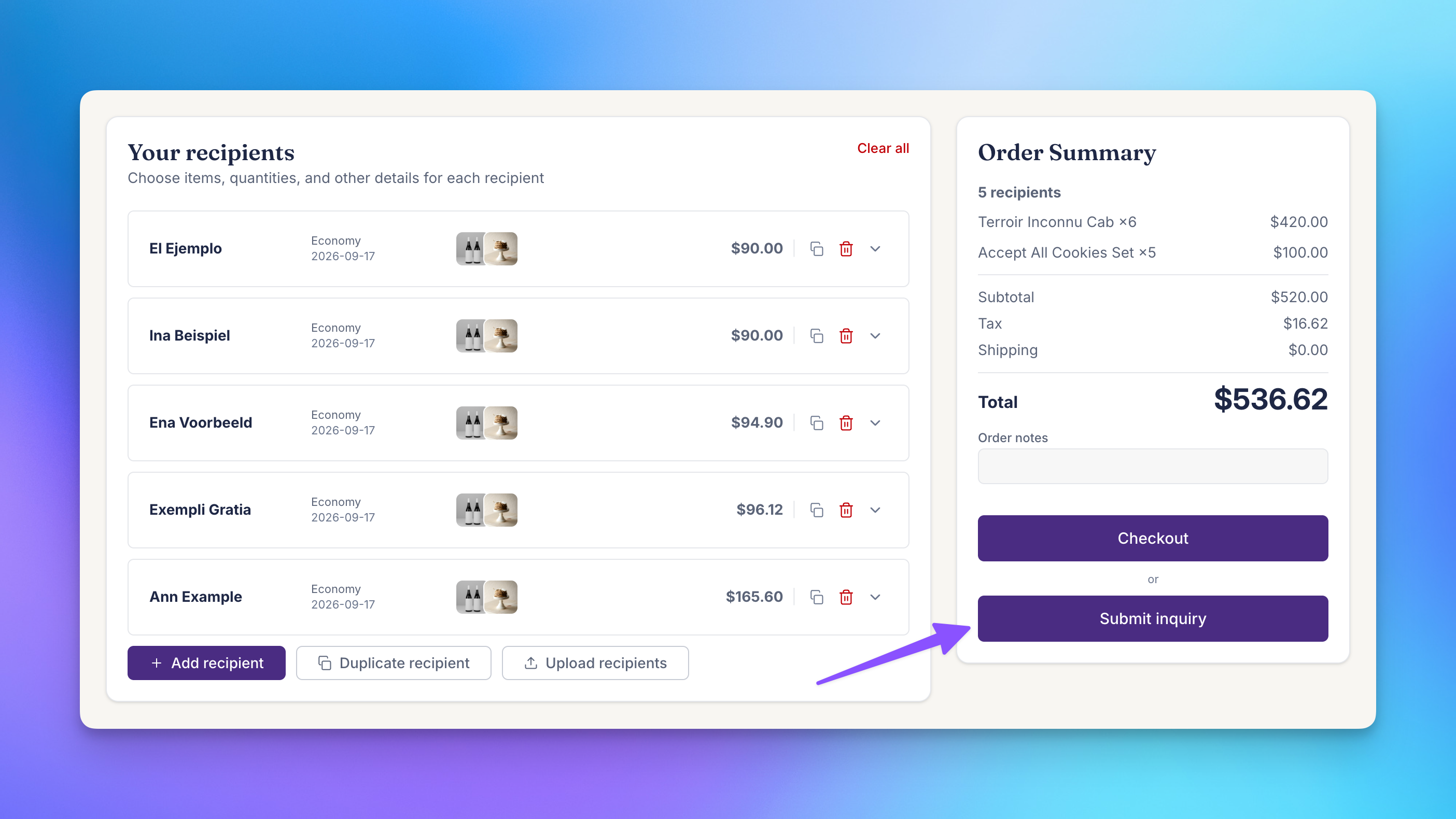
Clicking Submit inquiry opens the Your details modal. The shopper enters their contact information and submits.
After submitting, the shopper sees a confirmation that their recipients and selections have been received, with a Continue shopping button.
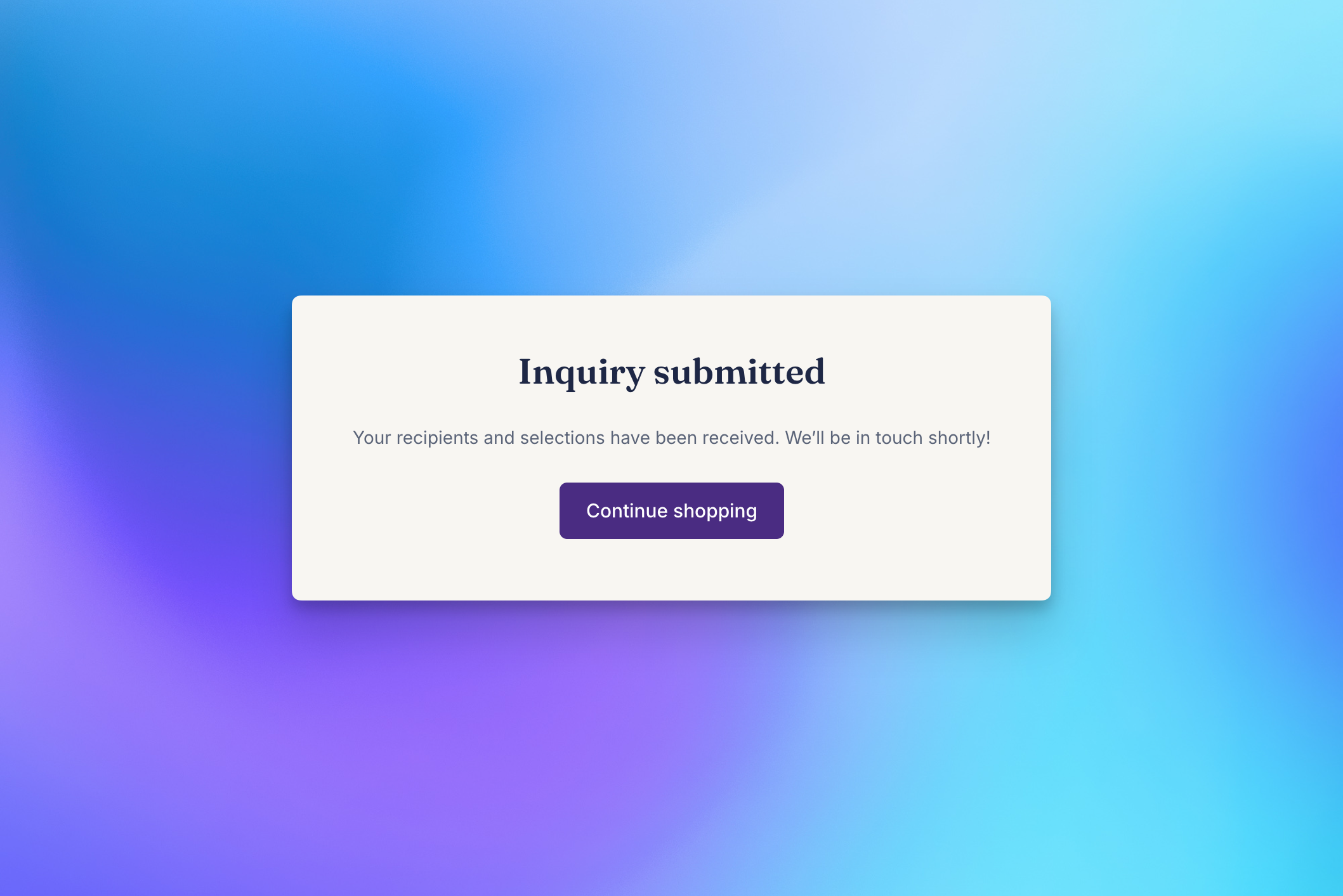
All of the inquiry buttons and customer-facing copy, including the modal text and the confirmation message, are editable in Settings > Text and translations. If you have added another language, a language selector at the top of the Inquiries tab lets you set each one.
What Your Team Receives
An inline inquiry arrives in Send To Many as a Storefront Send with a status of Draft - Finalize, with everything the shopper built in the cart:
- Recipients with names and shipping addresses
- Products, variants, and quantities per recipient
- Gift messages, shipping dates, and any product customization
- Order notes and an applied discount code, if the shopper entered one
- The contact details from the modal
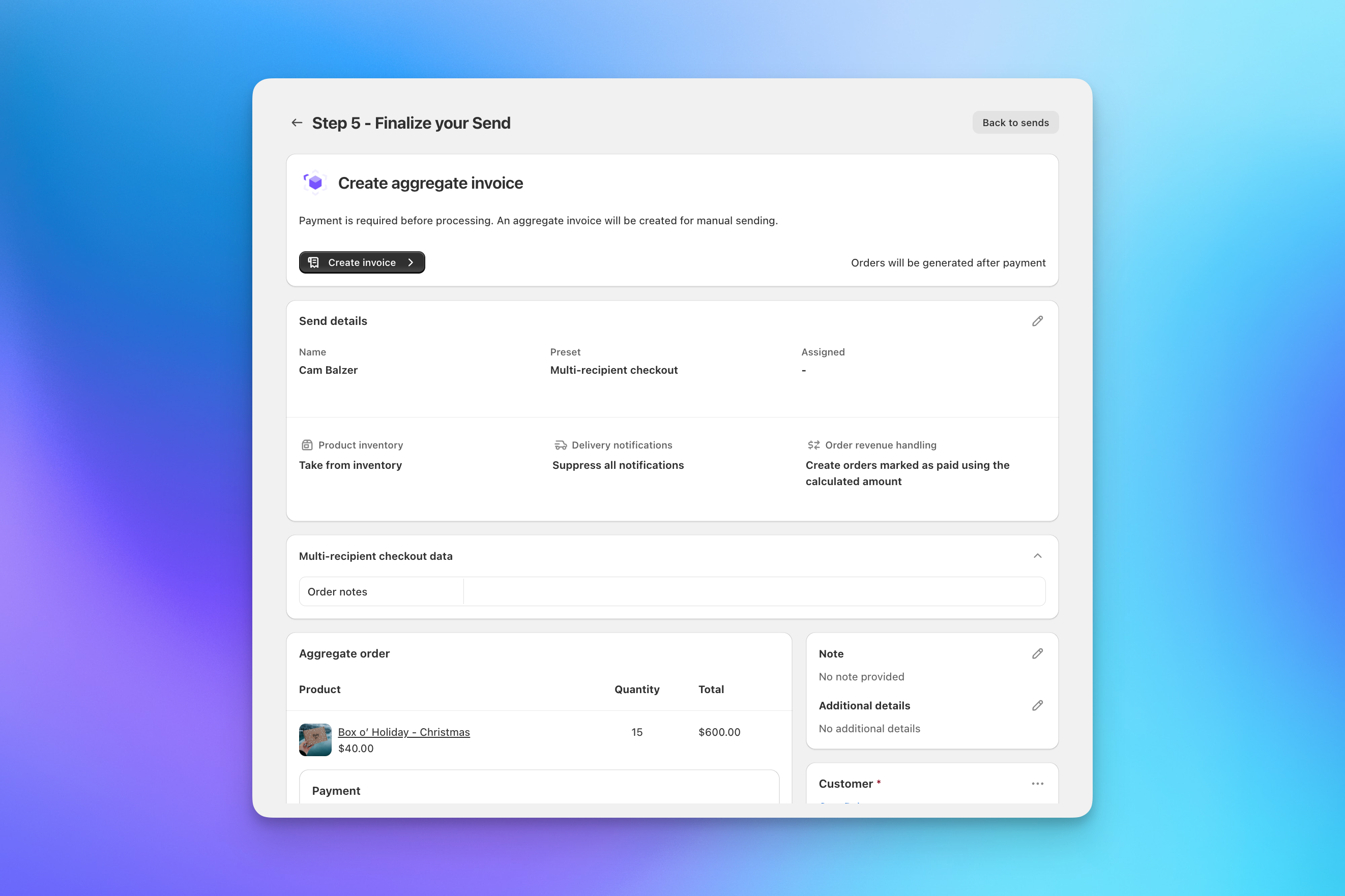
Any order-level fields in your checkout are added to the draft Send for your review. Add an "Order notes" field, for example, to capture the shopper's questions along with the inquiry.
Everyone on the notification list receives an email. From the Send, your team reviews the details, makes any changes, and creates the invoice, following the same steps as any other Send. See Managing inquiries for the review-to-invoice workflow.
Submitting an inquiry doesn't charge the shopper. Prices, shipping, and tax are finalized when you complete the Send and send the invoice.
Next Steps
- Corporate gifting inquiry form: the standalone form for shoppers who don't have a cart built yet
- Staff order entry: let your team build and submit a cart on a customer's behalf
- Multiple checkout configurations: different inquiry rules for different pages or customer groups
- Core settings: order processing, recipient fields, and shipping options
Still have a question?
Ask Manny, the Send To Many bot, about this page or anything else in the docs.