How Shoppers Find Multi-Recipient Checkout
Ways to present multi-recipient checkout on your Shopify storefront: replace your cart, add a single-versus-multi toggle, a cart button, or wire up a drawer.
Once you've added the checkout block to a page, the last step is connecting shoppers to it. There are several ways to do this, and you can combine them. Pick what fits your store's cart setup and how prominent you want the multi-recipient option to be.
The options:
- Replace your cart page so every shopper uses multi-recipient checkout.
- Add a single-vs-multi toggle to your cart so shoppers choose between standard checkout and sending to multiple recipients.
- Add a button to your cart with our Multi Checkout Button block.
- Add a button to a drawer or slide cart with a small theme edit.
Replace Your Cart Page
The simplest approach. Add the Multi Recipient Cart v2 block directly to your Cart page template and publish. Shoppers see multi-recipient checkout whenever they view their cart, and single-recipient orders work just as smoothly as multi-recipient ones. There's nothing for shoppers to choose between.
Add a Single vs. Multiple Recipient Toggle
Cart page mode adds a toggle to your cart that lets shoppers switch between Send to single recipient (your standard Shopify checkout) and Send to multiple recipients (Send To Many's checkout). It's a good middle ground: your regular cart stays intact for one-off purchases, and the multi-recipient option is right there for shoppers who need it.
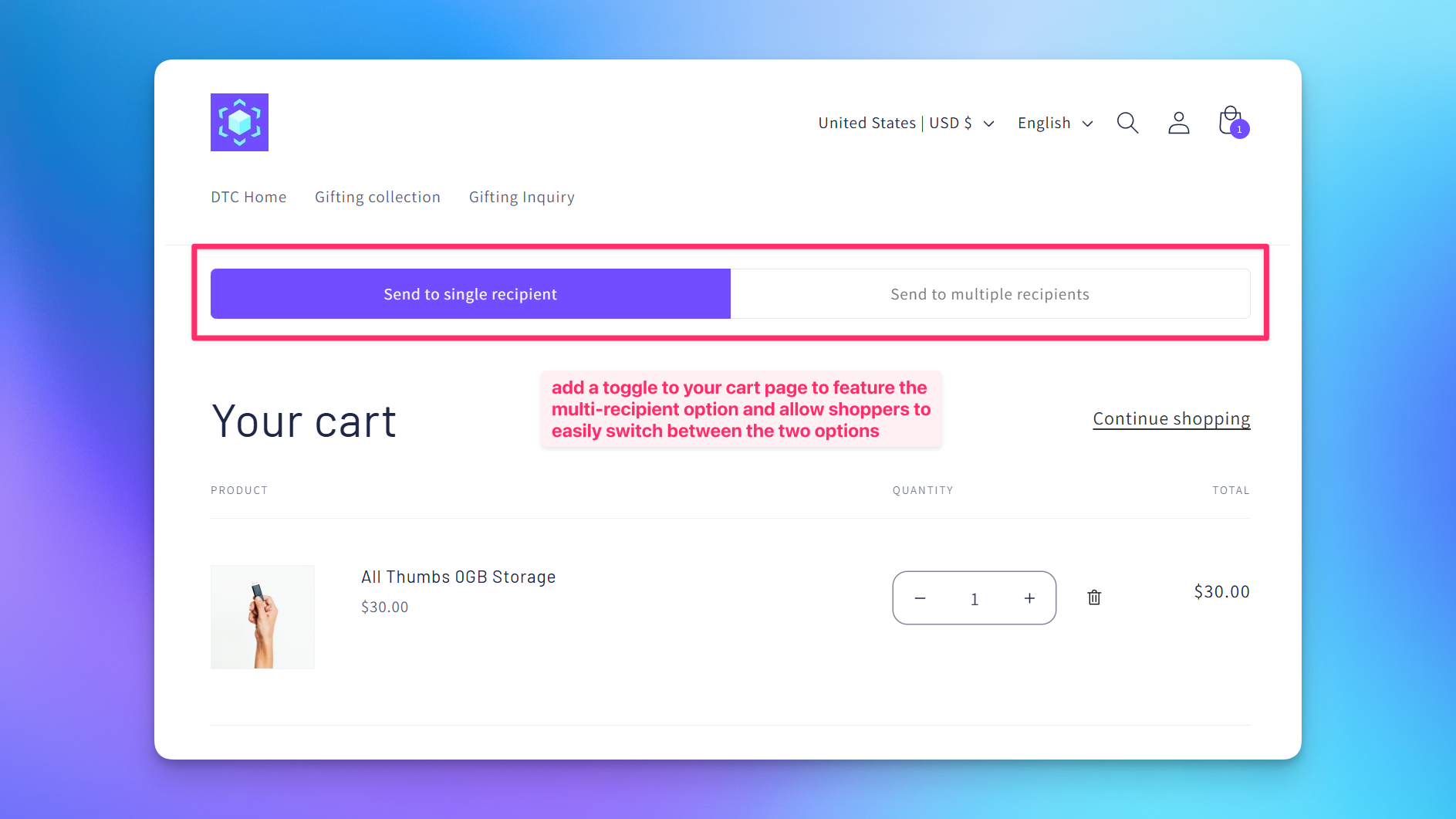
How the Toggle Works
You place the Multi Recipient Cart v2 block at the top of your cart page template, above your theme's normal cart sections. The toggle then controls which one shows:
- In single recipient mode, your theme's native cart shows as usual and the shopper checks out through standard Shopify checkout.
- In multiple recipients mode, the native cart sections are hidden and the Send To Many checkout takes over on the same page.
Send To Many hides the native cart by applying CSS to the cart sections you specify, so nothing is deleted from your theme. The shopper's choice is remembered, so they stay in their preferred mode as they move around your store.
Enabling the Toggle
Cart page mode lives in your checkout Advanced settings. These settings are locked by default, so contact us at help@evenbetterapps.com if you need them enabled for your store. For the full list of advanced settings, see Advanced settings.
- Make sure the Multi Recipient Cart v2 block is added to the top of your Cart page template.
- In Send To Many, open your multi-recipient checkout settings and go to Advanced settings.
- Under Cart page mode, check Enable cart page mode toggle.
- Set your Native cart selectors (see below).
- Save.
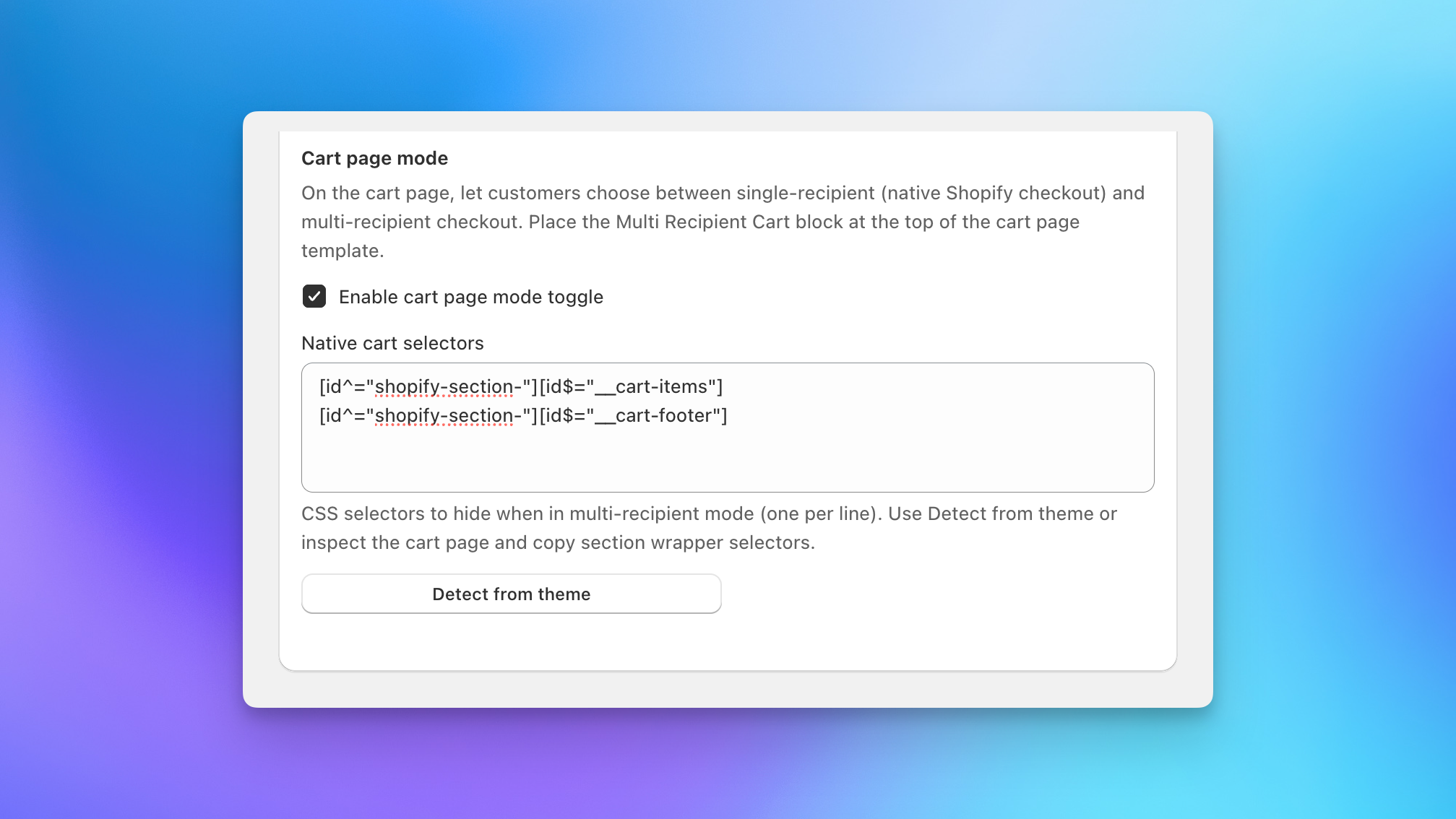
Native Cart Selectors
Native cart selectors are the CSS selectors for the cart sections that should be hidden when a shopper switches to multiple recipients mode (typically your cart items and cart footer). There are two ways to set them:
- Detect from theme (recommended): Click Detect from theme and Send To Many reads your cart template, finds the native cart sections, and fills in the selectors automatically. This works for most themes.
- Add them manually: If your theme is highly customized, inspect your cart page, find the wrapper element for each cart section, and add one selector per line. Shopify section wrappers usually look like
[id^="shopify-section-"][id$="__cart-items"].
You need at least one selector so the native cart can be hidden in multiple recipients mode. If the native cart still shows behind the checkout after enabling the toggle, your selectors aren't matching: re-run Detect from theme, or inspect the cart and add the missing section wrapper manually.
Add a Button with the Multi Checkout Button Block
If you'd rather keep your standard cart page and add a clear call to action, use the Multi Checkout Button app block. It adds a button to your cart that sends shoppers to your multi-recipient checkout page, typically right under your existing checkout button.
This is the most common setup for stores that want a standard checkout and the multi-recipient flow side by side, without the toggle.
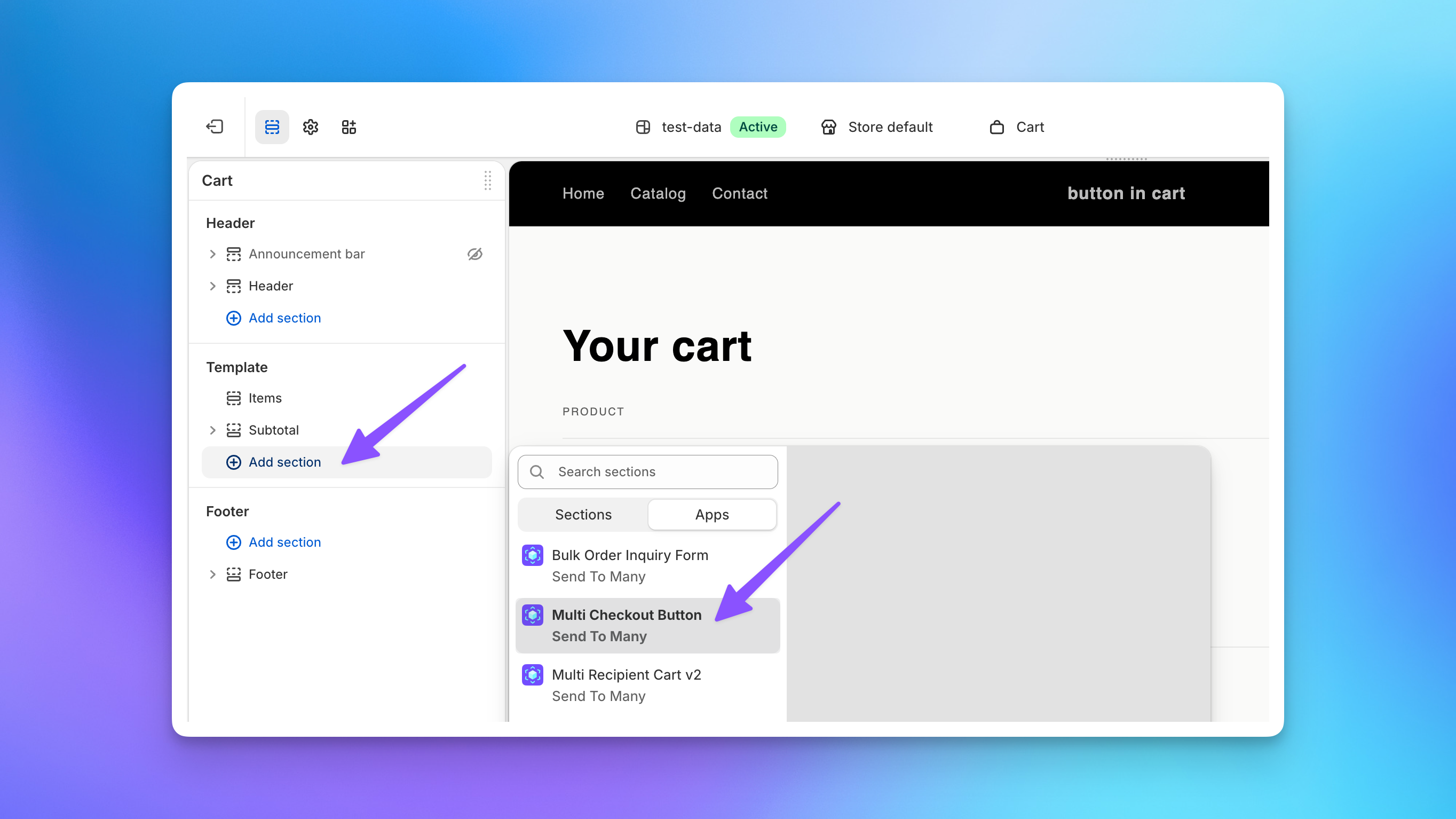
1. Add the block to your cart template
- In your Shopify admin, go to Online Store → Themes and click Customize on your active theme.
- Use the template picker at the top to switch to your Cart page.
- Under Template, click Add section, open the Apps tab, and select Multi Checkout Button.
2. Point the button at your checkout page
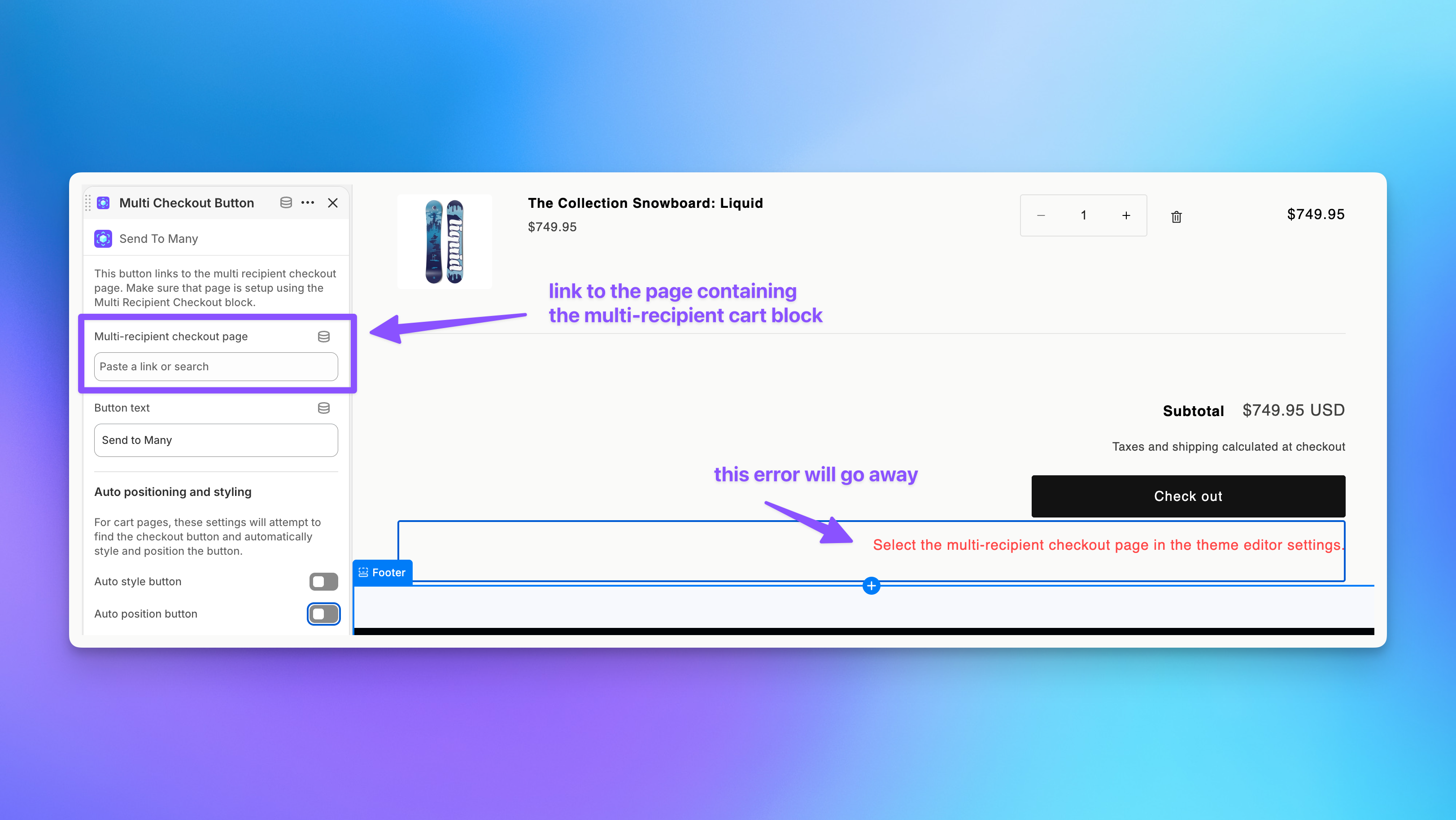
The block needs to know where to send shoppers. Until you set this, the block shows an error in the theme editor instead of a button.
- Select the Multi Checkout Button block to open its settings.
- In Multi-recipient checkout page, search for or paste a link to the page that contains your Multi Recipient Cart v2 block. The error in the preview clears once the page is selected.
- Set Button text to whatever you want shoppers to see. "Send to Many" is the default, but something like "Send to multiple recipients" is usually clearer.
If you haven't built the checkout page yet, see adding the multi-recipient checkout block to your theme first.
3. Turn on auto positioning and styling
By default the button renders wherever the section sits in the template, with your theme's base button styles. Two settings move it into place instead:
- Auto style button: matches the button to your theme's existing checkout button styling.
- Auto position button: finds your theme's checkout button and places the Send To Many button directly beneath it.
Turn both on, then check the preview. The button should appear under Check out in your cart summary.
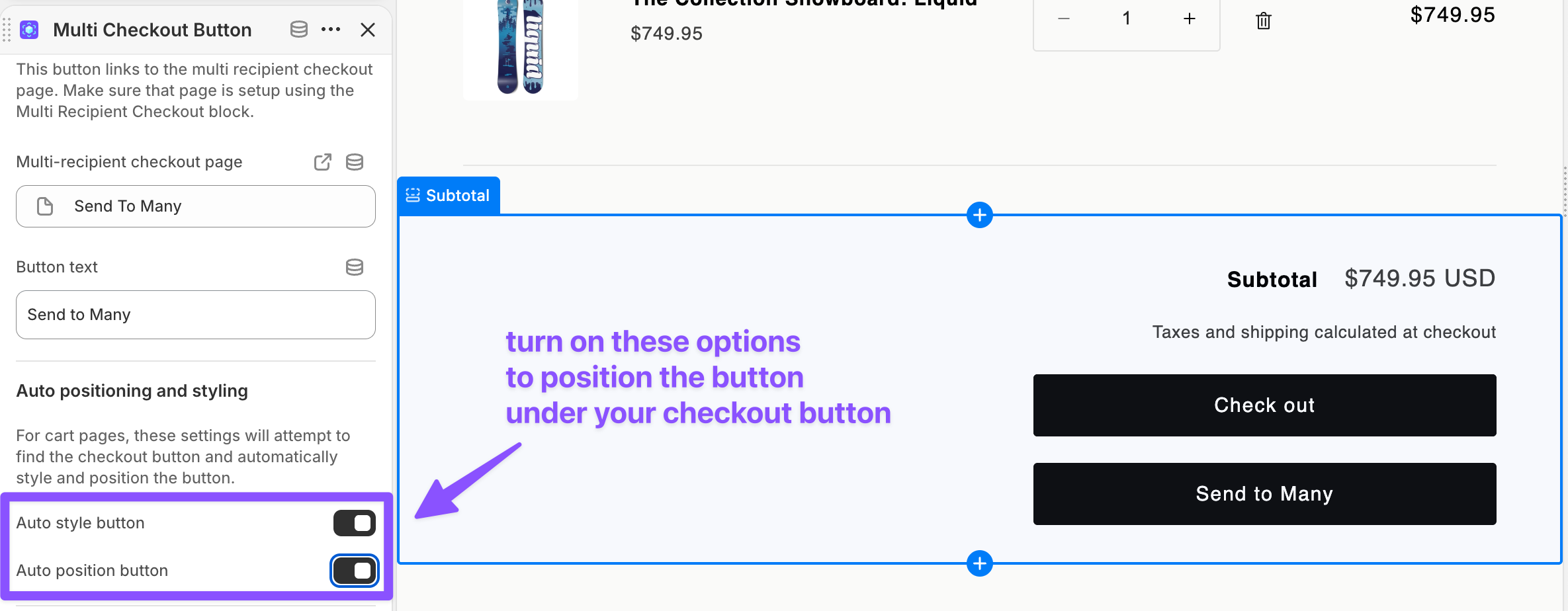
The auto settings work by locating your theme's checkout button, and they won't find it in every theme. If the button doesn't move into place or the styling looks off, leave the auto options off and position the section manually, or customize your cart template's code to place the button where you want it. The examples in adding a button to a drawer or slide cart below work on standard cart pages too.
4. Save and test
Click Save, then open your storefront, add a product to your cart, and confirm the button appears and links to your multi-recipient checkout page.
Add a Button to a Drawer or Slide Cart
Send To Many works with any cart style, including drawer carts, slide-out carts, and flyout carts. In many cases the button appears automatically. The cart button uses its href as a fallback, so it always links to the correct checkout page even when your theme's auto-positioning doesn't fire. If the button doesn't appear in your drawer, add it with a small theme edit. If your drawer comes from a cart app rather than your theme, see drawer carts added by another app below.
1. Find your checkout page URL
You need the URL of your multi-recipient checkout page. If you've already set up checkout, you'll have a page with the Send To Many block on it, with a URL like /pages/multi-recipient-checkout. Find it in Online Store → Pages.
2. Open your theme's cart drawer file
- Go to Online Store → Themes in your Shopify admin.
- Click "..." next to your active theme and select Edit code.
- In the file list, look in the Snippets or Sections folder for your cart drawer template. Common file names include
cart-drawer.liquid,header-cart-drawer.liquid,cart-sidebar.liquid, ormini-cart.liquid. The exact name depends on your theme.
3. Add the button code
Every theme structures its cart drawer a little differently, so you'll find the right spot, usually right next to the existing checkout button. Below are three examples.
Shopify Sidekick can help. Ask it something like: "In my theme's cart drawer, add a button right below the checkout button that links to /pages/multi-recipient-checkout with the text 'Send to multiple recipients'."
Dawn
In Dawn, the cart drawer lives in snippets/header-cart-drawer.liquid. Find the cart__footer section where the checkout button is rendered, and add a new element_button render right after it:
{% render 'element_button',
  type: "button",
  name: "send_to_many",
  text: "Send to multiple recipients",
  href: "/pages/multi-recipient-checkout",
  classlist: "cart__checkout",
  style: "margin-top:10px;"
%}
Horizon
In Horizon, the cart drawer content is in snippets/cart-summary.liquid. Find the cart_ctas section with the existing checkout button, and add a link right after it:
<a href="/pages/multi-recipient-checkout"
   class="cart__checkout-button button"
   style="display:block; text-align:center;">
  Send to multiple recipients
</a>
Plain HTML (fallback for any theme)
If your theme doesn't use a button snippet, add a plain HTML link next to the existing checkout button:
<a href="/pages/multi-recipient-checkout"
   class="button btn cart__checkout-btn"
   style="display:block; text-align:center; margin-top:10px;">
  Send to multiple recipients
</a>
Match the CSS classes to whatever your theme uses for its existing checkout button so the styling stays consistent.
4. Save and preview
Click Save, then open your store and add a product to your cart. Open the cart drawer and confirm the "Send to multiple recipients" button appears below the checkout button.
The button you add is standard HTML/Liquid, so it inherits your theme's styles. To adjust its appearance, modify the inline styles or add a custom CSS class. For styling the checkout page itself, see CSS customization.
Drawer Carts Added by Another App
Plenty of stores don't use their theme's drawer at all. Apps like AMP Slide Cart and One Click Upsell add or replace the side drawer to handle upsells, free shipping progress bars, discount codes, and trust badges. If that's your setup, editing your theme's cart drawer file won't change anything, because the app renders the drawer instead.
Configure the link in the cart app instead. These apps almost always include a way to add an extra button or link to the drawer, either as a configurable button component with a destination link, or as a custom HTML block. Point it at your multi-recipient checkout page and you're done. No theme code required.
The setting names vary by app, but you're looking for something like a Custom Link, Additional Button, or Custom HTML option in the drawer's settings. Set the destination to your checkout page path (for example /pages/send-to-many) and give the button clear label text.
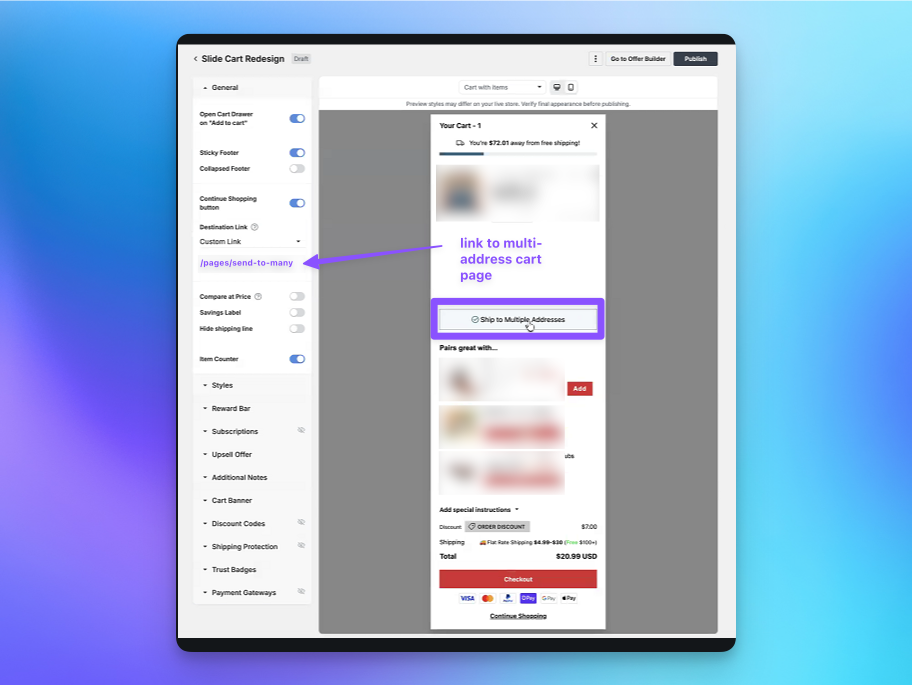
Place the link above the drawer's checkout button so shoppers see the multi-recipient option before they commit to standard checkout.
If your cart app only supports custom HTML, use the plain HTML link from the Plain HTML fallback above and match the classes to the app's own button styling.
Next Steps
- Installing the app in your theme: Add the checkout block and configure its settings
- How multi-recipient checkout works: The shopper experience from cart to order
- Advanced settings: Cart page mode and other specialized settings
- Setting up multi-recipient checkout: Full setup walkthrough