Product Customization in Multi-Recipient Checkout
Let shoppers upload logos, enter custom text, and personalize products per recipient during multi-recipient checkout, with custom fields set per product today.
Product customization lets shoppers personalize products during multi-recipient checkout. They can upload logos, enter custom text, select dates, or attach files for each product. This is useful for corporate gifting where products are branded with a company logo, or for any scenario where each recipient's order needs unique personalization.
Product customization is available on Pro plans and higher.
How It Works
Custom fields are configured per product in Send To Many's settings, not in Shopify's product editor. Send To Many creates custom metaobjects in your store to manage these customization configurations. When you apply a customization option to a product, the metaobject is added to that product automatically.
When a shopper adds a product with custom fields to their cart and enters the multi-recipient checkout, the fields appear in the checkout flow based on their scope:
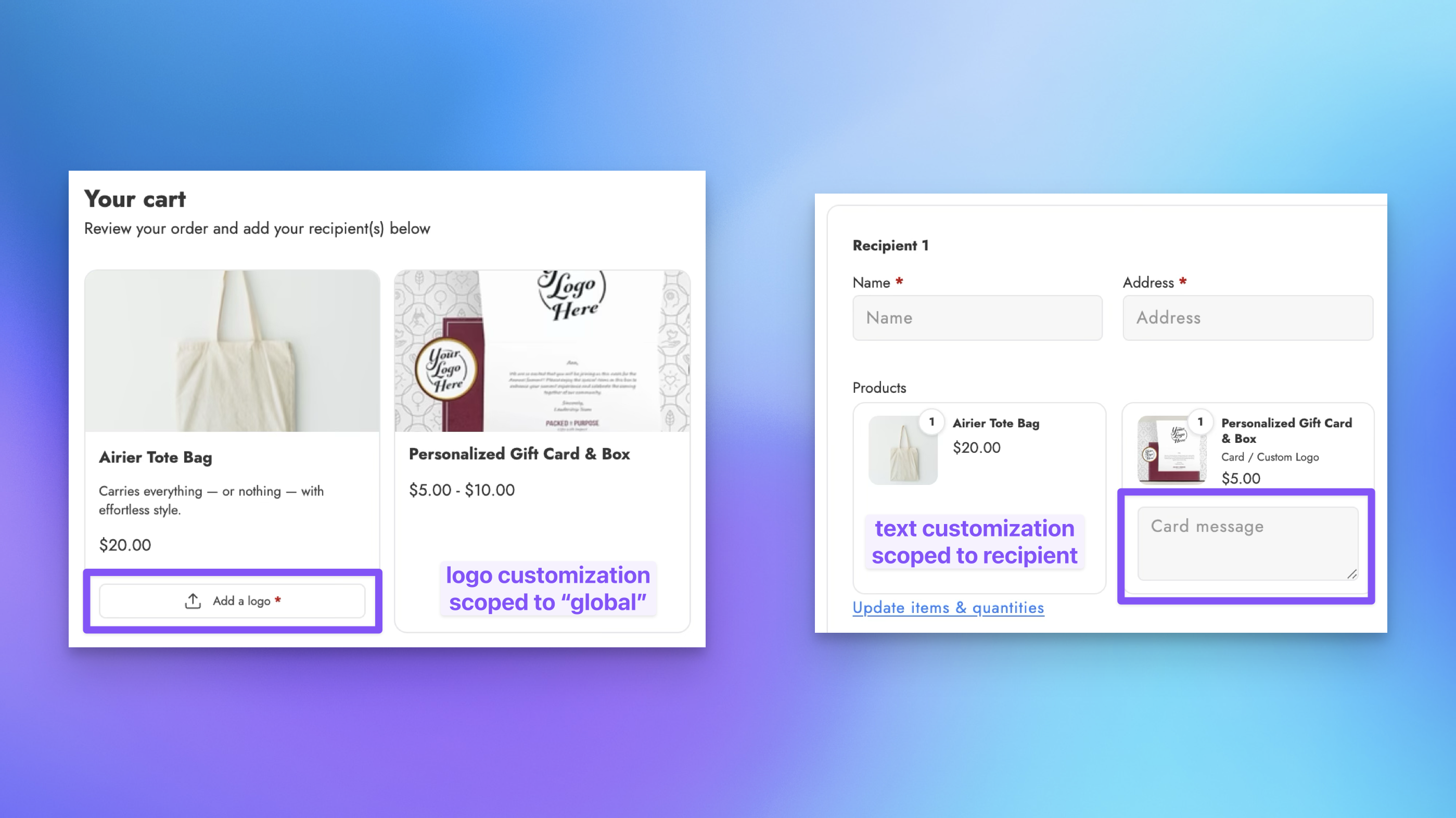
- Global: The field appears once in the cart section at the top of the checkout page. The shopper fills it in once, and the value applies to all recipients. Each recipient card shows a non-editable preview of the global value. Use this for customizations that are the same across all recipients, like a company logo.
- Per-recipient: The field appears within each recipient card. The shopper can enter a different value for each person. Use this for customizations that vary by recipient, like a personalized name or unique message.
When two products in the cart share the same custom field definition, the field is entered once and the value applies to both products. This avoids conflicts when the storage type is order-level (additional details or metafields) rather than line-item-level.
Supported Field Types
- Text input: A text field for entering custom text (e.g., a name to engrave, a custom message). Supports single-line and multi-line options.
- File / logo upload: A file upload field for logos, brand assets, or other images. You can configure accepted file types and maximum file size.
- Date: A date picker for selecting a date value (e.g., a delivery date or event date). Supports configurable earliest and latest date offsets, customer-facing display format, and storage format.
Configuring Custom Fields
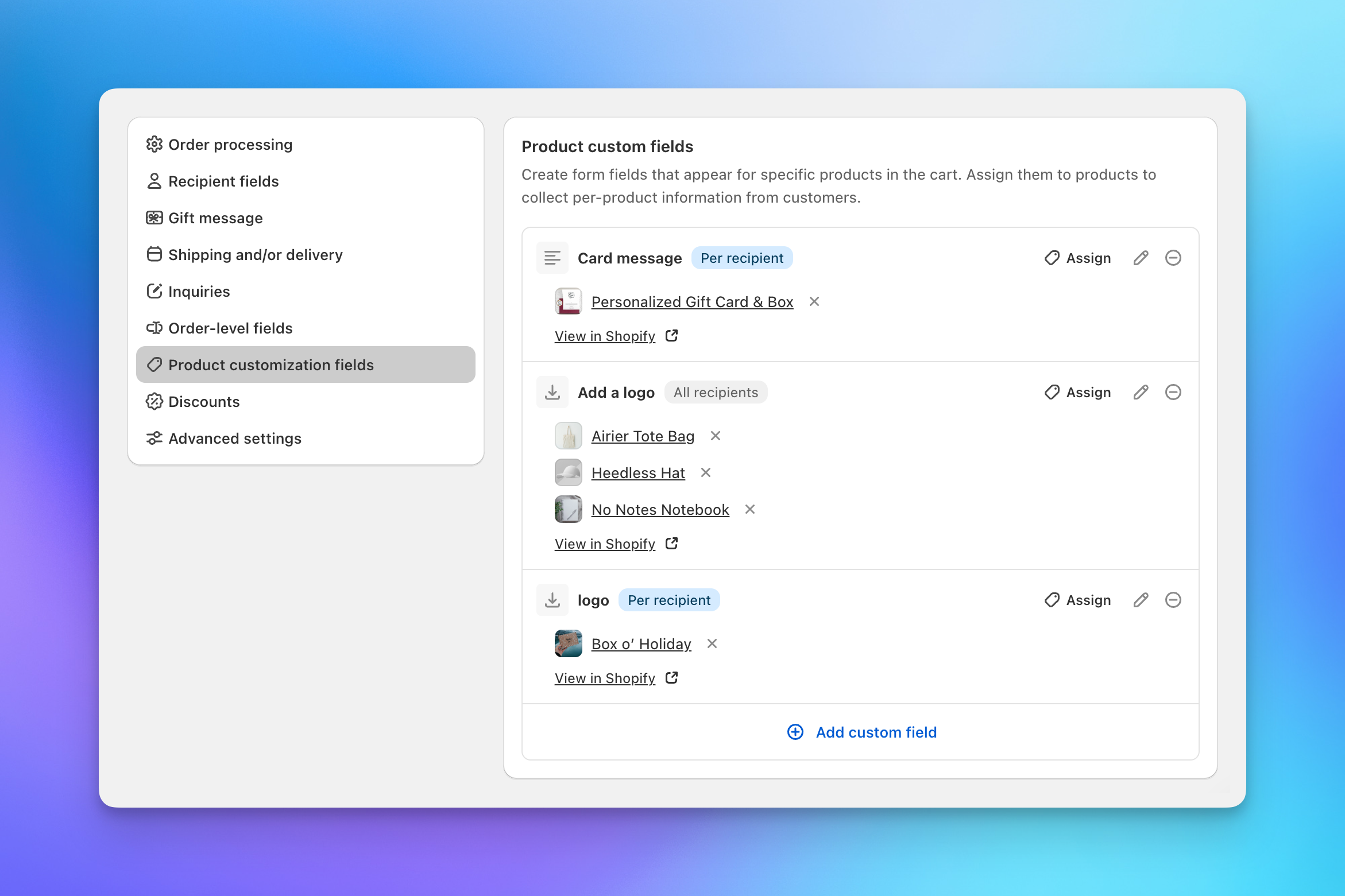
Custom fields are set up per product in Send To Many's settings.
- In Send To Many, go to Settings → Product customization (or find the option in the checkout settings).
- Select the product you want to add custom fields to.
- Click Add custom field and configure:
- Label: The field label shown to shoppers (e.g., "Company logo" or "Engraving text").
- Field type: Text input, file/logo upload, or date.
- Scope: Global (set once, applied to all recipients) or per-recipient (editable within each recipient card).
- Required / Optional: Whether the field must be filled in before checkout.
- Storage type: Where the value is stored on the order: line item properties, order additional details, or metafields.
- Storage key: The attribute or metafield key used to store the value.
For file uploads, you can also configure accepted file types (e.g., PNG, JPG, PDF) and maximum file size. Uploads are saved to your store's Shopify Files, which doesn't accept SVG or EPS files, so those types can't be uploaded. For date fields, you can set earliest and latest date offsets, a customer-facing format, and a storage format.
You can add multiple custom fields per product.
If you are already setting personalization fields on the product page and want those values to be editable in the multi-recipient checkout, configure the custom field here using the exact same storage method (line item property or additional details) and key name. When the storage method and key match, Send To Many recognizes the existing value and makes it editable in checkout instead of creating a separate field.
Things to Know
- Product customization is gated to Pro plans and higher.
- Custom fields are tied to specific products, not to the checkout configuration globally. If a product with custom fields isn't in the cart, the fields don't appear.
- Global customizations show as non-editable previews on each recipient card for confirmation. Shoppers can change the global value in the cart section, and it updates everywhere.
- File uploads are stored securely and attached to the order for fulfillment. The uploaded files are accessible from the order details in Shopify.
Next Steps
- How checkout works: End-to-end overview of the checkout flow
- Core settings: Order processing, recipient fields, and shipping options
- Multiple configurations: Set up different checkout configurations for different use cases