Multiple Checkout Configurations
Create multiple multi-recipient checkout configurations with different settings for different use cases. Set up separate checkouts for B2B pages, staff order entry, and storefront customers on Pro plans and higher.
On Pro plans and higher, you can create multiple checkout configurations, each running as a fully independent checkout experience. Each configuration is assigned to a specific page template in the theme editor, so different pages on your store can run entirely different checkout setups.
What You Can Customize Per Configuration
Each configuration has its own complete set of checkout settings. You can change most anything about the checkout experience:
- Recipient fields: Different fields, labels, and requirements per configuration.
- Gift message: Enable or disable, change storage location, set different character limits.
- Order processing: Different revenue handling, notification behavior, inventory settings, and order tags.
- Shipping and delivery: Different shipping rate sources, date picker settings, and date rules.
- Discounts: Different discount code modes and volume discount tiers.
- Form fields: Different order-level fields for each configuration.
- Shipping rate filters: Different rate filters per configuration.
- Text and translations: Fully customized copy and language translations, so a B2B page can use different terminology than your public storefront.
- Product customization: Different custom fields per product per configuration.
- Advanced settings: Independent control over cart mode, line item properties, and B2B payment terms.
Changes to one configuration don't affect the others.
Use Cases
Multiple configurations are useful when you need the checkout to behave differently depending on who's using it or what they're ordering.
Common setups include:
- Standard storefront checkout for regular customers, alongside a private B2B page with different products, payment terms, and order tags for a repeat corporate client.
- A staff-facing order entry page with simplified fields, where your sales team processes phone or email orders directly into the multi-recipient flow.
- Campaign-specific pages with dedicated product selections and discount tiers for seasonal or promotional events.
Creating a New Configuration
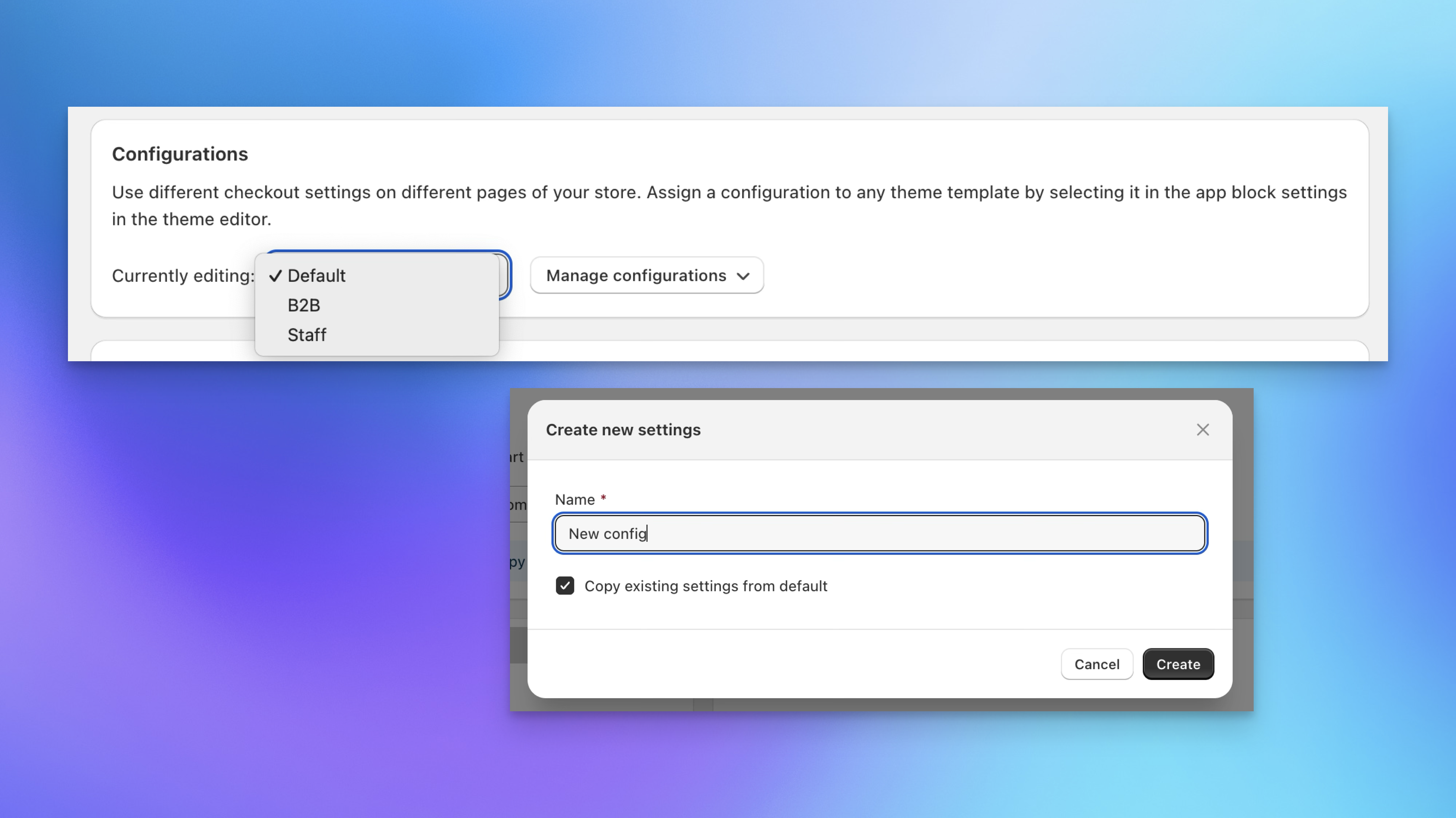
- In Send To Many, go to the Multi-recipient checkout settings page.
- Use the configuration selector at the top of the page to create a new configuration.
- Give the configuration a name that describes its purpose (e.g., "B2B - Acme Corp" or "Staff Order Entry").
- Configure all the settings for this checkout across every tab: order processing, recipient fields, gift message, shipping, discounts, and advanced settings.
- Save.
Each configuration gets its own complete set of tabs in the settings page, identical to the default checkout.
Assigning a Configuration to a Page
Each checkout configuration needs its own page and page template in your Shopify theme.
- In your Shopify admin, create a new page template (e.g.,
page.b2b-checkout). - In the theme editor, add the Send To Many checkout app block to that template.
- In the app block settings, use the configuration dropdown to select which checkout configuration this page should use.
- Create a page that uses that template and publish it.
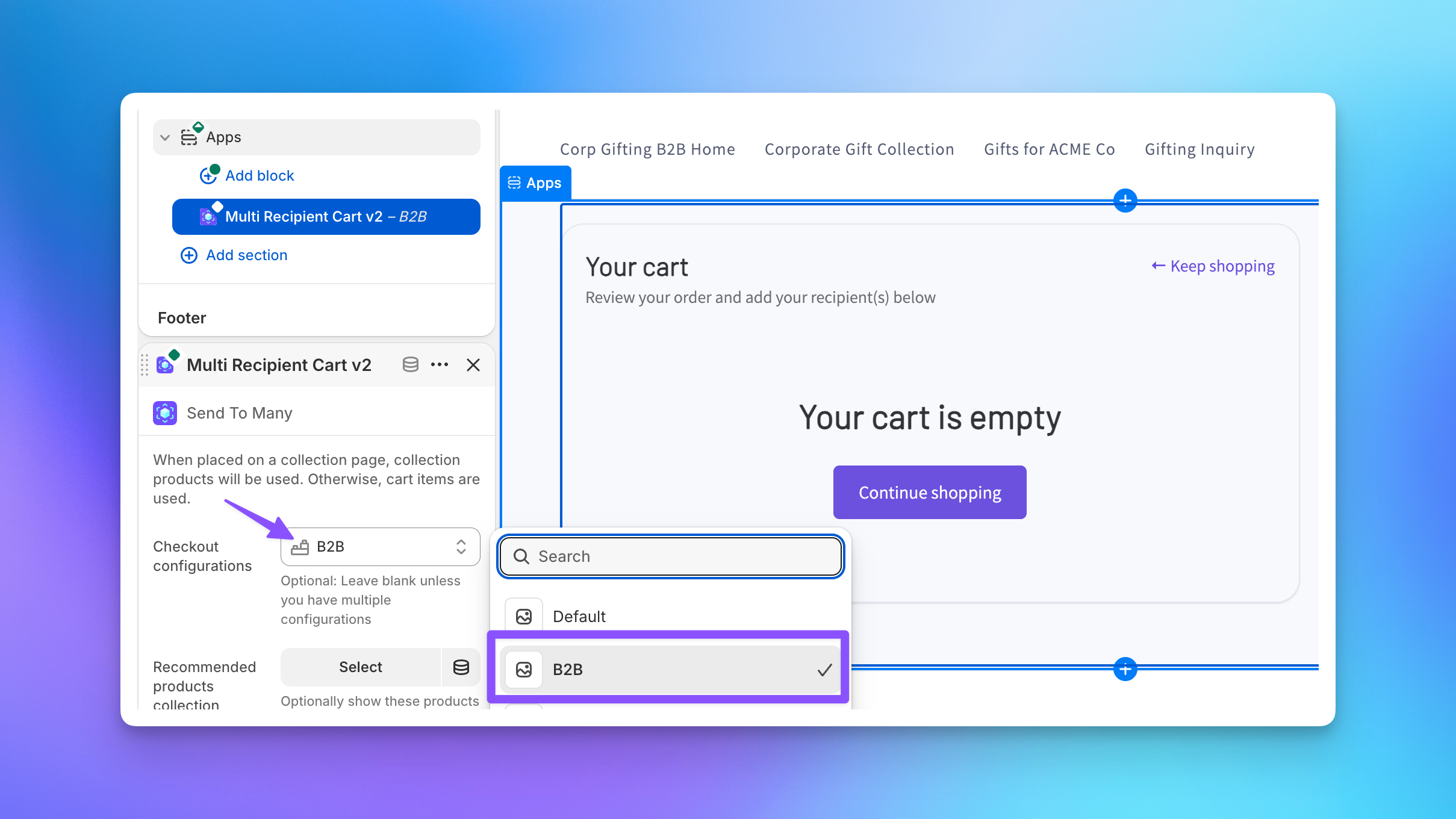
The checkout on that page will use the configuration you selected. Your main checkout page continues using the default configuration.
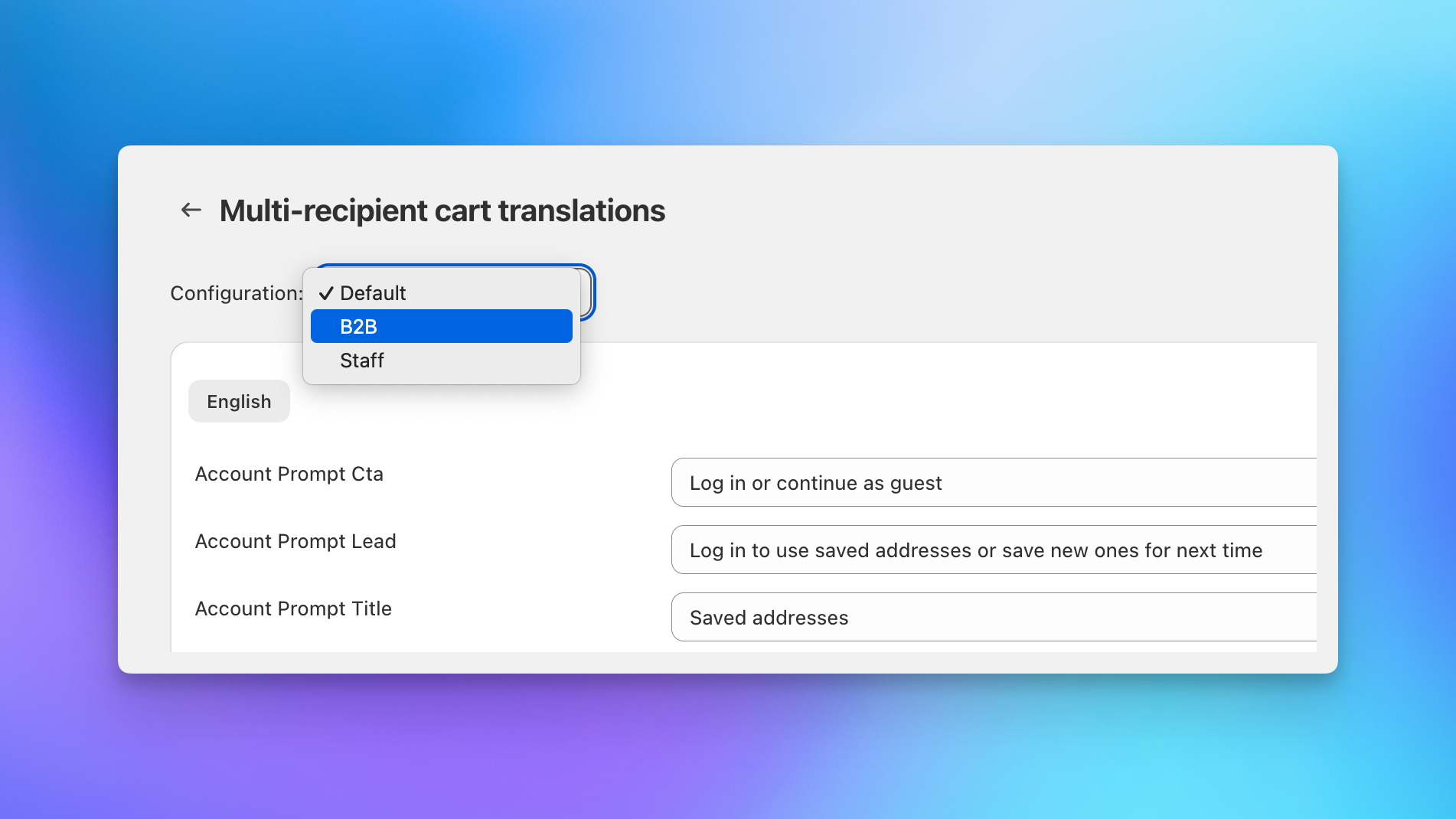
Text and translations are also scoped per configuration. Use the configuration selector on the Text and translations settings page to customize copy for each checkout independently.
Things to Know
- Multiple checkout configurations require a Pro plan or higher.
- Each configuration is fully independent. Everything from recipient fields and discounts to order tags and notification settings is scoped to that configuration.
- You can have as many configurations as you need. There's no hard limit on the number of checkout configurations per store.
Next Steps
- Core settings: Settings available in each checkout configuration
- Additional settings: Form fields, shipping rate filters, and advanced options
- Product customization: Custom fields for logos and personalization
- Setting up checkout: Step-by-step setup guide