How to Customize Your Shopify Invoice Email for Multi-Recipient Orders
Edit Shopify's draft order invoice template so invoices for multi-recipient orders say so, link gifters to a CSV of every recipient, address, and gift, and show product images on Shopify Plus.
Shopify's invoice email is written for an order going to one address. When a corporate gifting customer gets an invoice for a multi-recipient order, nothing in the email tells them that each gift ships to a different person, and there's no way for them to see who's on the list before they pay.
This tutorial customizes your existing Draft order invoice template for multi-recipient orders:
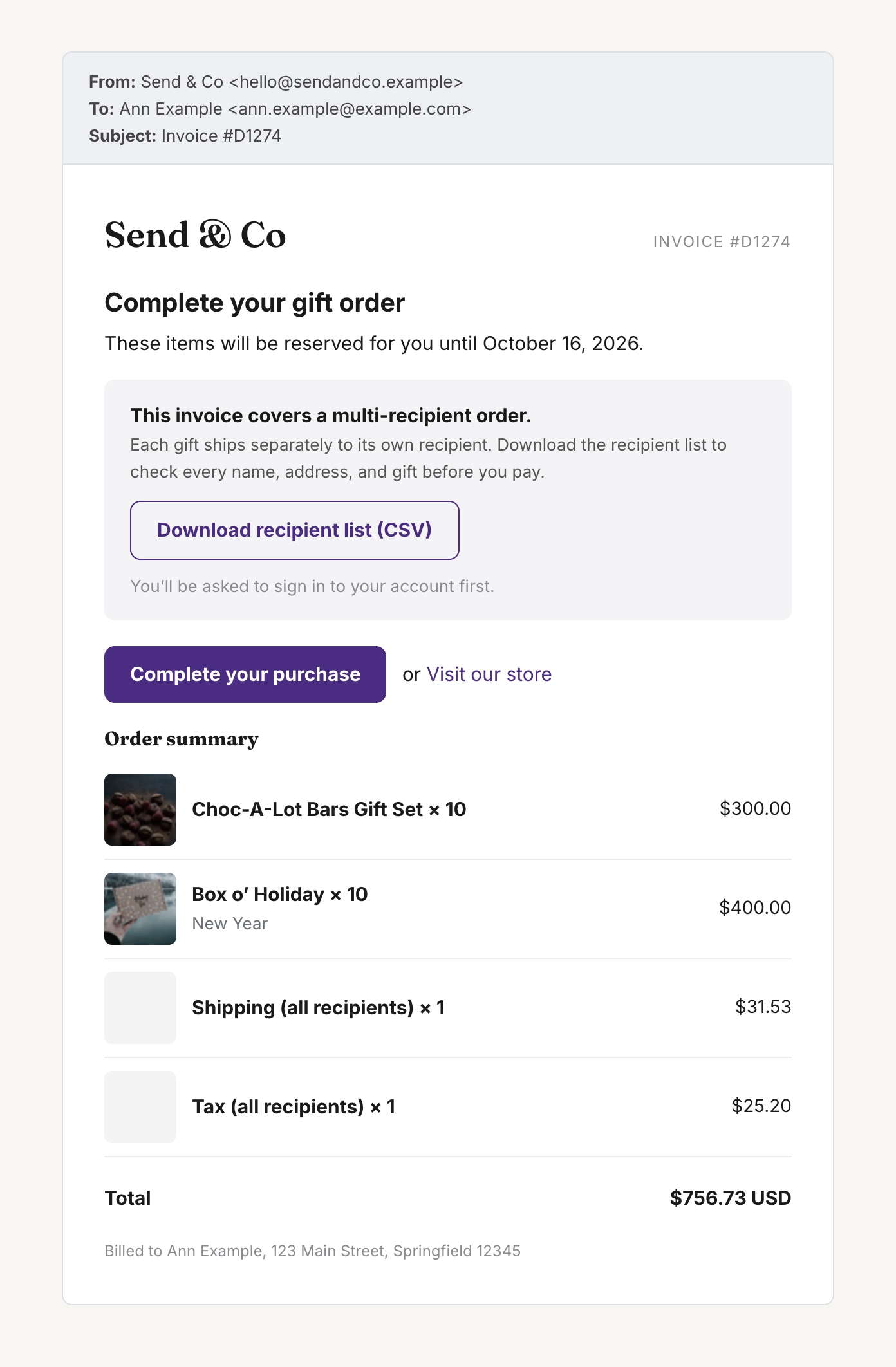
- A message that this is a multi-recipient order, and each gift ships separately to its own recipient.
- A link to download the full recipient list as a CSV, with every name, address, and gift. This is especially helpful on large orders, where the invoice only shows totals by product. Shopify invoices can't carry attachments, so the link replaces sending the spreadsheet in a separate email.
- Product images on invoice line items, for Shopify Plus stores.
These changes only apply to invoices for Send To Many Sends. Every other invoice looks the same as it does today.
What's in the CSV
The file is the same export as Export to CSV on step 5 of the Send, with one row per recipient:
- Recipient name, email, phone, company, and address
- Products and quantities
- Tags, notes, additional details, and order metafields
- Shipping rate, plus the subtotal, shipping, discount, tax, and total for each recipient
The file is built when the gifter clicks the link, so it reflects any changes you've made to the Send since the invoice went out.
How the download link works
Each Send has its own link:
https://<your-store-domain>/apps/send-to-many/send-export/<send-id>
When the gifter clicks it, they sign in to their customer account on your store, and the CSV downloads. Only the customer on the Send can download it. Anyone else who signs in sees a "Not found" page.
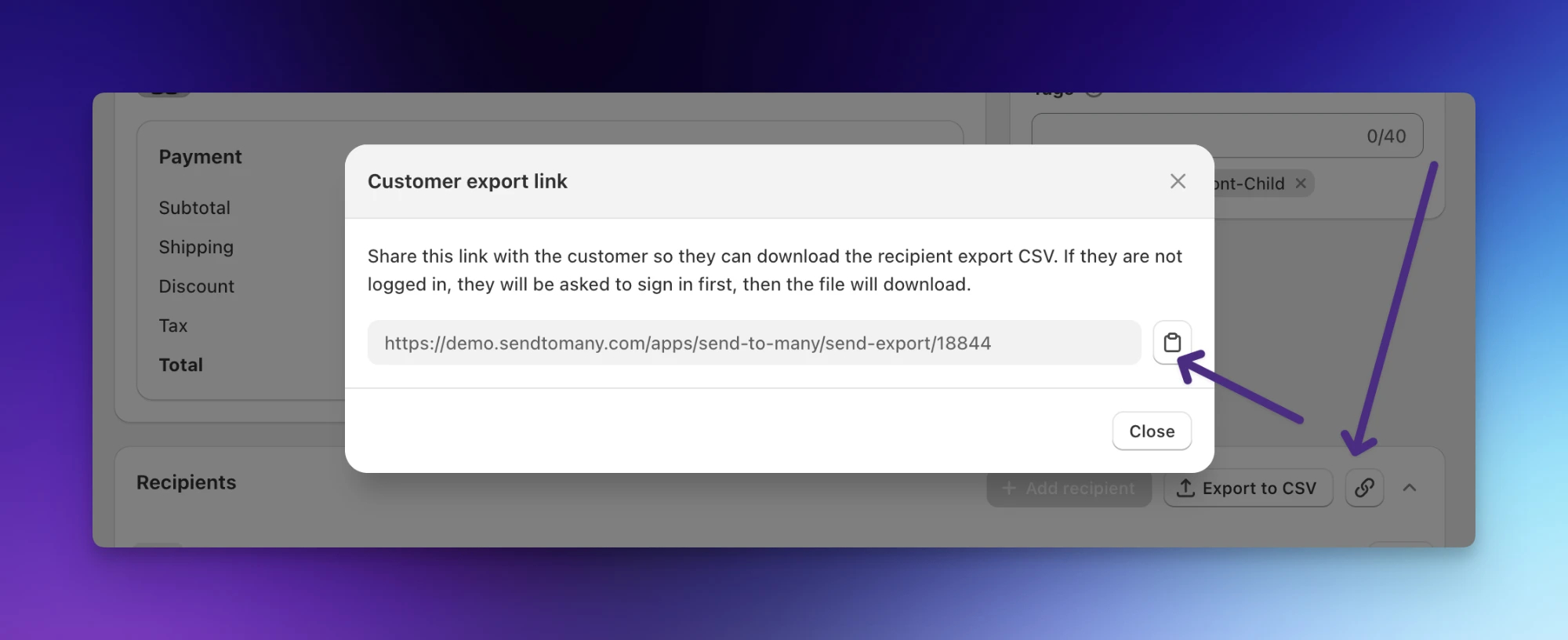
You can also share the link for a single Send without changing your template. On step 5 of the Send, click the link icon next to Export to CSV on the Recipients card, then copy the Customer export link.
Before you start
- Customer accounts need to be turned on for your store, since the gifter signs in to download the file.
- These steps add code to the template you already have, so any changes you've made to your invoice stay in place.
Step 1: Open your invoice template
In your Shopify admin, go to Settings > Notifications > Customer notifications > Draft order invoice, then click Edit code.
Copy all of the current code into a text file before you change anything, so you can restore it if you need to.
Step 2: Read the Send ID
Send To Many adds a hidden __send_id property to the line items on every invoice it creates for a Send. Paste this block at the very top of the template, above everything else:
{% comment %} Send To Many: read the Send ID from the invoice's line items. {% endcomment %}
{% assign stm_send_id = "" %}
{% for line_item in line_items %}
  {% for property in line_item.properties %}
    {% if property.first == '__send_id' %}
      {% assign stm_send_id = property.last %}
      {% break %}
    {% endif %}
  {% endfor %}
  {% if stm_send_id != blank %}
    {% break %}
  {% endif %}
{% endfor %}
On invoices that didn't come from a Send, stm_send_id stays blank, and the code you add in the next step doesn't show anything.
Step 3: Add the message and download link
Find the invoice heading in the template:
<h2>{{ email_title }}</h2>
In Shopify's default template, a short {% if custom_message != blank %} block follows the heading and prints your invoice message. Paste your code directly after that block's closing {% endif %}, before the code for the Complete your purchase button. If your template is laid out differently, paste it wherever you want it to appear in the email, below the heading.
Choose one of these two versions.
Basic: download link only
A single link below the invoice message:
{% if stm_send_id != blank %}
  <p>
    <a href="https://{{ shop.domain }}/apps/send-to-many/send-export/{{ stm_send_id }}">Download your recipient list (CSV)</a>
  </p>
{% endif %}
Full: multi-recipient message with a download button
The panel shown in the example at the top of this tutorial. The button uses your store's email accent color:
{% if stm_send_id != blank %}
  <table class="row" style="margin-top: 20px;">
    <tr>
      <td style="background-color: #f4f4f6; border-radius: 8px; padding: 18px 20px;">
        <p style="margin: 0 0 6px; font-weight: 600; color: #333333;">This invoice covers a multi-recipient order.</p>
        <p style="margin: 0; color: #555555;">Each gift ships separately to its own recipient. Download the recipient list to check every name, address, and gift before you pay.</p>
        <p style="margin: 14px 0 0;">
          <a href="https://{{ shop.domain }}/apps/send-to-many/send-export/{{ stm_send_id }}" style="display: inline-block; padding: 10px 16px; border: 1px solid {{ shop.email_accent_color }}; border-radius: 4px; color: {{ shop.email_accent_color }}; font-weight: 600; text-decoration: none;">Download recipient list (CSV)</a>
        </p>
        <p style="margin: 10px 0 0; font-size: 13px; color: #999999;">You'll be asked to sign in to your account first.</p>
      </td>
    </tr>
  </table>
{% endif %}
Click Save when you're done.
Step 4: Show product images (Shopify Plus)
On Shopify Plus, invoices for Sends can show each product's image and title on the line items. Turning this on takes a setting in Send To Many and a find-and-replace in this template and your Order confirmation template. Follow Show Product Images on Shopify Bulk Order Invoices.
Skip this step if your store isn't on Shopify Plus.
Step 5: Test with a Send
- In Send To Many, create a test Send and select yourself as the customer, using an email address you can sign in with on your store.
- Add a recipient or two and continue to step 5.
- Generate the invoice and send it to yourself.
- Open the email. The message and download link appear below the invoice message.
- Click the link and sign in with the same email address. The CSV downloads.
Next steps
- Managing corporate gifting inquiries: the full workflow from inquiry to invoice.
- Customize the order confirmation email for multi-recipient orders: link gifters to their Send detail page after they pay.
- Customize Shopify notifications for Send To Many orders: identify Send To Many orders in other email templates.
- Bulk order dashboard and data exports: every export available for a Send.