Set Up Delivery Digest Emails with Shopify Flow and Klaviyo
Send bulk order gifters one daily shipping update per Send instead of an email per shipment. Build the digest with the Send To Many Flow trigger, Klaviyo, and a deep link to the customer's Send history.
The delivery digest is in beta. Everything in this tutorial works today, but field names, timing, and defaults may change based on feedback before the holiday season. The digest runs independently of your shipping notification settings: turning it on doesn't change whether we suppress Shopify's own emails. We currently pass the billing customer's email; the order contact email, which can differ, will be added.
When a gifter sends 100 gifts from your store, you don't want to send them 200 or 300 shipping emails. The delivery digest gives them one email a day per Send: how many shipments went out, how many arrived, and any that need attention, with a link to the full recipient list in their customer account.
This tutorial builds the digest end to end with Shopify Flow and Klaviyo. If you use a different email platform, the Flow side is identical and the Klaviyo steps translate to a Send HTTP request action instead.
Before You Start
- Shopify Flow installed on your store.
- Klaviyo connected to Shopify, with the Klaviyo Flow actions available.
- The Sends page customer account extension enabled. The digest links there, and without it the email has nowhere useful to send the gifter.
How the Digest Works
The digest is built on a Shopify Flow trigger, Send fulfillment status changed, that we fire once each morning for every Send with delivery activity in the previous 24 hours. The trigger carries the counts. Your email tool turns them into a message.
The digest is a rollup, not a list
The trigger tells you how many recipient orders and shipments are in each state. It does not include recipient names, addresses, order IDs, or tracking numbers.
That's deliberate. A Send can have thousands of recipient orders, and no email should try to render thousands of rows. The counts go in the email. A link takes the gifter to the Sends page in their customer account, where every recipient, status, and tracking number already lives.
When the digest runs
We run the digest once a day at 12:00 UTC. The time is fixed during the beta.
Each run looks back over the previous 24 hours and fires once per Send. A Send with 40 recipient orders that all shipped overnight produces one trigger, not 40. If nothing changed for a Send that day, no trigger fires for it.
A Send is included when all of the following are true:
- Recent activity: at least one recipient order in the Send had a carrier-reported shipment status change in the last 24 hours (In transit, Out for delivery, Delivered, Delayed, and so on).
- Send is finished: the Send status is Finished. Sends still being validated or generated are skipped.
- An active Flow uses the trigger: until you save the trigger in an active workflow, we don't evaluate or fire it for your store at all.
A recipient order that goes from unfulfilled to fulfilled but has no carrier status yet won't pull its Send into that morning's digest on its own. The Send appears once the carrier starts reporting.
The digest works for manual uploads, storefront checkout Sends, and Sends created from inquiries.
Step 1: Turn on the Trigger with a Test Workflow
There's no digest setting inside Send To Many. Shopify Flow controls it entirely: creating and activating a workflow turns the digest on, and deactivating that workflow turns it off.
Flow can't generate a test event for this trigger, and there's no event history to replay. So the first workflow you build should do something harmless and give you real payloads to design against.
- Open Shopify Flow from your Shopify admin and click Create workflow.
- Click Select a trigger, find Send To Many in the app list, and choose Send fulfillment status changed.
- Add a simple action: Send internal email to yourself, or Add row to Google Sheets. Include a few variables such as Send name, Changed statuses summary, and Current statuses summary.
- Turn the workflow on.
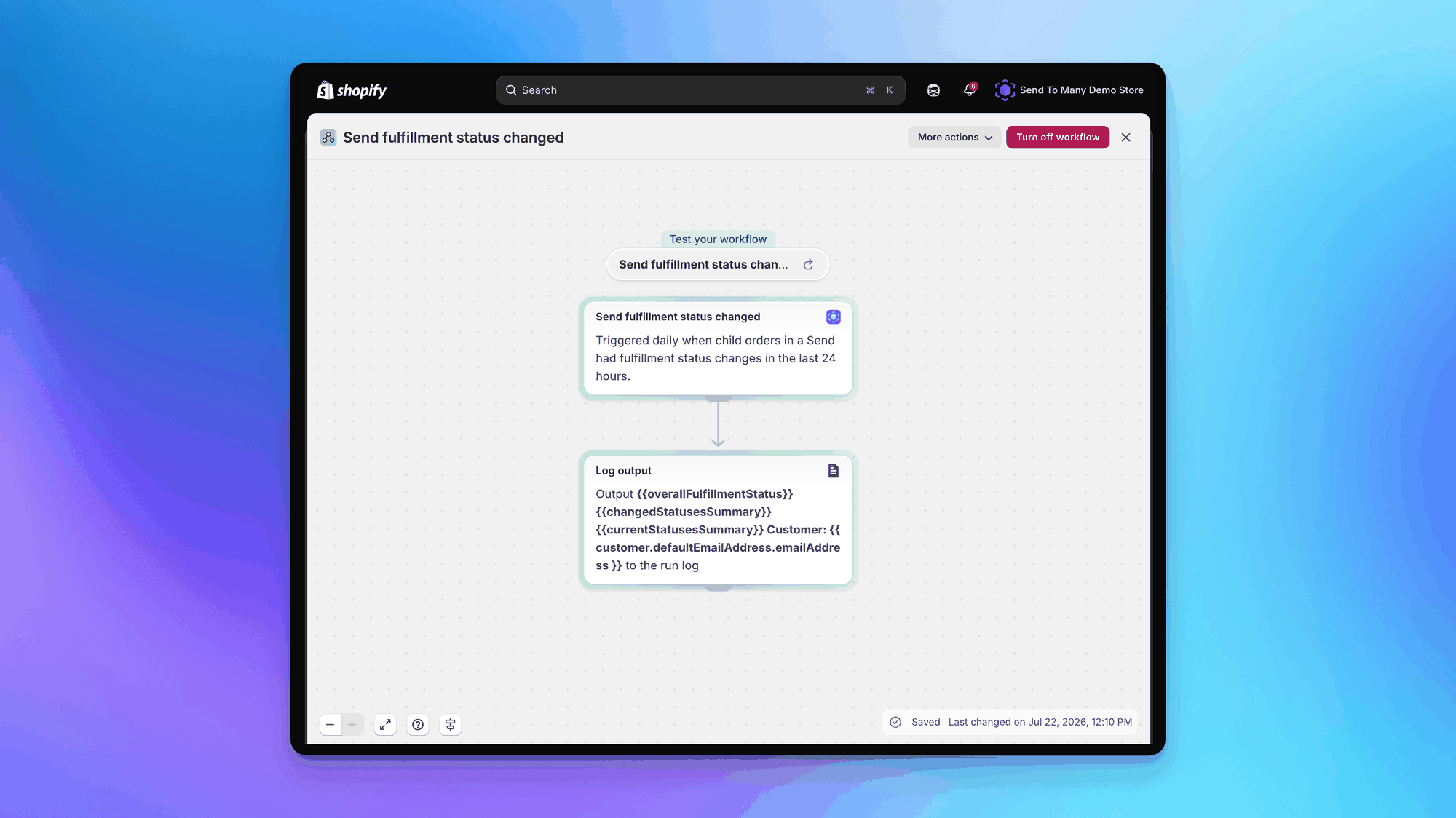
Let this run for a few mornings while Sends ship. You'll see exactly which Sends fire, what the summaries look like, and how the counts behave when shipments split or carriers lag. Then come back and build the real thing.
The trigger fires for uploads, storefront checkout Sends, and Sends created from inquiries. If you only want the digest for some of them, add a condition on Send source or Send preset name right after the trigger.
What the Trigger Sends You
Every field below is available as a variable in your Flow conditions and actions. Use this as your reference when mapping properties in Step 2.
Send details
- Customer: the gifter on the Send. Flow resolves this into the full Shopify customer object, so you can read email, first name, and anything else you need. Empty if the Send has no gifter.
- Send ID: the Send To Many Send ID, for example 15145. Append it to the customer account Sends page link to deep-link the gifter to their Send (see Step 5).
- Send name: the name given to the Send.
- Send preset name: which Send preset was used, for example "Corporate Gifting". Empty if none.
- Send source: manual, storefront, or inquiry.
- Assigned user email: the team member assigned to the Send.
- Parent order ID and Parent order name: the aggregate (gifter) order, for example #535923. Empty if the Send has no aggregate order.
Order counts
These count recipient orders. Aggregate orders are excluded.
- Total orders: recipient orders in the Send.
- Total shipments: fulfillments across those recipient orders. This can be higher than Total orders when shipments split, or lower when some orders haven't shipped.
- Orders with status changes: recipient orders that had a shipment status change in the last 24 hours. This is your "what's new" number.
- Orders all shipments delivered: recipient orders where every shipment arrived.
- Orders with shipments in progress: recipient orders with at least one shipment still moving.
- Orders with no shipments: recipient orders that haven't shipped yet. "Not yet shipped" reads well for gifters.
- Orders fulfilled, Orders partially fulfilled, and Orders unfulfilled: counts by Shopify fulfillment status rather than carrier status.
Shipment status counts
These describe where every shipment in the Send stands right now, not just what changed. They always add up to Total shipments.
- Shipments delivered
- Shipments in transit
- Shipments out for delivery
- Shipments confirmed: a label exists and the carrier has accepted the shipment.
- Shipments ready for pickup
- Shipments delayed
- Shipments attempted delivery
- Shipments failed delivery
- Shipments returning to sender
- Shipments without shipment status: a fulfillment exists but the carrier hasn't reported yet. This is not an error.
- Shipments unknown status: any carrier status we don't have a bucket for. Rare, and worth alerting your team about if you see it.
Summary fields
- Changed statuses summary: plain-English text covering only the last 24 hours, for example "3 shipments to Delivered, 1 shipment to Failed delivery". Sorted by count, highest first. Empty if nothing changed.
- Current statuses summary: the same idea for the whole Send as it stands now, for example "12 Delivered, 3 In transit".
- Overall fulfillment status: a single value summarizing the Send. One of
not_started,tracking_added,in_progress,partially_delivered,has_delivery_issues,all_delivered. It'shas_delivery_issueswhenever any shipment is delayed, failed, attempted delivery, or returning to sender, which makes it the easiest field to branch on (see Step 6).
Step 2: Send the Event to Klaviyo
Shopify Flow has its own Send marketing email action, but it only reaches customers opted into email marketing. A delivery digest is most likely transactional (confirm with your legal team or a trusted expert), so a dedicated email tool is the better route.
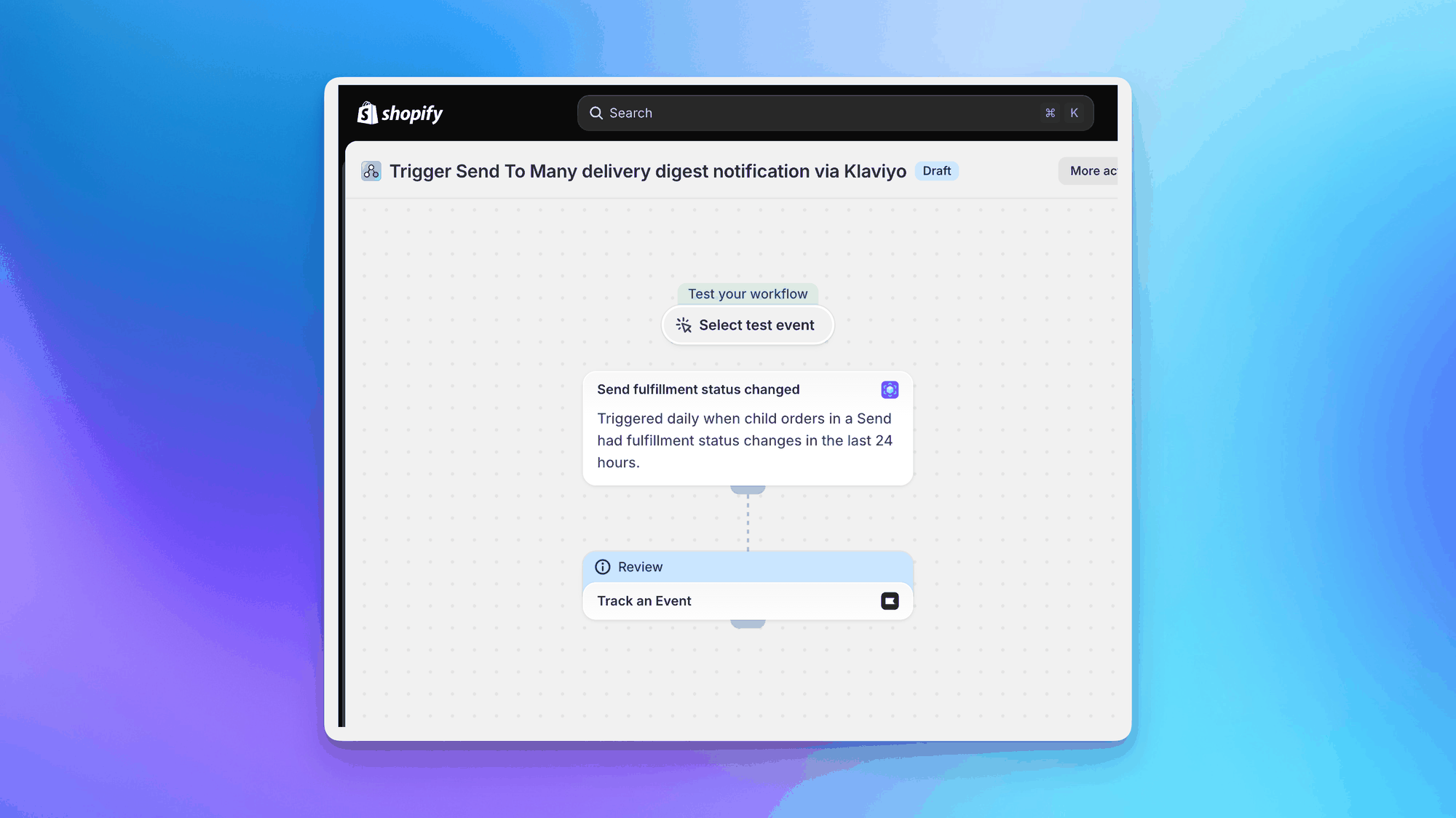
- In your workflow, remove or disconnect the test action and add the Klaviyo Track an event action.
- Name the event something stable and readable, like Send Delivery Digest. This becomes the metric your Klaviyo flow triggers from, so avoid renaming it later.
- For the profile identifier, select Customer > email from the variable picker. The payload carries a customer reference rather than a raw email string, and Flow resolves it for you.
- Map your event properties. Map more than you think you need, since unused properties cost nothing and you'll want them when you iterate on the template. A reasonable starting set:
send_id,send_name,parent_order_nametotal_orders,total_shipments,orders_with_changes,orders_not_shippeddelivered,in_transit,out_for_deliverydelayed,attempted,failed,returningchanged_summary,current_summary,overall_statusassigned_user_email
Step 3: Build the Klaviyo Flow
- In Klaviyo, create a new flow with a Metric trigger set to your event name.
- Put the email action immediately after the trigger. The daily trigger already batches the updates, so a Klaviyo delay only makes the digest stale.
- Turn Smart Sending off. Otherwise a gifter who received a campaign that week gets skipped.
- Assuming this is a transactional email, remove the default profile filter requiring a subscribed consent status.
Step 4: Write the Digest Template
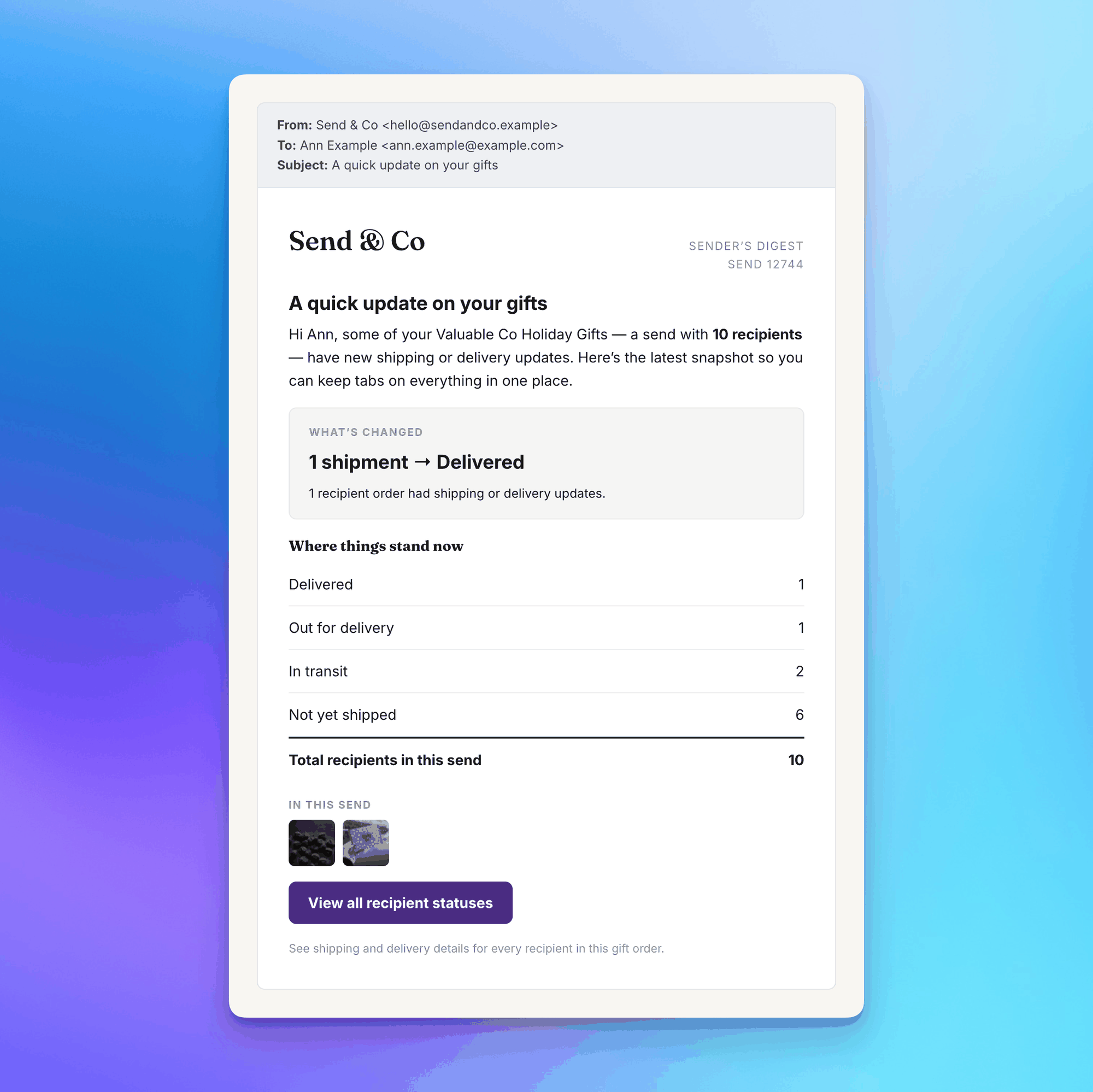
Reference properties with standard Klaviyo syntax, for example {{ event.changed_summary }} and {{ event.total_orders }}. Four things worth doing:
- Keep the subject line fresh. Include the count of orders with changes, so a gifter can tell today's email from yesterday's at a glance.
- Suppress zero rows. Wrap each status row in a conditional so the gifter never reads "Failed delivery: 0".
- State the totals more than once. Put the recipient count in the opening paragraph and again as a total row in the table.
- Use one call to action. Link to the Send detail page and label it for what the gifter gets, such as "View delivery status for every recipient in this order".
Step 5: Deep Link to the Sends Page
The email carries the counts. The Sends page in the gifter's customer account carries everything else: each recipient, their delivery status, and tracking numbers. A link straight to the Send is what makes the digest useful.
The Sends page lives under your store's customer account URL, and its page ID is the same in every store: 019d0bdc-632f-7d0e-8d6b-f88d44a1f1b6. Log in to your storefront customer account, copy the account URL from the address bar, and add pages/019d0bdc-632f-7d0e-8d6b-f88d44a1f1b6/ to the end. Then append ?send= followed by the Send ID property from your event. Account URLs differ from store to store. For example:
https://account.yourstore.com/pages/019d0bdc-632f-7d0e-8d6b-f88d44a1f1b6/?send={{ event.send_id }}
https://shopify.com/<your-shop-id>/account/pages/019d0bdc-632f-7d0e-8d6b-f88d44a1f1b6/?send={{ event.send_id }}
See Linking Directly to a Send for more on this URL.
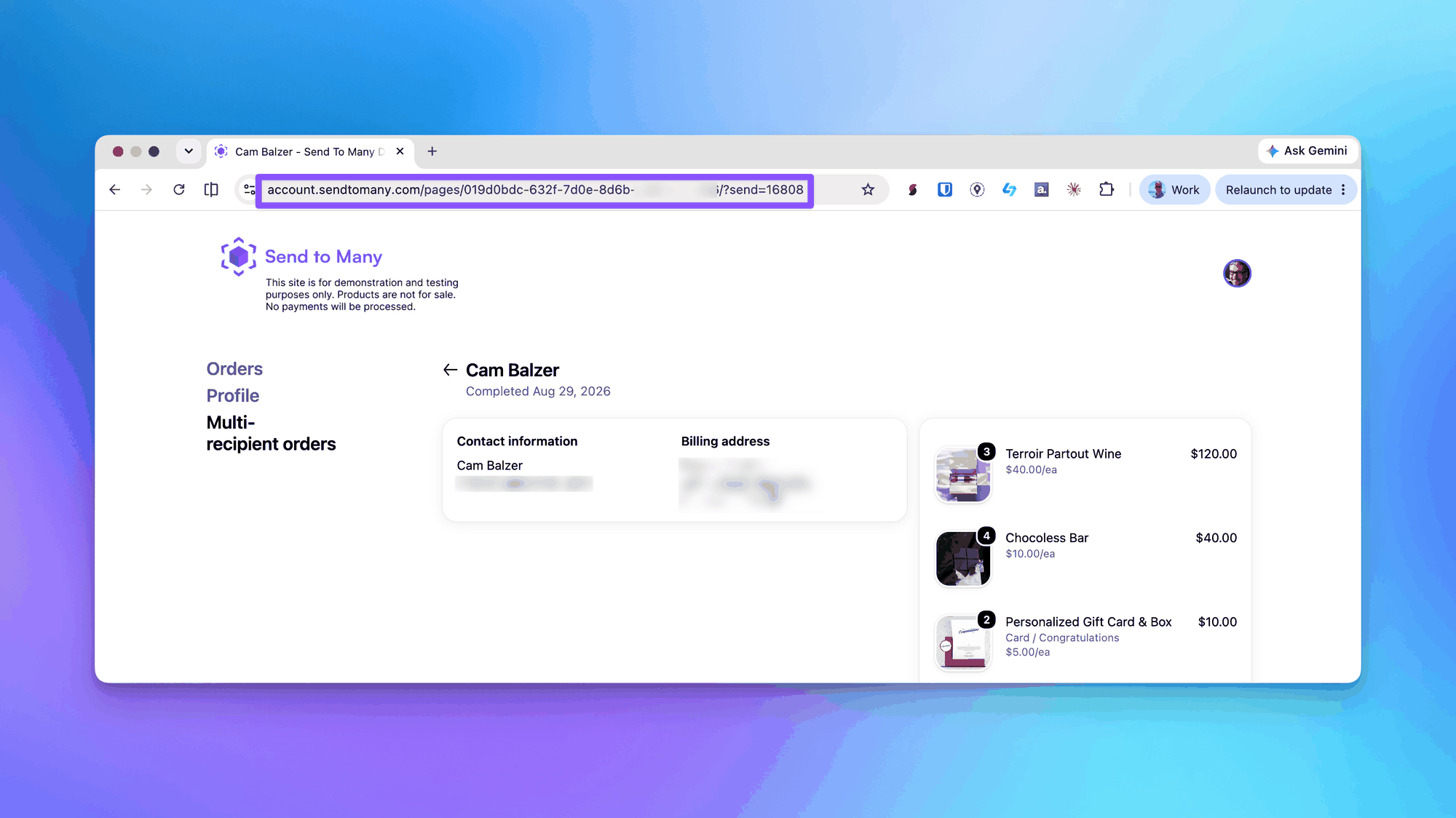
The Sends page only resolves for the gifter who owns the Send, and only while they're signed in. The link is safe to email, but expect a login step. Say so in the email so the click doesn't feel broken.
Step 6: Route Delivery Problems to Your Team
Decide how you want to handle failures before you launch. This is where the digest either saves you support tickets or creates them.
The trigger flags problems for you. Overall fulfillment status is has_delivery_issues whenever any shipment in the Send is delayed, failed, attempted delivery, or returning to sender. One condition on that value catches every problem case.
If you need more detail, the four underlying counts are Shipments failed delivery, Shipments attempted delivery, Shipments returning to sender, and Shipments delayed. They also show up as readable text in both summary fields.
Questions to settle first:
- Does the gifter hear about failures, or do you? A gifter who gets an automated "1 shipment failed delivery" with no explanation and no next step will call you. Some merchants would rather catch it internally and reach out personally.
- If the gifter does hear about it, what should they do? Provide a corrected address, wait, or nothing at all. Say it explicitly. A count with no instruction produces a support ticket.
- Should a failure change the tone of the email? "Your gifts are on the move" reads badly above a returning-to-sender row. Consider a different subject line or template when any problem count is above zero.
- Is a delay the same as a failure? Usually not. Delays often resolve themselves. Failed delivery and returning to sender need a person. The
has_delivery_issuesflag includes delays, so if you'd rather not alert on those, branch on the individual counts instead.
To alert your team, add a second branch to the same Flow workflow:
- Add a Condition checking whether Overall fulfillment status equals
has_delivery_issues. To leave delays out, check instead whether Shipments failed delivery, Shipments attempted delivery, and Shipments returning to sender add up to more than zero. - In the true branch, send an internal notification to the address in Assigned user email, using whichever channel your team actually watches (internal email, Slack, or Teams via HTTP request).
- Include the Send ID, a link to the Send in Send To Many, Send name, Parent order name, the problem counts, and the same customer account link, so the assigned person can open the Send and see exactly which recipients failed.
- Optionally, pass Overall fulfillment status to Klaviyo as an event property and use it in the template to switch subject line and tone, or add a condition on the gifter branch so that Sends with problems that day get a softer email (or none) and let the assigned person reach out directly.
Step 7: Wait for the First Real Digest
- Save and turn on the workflow.
- Wait for the next 12:00 UTC run with at least one Finished Send that had a carrier status change in the previous 24 hours.
- In Shopify Flow, open the workflow's run history to confirm it fired.
- In Klaviyo, open the gifter's profile and check the Send Delivery Digest event and its properties, then confirm the email went out.
If a Send you expected doesn't appear, check the inclusion conditions: the Send must be Finished, and a fulfillment with no carrier status yet doesn't count as activity until the carrier starts reporting.
Using Other Email Platforms
If you use SendGrid, Postmark, Customer.io, or your own transactional templates, replace the Klaviyo action in Step 2 with Flow's Send HTTP request action and post the payload to your endpoint. Everything else in this tutorial applies as written. The same approach works for any inbound webhook, including Slack or Teams channels for internal visibility. The field list is identical regardless of destination.
Next Steps
- Order & Shipping Notifications: how the digest fits alongside suppression and per-order notification settings.
- Shopify Flow Automation for Bulk & Multi-Recipient Orders: the other Send To Many Flow triggers and order-based patterns.
- Customer Account Extensions: Sends Page & Order Send Banner: set up the page the digest links to.
- Send Again: Let Customers Repeat a Multi-Recipient Order: the Sends page your digest links to is also where gifters repeat a Send.
- How to Customize Shopify Notifications for Send To Many Orders: make the gifter's order confirmation match the digest experience.