How to Send Gift Cards in Bulk from a Spreadsheet
Upload a list of names and emails, assign gift card products, and generate one order per recipient so Shopify emails each person their gift card code. No shipping addresses needed.
A company rewards 300 employees with a $50 gift card. A client thanks every account with a $100 credit at the holidays. In both cases you have a spreadsheet of names and emails and need one gift card per person, sent to the right inbox. Send To Many turns that spreadsheet into one Shopify order per recipient, and Shopify emails each recipient their gift card code as the orders generate.
This tutorial covers the send preset that makes it work, the upload file, and what each recipient receives. The same setup works for any product that doesn't require shipping, such as digital downloads or memberships.
Who receives the code
When generating bulk gift card orders with Send To Many, you upload a spreadsheet with a row for each recipient and the app generates an order for each recipient. Shopify automatically fulfills those orders with a gift card email containing the code itself. These emails are the ONLY place to get the codes, so determining who should get the emails is crucial. The Shipping notifications setting on your send preset (shown as Delivery notifications on the finalize step) controls this:
- Send to recipients (recommended). Each recipient gets the gift card email at the address in their row. The billing customer is the customer on every order, so if a recipient says the email never arrived, you open the gift card in Shopify and click Resend gift card, and the code goes to the billing customer to pass along.
- Send to customer. The billing customer gets every gift card email, one per recipient, and distributes the codes themselves. Use this when the client wants to hand the cards out, or when you don't have recipient emails.
Shopify shows only the last four characters of a gift card code in the admin, in exports, and through its API, and Send To Many never sees the code at all. The full code exists only in the gift card email. With Suppress all notifications, that email goes to an address no one reads, and the codes reach no one.
With either option, the billing customer is where resends go. If their email on the Send is wrong or missing, a code that doesn't arrive can't be recovered. Check it before you generate orders.
Before you start
- A gift card product in Shopify. Gift cards must be enabled on your store, and each denomination you plan to send should exist as a variant of your gift card product (for example $25, $50, $100). Shopify only generates a gift card for a real gift card product, not a regular product named "gift card."
- A spreadsheet with a name and an email for every recipient. Email is required. Shopify sends the gift card to the email on the order, so a row without an email has nowhere to go.
- A billing customer for the Send with a valid email address: the company placing the order, or an internal account if you're issuing the gift cards yourself.
Step 1: Create a gift card send preset
Gift card Sends need settings that are different from a physical gifting Send. Set them up once as a preset so every gift card upload uses them.
In Send To Many, go to Settings > Send presets and add a preset named "Gift cards". Set:
- Shipping notifications: Send to recipients (recipients get their own codes) or Send to customer (the billing customer gets every code). Never Suppress.
- Use recipient as customer: off, so the billing customer stays the customer on each order and resends have somewhere to go.
- Send order confirmation email: leave off in most cases.
- Order revenue: Create orders marked as paid using the calculated amount. Calculated values are required. Zero-dollar orders result in gift card emails not being generated.
- Shipping method: Free shipping. Give it a shipping method title like "Digital fulfillment" so it reads clearly on the order.
- Inventory handling: Don't take from inventory, unless you track inventory on your gift card product on purpose. An out-of-stock gift card variant stops the order from generating.
- Order tags: optional. A tag like "Bulk gift codes" makes these orders easy to find in Shopify.
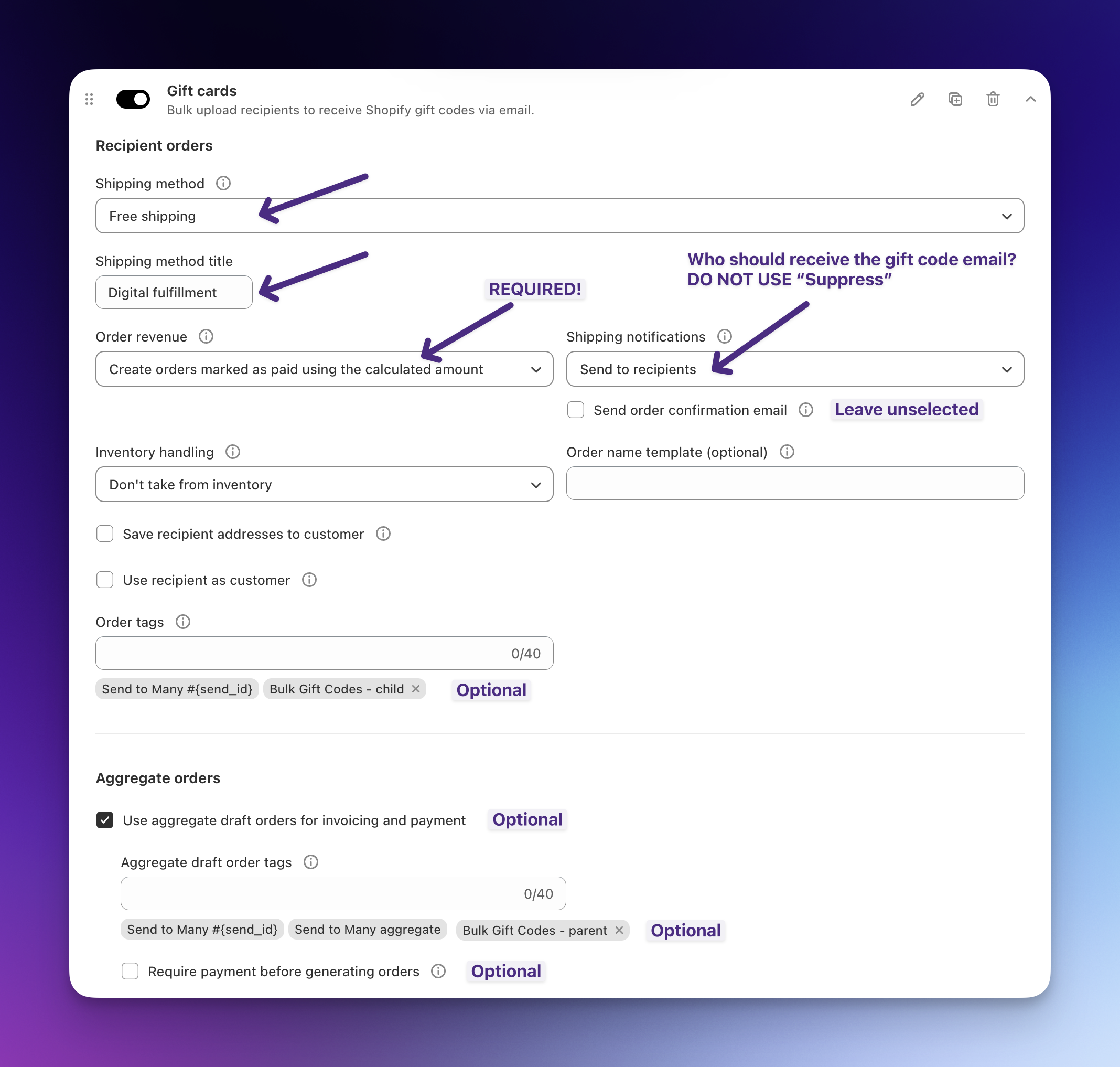
If the gift cards are being paid for by a corporate client, you can also turn on Use aggregate draft orders for invoicing and payment and Require payment before generating orders, the same as a corporate gifting order. The gift cards go out once the client pays the invoice.
Step 2: Prepare the spreadsheet
The upload file is simpler than a shipping upload. Address columns aren't needed, and leaving them out is better than leaving them blank. If a row has any address value at all, we validate it.
| Column | Required | Notes |
|---|---|---|
| Name (or First name and Last name) | Yes | The recipient's name |
| Yes | Where Shopify sends the gift card. One email per recipient | |
| Product or SKU | No | The gift card denomination for that row, such as gc50. Leave it out if everyone gets the same card and pick it on Step 3 |
| Quantity | No | Defaults to 1 |
| To name, From name, Gift message | No | Personalization for the gift card email. See Personalize the gift card email below |
Each recipient needs their own email address. If two rows share an email, both orders attach to the same customer and both gift cards land in that one inbox.
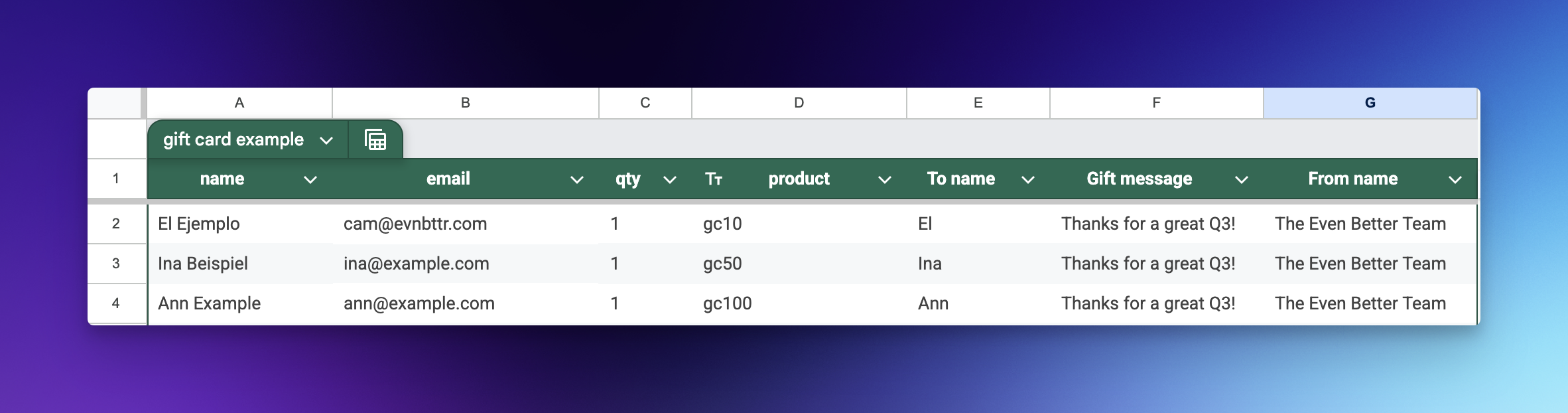
See Formatting Your Upload File for general column guidance.
Step 3: Upload and assign gift cards
- From the Sends dashboard, click Create Send.
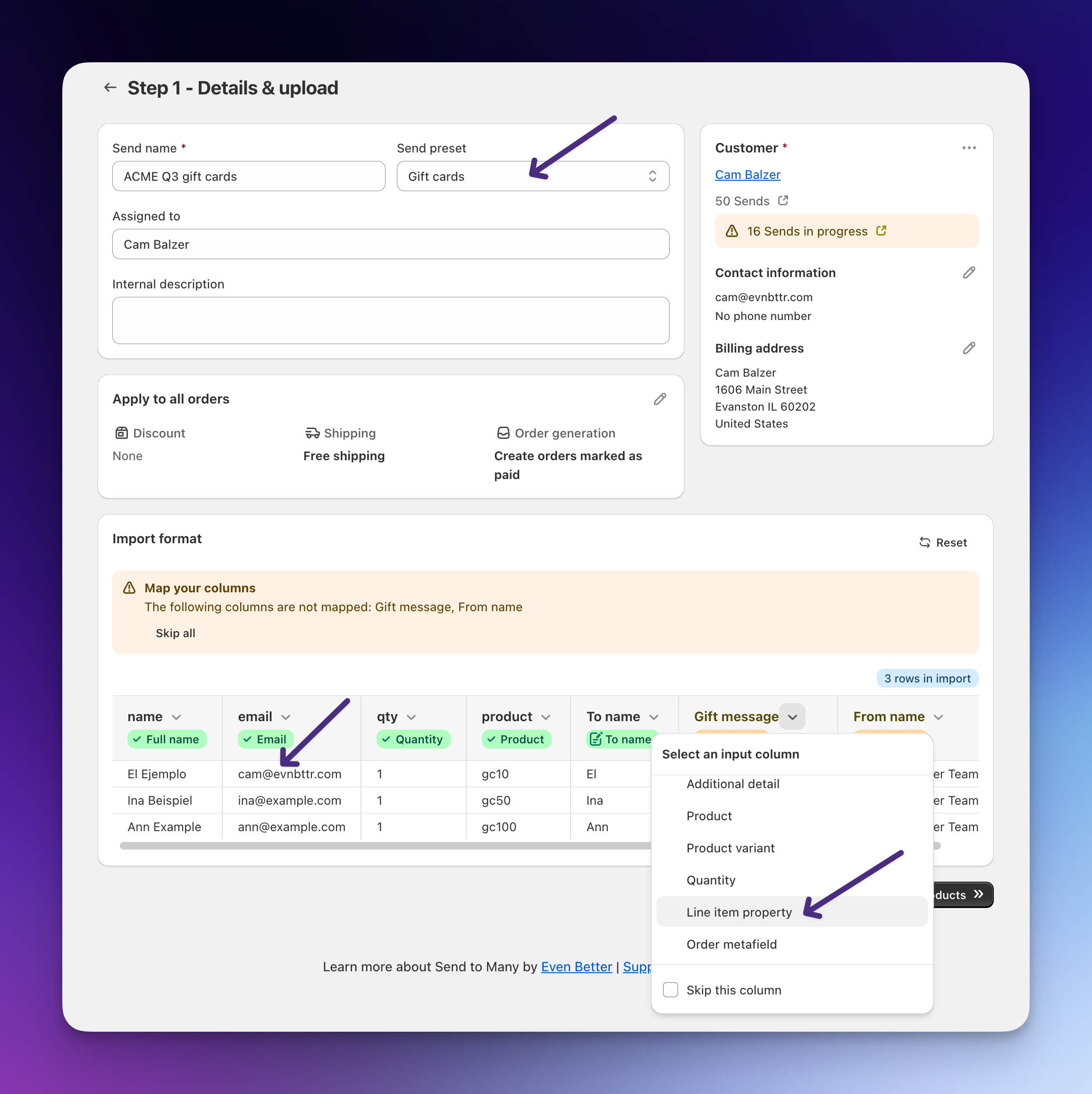
- Enter a Send name (for example "ACME Q3 gift cards") and choose the billing customer.
- Select your Gift cards send preset.
- Click Upload File and select your spreadsheet. Confirm the column mapping. Name, email, quantity, and product are detected automatically. For personalization columns such as Gift message and From name, open the column's dropdown and choose Line item property. Click Continue.
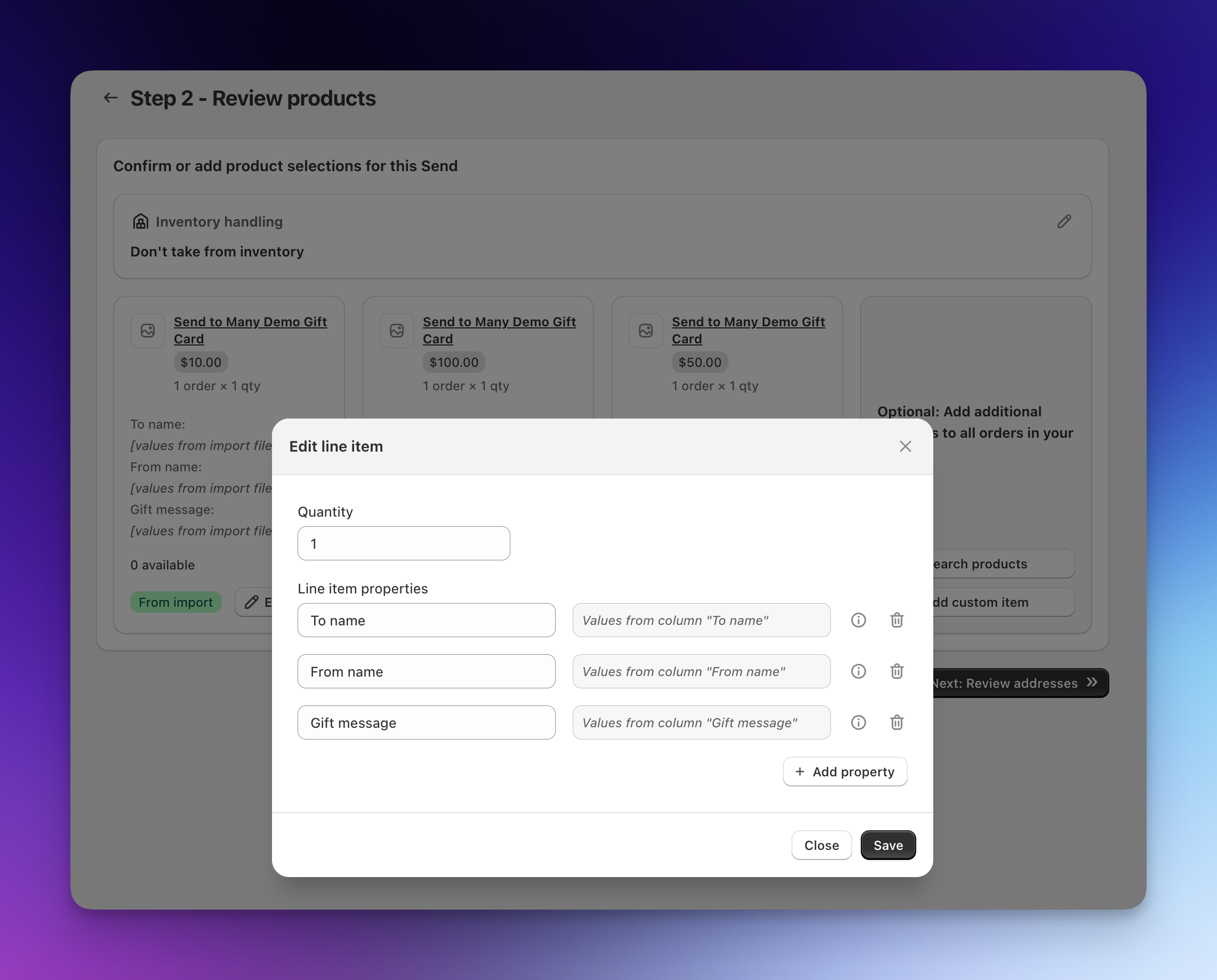
- On the products step, confirm that each SKU or product name matched the right gift card variant, or select one gift card product to send to everyone. Any line item property columns are attached to the gift card products with values from your file. Click Edit on a product to check them. Click Continue.
The address validation step has nothing to check for gift card rows, and with free shipping there are no rates to review, so you move straight to the finalize step.
A recipient who receives both a gift card and a physical product needs a full shipping address on their row. Rows with any product that requires shipping are validated like a normal upload.
Step 4: Finalize and generate orders
Review the Send summary: the number of recipients, the gift card breakdown, and the total. Confirm Delivery notifications shows Send to recipients (or Send to customer, if the billing customer is distributing the codes) and Order revenue shows calculated values. If the summary warns that gift card orders cannot have zero dollar value, go back and change the revenue setting before you continue.
Click Process all orders.
What recipients receive
As each order generates, Shopify marks it paid, fulfills the gift card automatically, and sends its New gift card email to the address on the order with the code and balance. Recipients don't need an account on your store to redeem it.
Each recipient order shows the recipient's email as the contact, the billing customer as the customer, no shipping address, and a shipping line of $0. You can track every order from the Send summary page, and the gift card itself appears in Shopify under Products > Gift cards.
The gift card email comes from Shopify, not Send To Many. To change its wording or branding, go to Settings > Notifications > Customer notifications > Gift cards and edit New gift card.
Personalize the gift card email
Shopify's default New gift card email has no greeting, message, or sender. The template can't see the order, so an order note or additional detail from your upload won't reach it. Line item properties on the gift card do. With three columns in your spreadsheet mapped to line item properties, the email can show who it's for, a message, and who it's from:
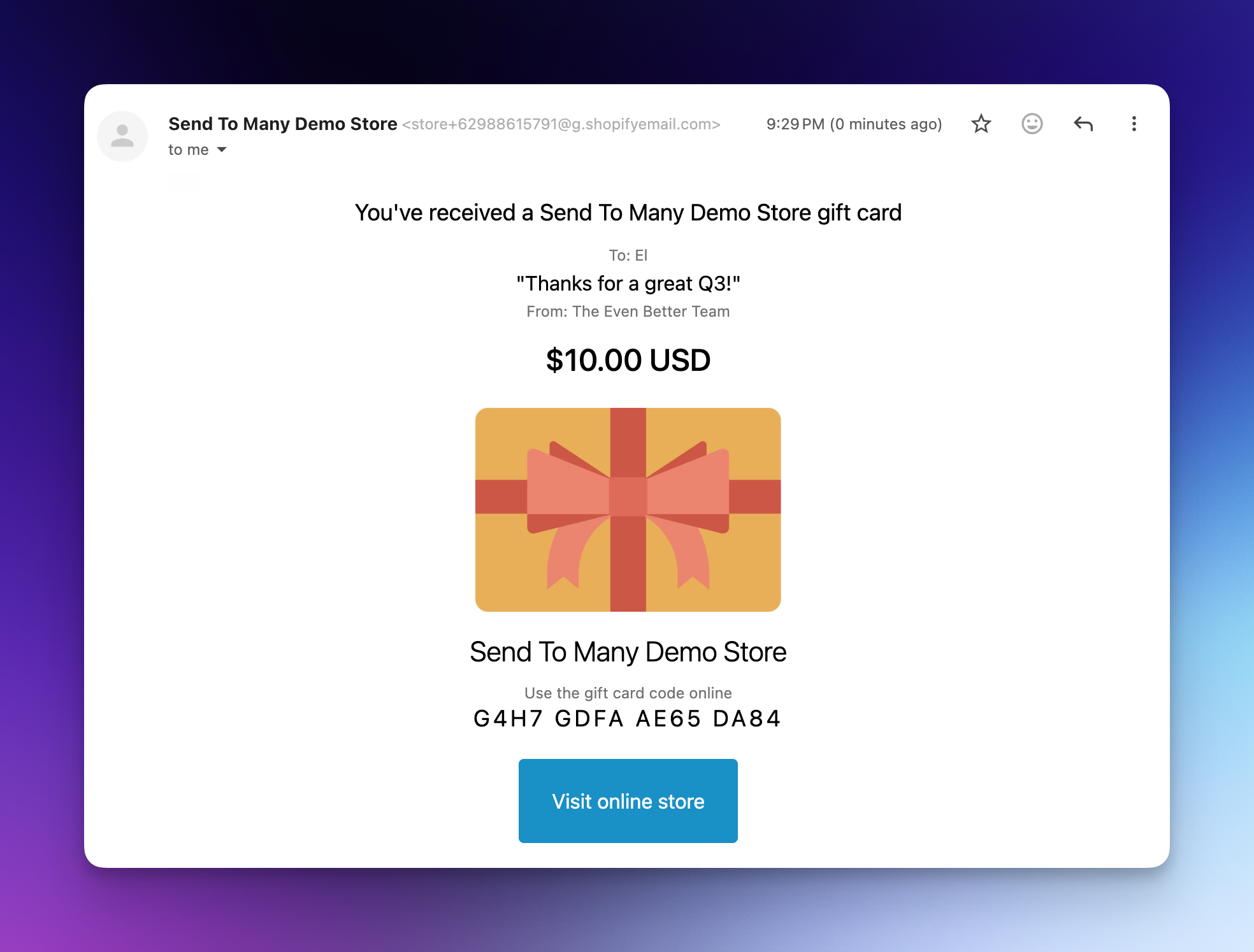
- Add
To name,From name, andGift messagecolumns to your spreadsheet and map each one to a line item property on Step 1, as shown above. The property names are case-sensitive and must match what the template looks for. - Edit the template. In Shopify, go to Settings > Notifications > Customer notifications > Gift cards > New gift card and click Edit code. Find the second
{% if gift_card.recipient and gift_card.message != blank %}block (the one after{% else %}, which is the branch these orders use) and replace it with:
{% assign gc_to = gift_card.properties['To name'] %}
{% assign gc_from = gift_card.properties['From name'] %}
{% assign gc_message = gift_card.properties['Gift message'] %}
{% if gc_from == blank and gift_card.customer and gift_card.customer.name != blank %}
  {% assign gc_from = gift_card.customer.name %}
{% endif %}

<table align="center" class="row giftcard__topmargin">
  <tr>
    <td class="giftcard__title">You've received a {{ shop.name }} gift card</td>
  </tr>
</table>

{% if gc_to != blank or gc_message != blank or gc_from != blank %}
  <table align="center" class="row giftcard__topmargin">
    {% if gc_to != blank %}
      <tr>
        <td class="giftcard__smalltext">To: {{ gc_to }}</td>
      </tr>
    {% endif %}
    {% if gc_message != blank %}
      <tr>
        <td class="giftcard__message">"{{ gc_message }}"</td>
      </tr>
    {% endif %}
    {% if gc_from != blank %}
      <tr>
        <td class="giftcard__smalltext">From: {{ gc_from }}</td>
      </tr>
    {% endif %}
  </table>
{% endif %}
If a row has no From name, the email falls back to the billing customer's name, so a Send placed by "ACME Corp" shows "From: ACME Corp" on every card. Any line that has no value is left out. The template preview doesn't show line item properties, so check the result on a real test order.
Run a test Send with two or three of your own email addresses first. You'll see the exact email each recipient gets and can adjust the template before a large Send.
Things to know
- A recipient who lost the email can get the same code again. In Shopify, open Products > Gift cards, select the card, and click Resend gift card. It goes to the billing customer, who forwards it.
- Gift cards are issued when the order is paid. Calculated order revenue is what marks each order paid. If your store is set to fulfill orders manually (Settings > General, order processing), gift cards wait until you fulfill the order. Shopify also holds gift cards on orders it flags as high risk.
- Values come from your product variants. To offer different amounts, create a variant per denomination and put the SKU or variant name in the product column. Custom amounts, custom codes, and expiry dates aren't available through upload.
- Scheduled delivery isn't supported. Shopify emails each gift card as soon as its order is paid, which happens as the Send generates. There's no way to set a future send date per recipient through upload. To deliver on a specific day, generate the Send that day.
- Gift cards work in multi-recipient checkout too. When a gift card is the only product for a recipient, the cart doesn't ask for a shipping address. The same notification rules apply, set in the checkout configuration under Order processing: use calculated revenue, and send notifications to recipients so each person gets their code. Scheduled delivery isn't supported in checkout either.
- Gift cards aren't taxed in Shopify, so each recipient order's total is the card value.
- Digital products work the same way. Any product marked as not requiring shipping can be uploaded without addresses. Shopify sends the digital product the way your digital delivery app or settings normally would.
Next steps
- Send Presets and Generation Settings: every preset setting, including Use recipient as customer and matching rules.
- Order & Shipping Notifications for Multi-Recipient Orders: who receives which Shopify emails.
- How to Create a Corporate Gifting Order: invoice a client before the gift cards go out.
- Formatting Your Upload File: column requirements for any upload.