Send Again: Let Customers Repeat a Multi-Recipient Order (Beta)
Let repeat gifters reload a past Send, or pick recipients from their Shopify order history, into the multi-recipient cart. Covers the Send again button, the Recipients page, the email campaign link, and setup.
Send Again is in beta. Settings and plan availability may change. Contact us if you have questions or feedback about the functionality.
Send Again lets a returning gifter start a new multi-recipient order from a list they've already sent to. We load their recipients into your multi-recipient cart. They review the list, make changes, and check out as usual.
A gifter can start from the Send again button on a past Send, from the Recipients page in their customer account, from an email campaign URL you send to your whole list, or from a Send again link you copy from a specific Send in the app. Each is covered below.
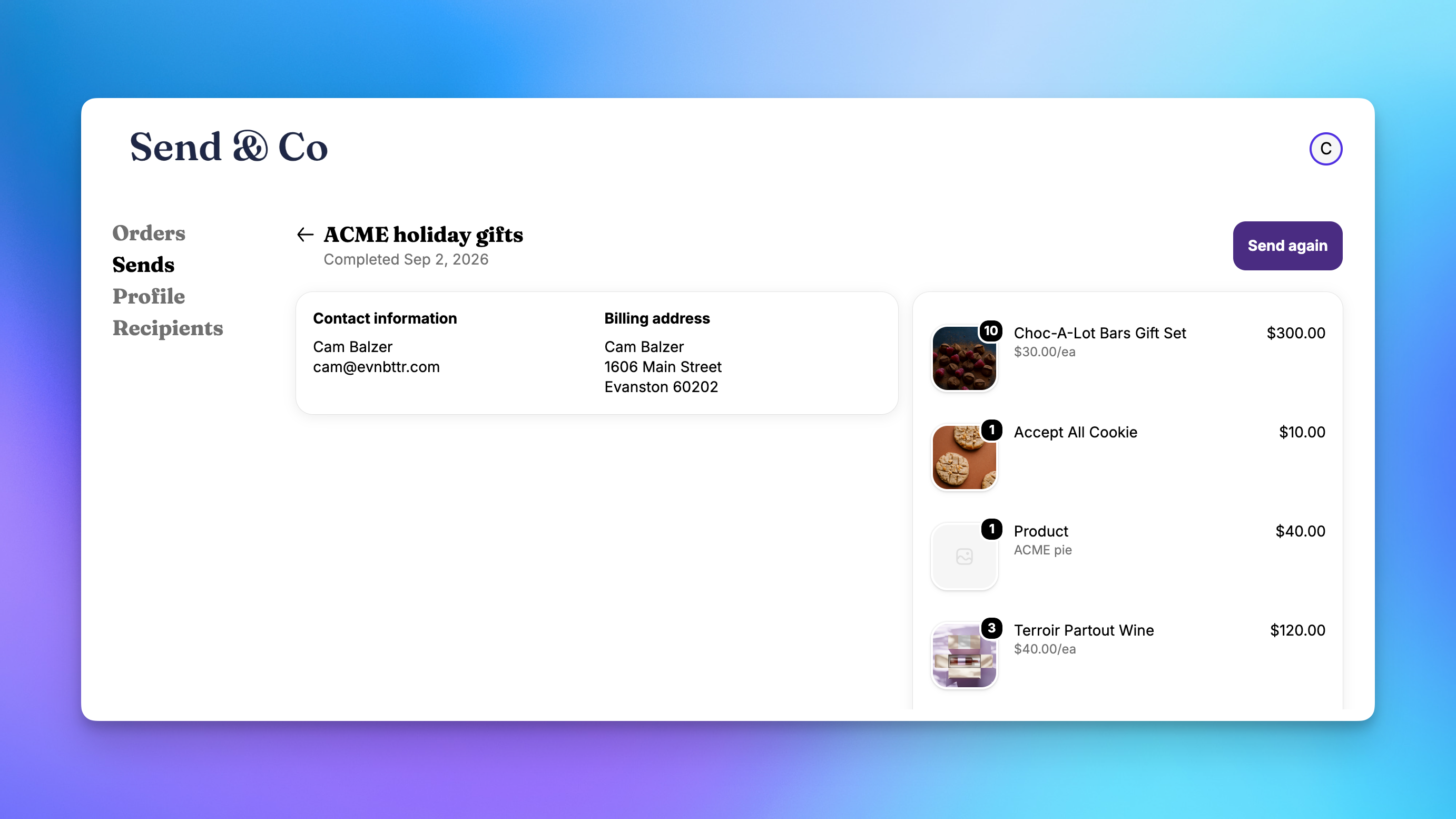
The Send again button
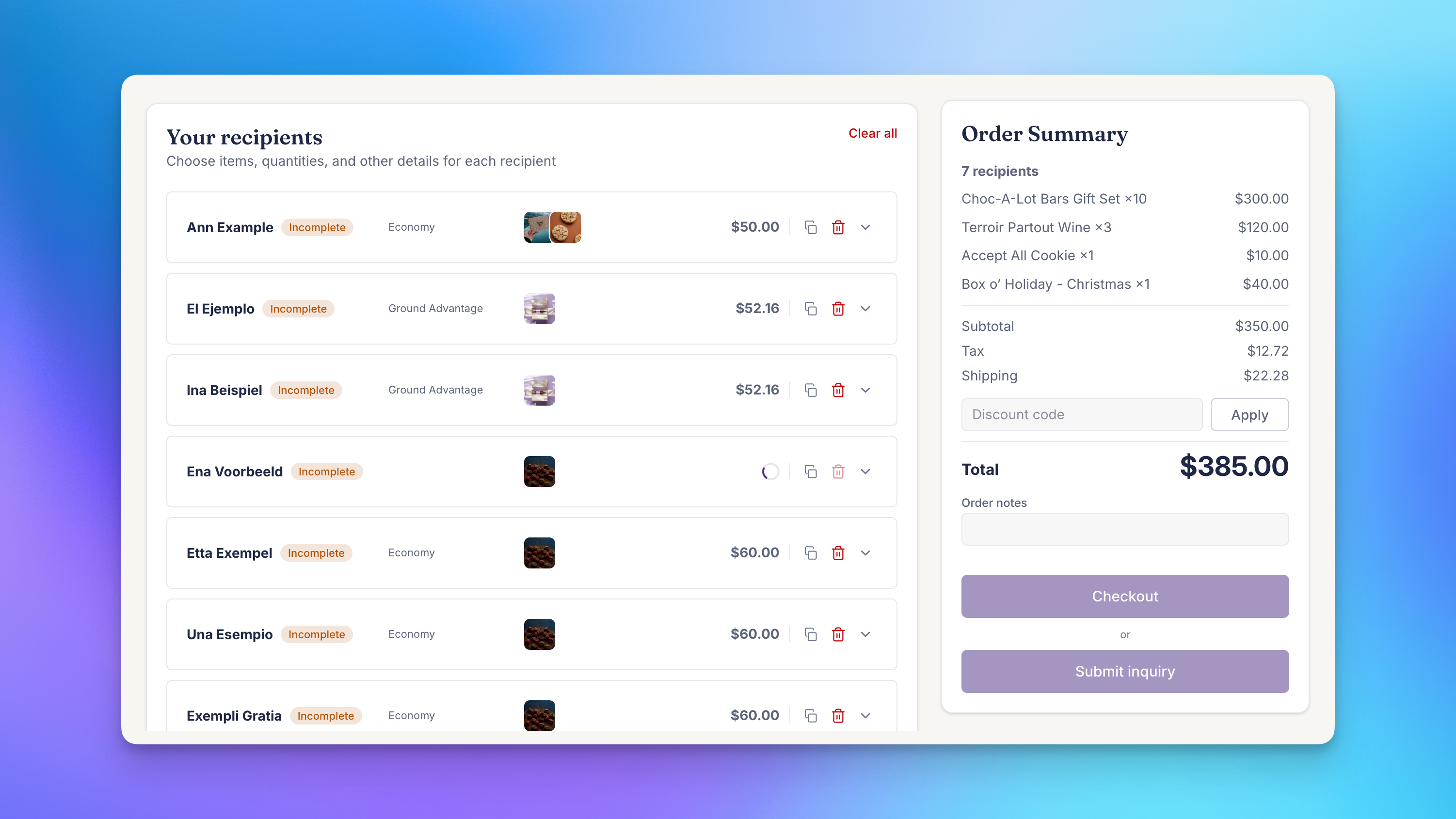
A logged-in customer opens a finished Send on the Sends page and clicks Send again. We open your multi-recipient cart page, show a short "Preparing your order" status while the Send loads, and then display every recipient from the original Send as a recipient card.
Each recipient card carries over:
- Name, company, email, and phone
- Shipping address, using the validated address from the original Send
- Products, variants, and quantities assigned to that recipient
- Gift message
- Values for any recipient fields in your checkout configuration that were stored on the original order, such as order notes, additional details, order metafields, and line item attributes
The cart is filled with the products from the original Send so the per-recipient product picker has everything available. From there the gifter can add or remove recipients, change products, update addresses, pick shipping dates, apply a discount code, and check out.
The button only appears on Sends that are finished (orders generated) and not archived. Send Again works for Sends that started as a storefront checkout, a spreadsheet upload in the app, or an inquiry, as long as the Send is associated with the customer's account.
The Recipients page
The Recipients page is a second customer account page, separate from the Sends page. It reads the customer's Shopify order history, groups orders by shipping address, and shows one row per recipient with the name, address, number of orders, and the date of the most recent order.
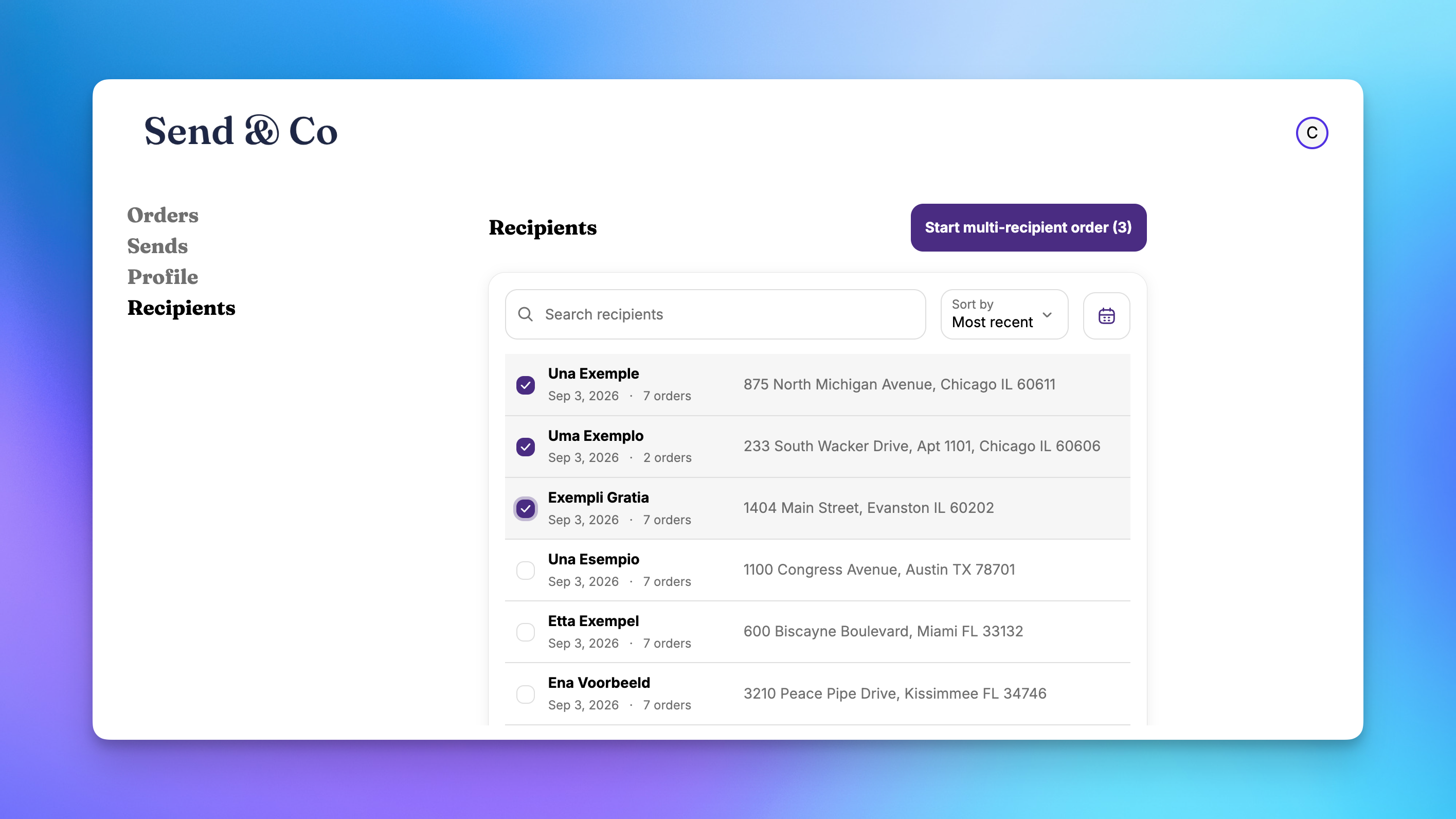
The gifter can:
- Search by name or any part of the address. Multiple words narrow the results, so "john seattle" matches on both.
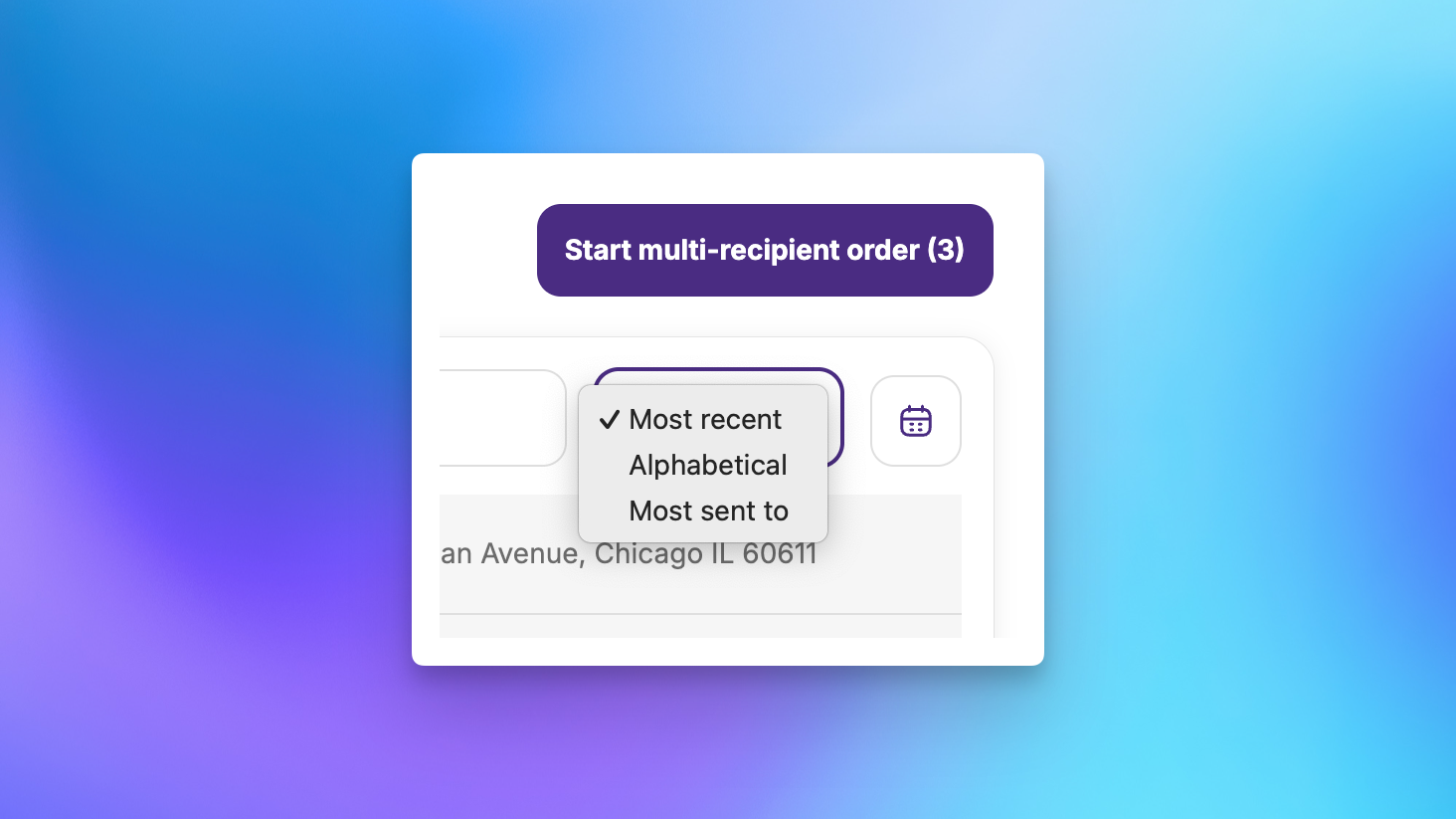
- Sort by most recent, alphabetical, or most sent to.
- Filter by last order date using the calendar button, for example November 1 to December 31 of last year to find a holiday list.
- Select up to 50 recipients and click Start multi-recipient order. The cart opens in a new tab with those recipients loaded. The gifter can add more recipients in the cart.
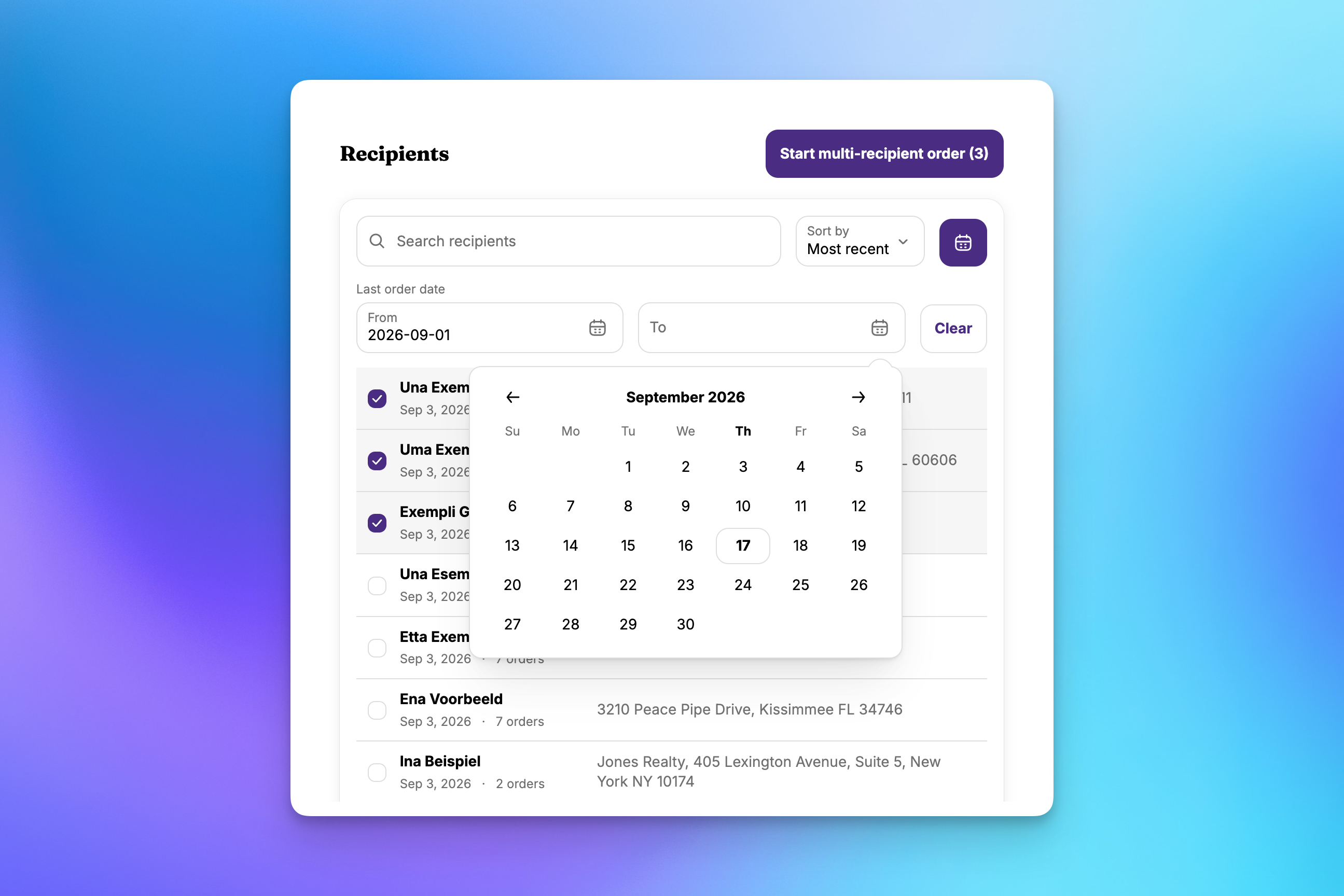
The list is drawn from the customer's Shopify orders, so it includes every past recipient however those orders were placed: as individual orders, across several Sends, or through another bulk order tool. A recipient appears as long as there's an order in Shopify shipped to them under the customer's account. The page covers the customer's 500 most recent orders.
Orders started from the Recipients page carry over names, companies, phone numbers, and shipping addresses. They don't carry over products, gift messages, or recipient emails. The email on a Shopify order belongs to the buyer, so we never copy it onto a recipient.
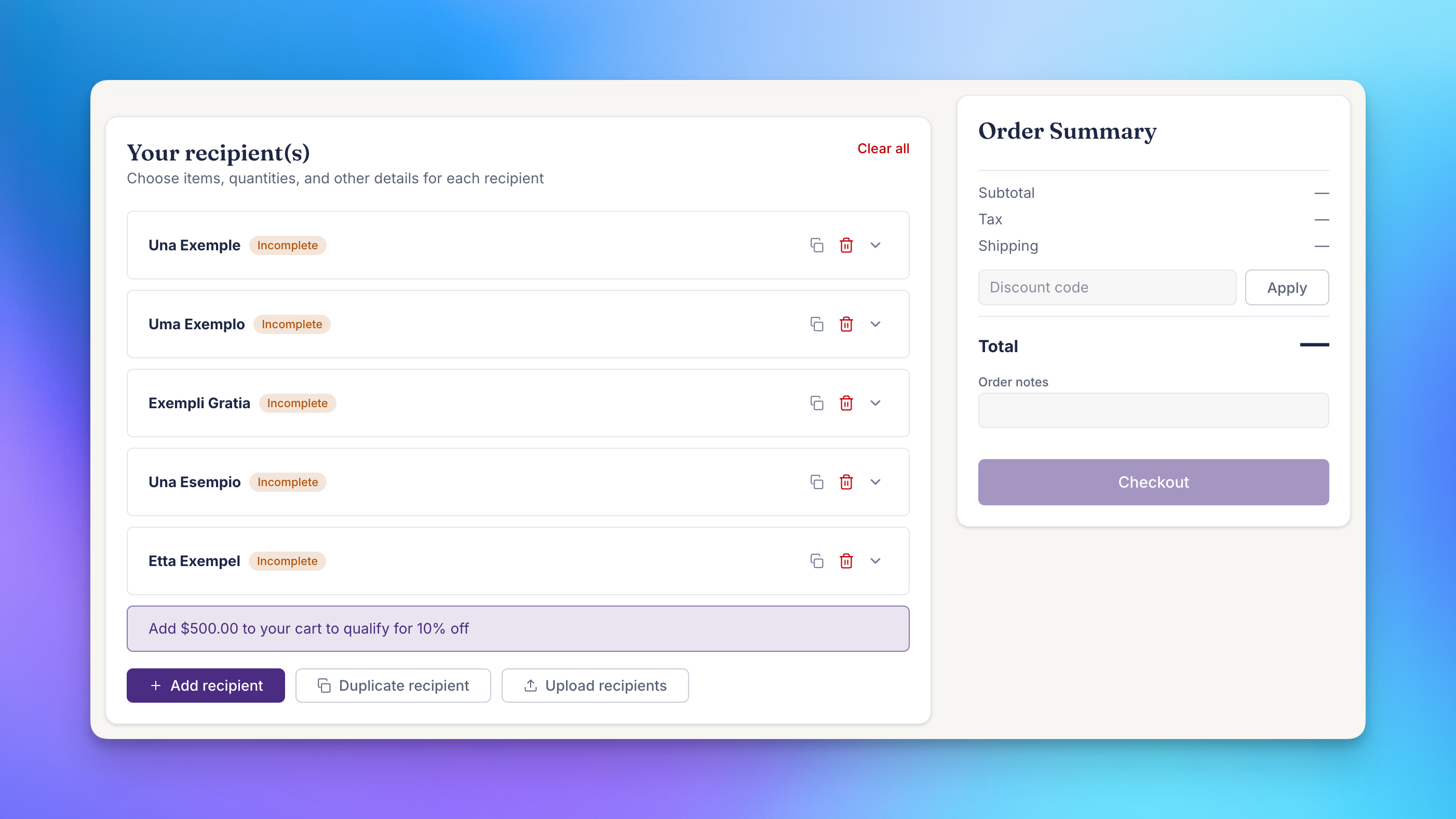
Since these orders start with recipients but no products, point the Recipients page at a collection page where your multi-recipient checkout block is installed. The gifter sees this year's gifts next to their list. See Set the cart page URLs.
The email campaign URL
When Send Again is enabled, Settings > Customer account shows an Email campaign URL for your store:
https://yourstore.com/apps/send-to-many/send-again
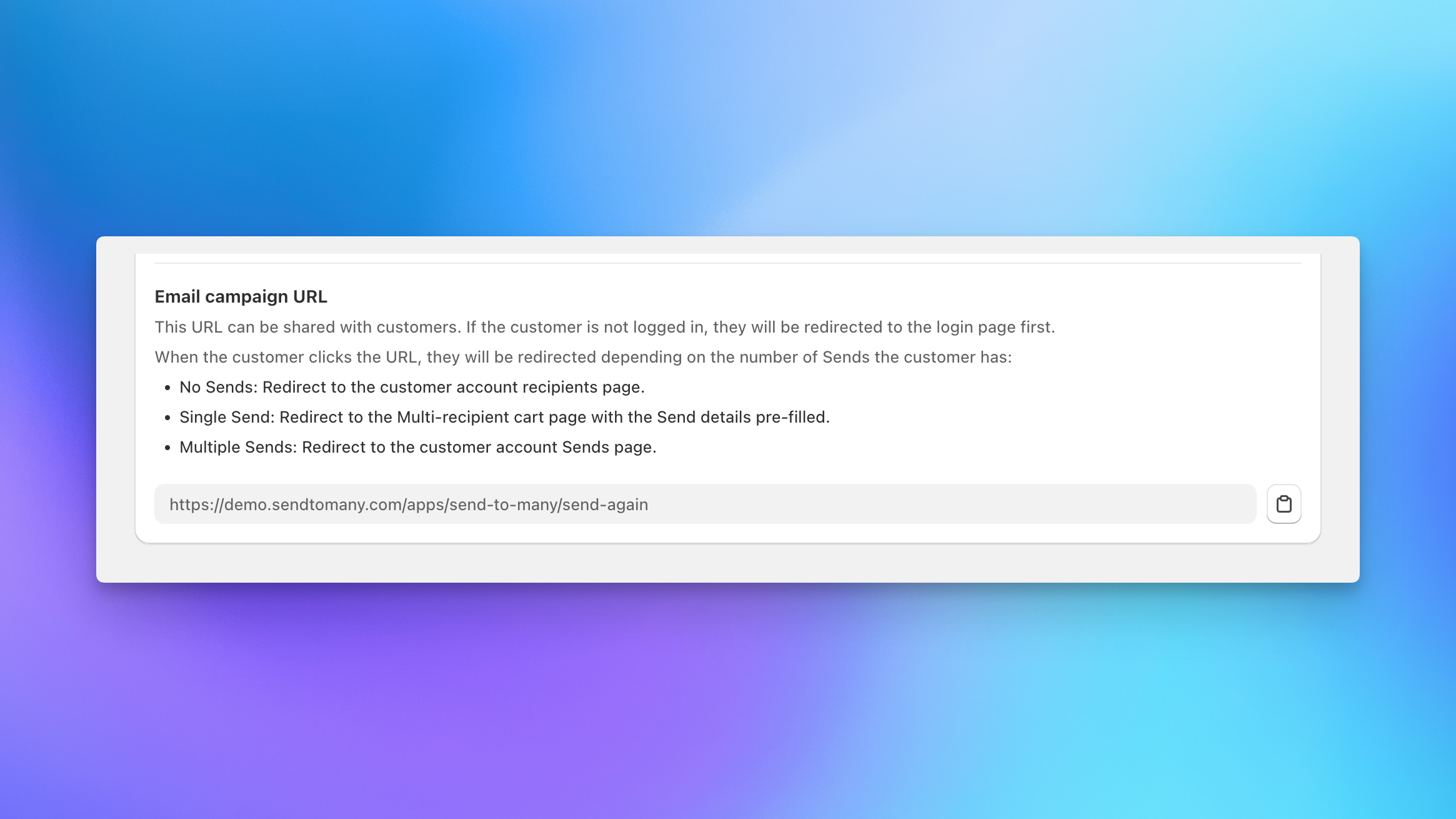
The same URL works for every customer, so you can drop it into a Klaviyo, Shopify Email, or SMS campaign without building a link per person. If the customer isn't logged in, we send them to your store's login page first and bring them back afterward. Then we route them based on how many finished Sends they have:
- No Sends: the Recipients page in their customer account.
- One Send: the multi-recipient cart, with that Send's recipients, products, and gift messages loaded.
- More than one Send: the Sends page in their customer account, where they pick which Send to repeat.
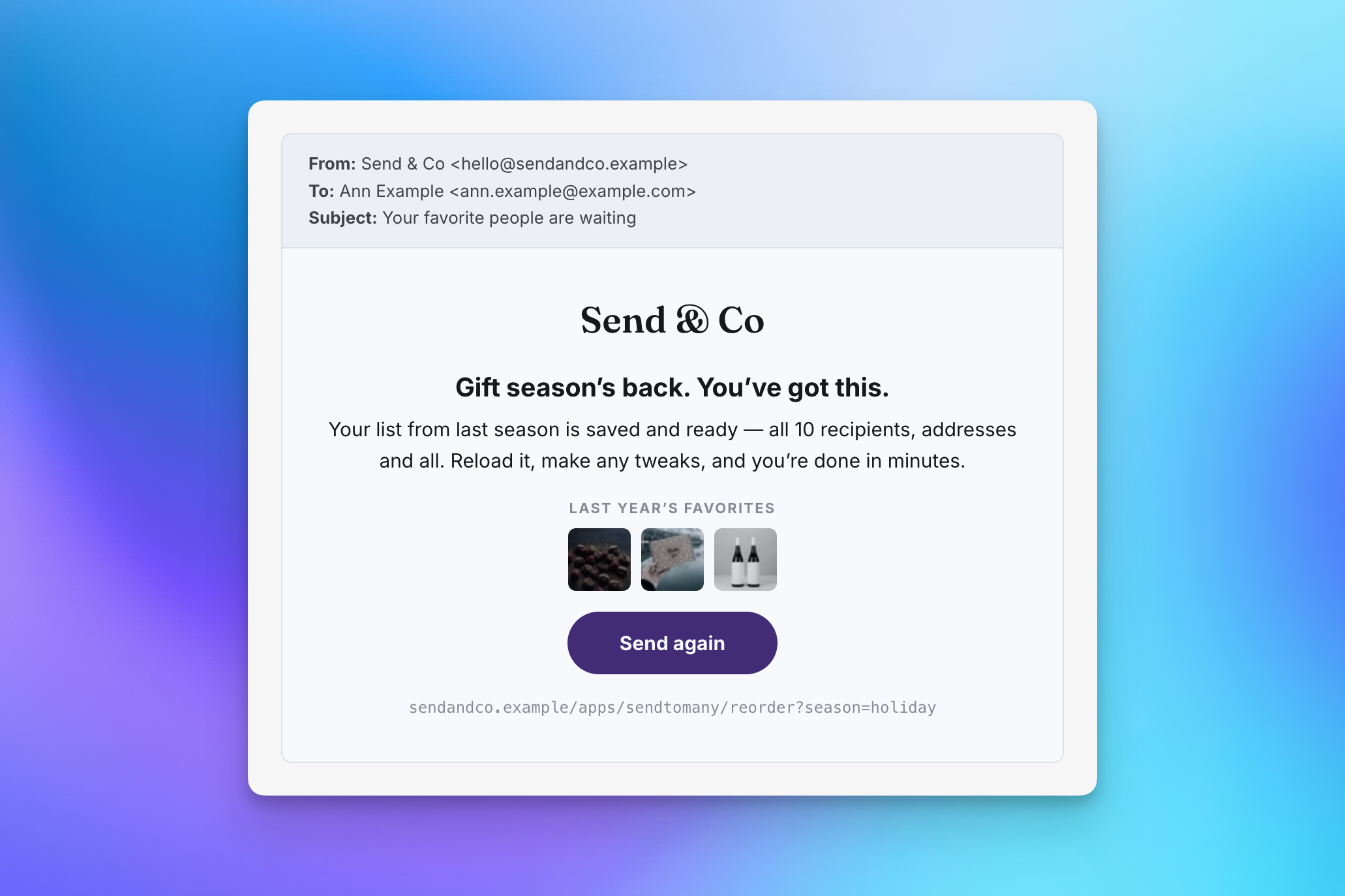
To build a campaign list of customers who used Send To Many in a prior gifting period, create a Shopify customer segment with orders_placed MATCHES (app_id = 189672226817). Add date BETWEEN inside the parentheses to limit it to one season.
For a full campaign walkthrough, see the tutorial Win Back Last Year's Holiday Gifters with Send Again.
Send again link for a specific Send
To invite one customer to repeat one particular Send, open the Send in Send To Many and click Send again at the top of the Send overview page. We generate a link for that Send and show the customer's name and email so you can copy both into a message.
The link opens the multi-recipient cart with that Send loaded, the same as the Send again button. It only works for the customer on the Send. If someone else opens it, they see a message asking them to log in with the correct account. The action appears on finished Sends that have a customer attached.
What is not carried over
Send Again reloads the recipient list, not the completed order. Anything that depends on current prices or availability is recalculated:
- Shipping rates and delivery dates: selected fresh in the new checkout.
- Totals, tax, and discounts: recalculated at current prices. Discount codes from the original Send are not reapplied.
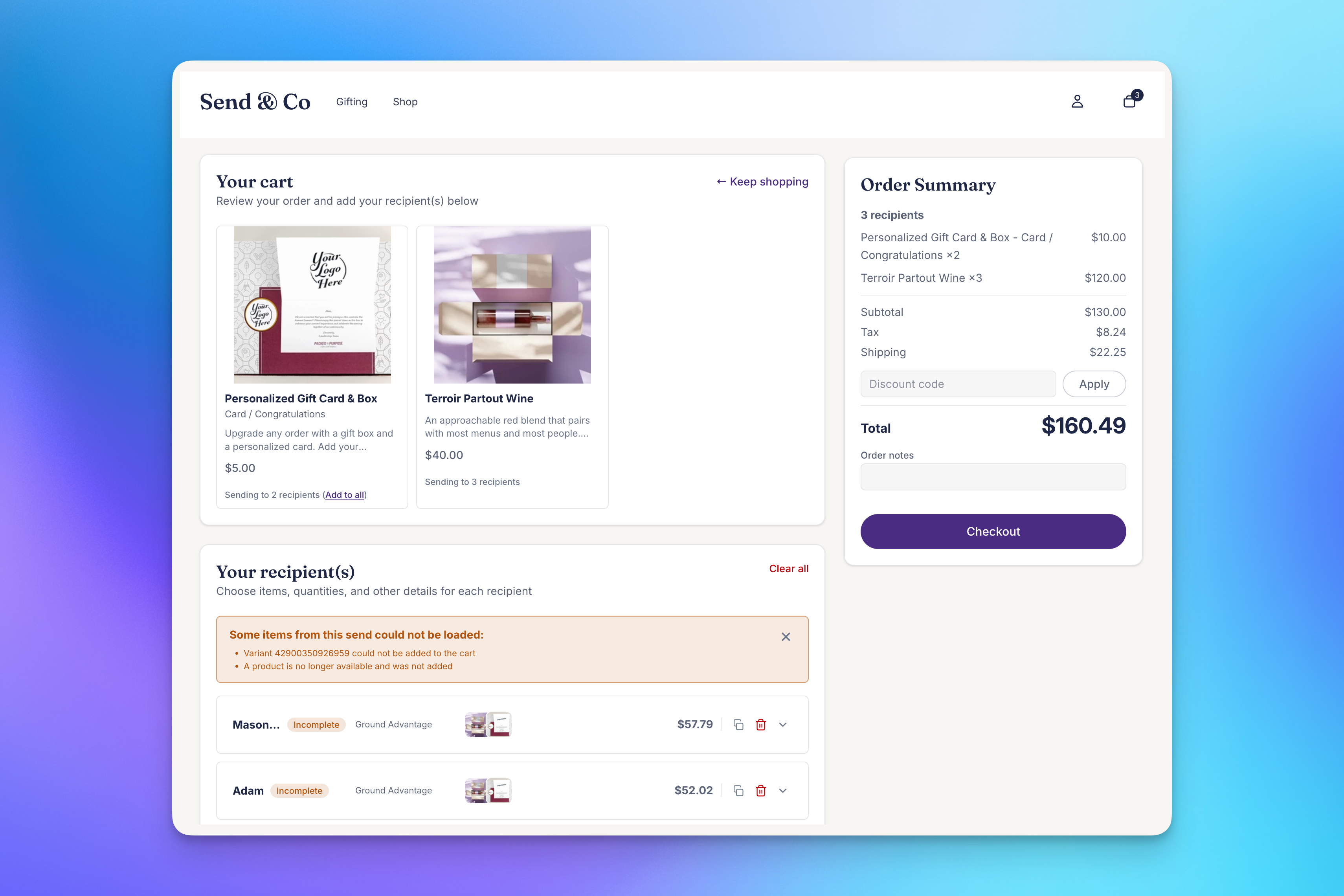
- Products that are no longer available: if a product has been deleted, unpublished, sold out, or its variant no longer exists, we leave it off the recipient and show a message listing what couldn't be loaded. The gifter picks a replacement from the cart. The screenshot below shows this message.
- Per-product customizations: personalization entered on a product, such as engraving text or a logo upload, is not reloaded. The gifter enters it again.
- Recipients over your limit: if the original Send had more recipients than the maximum set in your checkout configuration, we load recipients up to the limit and show a message that the rest were not loaded.
Collection mode
If your products changed from last year, use collection mode to make this year's featured gifts the landing page. Set the cart page URL to a collection page, such as /collections/holiday, where the multi-recipient checkout block is installed. We load the recipients and addresses but not last year's products, and the gifter chooses from the collection in front of them.
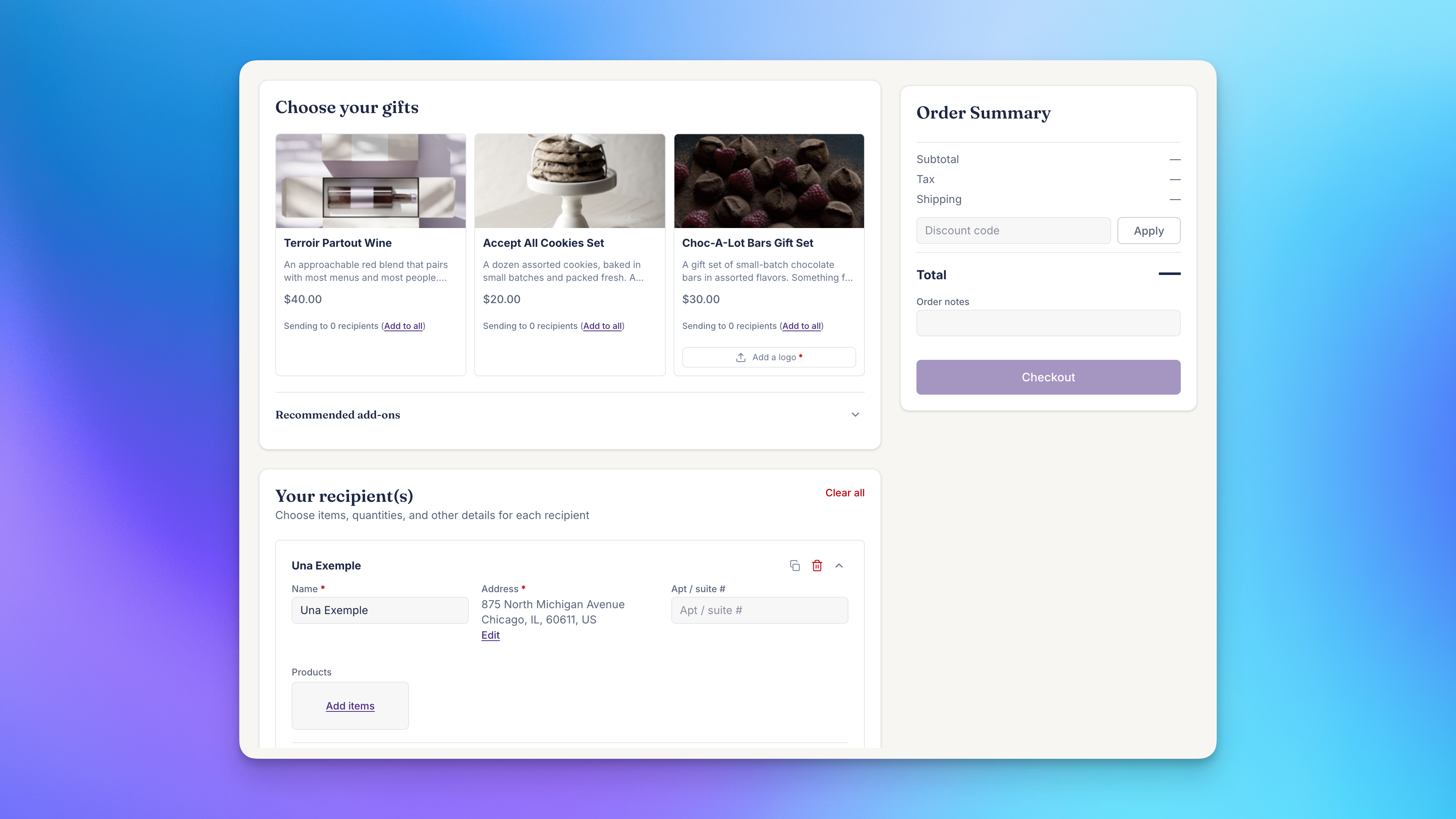
If your catalog is mostly the same, point Send Again at your standard cart page and last year's products load with the recipients.
Requirements
- A monthly or annual paid plan. Send Again may be restricted to certain plans once it leaves beta.
- Shopify's new customer accounts. Legacy accounts are not supported. See Customer Account Extensions: Sends Page & Order Send Banner for how to check.
- The Send To Many customer account extensions enabled: Sends Page, Recipients Page, and Order Send Banner. The Send again button lives on the Sends Page, the banner is how customers get there from an order, and the email campaign URL sends customers to either page depending on their history.
- Multi-recipient checkout installed on a page in your theme. See Set Up Multi-Recipient Checkout.
- The customer is logged in to the account that placed the original orders. If they open a Send Again link while logged out, we prompt them to log in first.
Turning on Send Again
Step 1: Enable the customer account extensions
In your Shopify admin, go to Online Store > Themes, click Customize, and select Checkout and customer accounts from the page picker. In the Apps section, enable all three Send To Many extensions:
- Sends Page: where the Send again button appears.
- Recipients Page: where customers pick from past recipients.
- Order Send Banner: links customers from any order in a Send to the Sends Page.
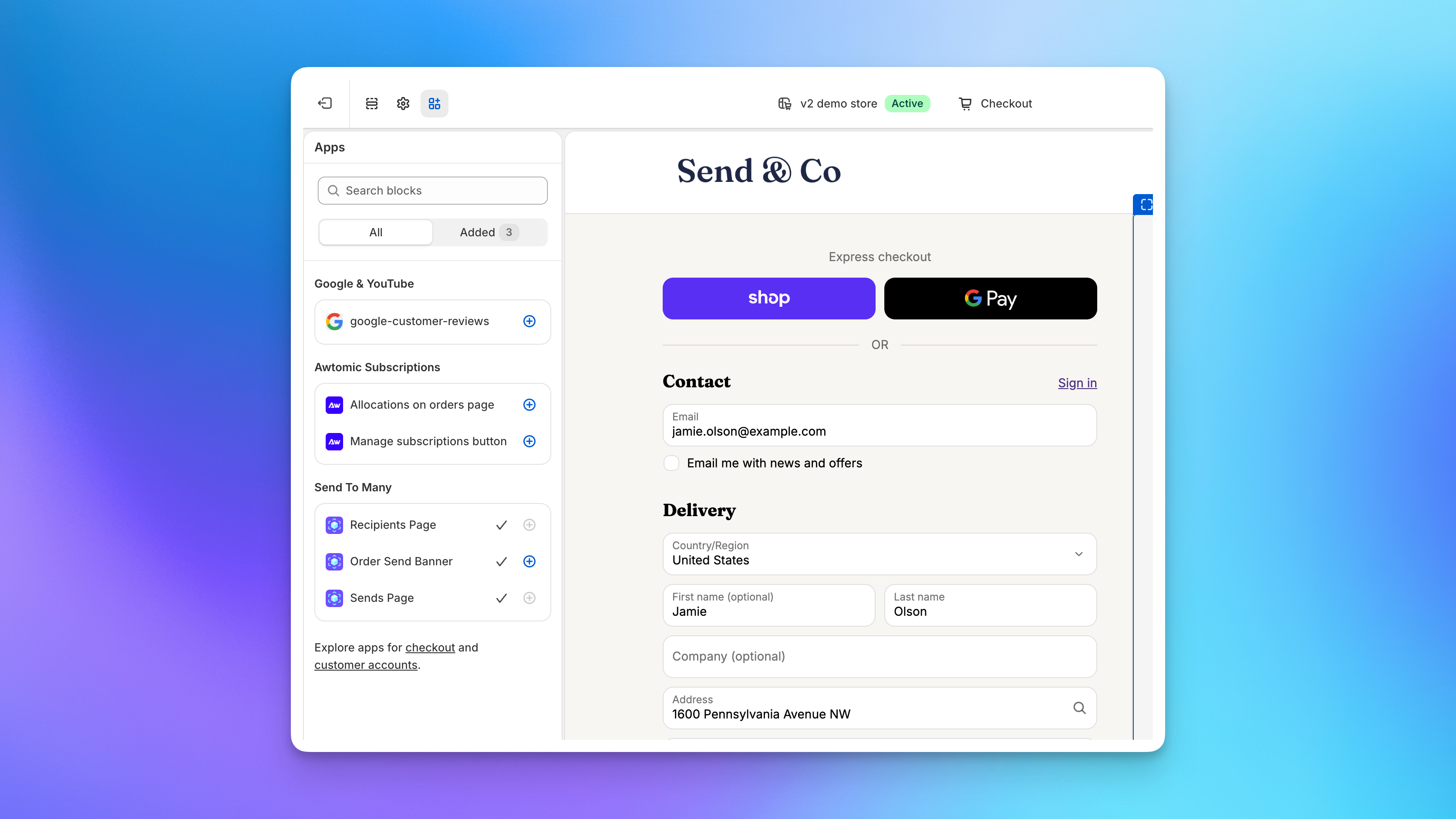
The editor previews the Recipients Page with placeholder data and a note that Send again must be enabled. Customers don't see that note.
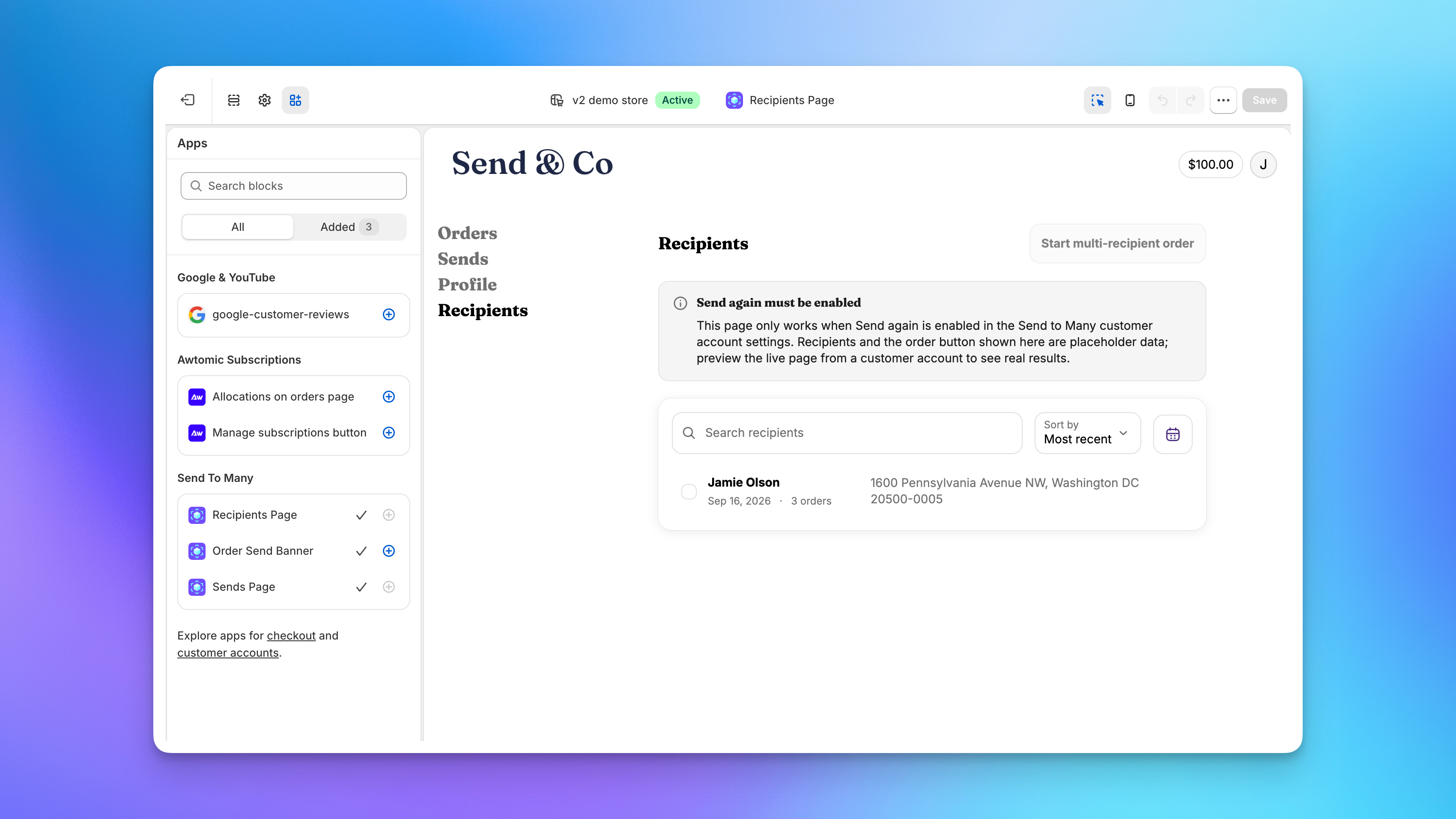
Click Save. If you set up the Sends Page and banner earlier, add the Recipients Page the same way. Full steps with screenshots are in How to Add the Sends Page and Order Send Banner to Shopify Customer Accounts.
Step 2: Enable Send Again
In Send To Many, go to Settings > Customer account and check Enable send again.
If you see a banner that says the Recipients page needs a shop metafield definition, click Set up metafield definition. This is a one-time step that lets the Recipients page know Send Again is on.
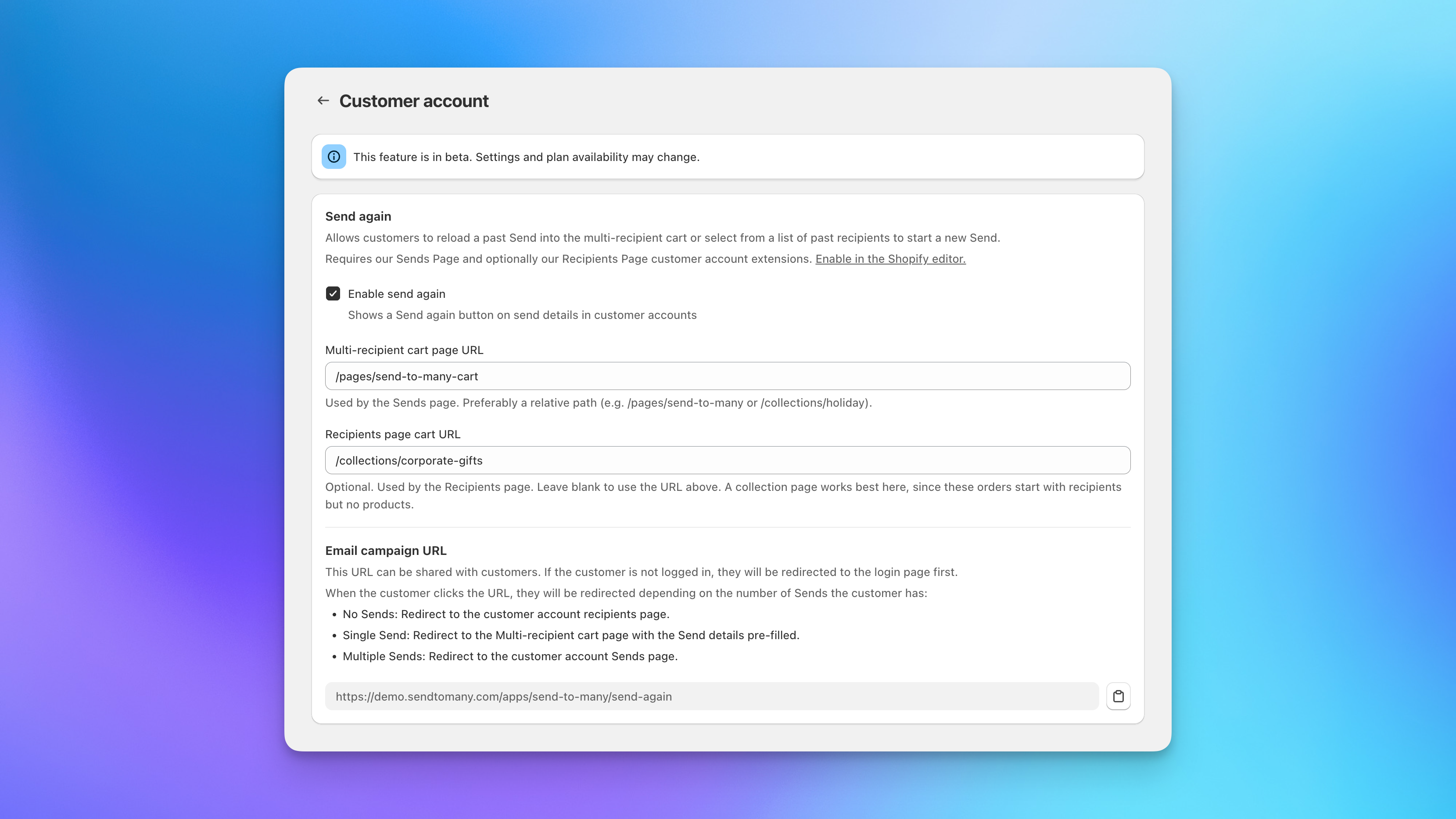
Step 3: Set the cart page URLs
- Multi-recipient cart page URL: the page where your multi-recipient checkout is installed, as a relative path such as /pages/send-to-many. The Send again button and both link types open this page. If you already have a checkout block installed, we pre-fill this field.
- Recipients page cart URL: the page that opens from the Recipients page. A collection page works best here because these orders start without products. If you leave it blank, we use the URL above.
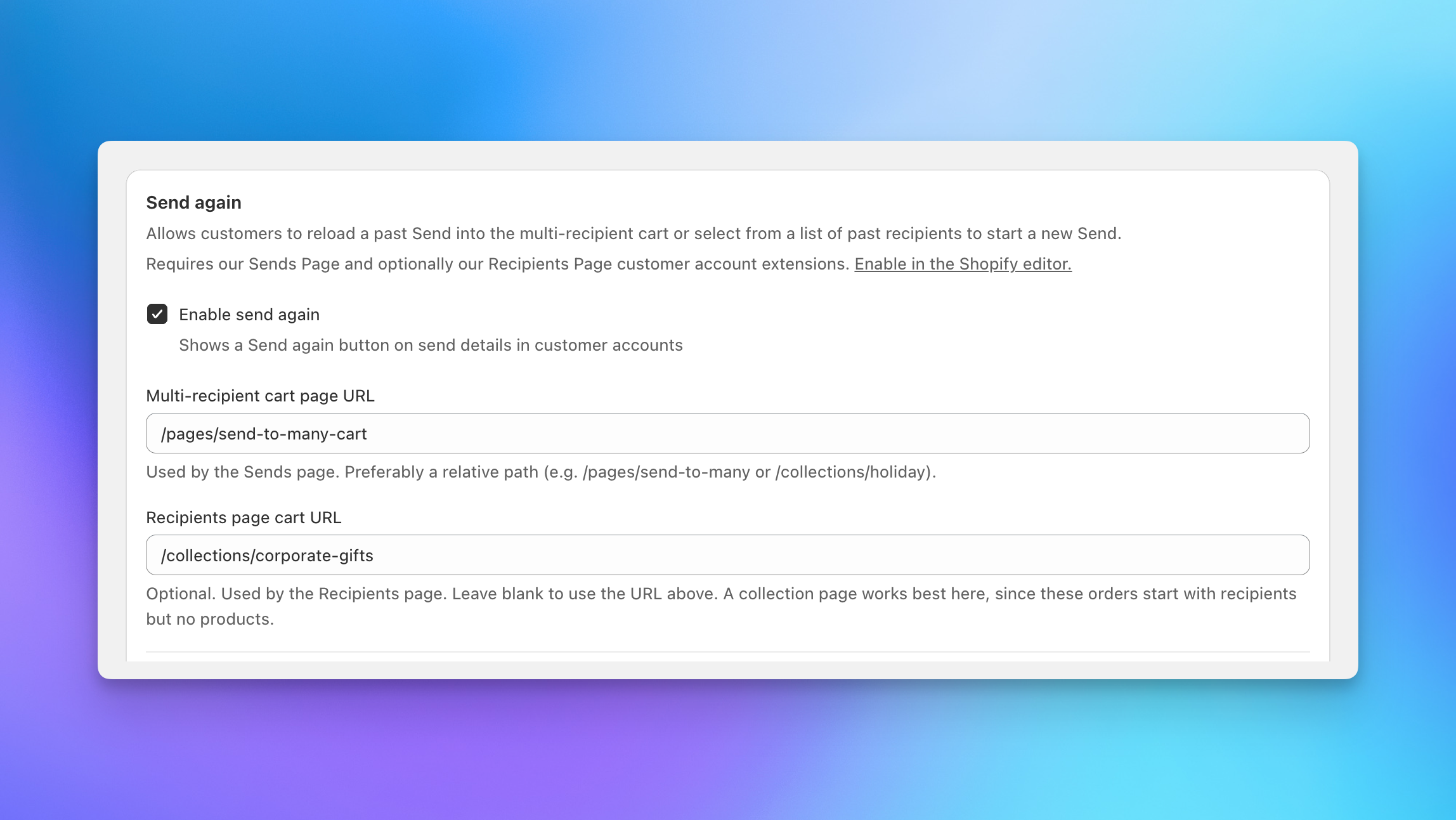
Step 4: Save
Click Save. The Send again button appears on finished Sends in customer accounts immediately, and the email campaign URL is ready to copy from the same settings page.
Text and translations
Send Again text lives in two places under Settings > Text and translations:
- Customer account extensions: the Send again button label and everything on the Recipients page, including the page heading, the Start multi-recipient order button, search and sort labels, and the selection limit message.
- Multi-recipient cart: the "Preparing your order" status and the messages shown when products or recipients couldn't be loaded.
See Translate the Multi-Recipient Cart into Your Store's Languages for the export and import workflow.
Things to know
- The customer has to log in to their store account. Send Again loads names and addresses, so every entry point goes through the store's customer login.
- Send Again links don't expire, and they are tied to one customer and one store. They're safe to email. A link forwarded to someone else won't load the list.
- Send Again does not copy or modify the original Send. It creates a new checkout session, and checking out creates a new Send with its own gifter order and recipient orders.
- Recipient addresses come through as already validated, so the gifter isn't asked to re-confirm addresses that were correct last time. Addresses they edit are validated again.
- Inventory is checked when the checkout loads. Sold-out variants are disabled in the product picker with a sold out label, the same as any other multi-recipient checkout session.
- Archived Sends don't appear on the Sends page and can't be sent again.
- If you use multiple checkout configurations, Send Again uses whichever configuration is installed on the page URL you set.
Related articles
- Win Back Last Year's Holiday Gifters with Send Again: a campaign walkthrough from finding your gifters to the email.
- Customer Account Extensions: Sends Page & Order Send Banner: the page the Send again button lives on.
- Set Up Multi-Recipient Checkout: installing the cart page Send Again opens.
- Order & Shipping Notifications for Multi-Recipient Orders: the delivery digest, the other beta feature for repeat gifters.
Still have a question?
Ask Manny, the Send To Many bot, about “Send Again: Let Customers Repeat a Multi-Recipient Order (Beta)” or anything else in the docs.