A more forgiving upload workflow: edit recipients, products, and discounts right up to the finish line
The upload workflow used to be strictly linear: once you moved past a step, changing your mind meant going back or starting the Send over. We've been loosening that up across the whole workflow, so the most common changes can be made right where you spot them, with totals recalculating as you go.
Here's what you can now fix at each step without restarting a Send.
Step 2: Resolve product mismatches in place
If a spreadsheet lists something that isn't in your catalog, assign a custom product right on the match card instead of deleting the row. We pre-fill the name and quantity from your file, and you can set price, weight, and taxability before saving. You can also switch an already-matched row to a different product or a custom one.
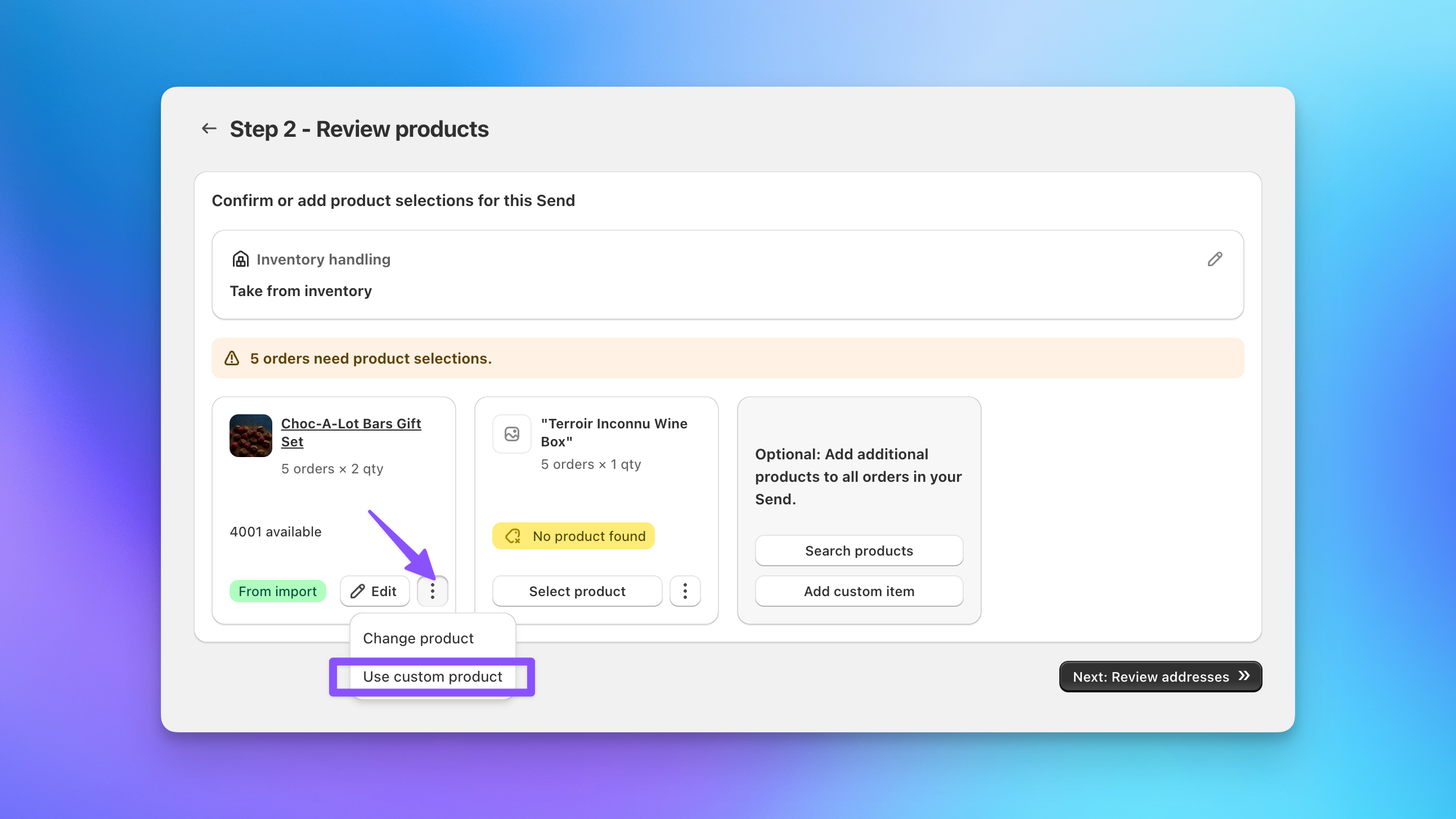
Imports are more forgiving on the way in too: Excel date columns convert automatically, and header matching skips common unsupported columns instead of tripping on them.
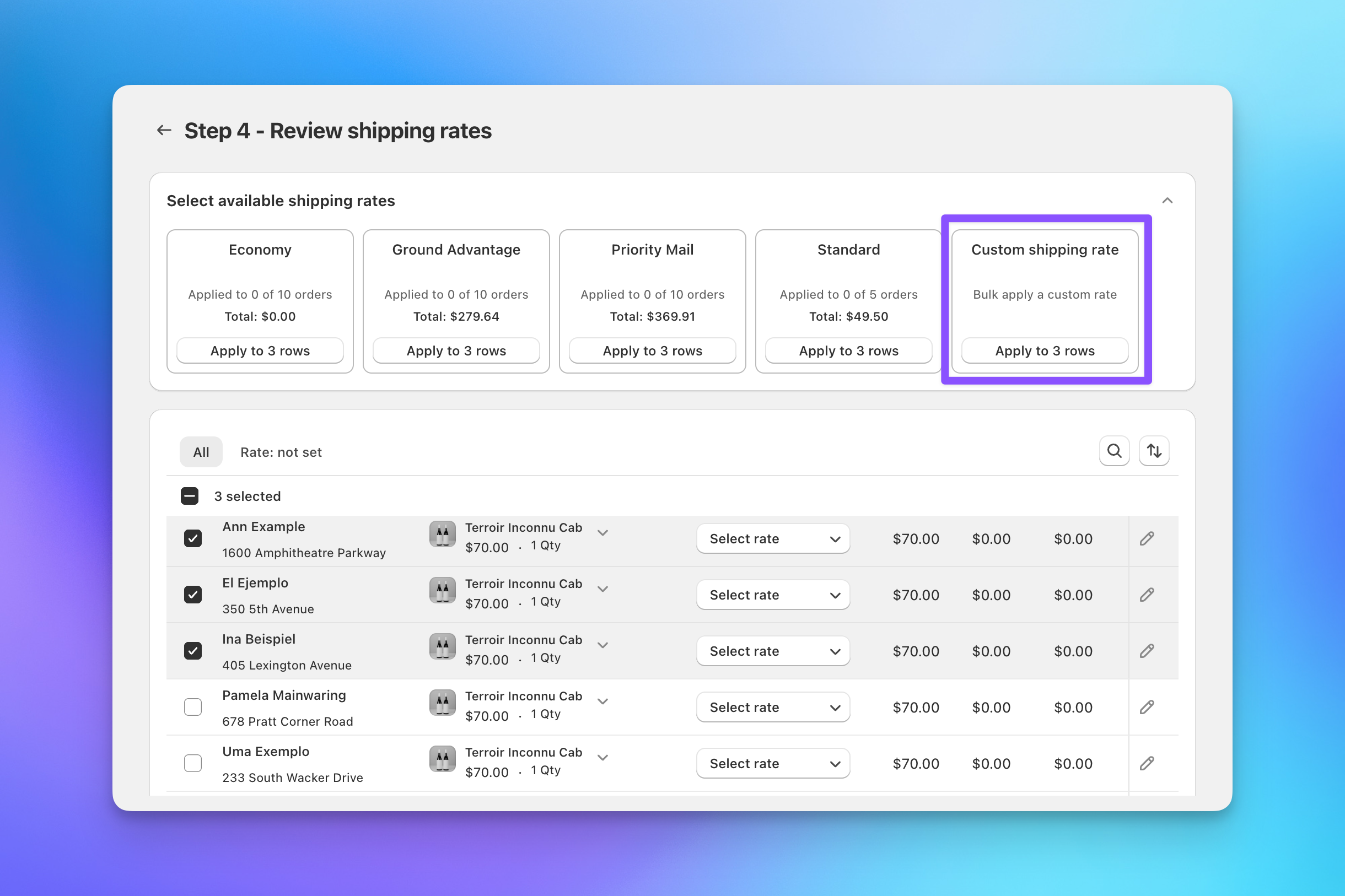
Step 4: Apply shipping rates in bulk
Alongside the standard rate options, select any set of recipients and bulk apply a custom shipping rate to all of them at once. No more setting a one-off rate row by row.
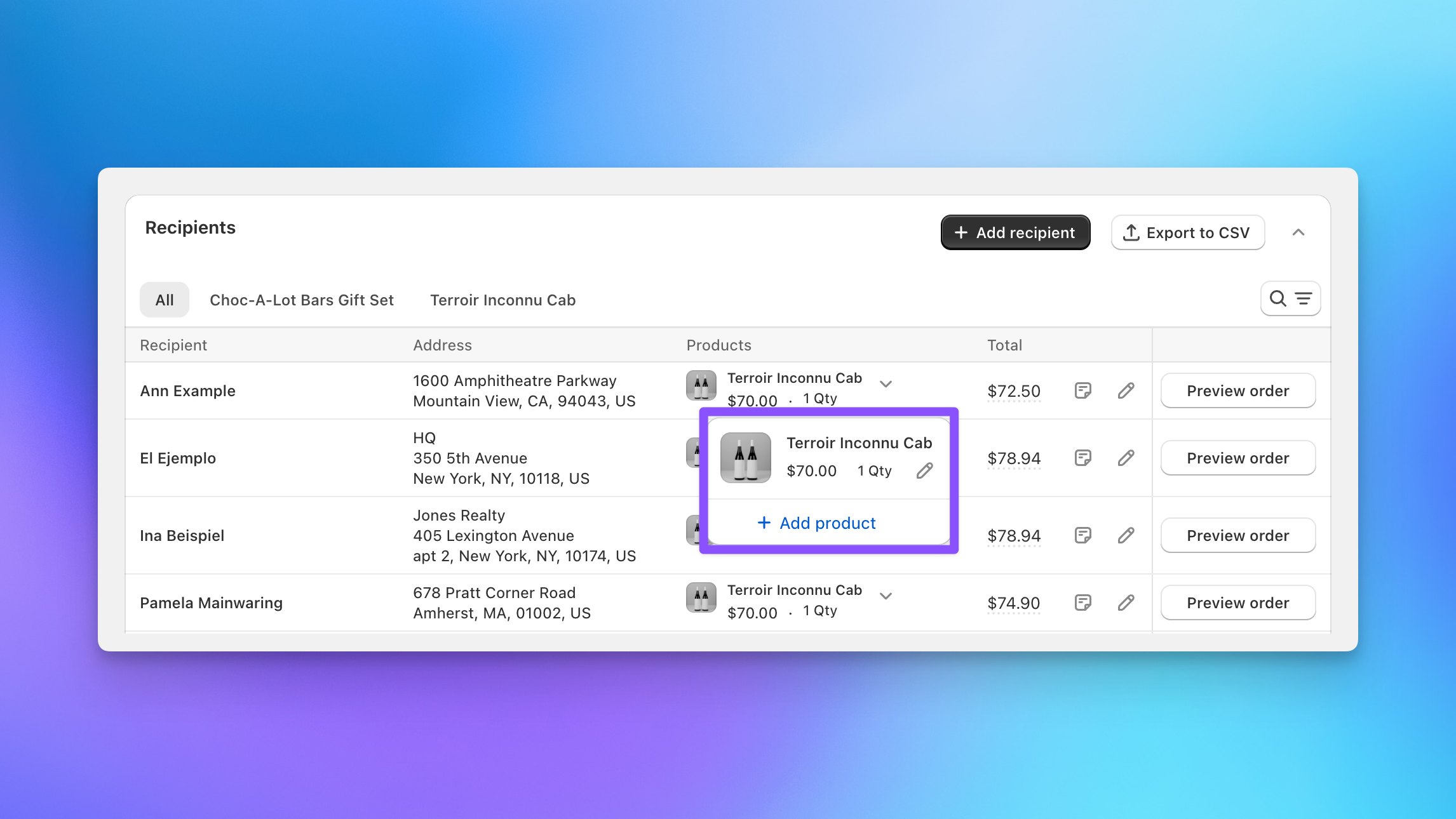
Steps 4 and 5: Add or edit products for individual recipients
Product changes no longer require a new spreadsheet upload. On the recipients table, open any recipient's products to add a product or edit what's assigned, one recipient at a time. Totals recalculate with the changes, including tax and shipping.
Step 5: Add a recipient at the finish line
Someone got left off the list? Click Add recipient on the Finalize step to add them directly to the Send. You get the full recipient experience: address entry with autocomplete, product selection, and a shipping rate picker, all in one panel. Aggregate totals update to reflect the new addition.
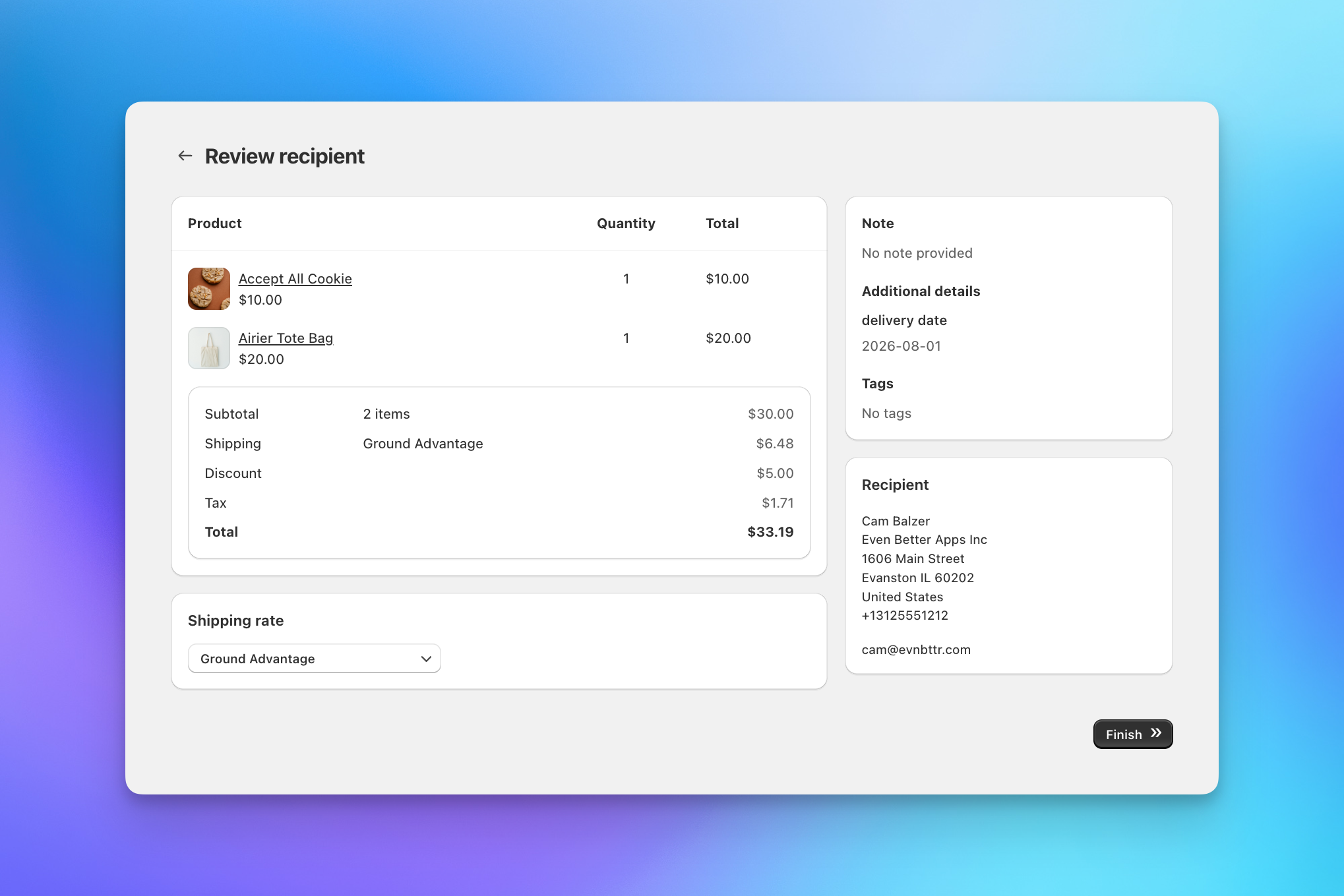
You've always been able to edit a recipient's address or remove a recipient using the "exclude" option. Adding one late is the piece that was missing.
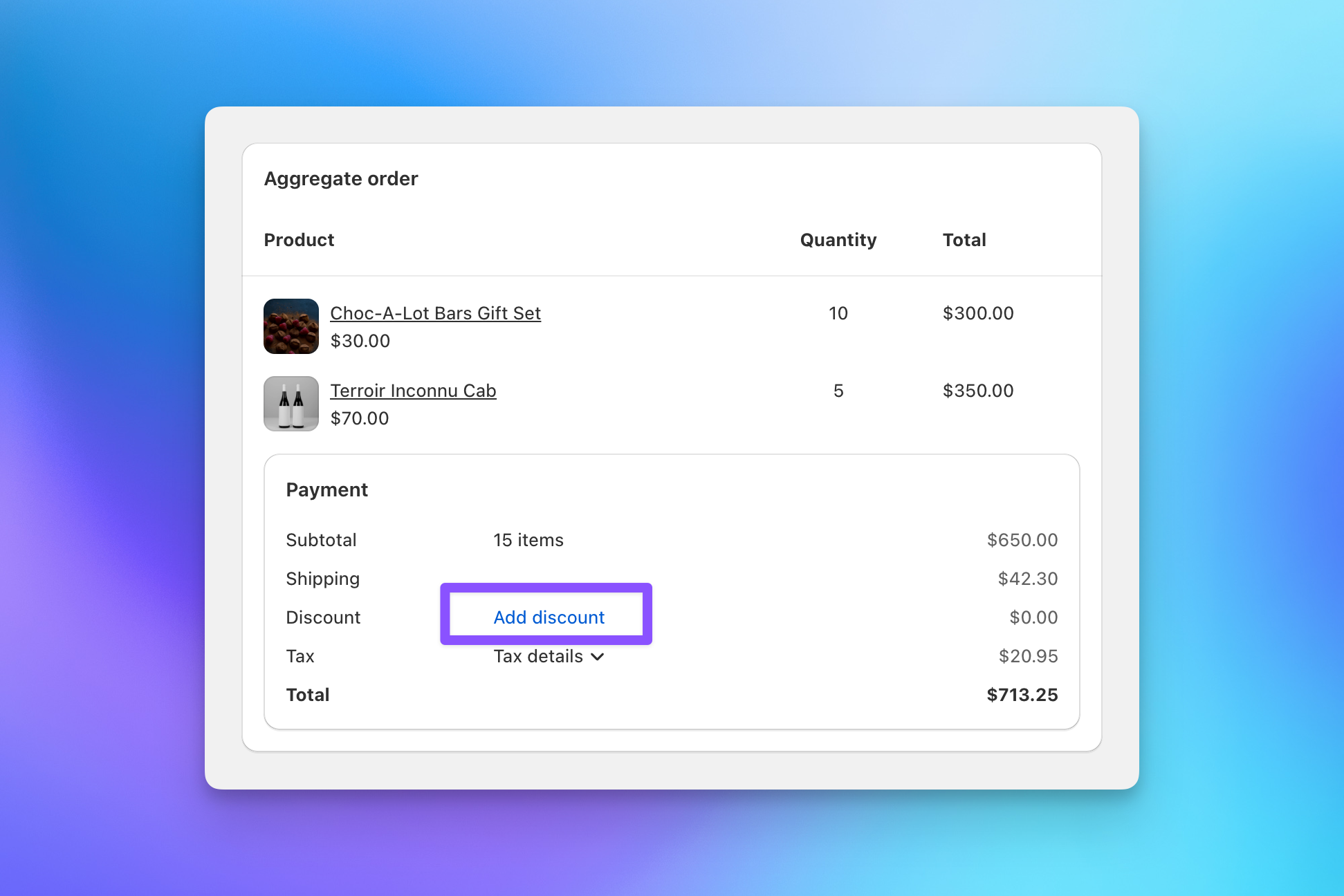
Step 5: Add a discount
Click Add discount on the aggregate order to apply a discount code or a custom discount. This triggers a recalculation of all orders, so per-recipient totals, tax, and the aggregate invoice stay consistent.
When to start fresh instead
These tools are built for small corrections: a forgotten recipient, a product swap, a late discount. Changes to a large number of recipients (adding or deleting many recipients, or changing products across many recipients) are still best handled by starting from scratch with an updated spreadsheet. Use Export to CSV on Step 5 to download a clean spreadsheet of the current Send as your starting point.
For the full upload walkthrough, see how to upload a corporate gifting order.