Submit an inquiry from checkout: turn big carts into conversations
The multi-recipient checkout now has a built-in inquiry option. A shopper who has built a cart for 5, 40, or 200 recipients can hand the whole thing to your team with their name and email instead of paying on the spot. You decide when that option appears: on every cart, only once an order crosses a size threshold, or in place of checkout entirely.
Why this matters
The Send To Many cart already does the hard part of a corporate gifting order: recipients, addresses, per-recipient products, gift messages, shipping dates, and discounts, with totals updating as the gifter edits. Until now, the only way out of that cart was the Checkout button (or a link that sent the shopper off to your inquiry form to start over).
That's fine for a repeat buyer sending 10 gifts. It's not always right for a first-time corporate customer with 60 recipients who wants to confirm pricing, ask about a logo, or get a shipping quote before committing. Those orders used to leak out of the cart into email threads, and the recipient list the shopper had already built went with them.
Now the cart itself is the inquiry. Everything the shopper entered arrives in Send To Many as a Send, ready for your team to review, adjust, and invoice.
How it works
Open your multi-recipient checkout settings and select the new Inquiries tab. There are three modes:
- Disabled: checkout only.
- Redirect to inquiry form: a button that links to your existing inquiry form page. This is the option that was already available, and it now supports the display rules below.
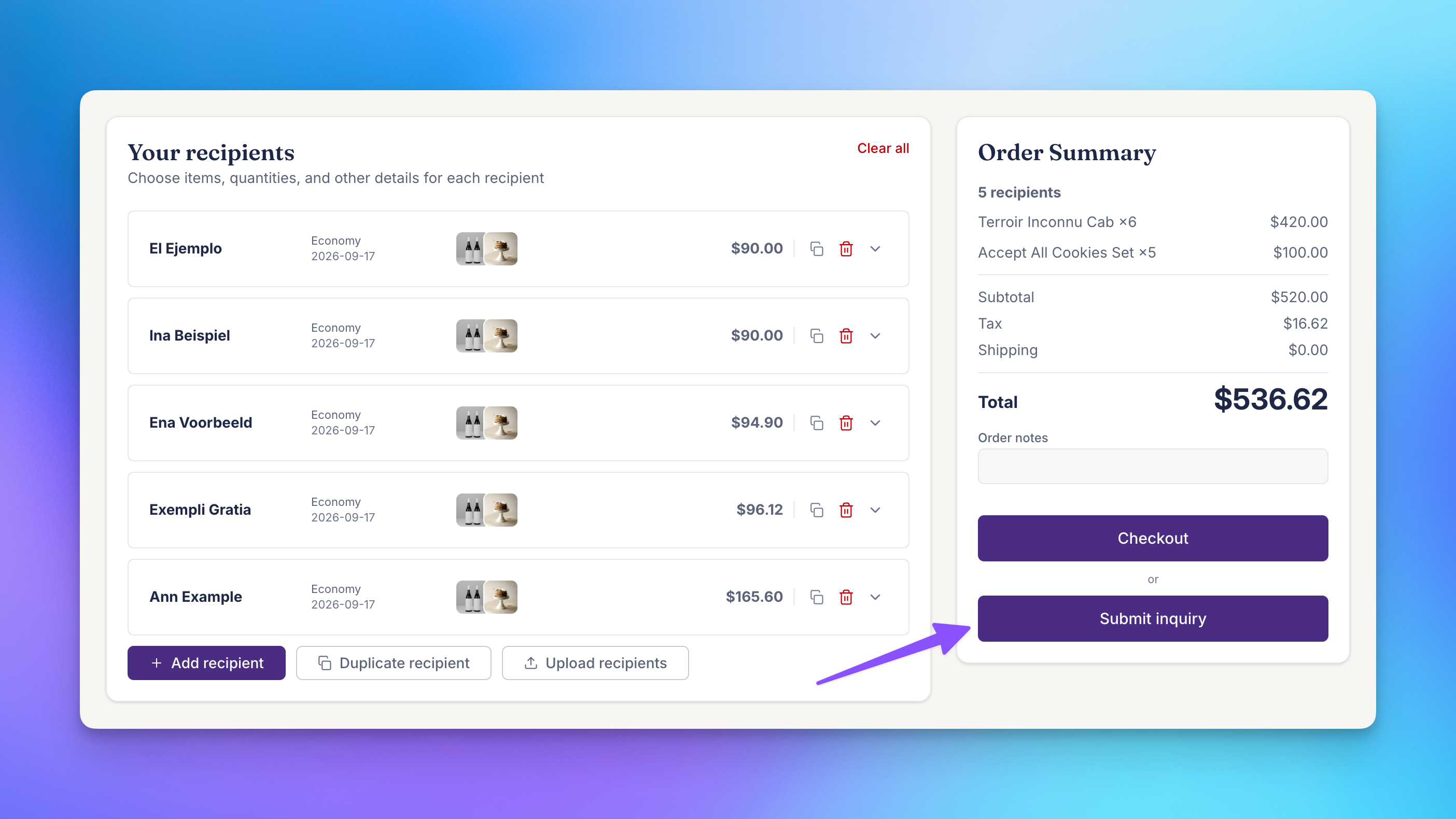
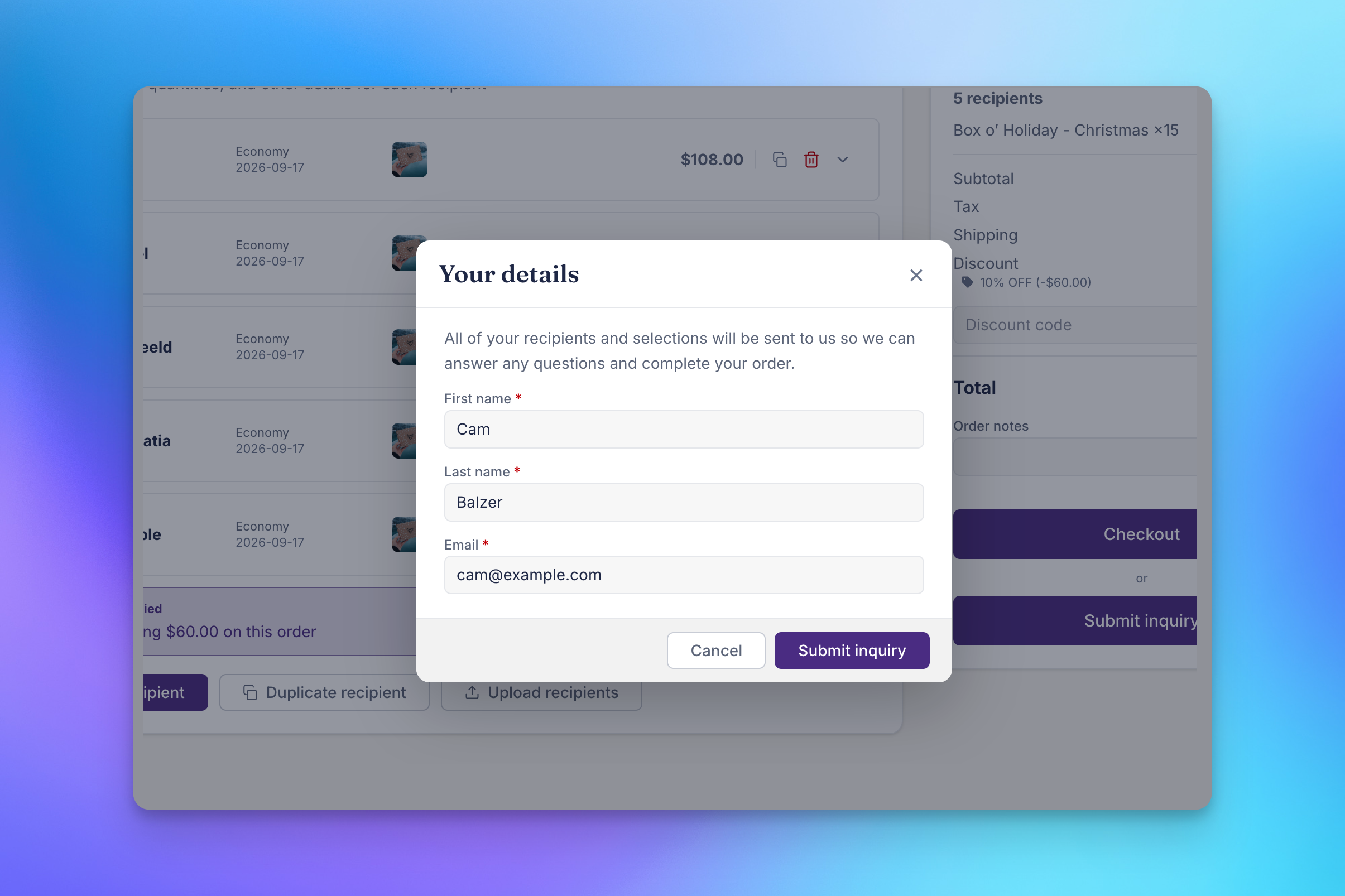
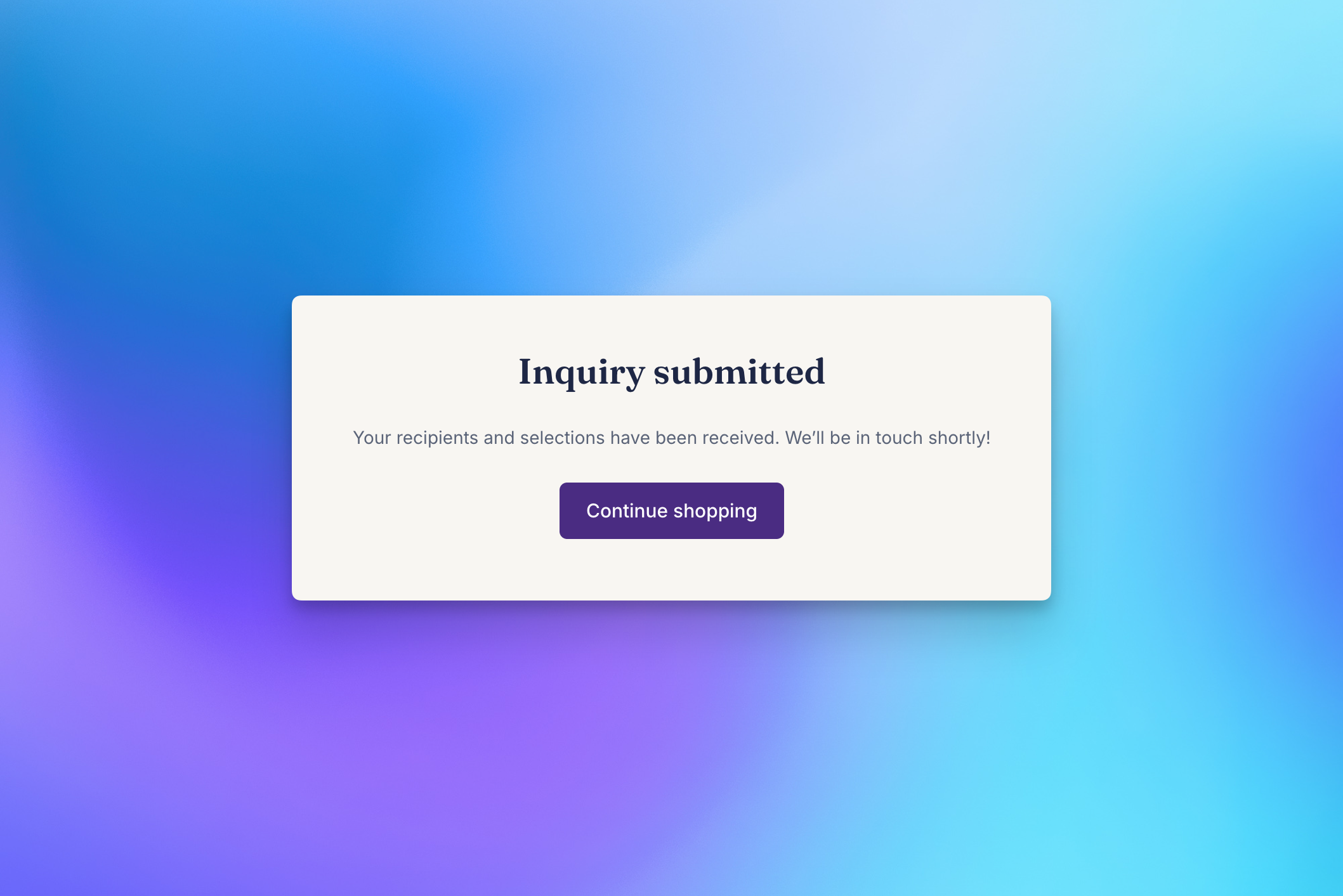
- Inline submit inquiry: new. A Submit inquiry button opens a short contact modal on the cart. The shopper enters first name, last name, and email (phone is optional), submits, and sees a confirmation without leaving the page.
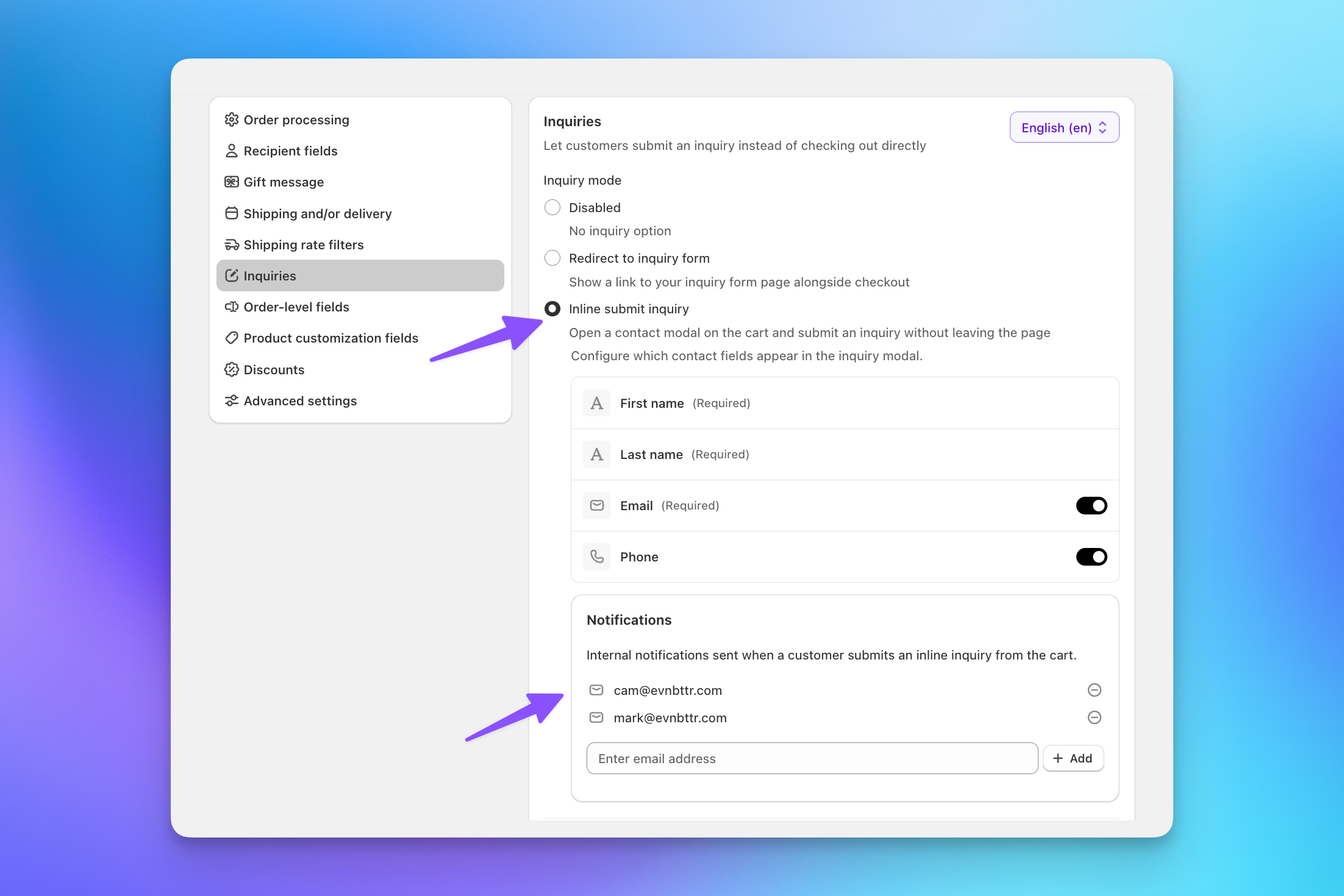
For inline inquiries, you choose which contact fields to show and which email addresses get notified. Notifications are configured per checkout configuration, so cart inquiries can go to a different inbox than your inquiry form submissions.
Display rules
The part we're most excited about is control over when the inquiry option shows up. Under Display rules, pick one of:
- Always show inquiry alongside checkout. Both buttons, every cart. The shopper picks.
- Show inquiry when conditions are met (checkout stays visible). The inquiry button appears only for carts that match your conditions. Anyone can still pay.
- Replace checkout with inquiry when conditions are met. Above your threshold, the Checkout button disappears and the inquiry is the only path forward.
Conditions are built from a metric (order total or recipient count), an operator, and a value. Add as many as you need; if any one of them passes, the inquiry action is shown.
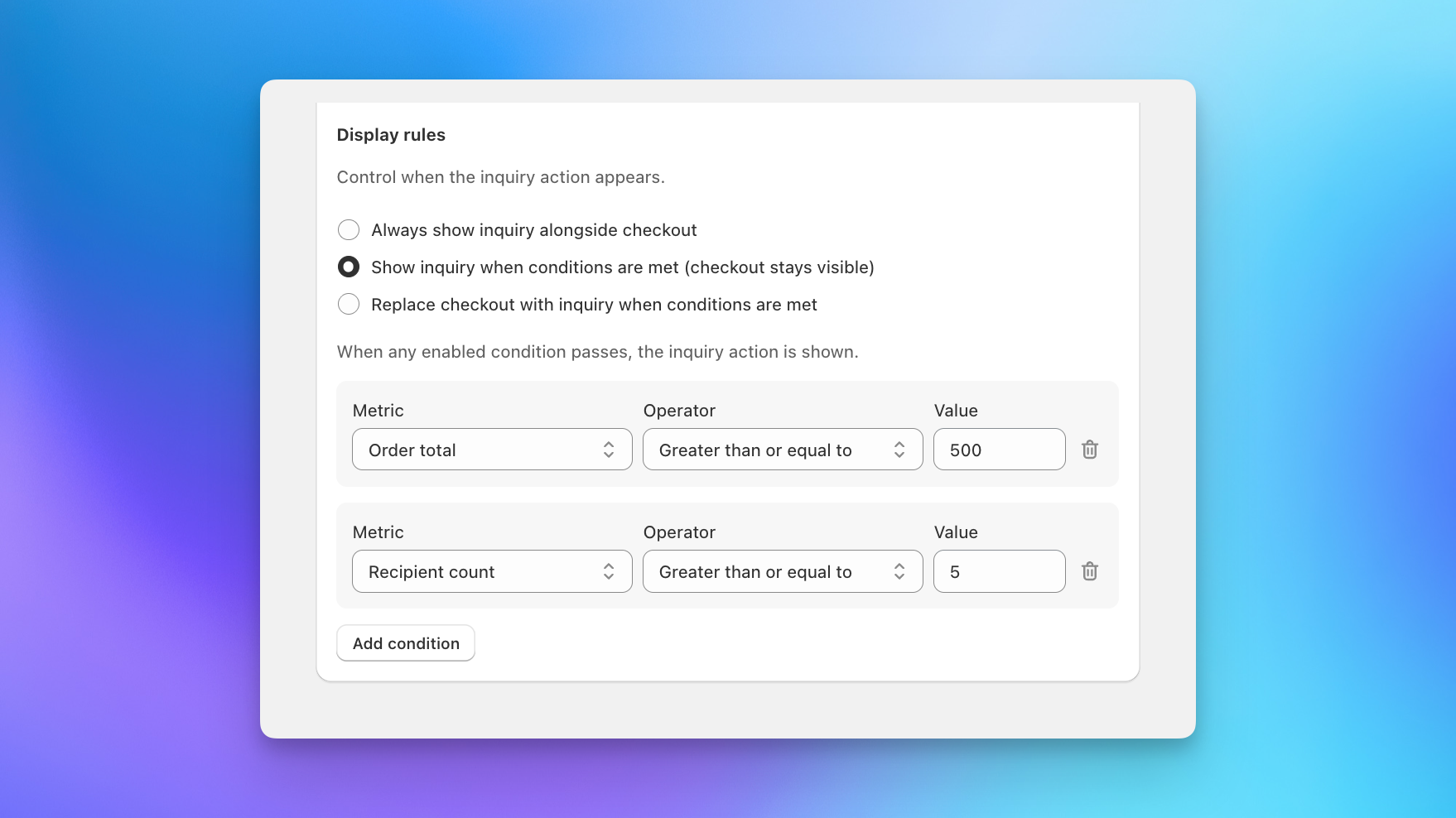
How you use this depends on your business. Some stores will want to require an inquiry for very large orders, say anything over $1,000, so pricing, shipping, and timing get a human review before the order is placed. Others will set a lower threshold and keep it optional: once a cart passes $500 or 10 recipients, a "talk to us" button appears next to checkout, and smaller gifters never see it. And some stores will want it on every cart. Conditions are yours to set, and you can change them at any time.
What the shopper sees
What you receive
The inquiry lands in Send To Many as a Send with recipients, addresses, products and quantities per recipient, gift messages, shipping dates, order notes, any discount code the shopper applied, and the contact details from the modal. Your notification list gets an email. From there it's the same review-and-invoice workflow you use for any Send.
Inquiry settings, like the rest of the checkout, are translatable and can differ per checkout configuration.
Read the full guide: Inquiries from multi-recipient checkout.
Other updates
Itemized tax on aggregate orders. Manual Send presets have a new Itemize tax on aggregate tax line setting. When enabled, the tax line on the aggregate (gifter) order lists each tax rate and its amount rather than showing a single combined amount. Useful for merchants whose accounting or tax reporting needs the detail on the aggregate order itself.
Customer account Send detail page. The Send detail page in Shopify customer accounts has a better layout on mobile, and the orders table now opens an order details modal that shows the delivery date and gift message for each recipient order.
Cart improvements.
- The product picker for each recipient now lets shoppers change the quantity of a selected product directly in the picker.
- You can edit the column headers used for the recipient address import template and spreadsheet upload from the recipient address field settings.
- Address labels in the recipient address modal are now translatable.
- The shipping rate dropdown on each recipient card is always shown (disabled until rates apply), so the layout no longer shifts when rates load. Custom shipping integrations are the exception.
- Cart line item properties are passed through to recipient line items correctly.
Uploads. CSV files saved in a non-UTF-8 encoding, such as some Excel exports, now decode correctly on import.
Date availability rules. Rules for the multi-recipient cart no longer offer product categories as a target; use products or collections. The single-checkout gift widget now correctly applies rules scoped to products in a collection.
Navigating Sends. Opening a Send at a page or step it hasn't reached yet now redirects you to its current step instead of showing an invalid page.
These changes are live now. If you have questions about the new inquiry option or want help choosing display rules for your store, reach out at help@evenbetterapps.com.