Inquiry form updates: date limits, answers on every order, and editable submissions
Three updates to the corporate gifting inquiry form make what a customer submits more useful once the order is underway. You can control which dates they can request, carry their answers onto every recipient order, and fix an answer without asking them to resubmit.
Why this matters
Inquiry forms collect details that matter after the order is placed: when the gifts need to ship, a PO number for the customer's accounts payable team, an event name or cost center. Until now, those answers stayed on the inquiry. Your team copied them onto orders by hand or asked the customer to add a column to their recipient spreadsheet.
Date fields also accepted any date, including dates that had already passed, so you'd follow up to get a date you could actually meet.
How it works
Date limits
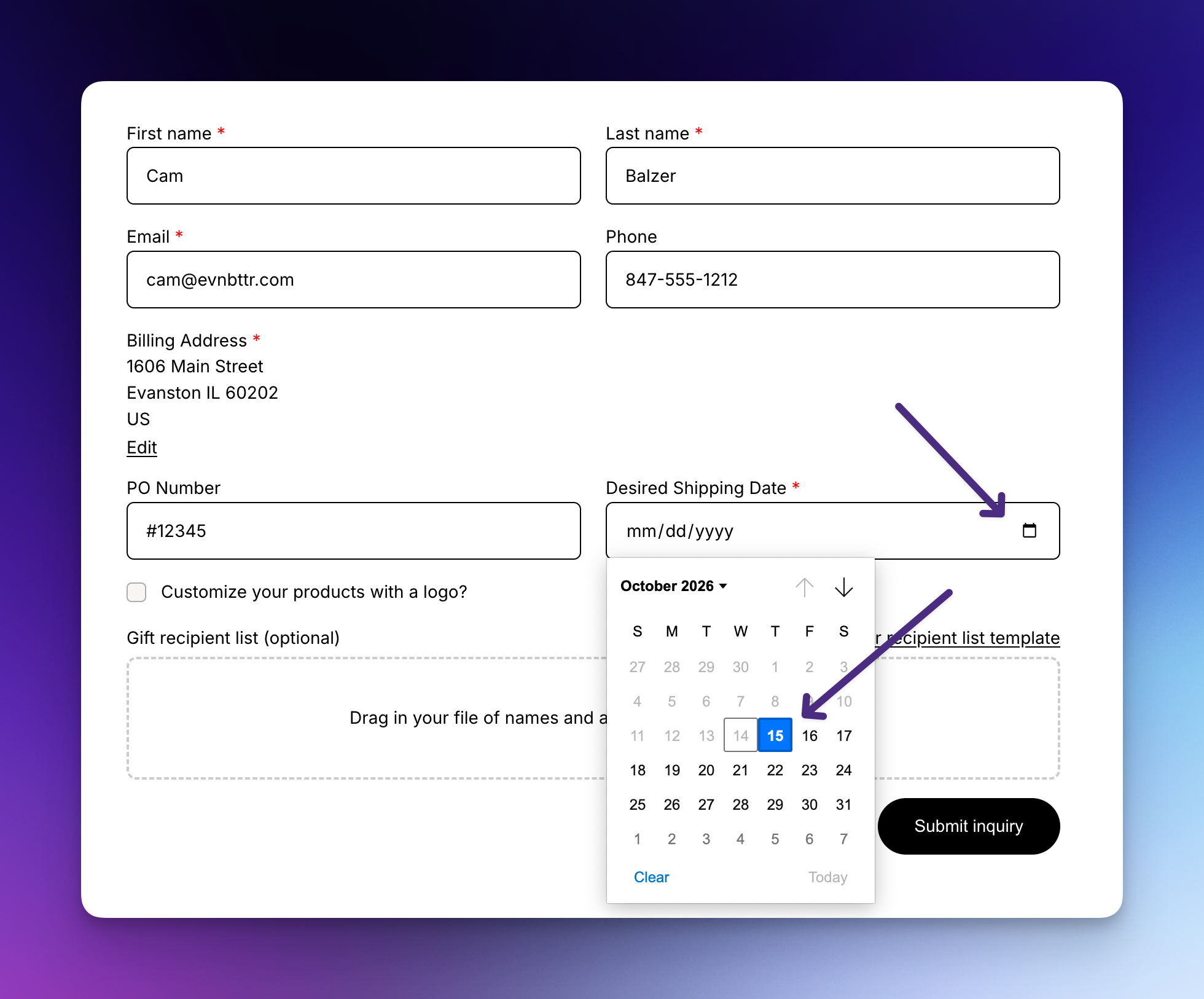
Date fields now have an Earliest date offset and a Latest date offset, counted in days from today. Set the earliest to 1 to rule out same-day requests, or higher to build in lead time. Set the latest to 60 to keep requests within the next two months. Leave either blank for no limit.
On your storefront, dates outside the range are greyed out, so customers can only choose a date you can meet.
Answers on every recipient order
Each form field now has a Child order storage setting. Choose where the answer goes: order notes, order additional details, line item attributes, or order metafields. Enter a key, or for metafields, pick from your store's definitions that match the field's type. Date fields also let you choose the date format saved on the order.
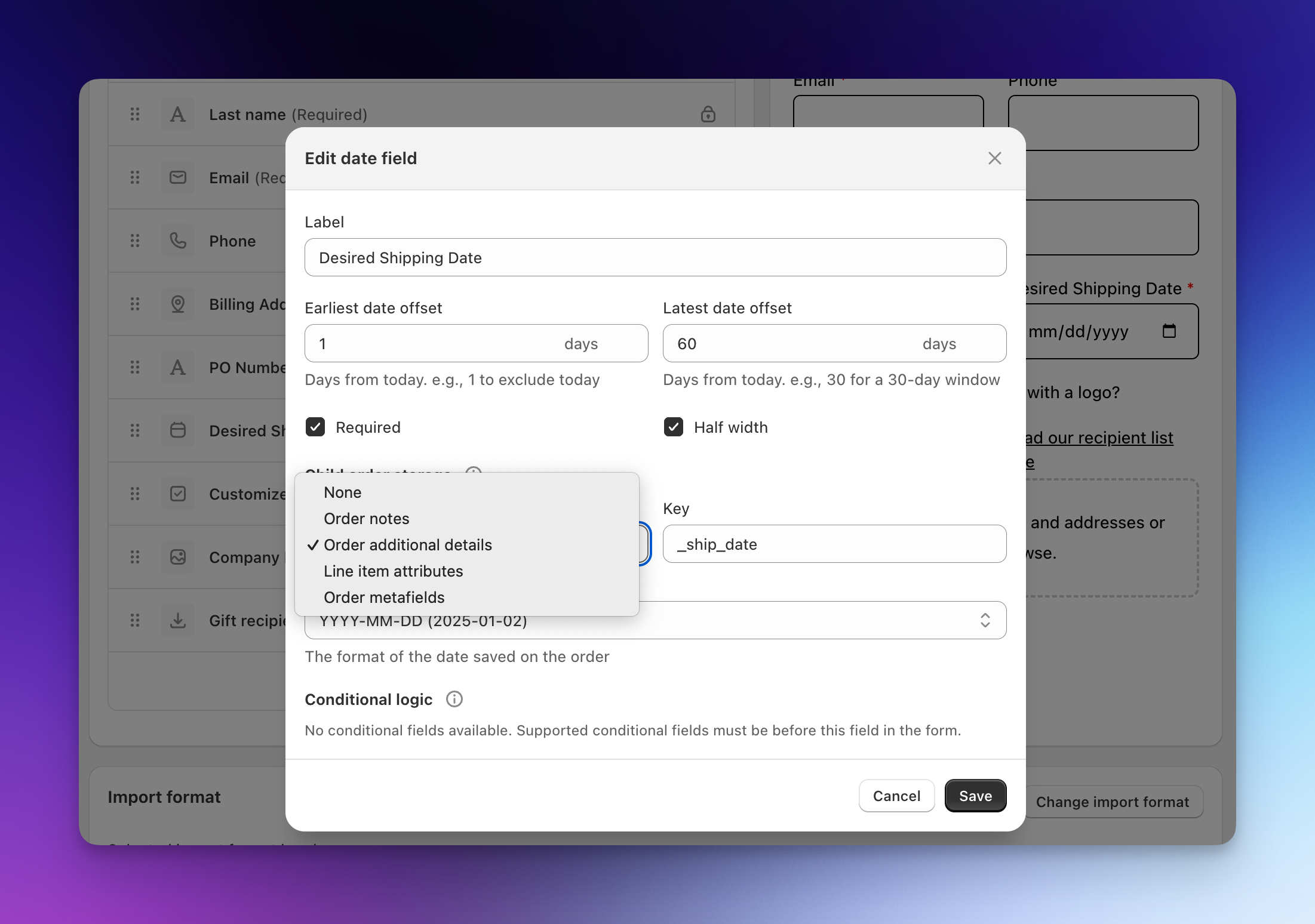
When you build a Send from the inquiry, the answer is used just like a column in the uploaded recipient spreadsheet and added to every recipient order. A desired ship date saved as an additional detail lands on each recipient order, right where your fulfillment team or app already looks for it.
Edit submitted answers
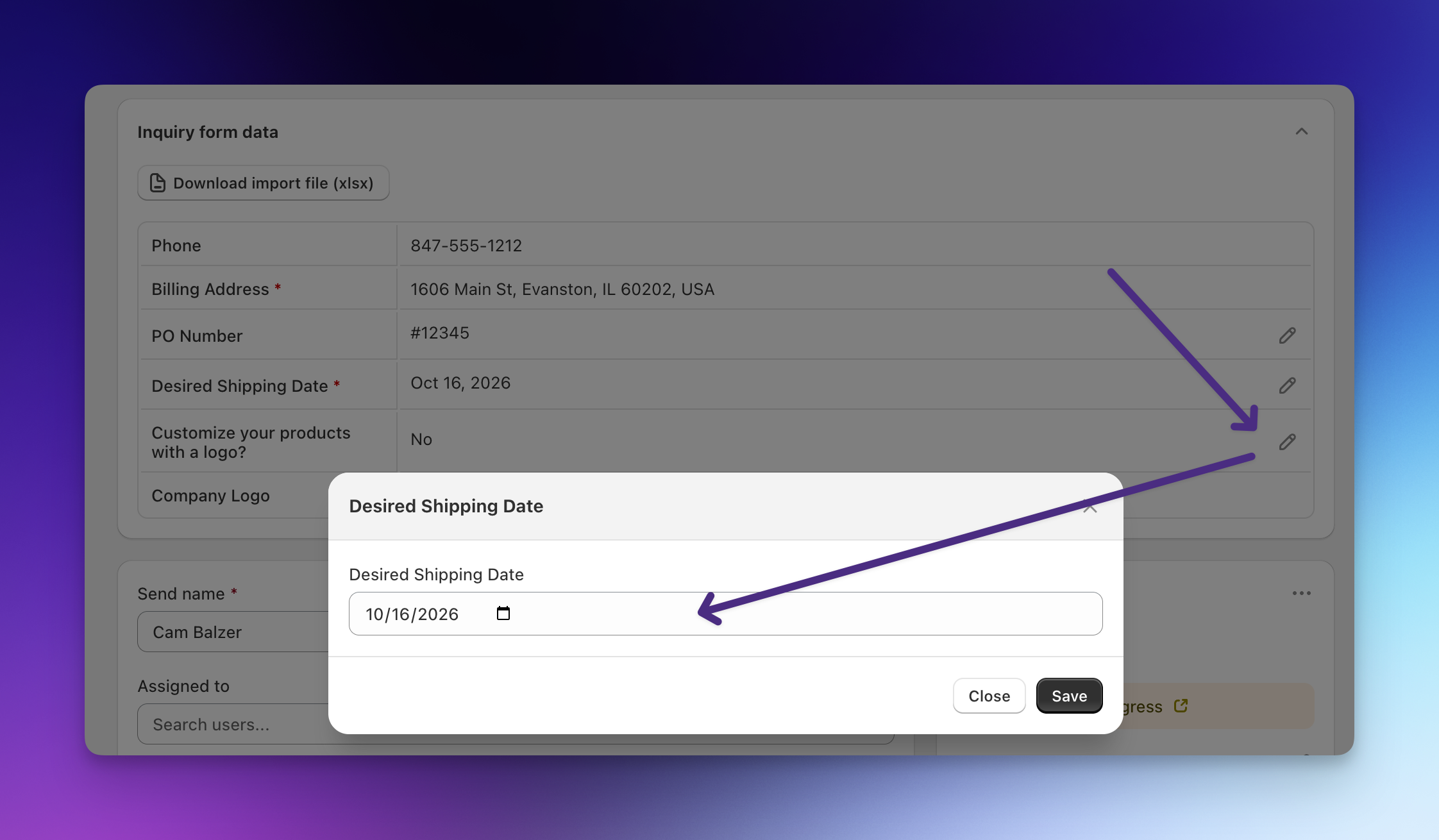
If a customer emails to change their ship date or PO number, you don't need to ask them to resubmit. On step 1 of a Send created from an inquiry, the Inquiry form data card has an edit icon next to text, number, date, and checkbox answers. Update the value, save, and the corrected answer is what goes onto the recipient orders. Make corrections before you import recipients.
Dates show exactly as submitted
Date answers are now saved as the calendar date the customer picked, so they display the same in the admin no matter which time zone your team works in.
Read the full guide: Configure Inquiry Form Fields, Logic & Notifications.
These changes are live now. If you have questions about setting up date limits or saving answers to orders, reach out at help@evenbetterapps.com.