Use a custom product to resolve any unmatched import
You can now drop in a custom product to resolve a match right on Step 2, even when an imported reference doesn't line up with anything in your catalog. No more deleting rows or forcing a workaround when a spreadsheet lists something you don't sell as a standard product.
Resolve unmatched products without leaving Step 2
When a product name, SKU, or ID from your uploaded file doesn't match a catalog product, the Step 2 match card now lets you assign a custom (non-catalog) product to that line item. Open the match card's menu and choose "Use custom product." The app defaults the custom item's name and quantity to the values from your uploaded file, so the row is already filled in. From there you can adjust the name, price, quantity, weight, taxability, and any line item properties. You can also switch a row that's already mapped to a catalog product over to a custom product whenever that's the better fit.
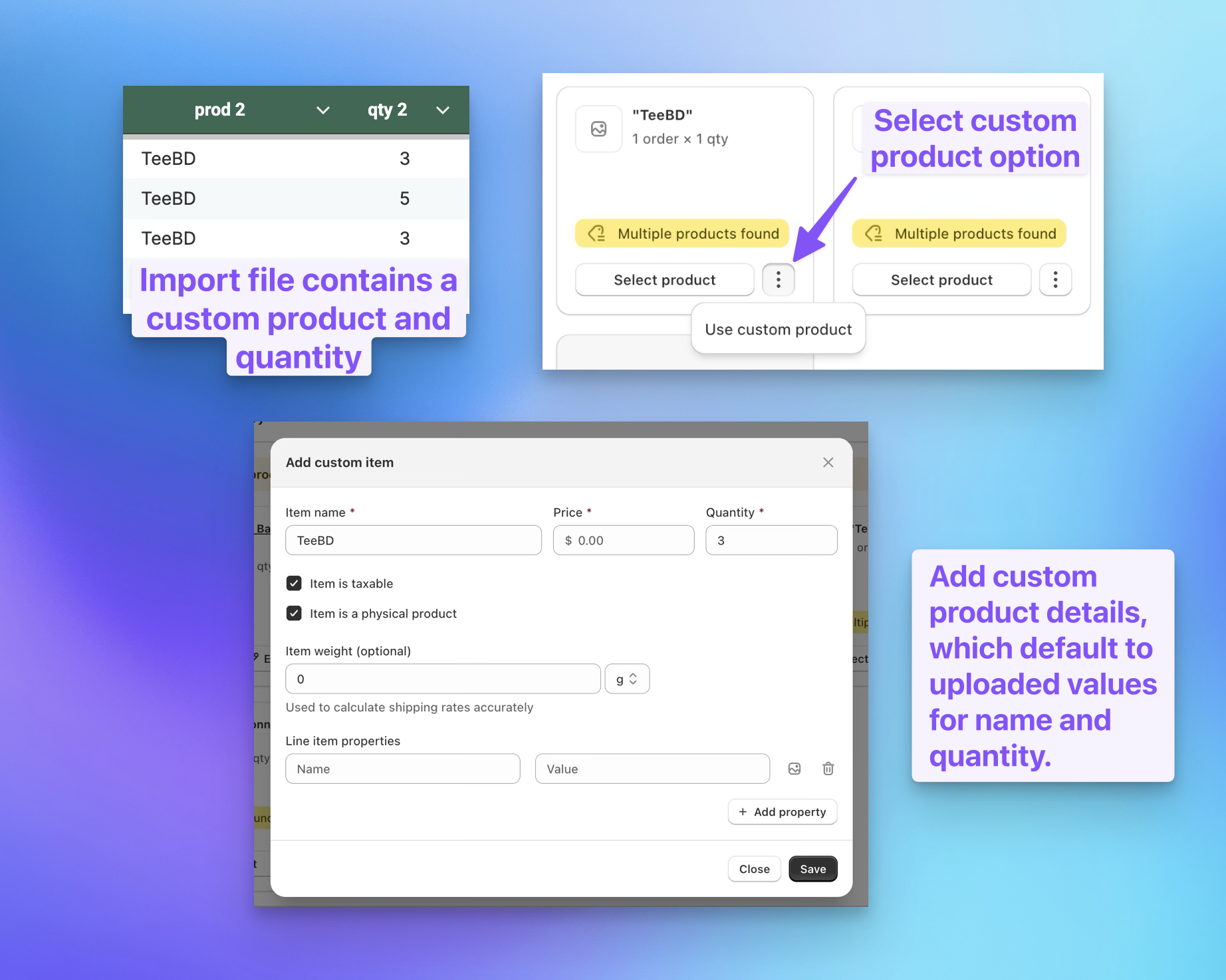
This is handy for one-off items, made-to-order pieces, or anything on a client's list that isn't a permanent SKU. You keep the row, set a custom product, and move on. The match card also shows the original query from your import file with its exact casing, so it's easy to see what came in.
To get started, upload your file as usual and head to Step 2. On any product match card, open the menu and choose "Use custom product." See product columns and custom products and adding a custom product during upload for the full details.
Additional updates
Excel dates are handled automatically. If your import XLSX has date columns, you no longer need to reformat them first. We now detect Excel date serial numbers on import and convert them to Shopify's default date format (YYYY-MM-DD), with no manual cleanup required. If you need dates in another format, you can still format those columns as text before uploading. See preparing your spreadsheet for the details.
Faster assigning during busy periods. The "Unassigned" filter tab on the manage sends table now excludes Storefront Sends, so it surfaces only the unassigned Sends your team actually needs to pick up. That makes it much simpler to work through assignments when volume is high.