Collection Mode: Multi-Recipient Checkout on a Collection Page
Put the multi-recipient cart on a Shopify collection page so gifters pick products and add recipients in one place, without building a cart first. How it works, setup, and limits.
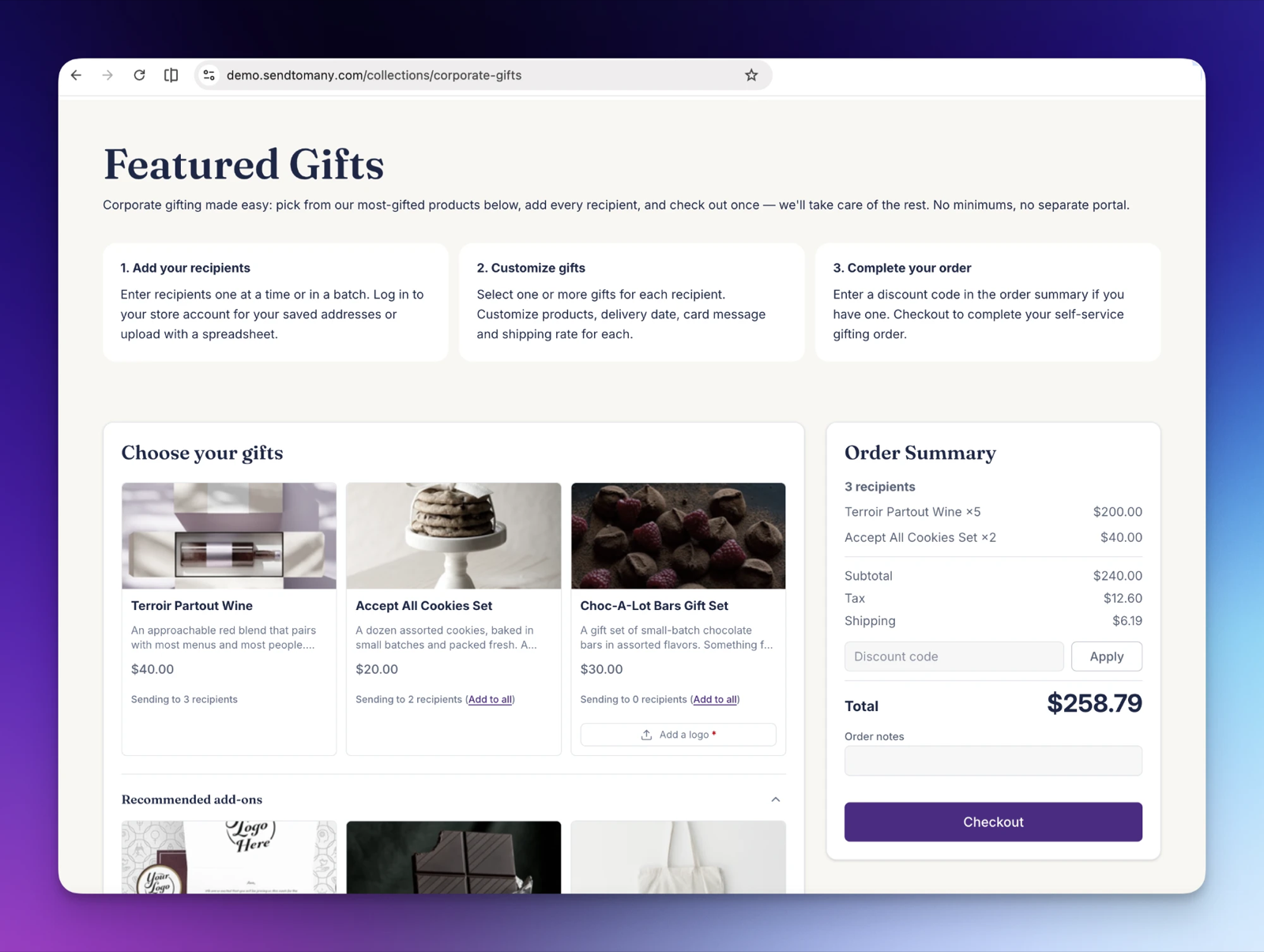
Collection mode is the multi-recipient cart placed on a Shopify collection page instead of your cart page. Gifters see the collection's products in a grid, pick gifts, and add recipients on the same page. They don't need to add anything to the Shopify cart first.
Use it for a dedicated gifting landing page: a holiday collection, a corporate gifting catalog, or a private assortment for one company. Collection mode works best with small collections of 3–6 products. For larger collections, use CSS or a custom script to optimize the experience.
Send To Many's cart app block uses collection mode automatically when it's installed on a collection template. You don't turn it on with a setting.
Why use collection mode
- One page from browsing to checkout. Gifters choose products and build their recipient list together, so they don't bounce between product pages, the cart, and the checkout.
- A curated catalog. You decide exactly which gifts appear by choosing what goes in the collection. Shoppers can't wander into products that don't suit gifting.
- No cart required. The page works for a shopper with an empty cart, which makes it a good destination for emails, ads, and sales follow-ups.
- Filters for larger catalogs. Product tag filters, which only work in collection mode, let shoppers narrow a long list of gifts.
- Fresh gifts for repeat orders. With Send Again, past recipients load into the page and the gifter picks from this year's collection.
How it works
The page has the same layout as the cart page version: products at the top, recipient cards below, and the order summary in the sidebar. What changes is where the products come from.
| Cart mode (cart page or standalone page) | Collection mode (collection page) | |
|---|---|---|
| Products shown | Items in the shopper's Shopify cart | Products in the collection, up to 250 |
| Section heading | Your cart | Choose your gifts |
| Empty Shopify cart | Checkout doesn't load | Works normally |
| New recipient cards | Start with the cart item when there's one item at quantity 1 | Start empty, unless the collection has one product with one variant |
| Product tag filters | Not available | Available |
| Cart page mode toggle | Available | Not used |
For each product, the grid shows how many recipients it's going to, with an Add to all link. Gifters can also add products from inside each recipient card. Everything else works the same way in both modes: recipient fields, gift messages, shipping, discounts, product customization fields, recommended add-ons, and inquiries.
Products appear in the collection's sort order. To change the order, change the collection's sort in Shopify.
Set up collection mode
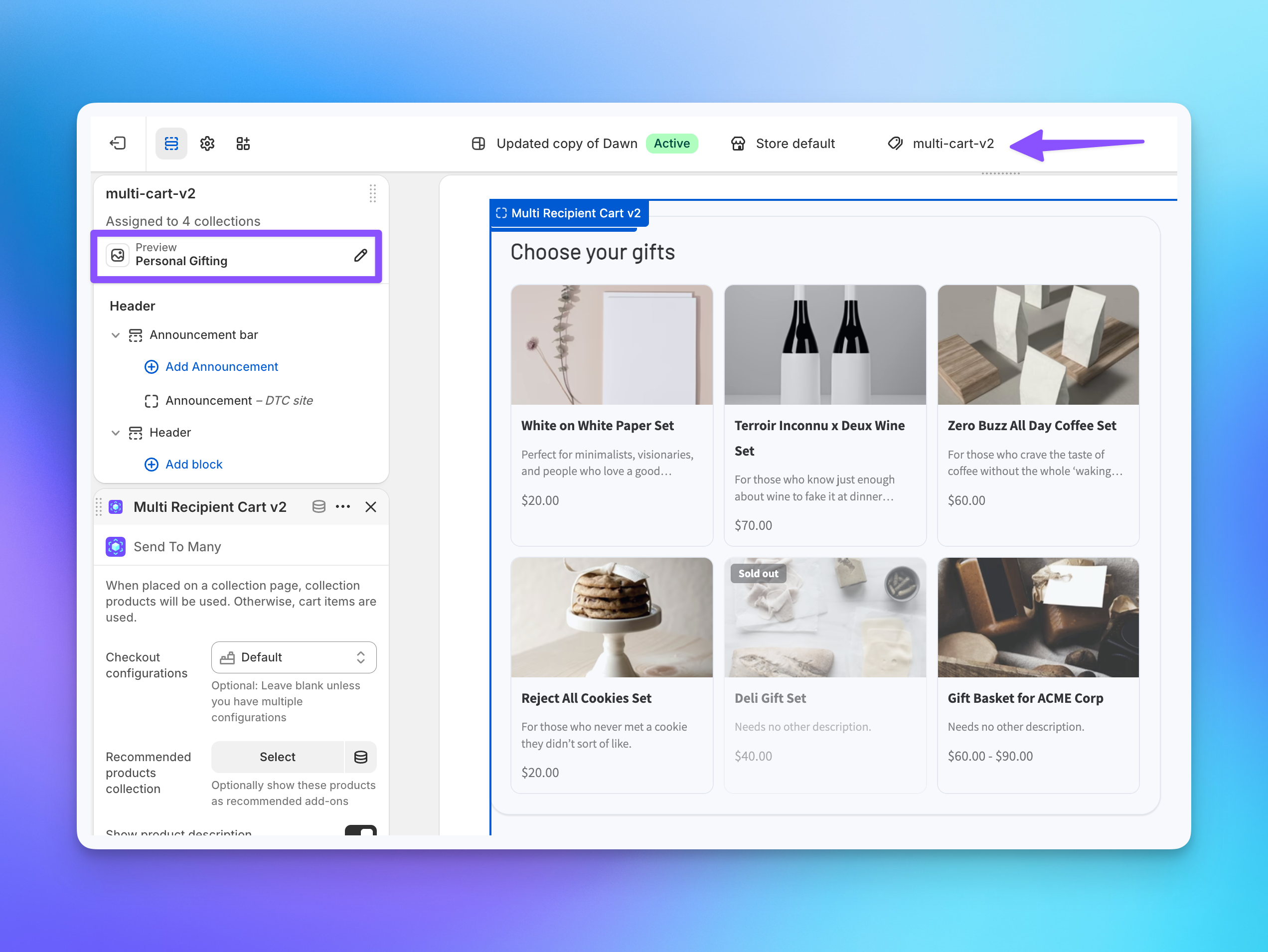
Setup takes a collection, a collection template with the cart block on it, and a link between the two. Using a separate template keeps your other collection pages unchanged.
- Build the collection. In Shopify, go to Products > Collections and create a collection with the gifts you want to offer. Manual and automated collections both work.
- Create a collection template. In Online Store > Themes > Customize, open the template menu at the top, choose Collections, then Create template. Give it a name like
gifting. - Add the cart block. In the new template, add the Multi Recipient Cart v2 app block. Remove your theme's product grid section from this template so products don't appear twice.
- Configure the block. The block settings work the same as on the cart page. If you run multiple checkout configurations, pick the one this page should use. Click Save.
- Assign the template. Back in Products > Collections, open your collection and set Theme template to the template you created. Click Save.
- Test it. Visit the collection's URL (for example,
/collections/holiday-gifts) with an empty cart. You should see the products under Choose your gifts, with recipient cards below.
Optional: Add product tag filters
For a larger collection, add filter buttons so shoppers can narrow the list. In your checkout settings, open the Advanced tab, find Product tag filters, and enter Shopify product tags that match your products exactly. Shoppers see a button for each tag above the products and in each recipient's product picker. See product tag filters.
Optional: Make it private
To offer a collection to one company only, combine collection mode with a dedicated checkout configuration and market visibility rules. The tutorial Build a private multi-recipient checkout for corporate gifting walks through it.
Limitations
- 250 products at most. The page loads the first 250 products in the collection's sort order. Anything past that doesn't appear. Split a larger catalog into several collections.
- The Shopify cart is ignored. Items already in the shopper's cart don't appear on the page and aren't part of the order. Personalization saved on a cart item by another app, such as engraving text added on a product page, doesn't carry over. Use product customization fields to collect those details on the page instead.
- Recipients start without products. Shoppers add gifts to each recipient or use Add to all. The one exception: a collection with a single product that has a single variant is preselected on every new recipient.
- Send Again drops past products. When a past Send reloads into a collection page, recipients and addresses come back without last year's products. That's by design, so gifters choose from what you're offering now.
- Cart-only settings don't apply. Cart page mode and Always include all cart items on the first recipient have no effect on a collection page.
- Your theme's collection features don't run inside the block. Theme sorting dropdowns, storefront filters, and quick-add buttons belong to the theme's own product grid, not the cart. Use product tag filters for filtering.
Related
- Install the multi-recipient cart in your theme: every block setting explained
- Advanced checkout settings: product tag filters and cart mode settings
- Send Again for repeat gifters: reload past recipients into a holiday collection
- Win back last year's holiday gifters: a campaign that sends gifters to a collection page
Still have a question?
Ask Manny, the Send To Many bot, about “Collection Mode: Multi-Recipient Checkout on a Collection Page” or anything else in the docs.