Hold Recipient Orders Until Their Ship Date with Shopify Flow
Use two ready-made Shopify Flow workflows to hold Send To Many recipient orders when they're created and release them automatically on the gifter's chosen ship date.
When a gifter picks a ship date in your multi-recipient checkout, Send To Many records that date on every recipient order. It doesn't stop the orders from being fulfilled early. Here's a method for using two Shopify Flow workflows to manage when these orders show up as ready for fulfillment:
- Hold: puts a fulfillment hold on each dated recipient order as soon as it's created.
- Release: removes those holds on the morning of each order's ship date, so the orders appear in your fulfillment queue that day.
Orders without a ship date aren't held and ship as usual.
We provide these workflows as a courtesy, as a starting point for your own automation. Every store's setup is different, so you're responsible for testing them on your store and confirming they work as expected before relying on them for live orders.
Before You Start
These workflows are for stores that fulfill directly in Shopify. If a 3PL or fulfillment app pulls your orders, see Things to know below first.
The workflows read the ship date from the order's shipping_date additional detail:
- Multi-recipient checkout: in your checkout configuration's Shipping & delivery settings, turn on Shipping date and save it as an Additional detail with the key
shipping_date. - Spreadsheet uploads: include a ship date column and map it to an Additional detail with the key
shipping_date.
If you use a different key, change it in the hold workflow's condition and tag steps.
The workflows expect dates in Y-m-d format (for example, 2026-12-01). If your dates use another format, see Using a different date format.
How It Works
- A gifter checks out with a ship date of, for example, December 1.
- Send To Many creates the recipient orders with a
shipping_dateattribute of2026-12-01. - The hold workflow sees each new recipient order, tags it with the ship date, and places a fulfillment hold on it.
- Every morning, the release workflow runs every 15 minutes between 6 and 9am. On December 1, it finds held orders tagged with that day's date, releases the ship-date hold, and tags each order
ship-hold-released. - The orders show as unfulfilled in your Orders list and fulfillment apps, ready to ship.
The release workflow only removes the hold the hold workflow placed. Holds for fraud review or other reasons stay in place.
Step 1: Import the Hold Workflow
- Download the hold workflow (.flow).
- In Shopify admin, open Flow, click Import, and select the file.
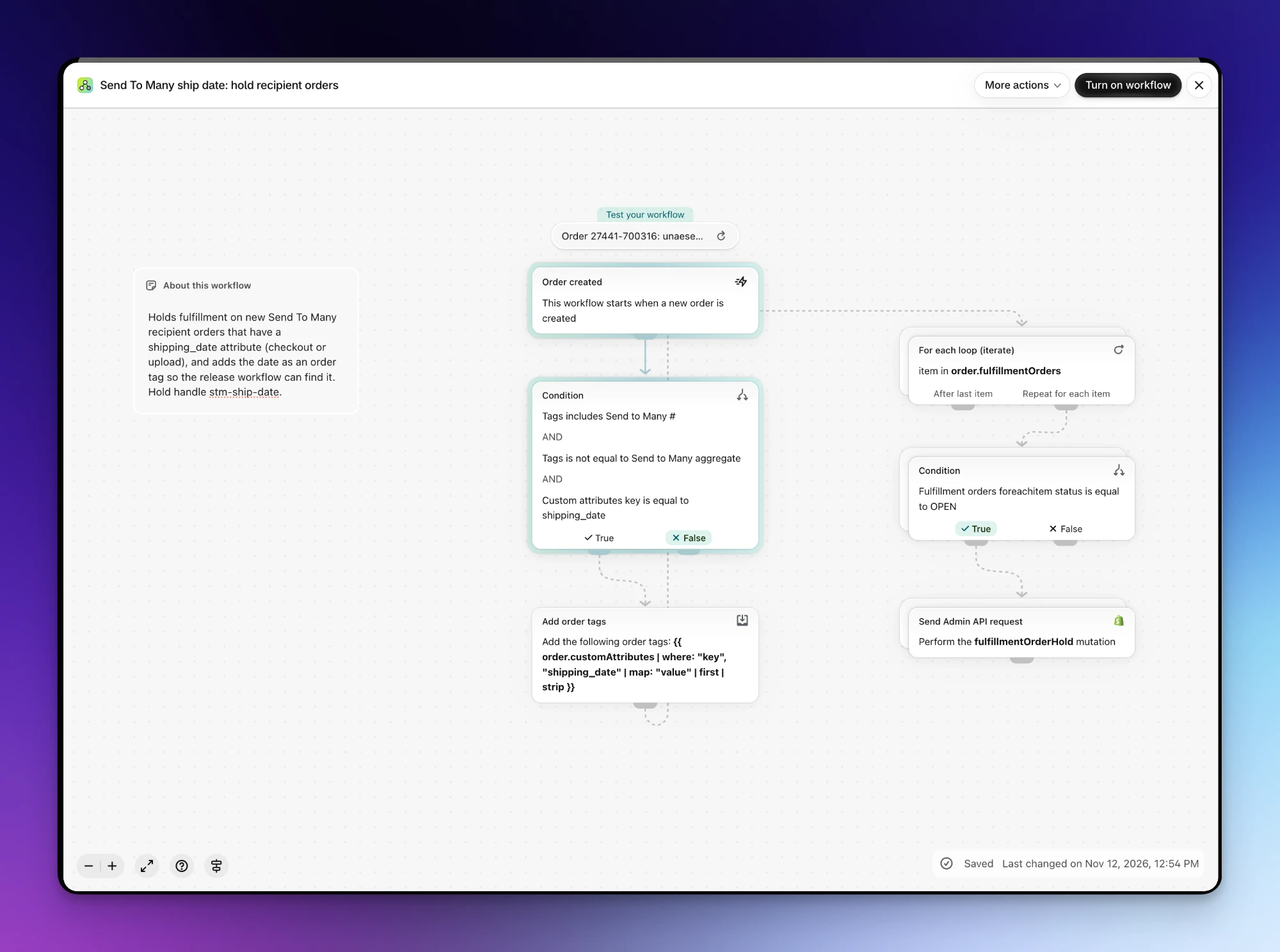
- Review the condition. It checks that the order:
- has a
Send to Many #tag (a Send To Many order) - isn't tagged
Send to Many aggregate(not the gifter order) - has a
shipping_dateattribute (a ship date was chosen)
- has a
- If your shipping date uses a different key, replace
shipping_datein the condition and in the Add order tags step. - Click Turn on workflow.
For each matching order, the workflow adds the ship date as an order tag (for example, 2026-12-01), then places a hold on every open fulfillment order with the reason Other and a note such as "Send To Many ship date 2026-12-01".
Step 2: Import the Release Workflow
- Download the release workflow (.flow).
- In Flow, click Import and select the file.
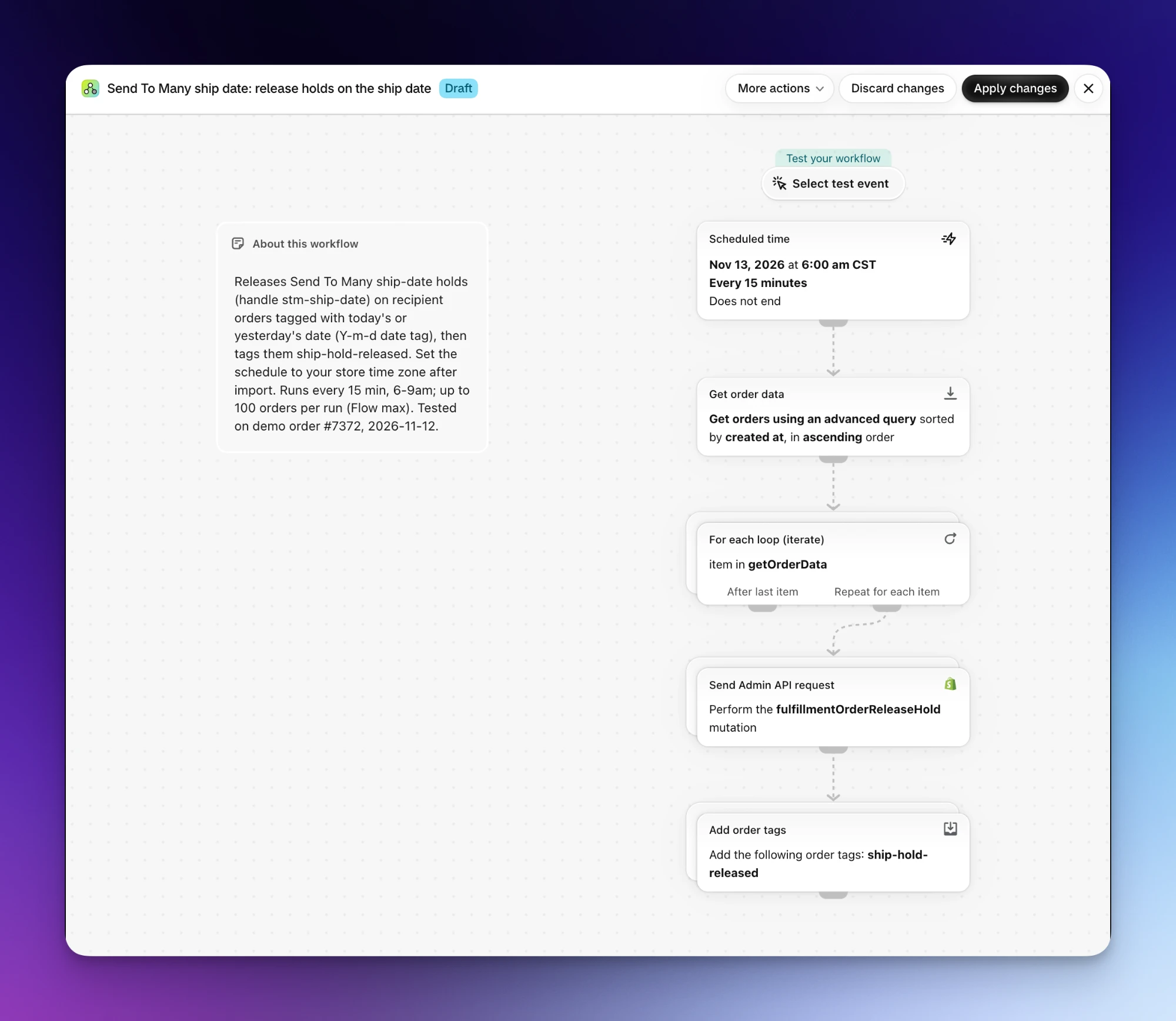
- Open the Scheduled time trigger and set your store's time zone. Keep it running every 15 minutes during a morning window, such as 6 to 9am, before your team starts fulfilling.
- Click Turn on workflow.
Each run looks for orders that are on hold, tagged with today's date or yesterday's (in case a morning was missed), and not yet tagged ship-hold-released. For each one, it releases the ship-date hold and adds the ship-hold-released tag, so the next run skips it.
Using a Different Date Format
The hold workflow tags each order with the shipping_date value exactly as it appears, and the release workflow looks for tags matching today's date. Out of the box, it builds today's date as Y-m-d.
If your dates use another format, open the release workflow's Get order data step and change both %Y-%m-%d patterns in the query to match:
| Your dates look like | Use this pattern |
|---|---|
| 2026-12-01 | %Y-%m-%d (default) |
| 12/01/2026 | %m/%d/%Y |
| 01/12/2026 | %d/%m/%Y |
The date has to match exactly, including leading zeros. If a spreadsheet has 12/1/2026 but the pattern produces 12/01/2026, the order won't be released. Keep the dates in your uploads consistently formatted.
Step 3: Test with One Order
- Place a multi-recipient checkout order with one recipient and the earliest ship date available.
- Open the recipient order in Shopify admin. Within a minute, its fulfillment status should show On hold, with the ship date in the hold note.
- On the ship date, after the first scheduled run, check the order again. It should show Unfulfilled and have the
ship-hold-releasedtag.
If an order isn't held, check the hold workflow's run history in Flow, and confirm the order has the shipping_date attribute and a Send to Many # tag. If it's held but not released, check that its date tag matches the release workflow's date pattern.
Things to Know
- Up to 100 orders per run. That's the most a Flow workflow can look up at once. At four runs an hour, a three-hour window releases up to 1,200 orders. For larger ship dates, start the window earlier or run more often.
- Fulfillment apps and 3PLs need the hold first. If an app or 3PL pulls new orders the moment they're created, it may receive an order before the hold lands. Check whether your provider has its own hold or ship-date rule that reads the
shipping_dateattribute. - Your other holds stay put. The release workflow only removes holds named
stm-ship-date. Orders held for fraud review or other reasons stay held. - Gifter orders aren't held. The hold workflow skips orders tagged
Send to Many aggregate. - Changing a ship date. If you change an order's date, also change its date tag so the release workflow finds it on the new day. Or release the hold by hand in Shopify admin.
Next Steps
Still have a question?
Ask Manny, the Send To Many bot, about “Hold Recipient Orders Until Their Ship Date with Shopify Flow” or anything else in the docs.